Redwood: Search Attributes and Filters for Project Details
Use new search attributes and filters in the line-level project details to help you manage project attributes on an order.
Get these benefits
- Quickly locate and filter project-specific order lines using multiple criteria, enabling faster identification and more targeted updates.
- Streamline bulk updates across multiple order lines to reduce manual effort.
- Easily update and apply line-level project attributes across selected lines using filtered results and the editing drawer.
How it works
Project details for the sales order can be maintained at the order header or line level.
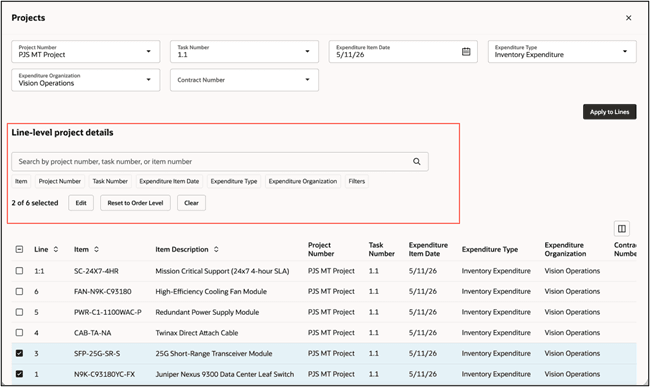
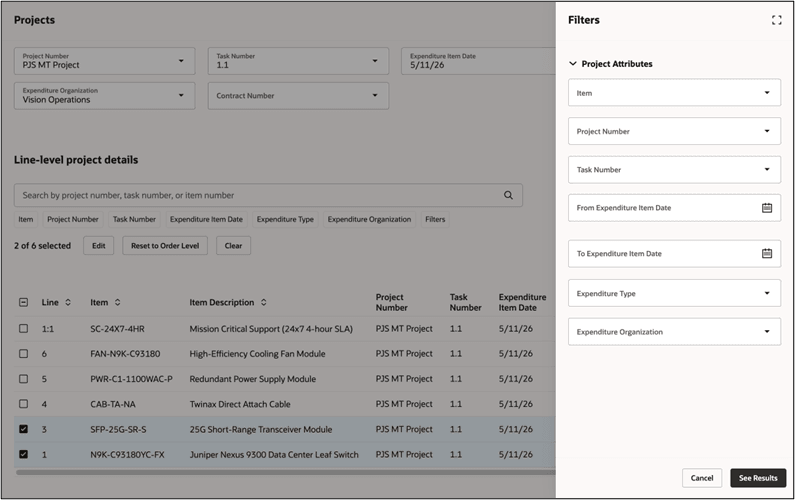
Line-level attributes updates can be performed for one or more order lines. Search or filter based on attributes such as item number, project number, task number, expenditure types, expenditure item dates, or expenditure organization and update the line level attributes for one or more order lines. Multiple filters can be used together to narrow line results for updating.
Select one or more lines in the line-level project details, select Edit and modify the project attributes, Reset to Order Level or Clear and the requested changes will be applicable to the selected lines.
Here’s how you search Line-level project details.
Here are the line-level search filters.
Status Based Project Details Entry
- Draft Orders - Add or update project details while the sales order is still in draft status.
- After Order Submission
- Project details can be captured at the order header level.
- Submitted order lines become read-only — project details on those lines can’t be changed.
- Updating Lines After Submission
- Existing submitted lines can’t be edited.
- If you update project details at the header and select Apply to Lines, the changes will only apply to new lines that haven’t been submitted yet.
- Revisions - Project details can only be added to new revision lines, not to previously submitted lines.
Steps to enable and configure
If you want to use the Redwood: Add Project Details to Sales feature, then you must opt in to its parent Project-Driven Supply Chain feature in the Manufacturing and Supply Chain Materials Management offering. If you already opted in to the parent, you don't have to opt in again.
To opt in to Project-Driven Supply Chain, Go to the Setup and Maintenance work area > Manufacturing and Supply Chain Materials Management offering > Project-Driven Supply Chain functional area and enable Project-Driven Supply Chain in the feature opt in.
Once you have enabled this, the Project Details option will be available in the actions list once you have entered the business unit on your order.
Tips and considerations
This release scope is limited to additional line-level search and filtering and doesn't cover the broader projects feature. Additional information for Order Management with Projects Integration for Redwood can be found in the 26B What’s New.
Key resources
Overview of Setting Up Projects in Order Management
What’s New – Redwood: Add Project Details to Sales Orders
Access requirements
No new privileges were added for this feature.