Redwood: Add Project Details to Sales Orders
Use a redesigned page to add project details to your sales order, such as project, task, expenditure type, expenditure organization, expenditure item date, funding source, work type, contract number, or your own custom attributes. Automatically cascade project details from the order header to default values on the order line. Select more than one order line and update project details in a single action.
Realize these benefits:
- Make order entry more efficient. Reduce the time you need to enter project details on the order header and order lines. Update project details across more than one order line in a single action. Reduce manual work and data entry errors.
- Make your projects more visible. Save project details on each sales order so you can improve tracking, reporting, and downstream fulfillment.
- Allocate and control inventory more effectively. Fulfill sales orders that reference the same project from a single, designated inventory.
- Use a more flexible shipping strategy. Fulfill sales orders from project inventory or from common inventory according to business rules that you set up.
- Automate how you reserve inventory. Use order orchestration to automatically reserve quantity from project inventory, common inventory, or project and common inventory so you can optimize fulfillment and meet your project and supply strategies.
Try It
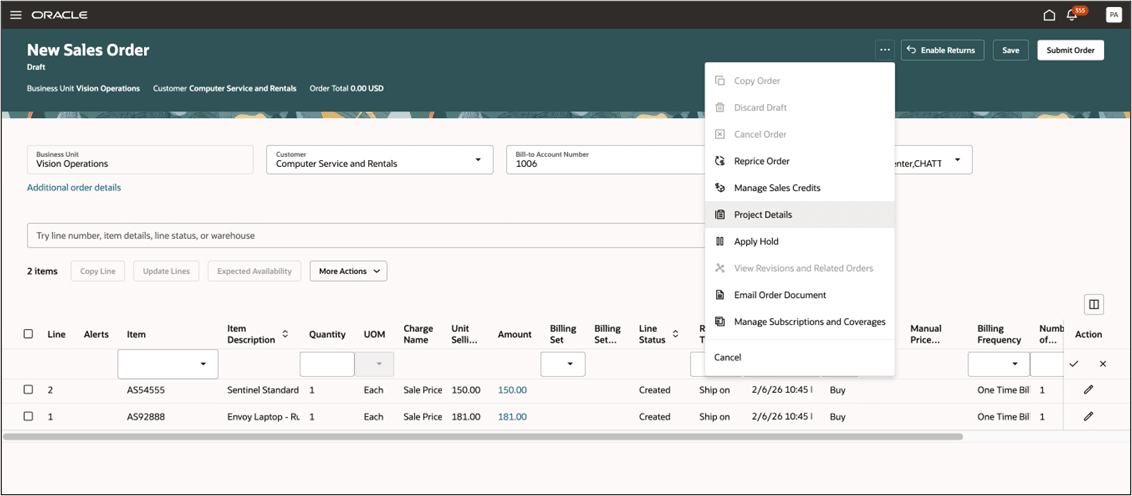
To start, create a sales order, set the business unit and customer on the order header, then click More Actions > Project Details:
Select project details for the order header:
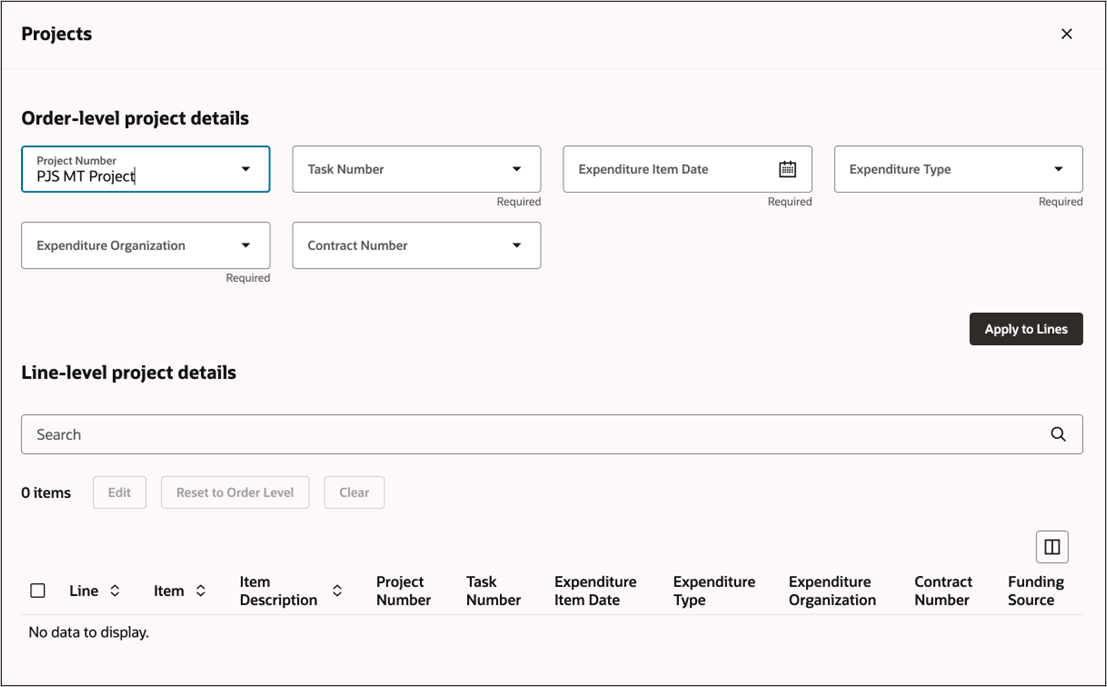
Select the required attributes:
- Project. Select a project from Oracle Project Management, filtered according to the order's business unit and the warehouse's business unit.
- Task. Select a task, filtered to the project.
- Expenditure Item Date. Select a date, filtered to when the project is active.
- Expenditure Type. Select a type, filtered to the project and task.
- Expenditure Organization. Select an organization, filtered to the project and task.
Select optional attributes. If you want to use them, you must set up Oracle Grants Management so it supports your project:
- Contract Number
- Funding Source
As an option, click Apply to Lines and Order Management will cascade your selections to all order lines that are currently on the order. If you add a new line or update these header attributes at some later time and want to cascade, then you must click Apply to Lines again.
You can also view, edit and set project details on each order line:
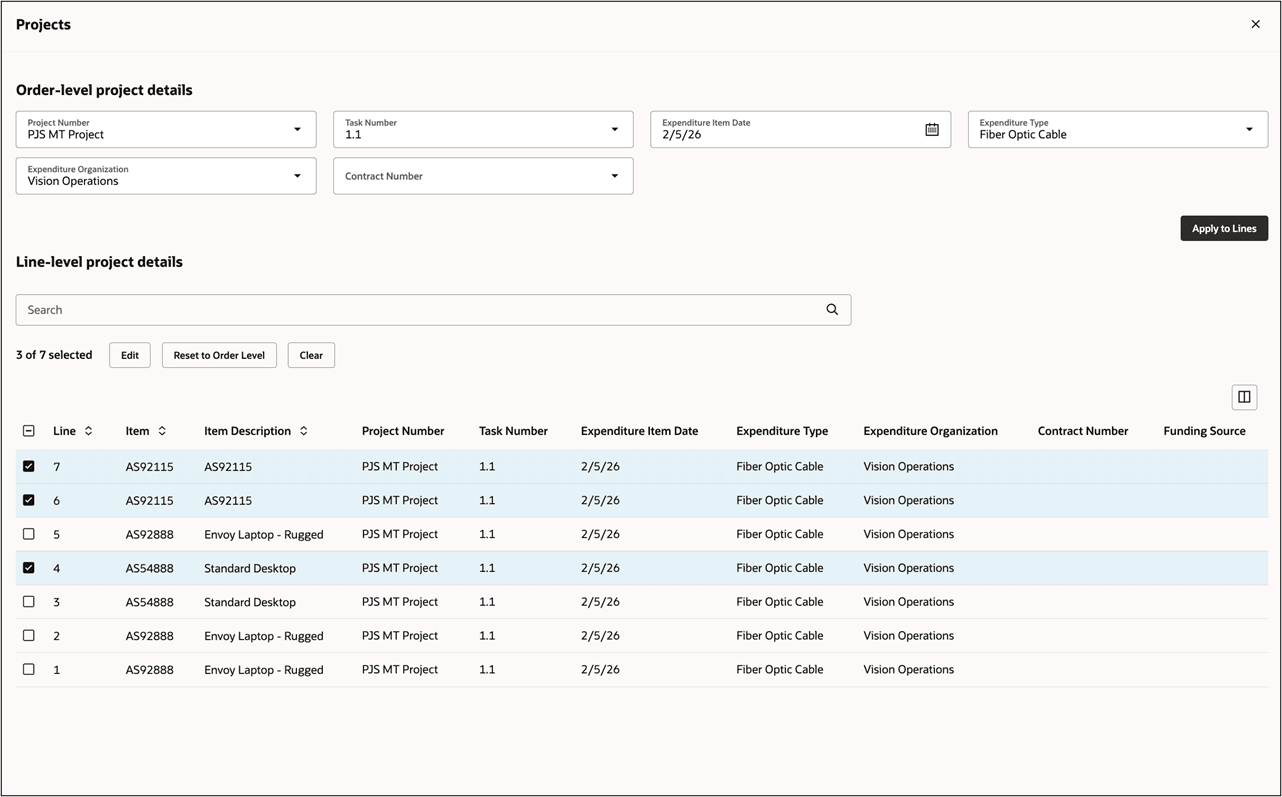
Select the lines that you want to edit, then click Edit. Next, edit or add the project details:
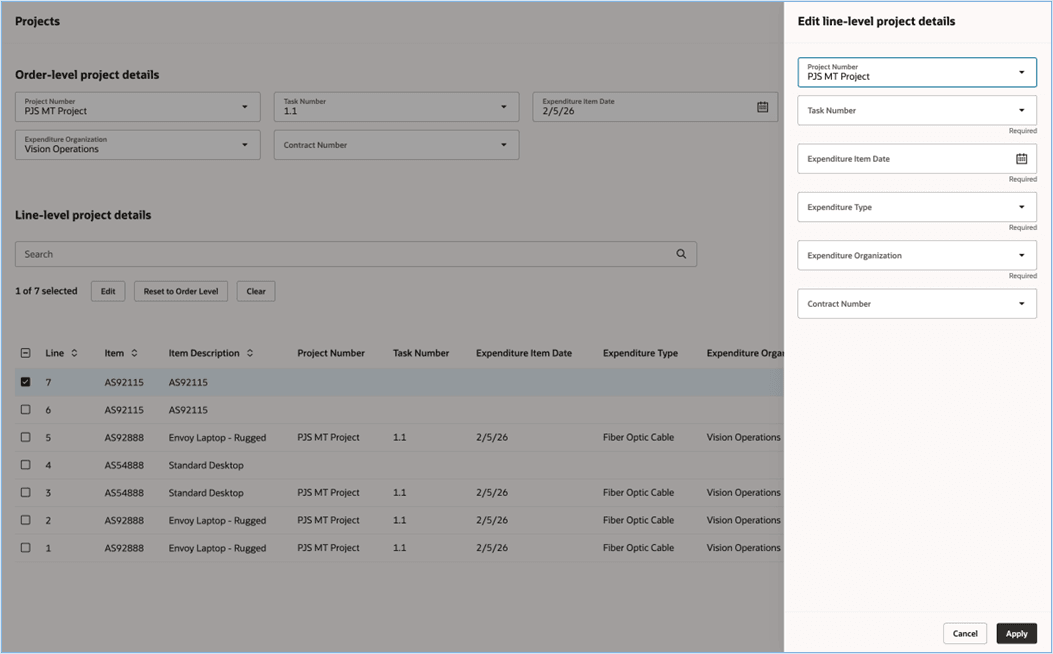
If you select:
- One line. Order Management displays the project details for that line. Make your changes, then click Apply to apply them to the line that you selected.
- More than one line. Order Management doesn't display any project details. Set your values, then click Apply to apply them to all the lines that you selected.
Enter and Update Project Details
The project details that you can set depend on the order's status:
|
Status |
You Can |
|
Draft |
|
|
Submitted |
|
|
Update After Submit |
|
|
Revise |
You can add project details only to new lines, not to lines that you already submitted. |
Steps to enable and configure
If you want to use the Redwood: Add Project Details to Sales feature, then you must opt in to its parent Project-Driven Supply Chain feature in the Manufacturing and Supply Chain Materials Management offering. If you already opted in to the parent, you don't have to opt in again.
To opt in to Project-Driven Supply Chain, Go to the Setup and Maintenance work area > Manufacturing and Supply Chain Materials Management offering > Project-Driven Supply Chain functional area and enable Project-Driven Supply Chain in the feature opt in.
Once you have enabled this, the Project Details option will be available in the actions list once you have entered the business unit on your order.
Key resources
Overview of Setting Up Projects in Order Management
Access requirements
No new privileges were added for this feature.