Redwood: Use More Ways to Set Up Shipping Charges
Use more than one way to set up your shipping charges. Apply the shipping charge according to the item, the item and unit of measure, or the shipping method. Include some other shipping charge list or a price list to set the rule.
Realize these benefits:
- Work more efficiently. Optimize your shipping charges setup.
- Do mass actions.
To streamline your pricing setups, you can now define shipping charge rules that are specific to only a shipping method or to a specific unit of measure and shipping method. By defining a charge based on shipping method, you can create charges that differ by shipping method, regardless of the item or the unit of measure it’s sold in. If you happen to sell in only a few UOMs (for example Each and 6 pack), then you can also define a shipping charge that applies to any 6-pack item. If your shipping charges need to be more granular, then you can set up the shipping charge based on item and UOM.
Defining Shipping Charges
| Shipping Charge | Shipping Method Based | UOM Based | Item and UOM Based |
|---|---|---|---|
| $2 | 2 Day Air | ||
| $10 | 6 Pack – 2 Day Air | ||
| $14 | 6 Pack – Overnight | ||
| $15 | AS54888 Each – 2 Day Air | ||
| $20 | AS54888 Each – Overnight |
In this example, any items in any UOM have a $2 shipping charge based on the shipping method 2 Day Air. If an item is ordered with the UOM = 6 Pack, then the shipping charge is applied according to the UOM-based rule. Any item ordered with a UOM = 6 Pack with the shipping method = 2 Day Air will have a $10 shipping charge. There will be a $14 shipping charge for any 6 Pack item with the shipping method = Overnight. If there’s a more specific rule at the level of item and UOM, then the charges at that level apply. Therefore, there will be a shipping charge of $15 for the item AS54888 ordered in Each and with the 2 Day Air shipping method, For the same item when the shipping method is Overnight the shipping charge is $20
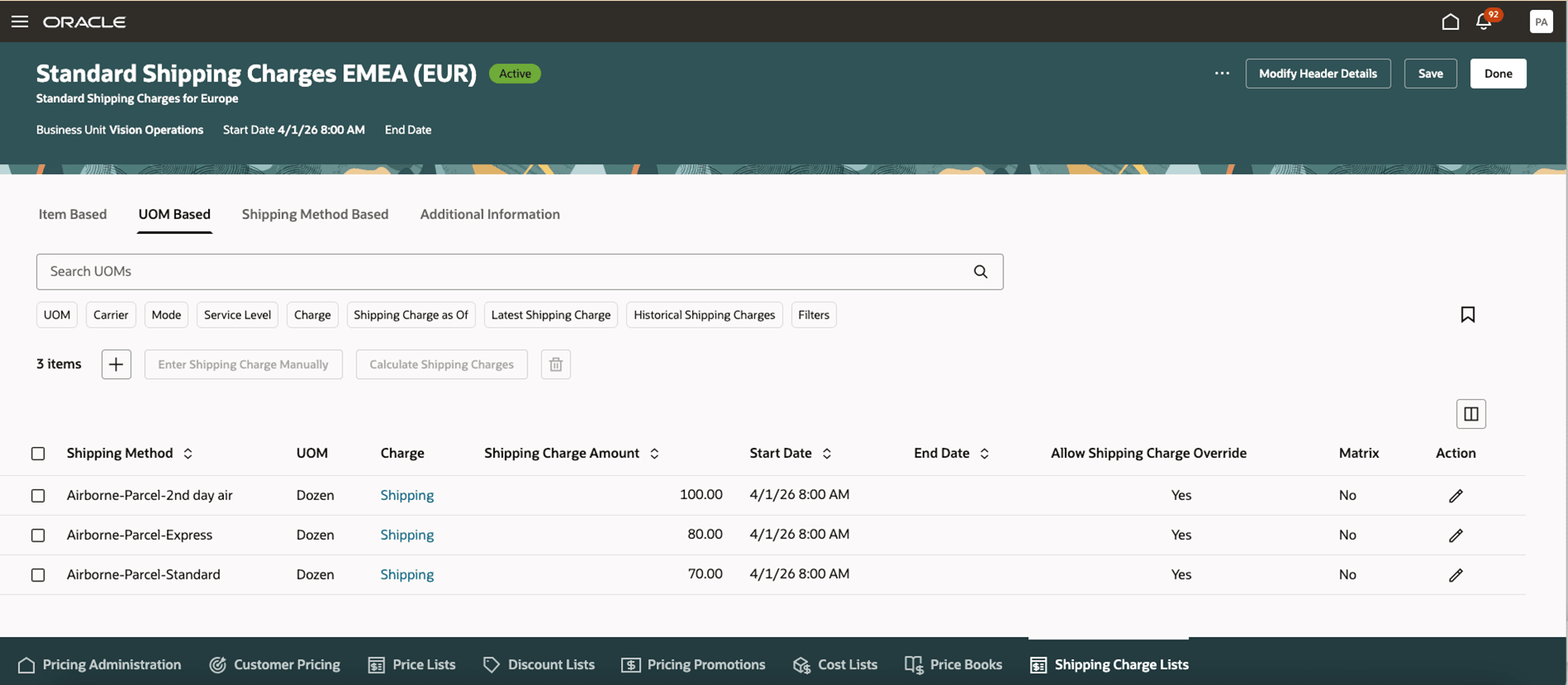
Shipping Charges Based on UOM
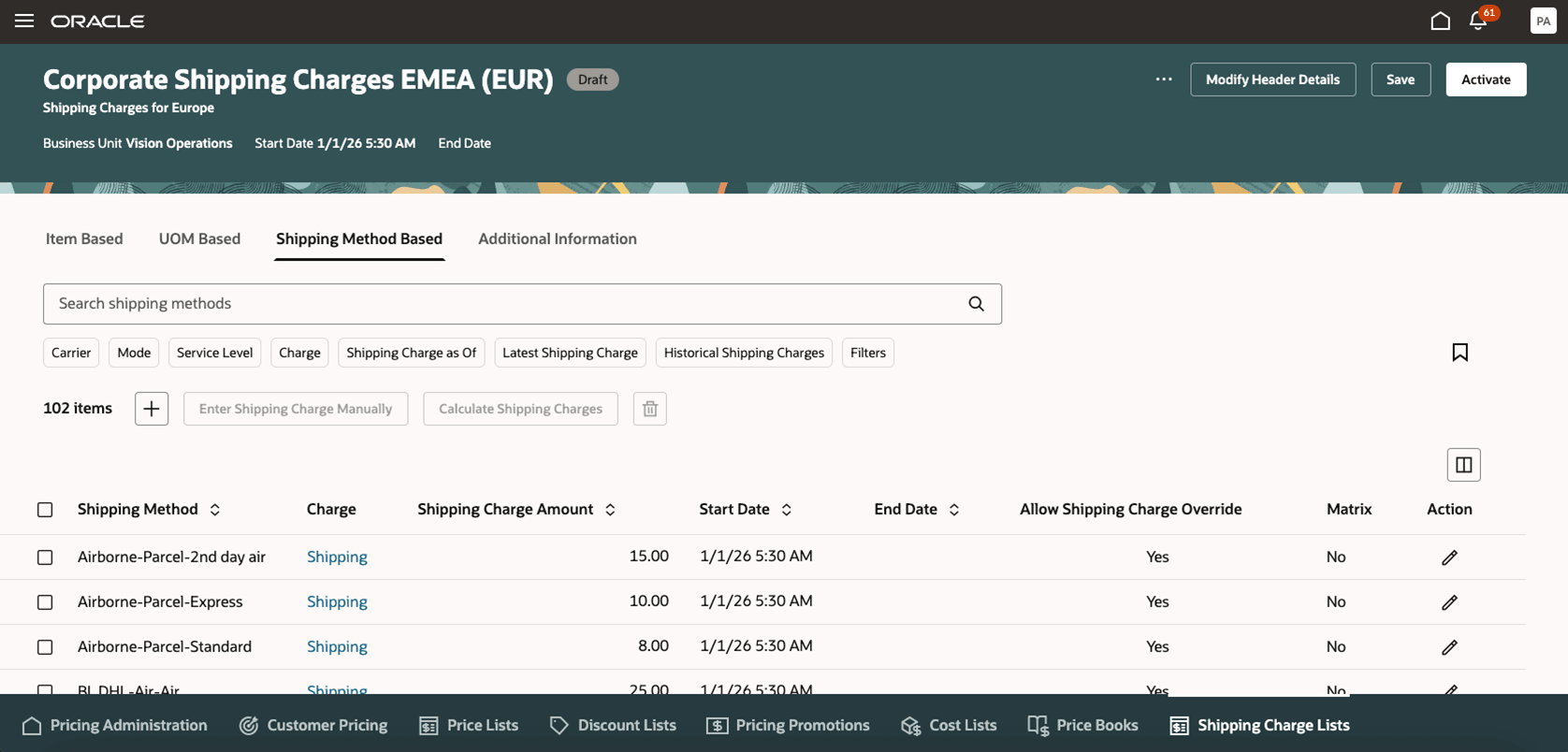
Shipping Charges Based on Shipping Method
Calculate Shipping Charges
You can maintain your shipping charges efficiently through the Calculate Shipping Charges mass action. This functionality is available for all types of shipping charges on a shipping charge list. From the shipping charge list, select the rows and click Calculate Shipping Charges.
You can calculate shipping charges based on:
- the selected data
- a shipping charge list
- a price list
You can add a new shipping charge, update the existing charge, or create a new charge. If the value for Allow Shipping Charge Override is set to Yes, then you can apply manual adjustments against the charge.
Calculate Based on Selected Data:
You can calculate the shipping charge for the current record by:
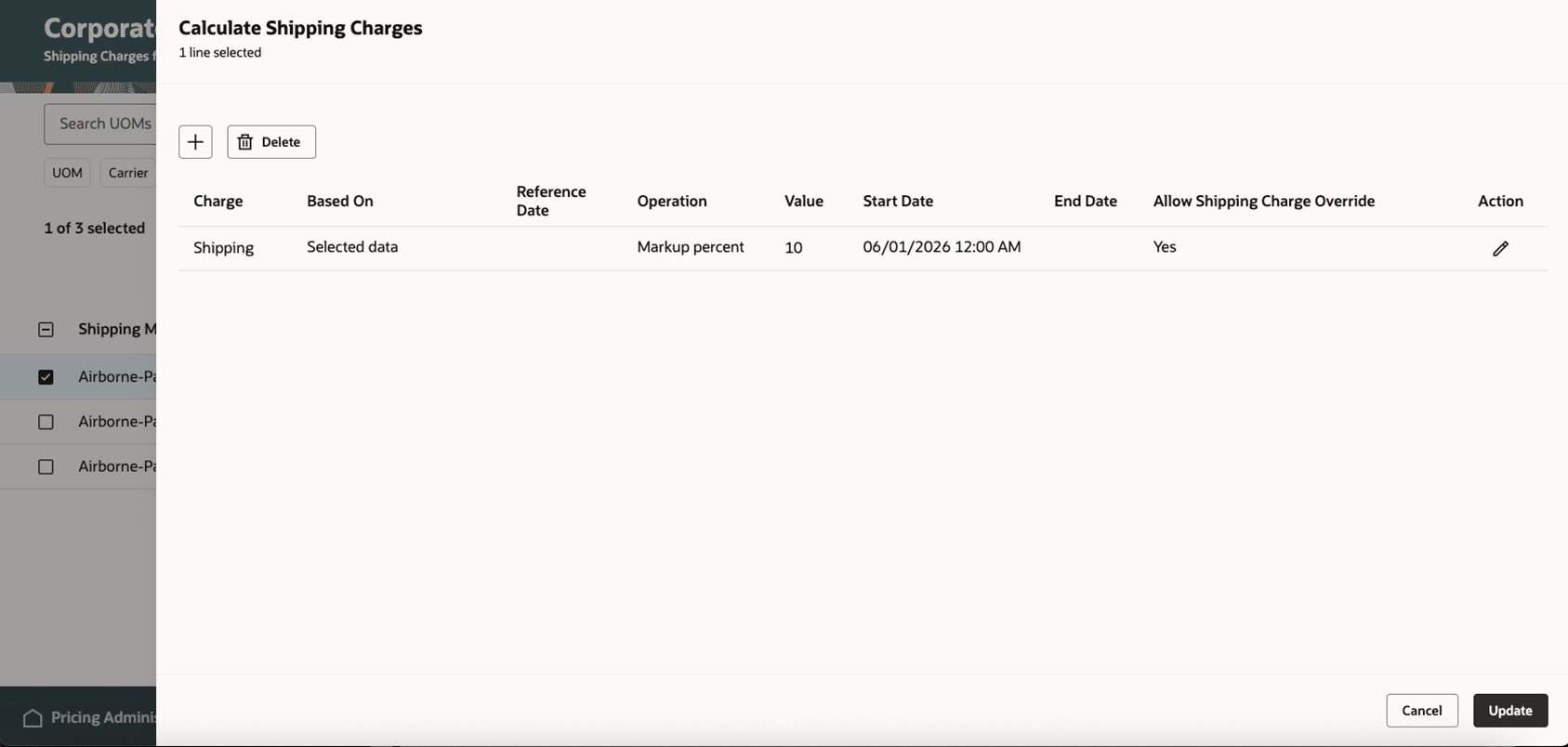
- Using the current shipping charge list as a reference: Where the Based On value is Selected data, the calculation is based on the current value of the selected record. You can apply the additional operation to markup or discount.
- Optionally, selecting an additional operation to perform, to which you can apply a discount amount, discount percent, markup amount, or markup percent.
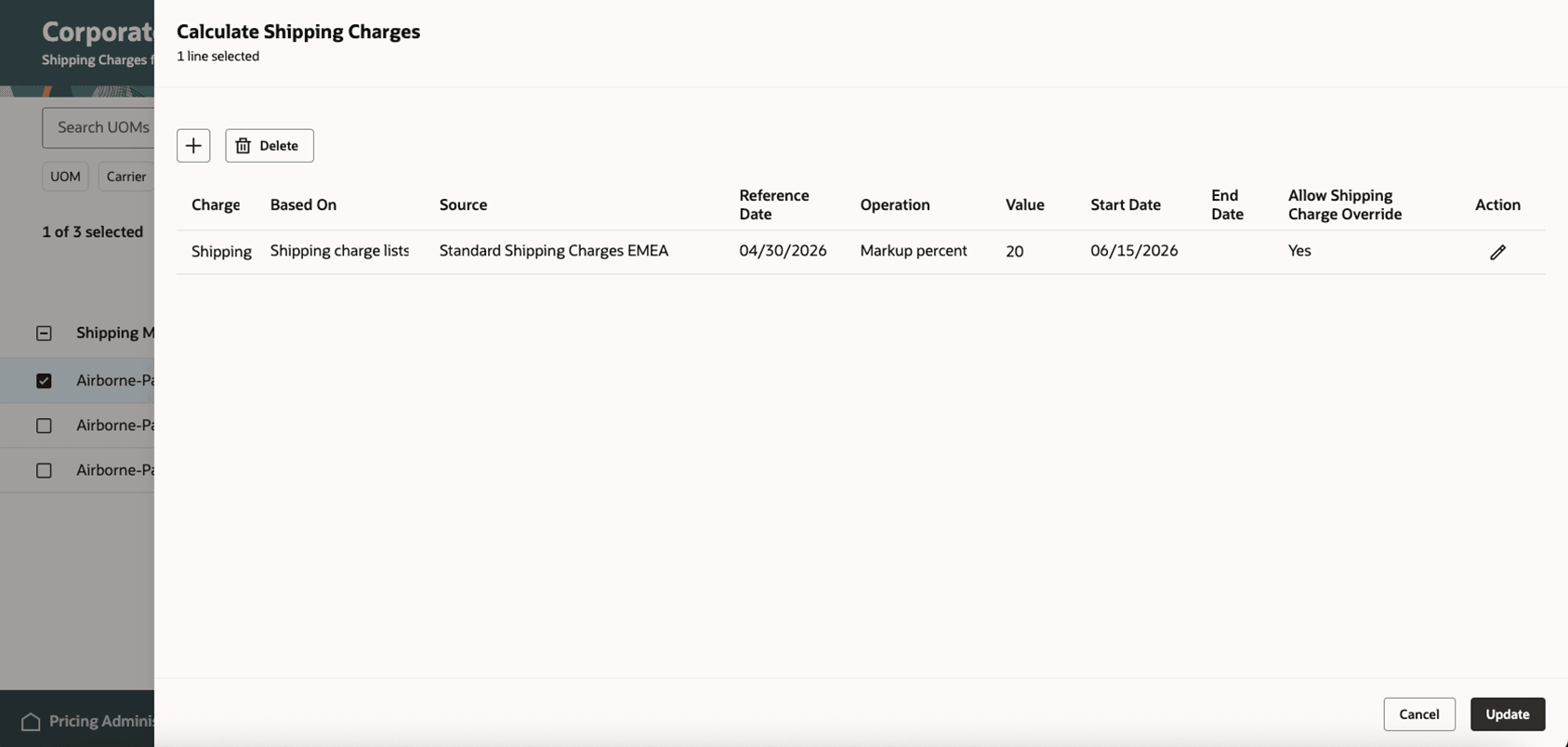
Calculate Based on Shipping Charge List
Use a different shipping list as a reference: When the Based On value is Shipping charge list, the calculation is based on the value on a specified shipping charge list. Select the shipping charge list name, and the reference date on which to pull the shipping charge amount. Optionally, select an additional operation to perform, to which you can apply a discount amount, discount percent, markup amount, or markup percent.
Calculate Based on Price List
Use a different price list as a reference: When the Based On value is Price list, the calculation is based on the value on a specified price list. Select the price list name, the price list charge, and the reference date on which to pull the shipping charge amount. Optionally, select an additional operation to perform, to which you can apply a discount amount, discount percent, markup amount, or markup percent.
Steps to enable and configure
Go to Home > My Enterprise > Setup and Maintenance > Tasks > Search > Manage Administrator Profile Values, and then enable the Redwood Page for Shipping Charge Lists Enabled profile option.
Tips and considerations
Pricing evaluates all the distinct shipping charges for a shipping charge list, evaluating the rules based on the priority of the most specific (item based) to the least specific (shipping method based) rules. For example, Pricing can calculate a shipping charge that’s based on a shipping method, but also calculate a duty charge that’s specific to an item and UOM.
Error Reports
If a problem happens with calculating shipping during a mass action, then Pricing creates an error report that you can download in a file. The file includes the total number of submitted records, successful submissions, failed records, and a message that you can use to troubleshoot. You might see errors such asIf a problem happens with calculating shipping during a mass action, then Pricing creates an error report that you can download in a file. The file includes the total number of submitted records, successful submissions, failed records, and a message that you can use to troubleshoot. You might see errors such as:
- The shipping charge couldn't be calculated.
- Shipping charge wasn't calculated based on the selected price list.
- There's already a shipping charge for this combination of item, pricing UOM, and shipping method for the provided dates.
Key resources
Access requirements
Users who are assigned a configured job role that contains these privileges can access this feature:
- View Shipping Charge Lists (QP_VIEW_SHIPPING_CHARGE_LISTS_PRIV)
- Manage Shipping Charge Lists (QP_MANAGE_SHIPPING_CHARGE_LISTS_PRIV)
- Manage In-Progress Shipping Charge Lists (QP_MANAGE_IN_PROGRESS_SHIPPING_CHARGE_LISTS_PRIV)
- Approve Shipping Charge Lists (QP_APPROVE_SHIPPING_CHARGE_LISTS_PRIV)
These privileges were available before this update.