Redwood: Add Pricing Matrix to Shipping Charges
Use a redesigned page to add a pricing matrix to each shipping charge.
Realize this benefit: Differentiate how you price shipping charges based on attributes
Within the redesigned Shipping Charge Lists UI, you can now use a pricing matrix to manage how you define shipping charges using one or more attributes. These attributes can be specific to your implementation and may include product attributes, order attributes, customer attributes, or shipping and packaging attributes.
After this feature is enabled, you can set up pricing matrix rules for all types of shipping charges in the Redwood Shipping Charge Lists UI. This action is available for all types of charges on the shipping charge list.
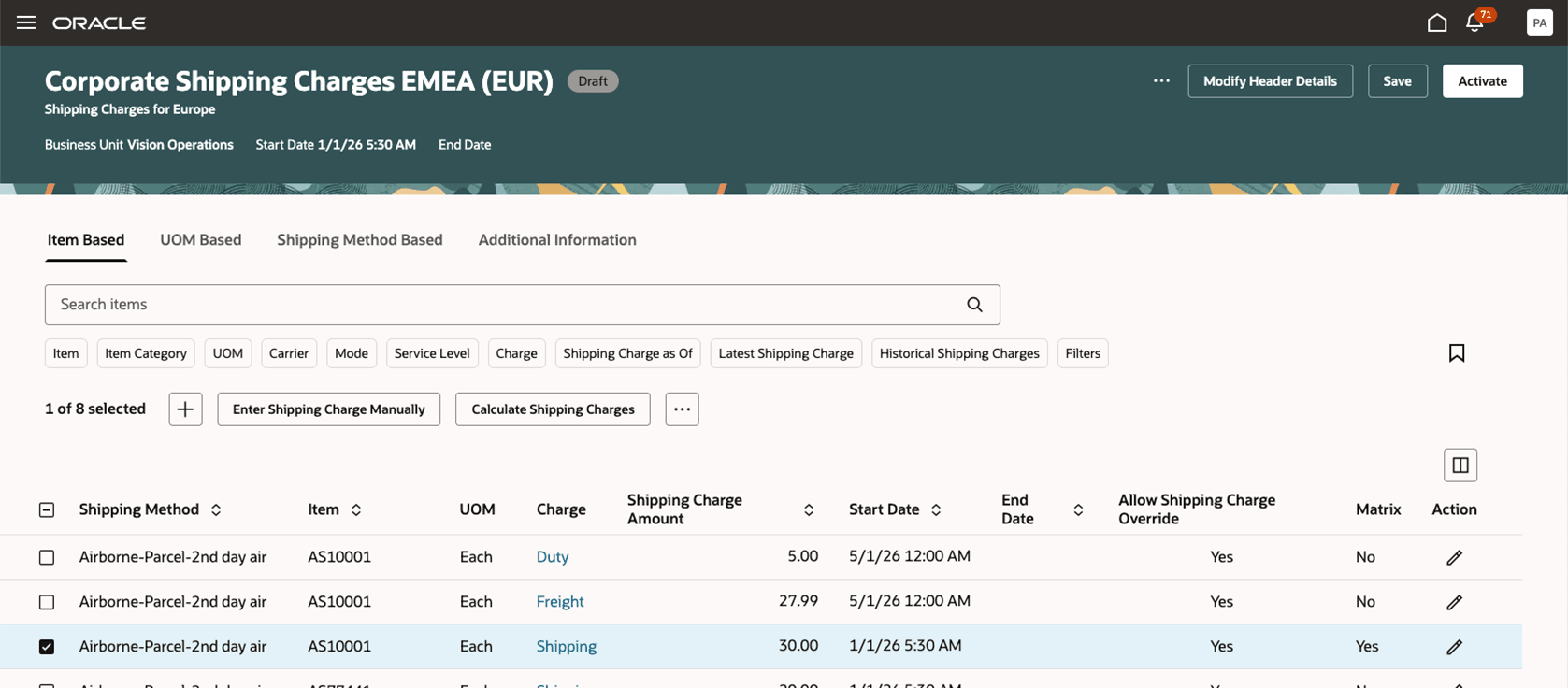
Pricing Matrix
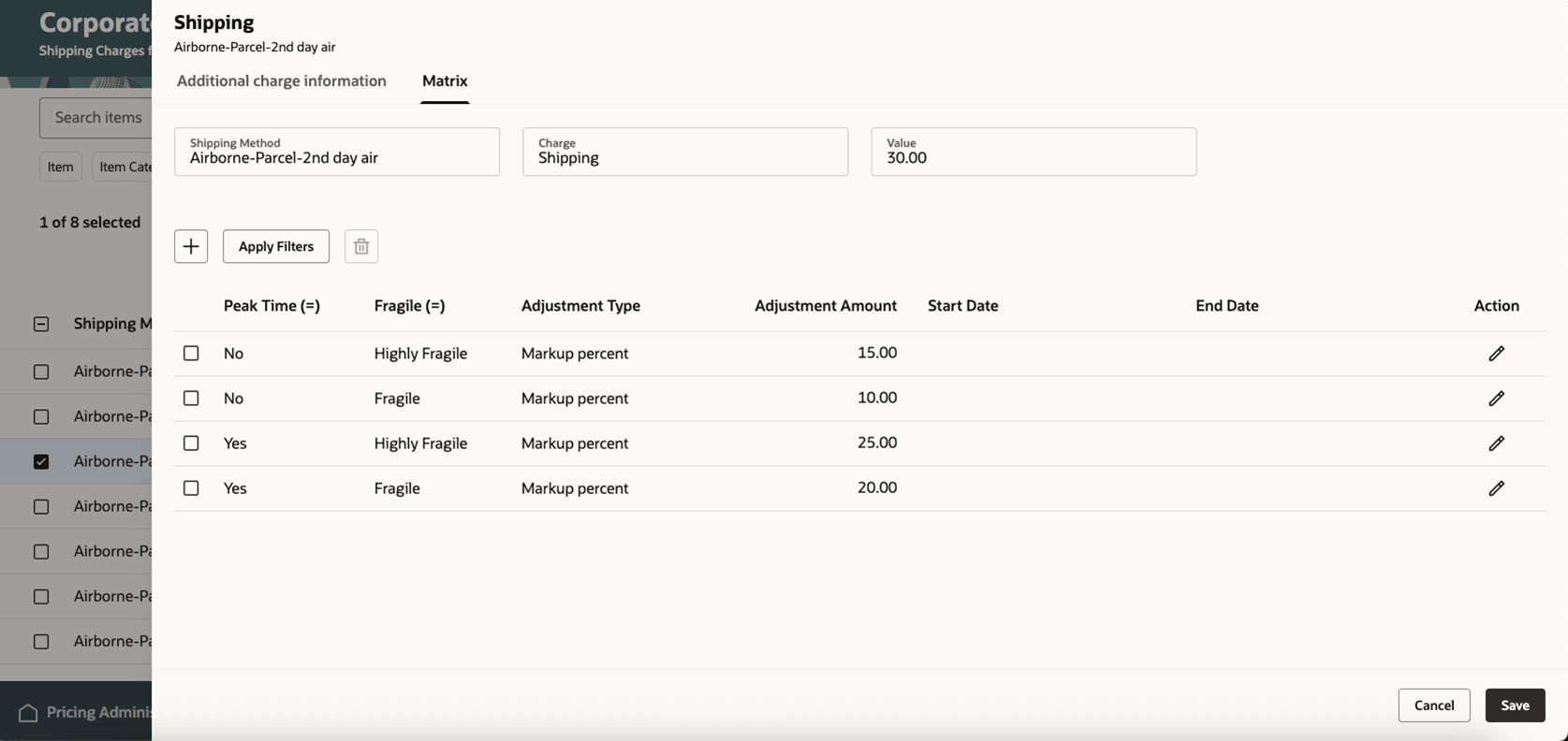
Details of a Pricing Matrix for a Shipping Charge
Click Apply Filters to search across your columns for specific values.
When Pricing applies a shipping charge matrix rule to a line, it’s reflected in the price breakdown.
Steps to enable and configure
Use the Opt In UI to enable this feature. For instructions, refer to the Optional Uptake of New Features section of this document.
Offering: Order Management
Functional Area: Pricing
Parent Feature: Set Your Options for Pricing Calculation
- Go to Home > My Enterprise > Setup and Maintenance > Tasks > Search > Manage Administrator Profile Values, and then enable the Redwood Page for Shipping Charge Lists Enabled profile option.
- Ensure you define the columns you plan to use for your price adjustment matrix in the Manage Matrix Classes setup. Select the Shipping Charge Adjustment to enter the details.
- Review the new price element called Shipping Charge Adjustment in the Manage Price Elements page. Go to Home > My Enterprise > Setup and Maintenance > Tasks > Search > Manage Price Elements.
- Review and update the pricing message as needed for QP_SHIPPING_ATTR_ADJ. This message appears under the pricing entity Pricing Matrixes. Go to Home > My Enterprise > Setup and Maintenance > Tasks > Search > Manage Pricing Messages.
Tips and considerations
To make this feature work, ensure you have set the Redwood Page for Shipping Charge Lists Enabled profile and the feature opt-in.
If you implemented similar functionality in the ADF Shipping Charge Lists UI in a prior update, please review the Quarterly Update Guide.
Key resources
Access requirements
Users who are assigned a configured job role that contains these privileges can access this feature:
- View Shipping Charge Lists (QP_VIEW_SHIPPING_CHARGE_LISTS_PRIV)
- Manage Shipping Charge Lists (QP_MANAGE_SHIPPING_CHARGE_LISTS_PRIV)
- Manage In-Progress Shipping Charge Lists (QP_MANAGE_IN_PROGRESS_SHIPPING_CHARGE_LISTS_PRIV)
- Approve Shipping Charge Lists (QP_APPROVE_SHIPPING_CHARGE_LISTS_PRIV)
These privileges were available before this update.