Redwood: Manage Shipping Charge Lists
Use a redesigned page to search for, edit, and create shipping charge lists more efficiently, and to simplify setting up shipping charges. Use a mass action to add items to a shipping charge list in a single action. Enter charges manually.
Realize these benefits:
- Spend less time managing shipping charges
- Reduce errors with a clearer, more user-friendly experience
Use a redesigned page that simplifies how you search for and manage your shipping charge lists and item-specific shipping charges. On this page, you can:
- Define one or more shipping charges for an item, unit of measure, and shipping method.
- Add items to the shipping charge list by item or from an item category
- Enter shipping charges manually for a selected set of charges on the shipping charge list
Here’s how:
You can launch Manage Shipping Charge Lists from the Pricing Administration landing page.
Create a new list, or use keywords, filters, and attributes to search your shipping charge lists.
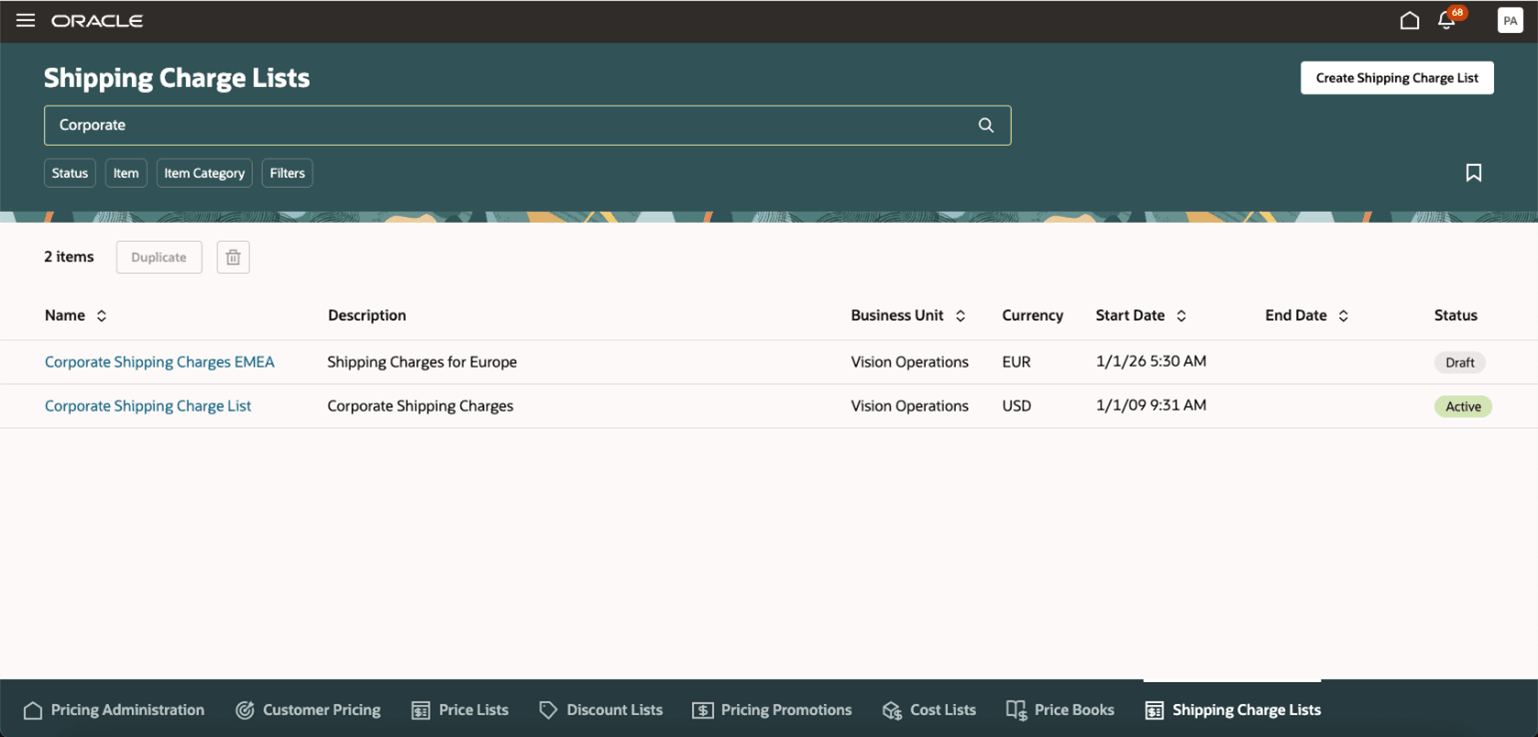
Redesigned Shipping Charge Lists Page Appears as a Tab on the Pricing Administration Landing Page
Note: As you view the details of a shipping charge list, you see several tabs. This feature primarily covers the Item Based tab and Additional Information tab.
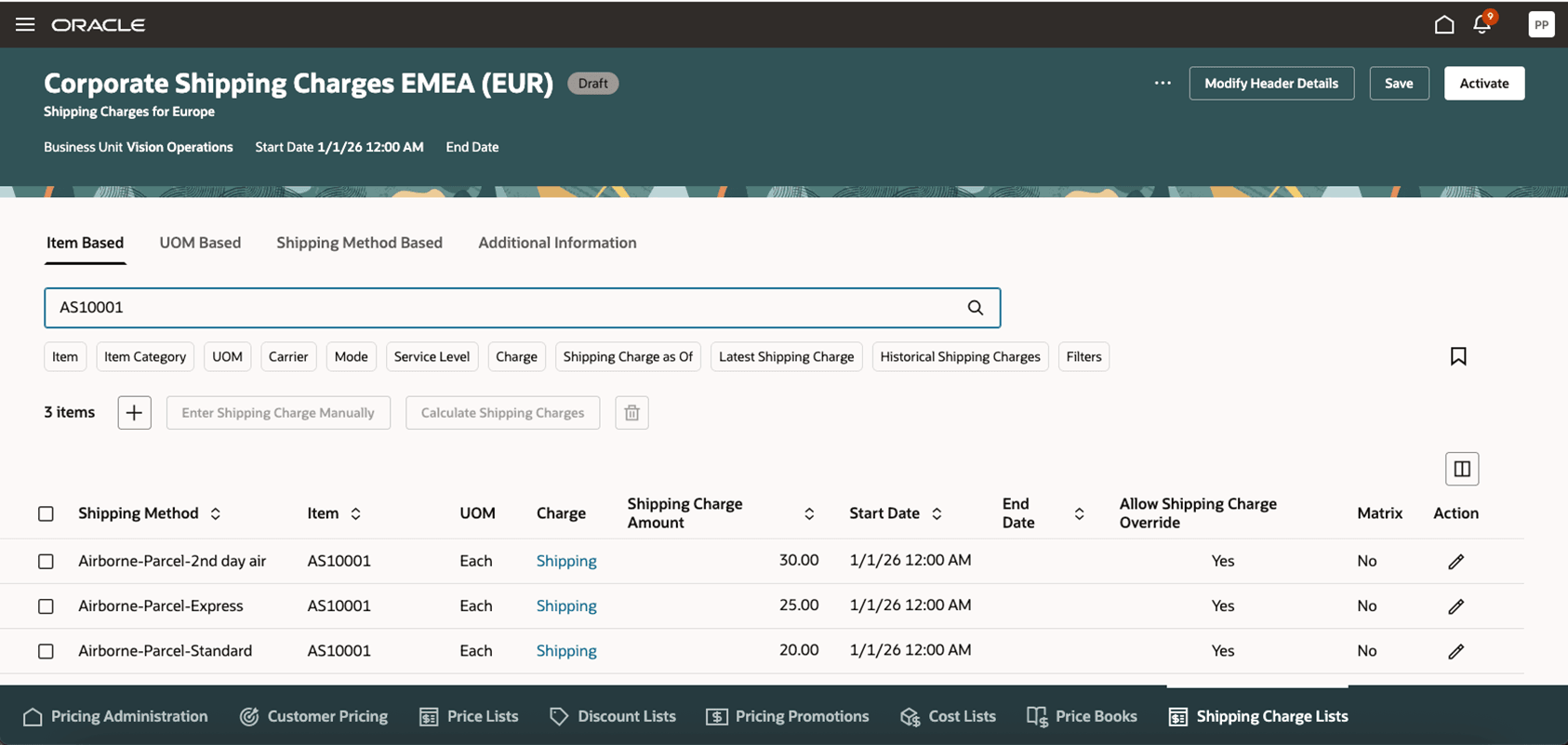
Item-Based Shipping Charges
- Use the Item Based tab to display a list of all items that are on the shipping charge list for a specific shipping method. Review or update details for each item.
- Add items to your shipping charge list. You can add items or items from an item category. After you select items to add, you can select the shipping methods for which you want to create charges for each of these items.
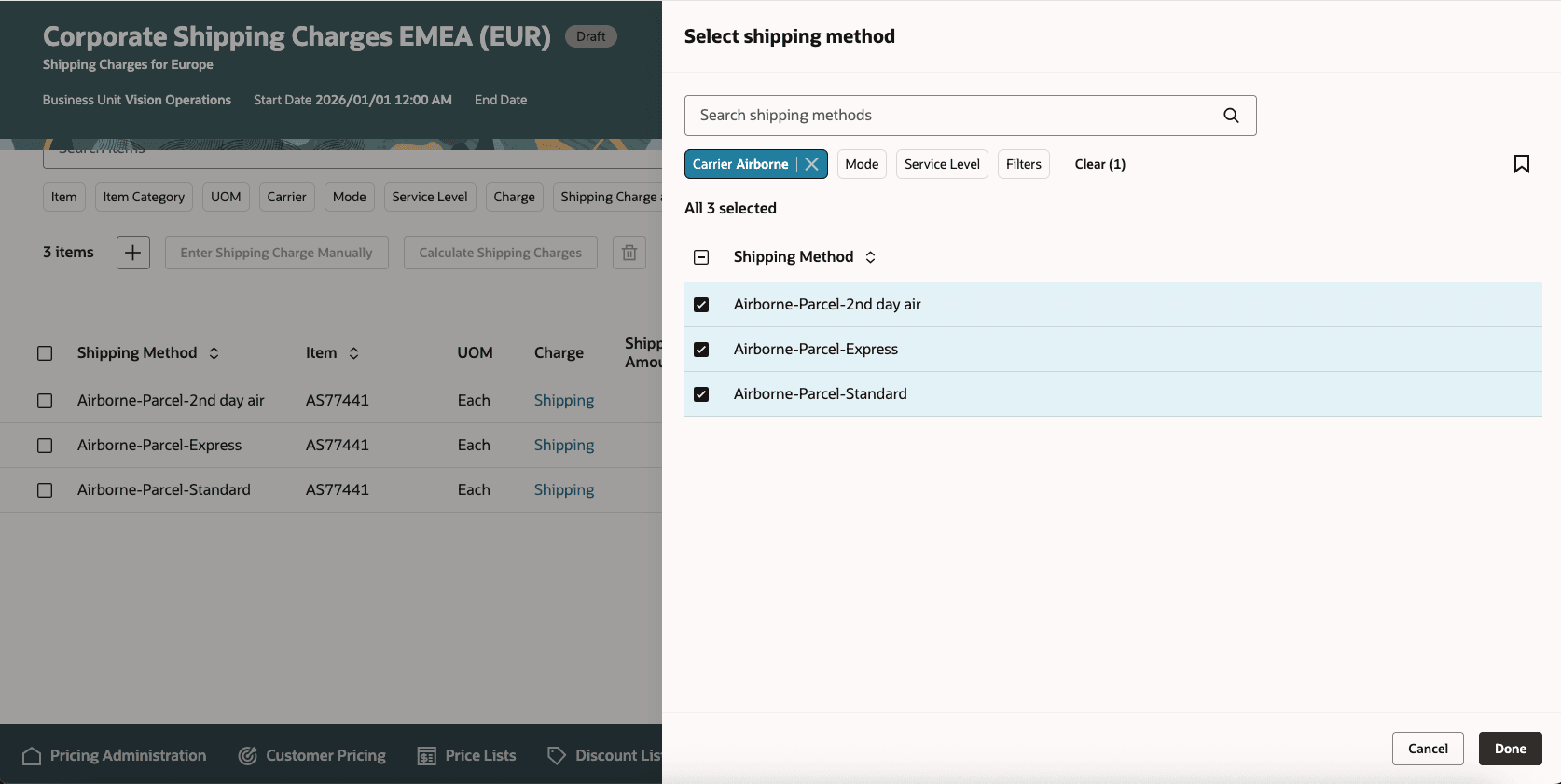
Selecting Shipping Method
- After you add the items, you can enter shipping charges manually or calculate shipping charges through mass actions.
- Enter shipping charge amounts for your records. You can enter the shipping charges manually or update through the mass actions for Calculate Shipping Charges. Specify the shipping charge amounts for these records. Select Allow Shipping Charge Override to enable manual price adjustments on this charge. Calculate Shipping Charges is covered in Redwood: Use More Ways to Set Up Shipping Charge
- Select records and click Enter Shipping Charge Manually to update the shipping charge amount for the shipping charge. You can also add a different charge from this drawer. You can type in your values, click and drag values, or copy and paste them from your own spreadsheet application, such as Microsoft Excel.
- After a shipping charge is defined, you can click the Edit icon to edit the shipping charge amounts, start date, end date, and Allow Shipping Charge Override values.
For shipping charges based on UOM or on shipping method, please review the feature: Redwood: Use More Ways to Set Up Shipping Charges
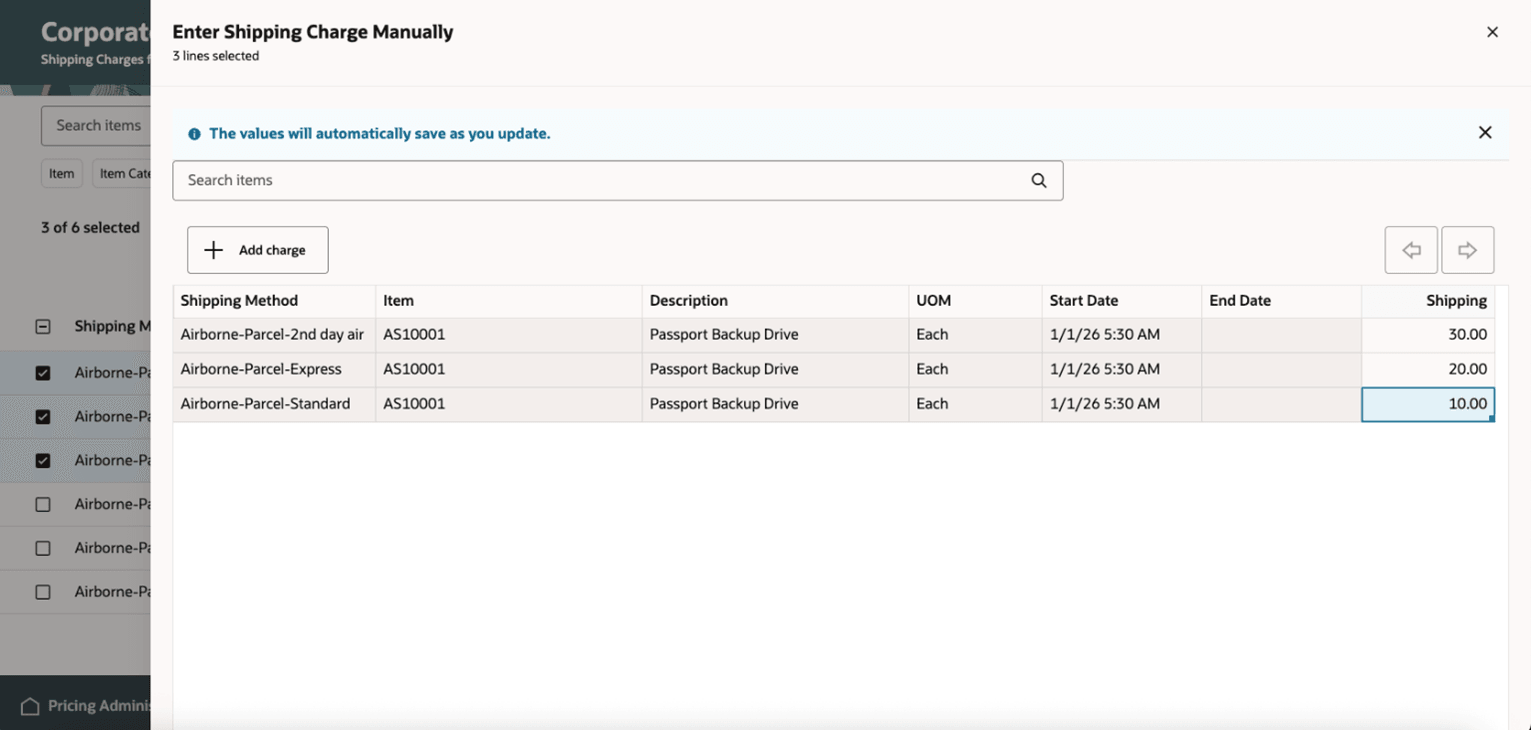
Entering Shipping Charge Manually
Search Filters on a Shipping Charge List
Use the search filters to narrow your records across shipping charge lists or within a shipping charge list.
- Item-related filter chips: Item, Item Category, UOM,
- Shipping Method Criteria: Carrier, Mode, Service Level
- Charge criteria: Charge (Name), Shipping Charge As Of (From Date and optionally To Date), Latest Shipping Charge, Historical Shipping Charge (already past)
Click Additional Information to specify an access set and optionally enter descriptive flexfields. Then, click Activate.
Enter Shipping Charges Manually
To update one or more shipping charges, you can select the records and then click Calculate Shipping Charges. From here, you can update an existing charge, create a different charge, delete a charge, end date an existing charge, or create a new charge with a new start date. More details are available in the feature Redwood: Use More Ways to Set Up Shipping Charges
Steps to enable and configure
Go to Home > My Enterprise > Setup and Maintenance > Tasks > Search > Manage Administrator Profile Values, and then enable the Redwood Page for Shipping Charge Lists Enabled profile option.
Tips and considerations
- In this update, Pricing delivers a new pricing charge definition called “Shipping,” which is the default charge for the shipping charge list.
- Click Show Where Used to see where this shipping charge list is being referenced with Oracle Pricing.
- Descriptive flexfields are available for the shipping charge list header, rules, charges, and matrix adjustments.
- Ensure there’s an access set associated with your shipping charge list.
- Set up a guided journey for your shipping charge list page. For details about how, see Guided Journeys.
- Leverage a business rule that sets the default values for attributes and that shows and hides attributes.
Key resources
- Administering Pricing
- Pricing Charge Definition
- Enable a Guided Journey for Redwood Pages
- Extending Redwood Applications for HCM and SCM Using Visual Builder Studio
Access requirements
Users who are assigned a configured job role that contains these privileges can access this feature:
PRICING:
- View Shipping Charge Lists (QP_VIEW_SHIPPING_CHARGE_LISTS_PRIV)
- Manage Shipping Charge Lists (QP_MANAGE_SHIPPING_CHARGE_LISTS_PRIV)
- Manage In-Progress Shipping Charge Lists (QP_MANAGE_IN_PROGRESS_SHIPPING_CHARGE_LISTS_PRIV)
- Approve Shipping Charge Lists (QP_APPROVE_SHIPPING_CHARGE_LISTS_PRIV)
These privileges were available before this update.