Redwood: Do More Actions on Cost Lists
In an earlier update, you could use a mass action to simplify how you managed cost lists. Now you can use a scheduled process to do more when you apply a mass action. Apply it according to another cost list or from a set of selected items. View any errors that come up during the action.
Get these benefits:
- Easier maintenance of cost charges
- Streamline updates through mass actions and save time
There are two new ways you can update a set of cost charges on a cost list through the Calculate Costs mass action:
- Use the current cost list as a reference: Where the based-on value is selected data, the calculation is based on the current value of the selected record. You can apply the additional operation to markup or discount.
- Use a different cost list as a reference: When the based-on value is cost list, the calculation is based on the value on a specified cost list. Select the cost list name, the reference date on which to pull the cost value, and optionally select an additional operation to perform.
Through the Calculate Costs action, you can update an existing cost on a cost list, or create a new record with new effectivity dates. In both options, you can optionally apply an operation such as a markup amount or markup percent to the cost value you’re referencing. These new ways to update cost charges are available for costs defined at the Items level and at the All Items level.
Calculating Costs Based On Selected Data
Example 1: You want to increase the cost for two items by 10% starting on June 1.
1. Select the items you want to increase the cost by, and click the Calculate Costs button. A drawer opens where you can select the Based On value, Operation, and Start Date. By specifying the start date, the existing record is end dated and a new cost is created.
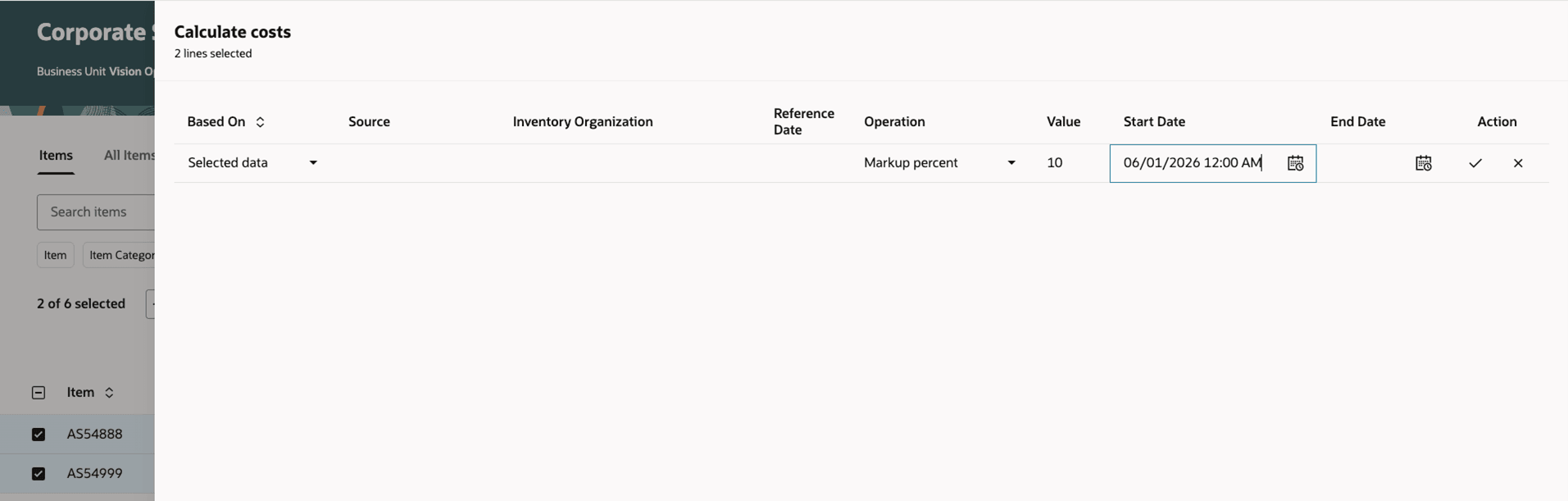
Calculating Costs Based On Selected Data from the Current Cost List
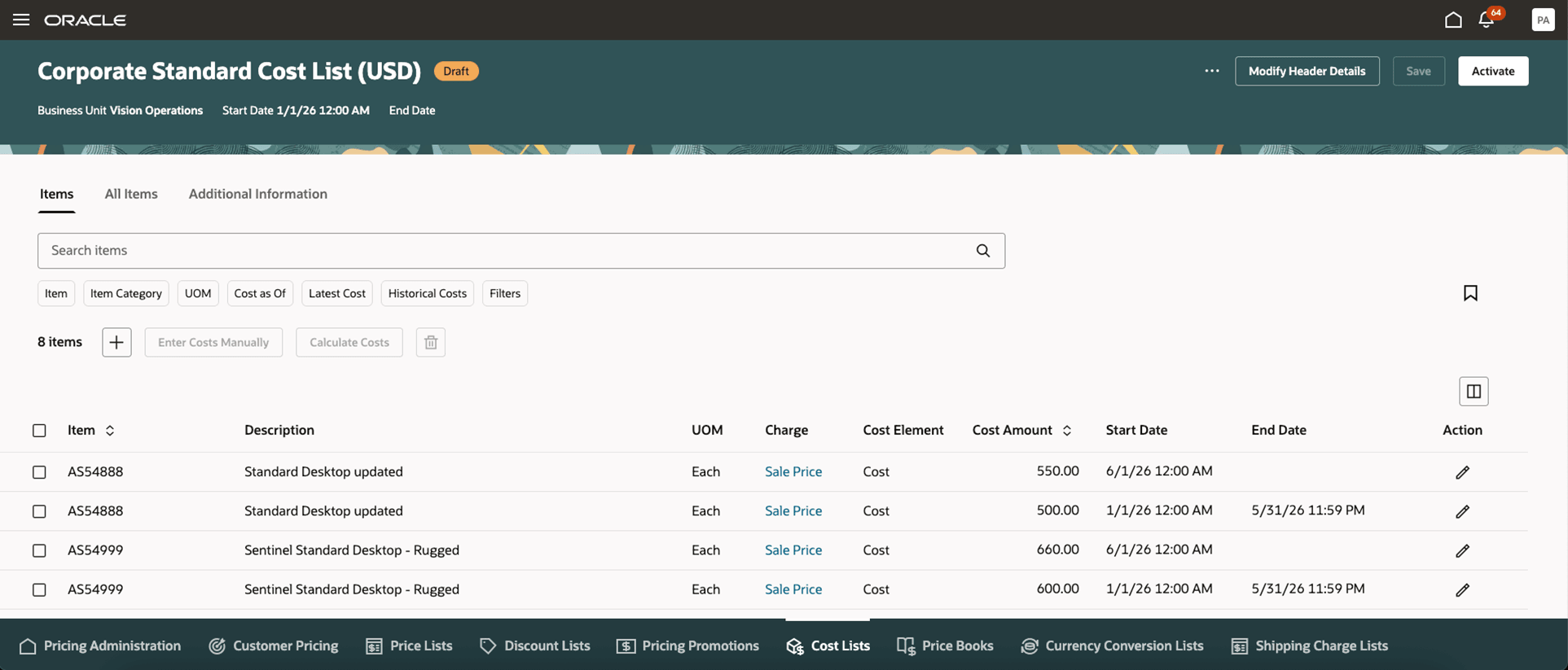
Corporate Standard Cost List with the Two Added Rows with New Costs Starting June 1
Example 2: You want to set the cost of the keyboard items on the Corporate Standard Cost List based on the cost values defined on the Corporate US Cost List. The costs starting on June 1 will be calculated as 20% value of the cost on specified on the Corporate US Cost List.
Corporate US Cost List
| Price List | Item | Cost |
|---|---|---|
| Corporate US Cost List | Compact Keyboard | $40 (on May 1) |
| Corporate US Cost List | Ergonomic Keyboard | $30 (on May 1) |
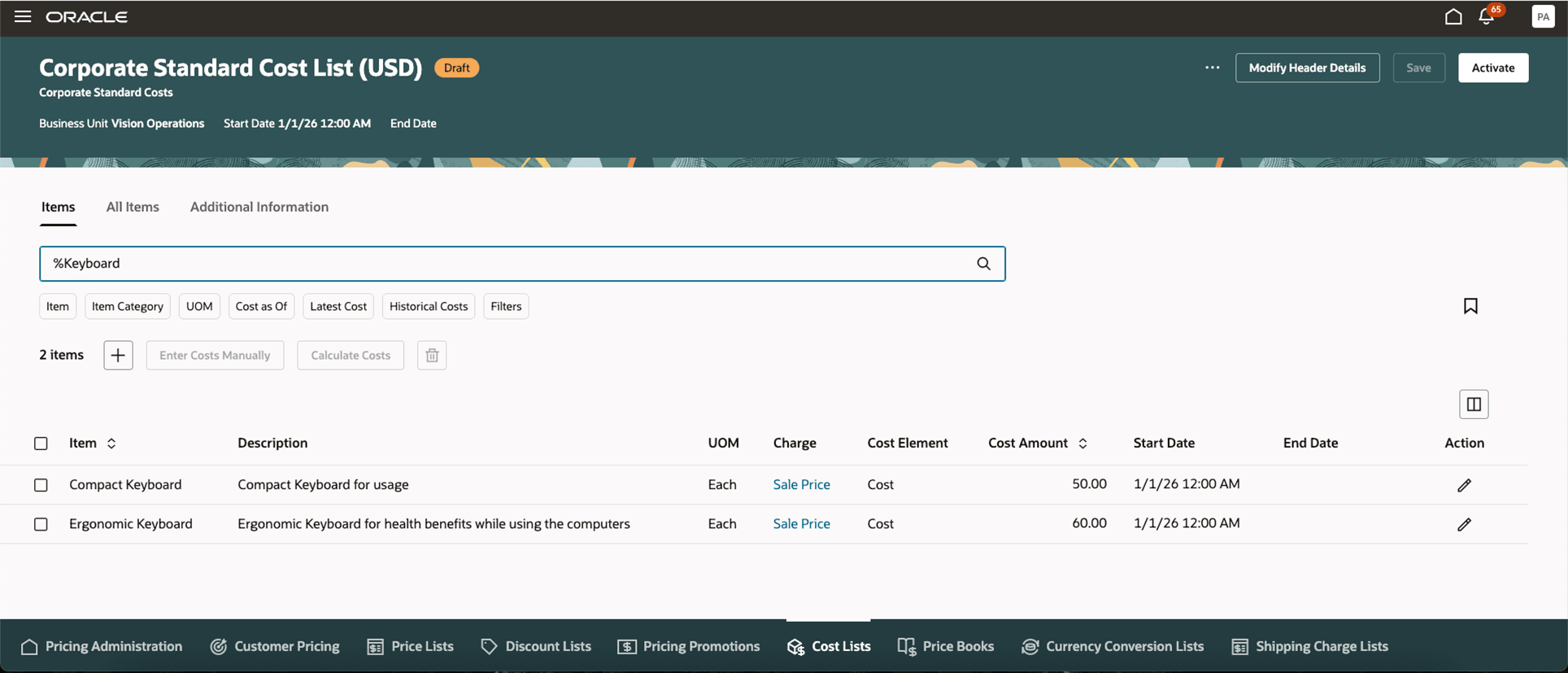
Searching for Keyboard
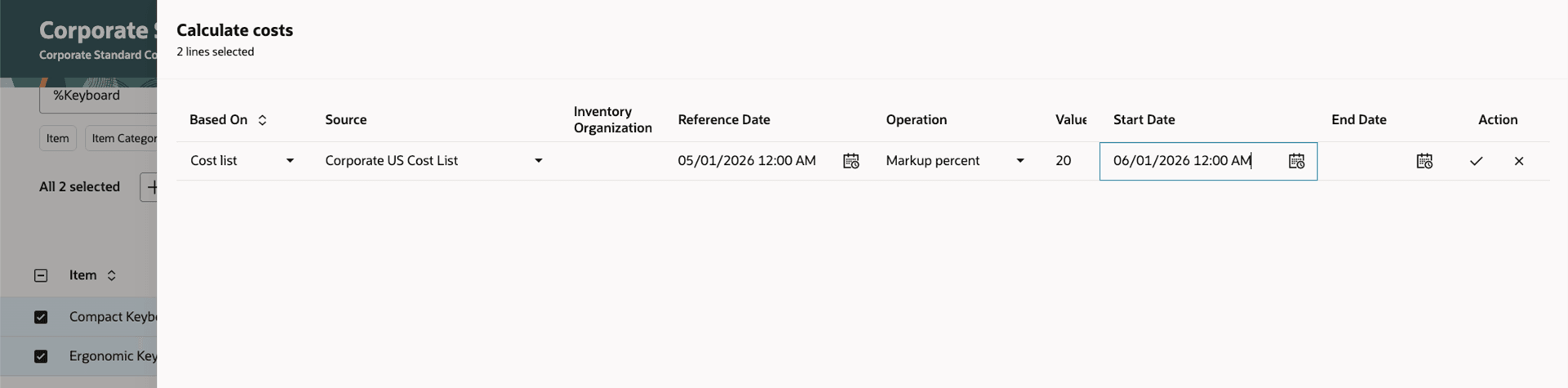
Calculating Costs Based On Cost List
Steps to enable and configure
You don't need to do anything to enable this feature.
Tips and considerations
- Download and review the errors from the mass actions, in case there are issues with creating or updating the charge.
- The Mass Action Limit for Pricing Administration in Online Mode administrator profile sets the maximum number of records that Pricing processes for each mass action request. The default value is 250 records.
Key resources
Access requirements
Users who are assigned a configured job role that contains these privileges can access this feature:
PRICING:
- View Cost Lists (QP_VIEW_COST_LISTS_PRIV)
- Manage Cost Lists (QP_MANAGE_COST_LISTS_PRIV)
- Manage In-Progress Cost Lists (QP_MANAGE_IN_PROGRESS_COST_LISTS_PRIV)
- Approve Cost Lists (QP_APPROVE_COST_LISTS_PRIV)
- Import Approved Cost Lists (QP_COST_LIST_APPROVED_IMPORT_PRIV)
These privileges were available before this update.