Redwood: Create and Manage Price Elements
Use the redesigned Price Elements page to create and manage price elements. Use it to create, duplicate, update, or delete price elements.
The redesign preserves the existing price element functionality, so you continue to work with the same price element concepts and setup behaviour as before.
Get these benefits:
- Search for price elements by element code or name from a single search box.
- Refine the results with filters for Type, Active, and Predefined.
- Create a price element directly from the Redwood page.
- Use row actions to view, duplicate, edit, or delete an existing price element.
You can manage price elements in a more modern interface and find, review, and maintain price elements more efficiently through streamlined search, filters, and direct row actions.
Oracle Pricing now provides a redesigned Redwood Price Elements page for creating and managing price elements.
The page introduces a streamlined search experience with a single search box for element code or name, filter chips for Type, Active, and Predefined, and direct actions to create, view, duplicate, edit, or delete price elements.
Start on the redesigned Price Elements page, where you can search for existing elements, refine the results with filters, or click Create to begin a new price element:
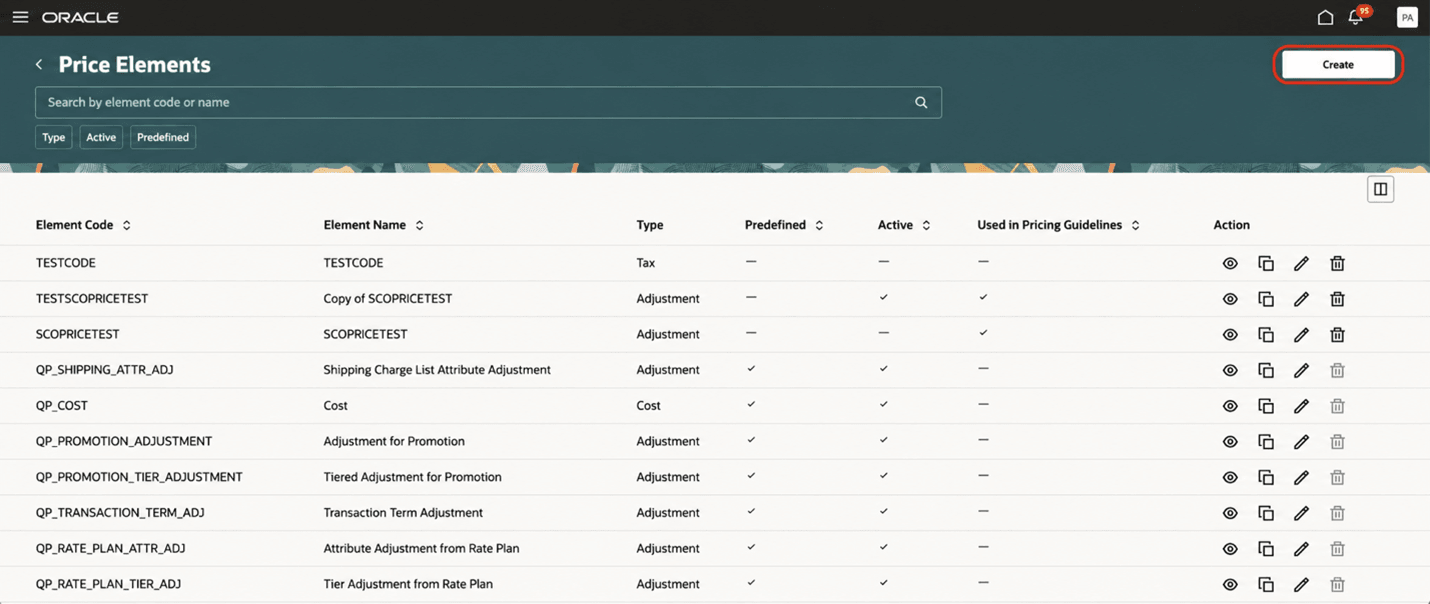
Create New Price Element
When you click Create, a side panel opens. Here, you can enter the element code, element name, type, and related options, such as Active and Used in Pricing Guidelines:
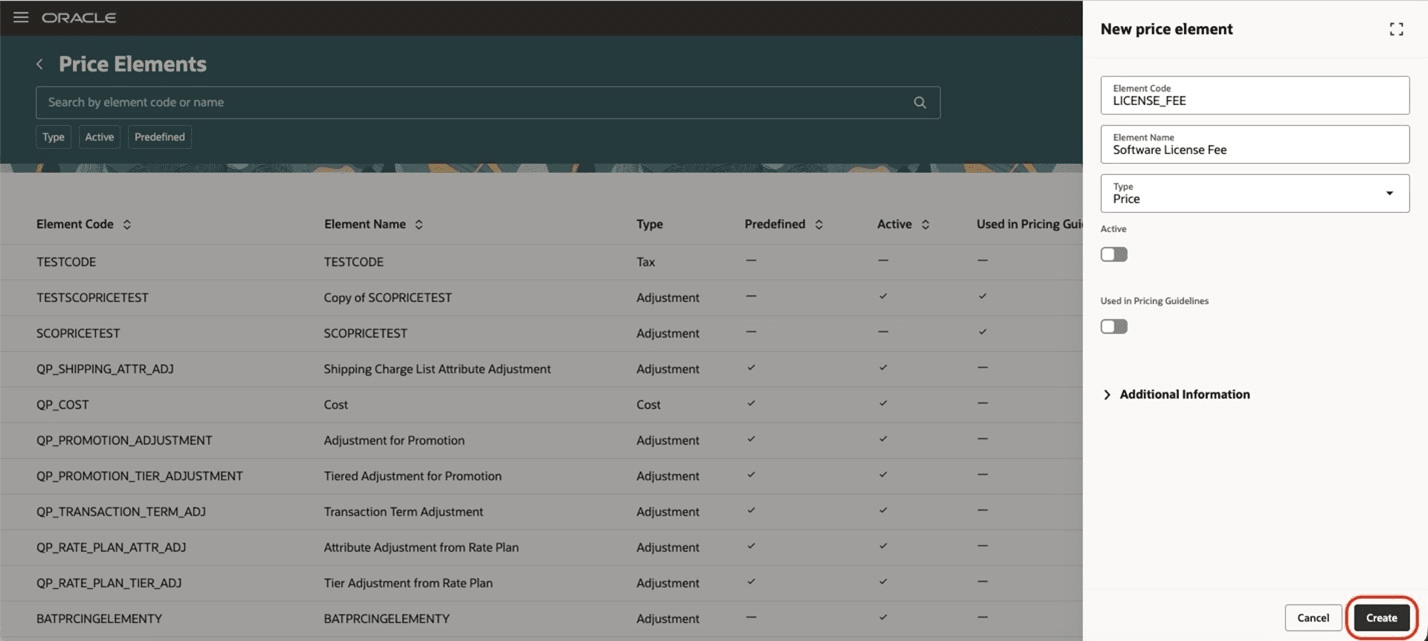
New Price Element Page Showing All Required Fields
After you enter the required values, click Create to add the price element without leaving the Redwood page:
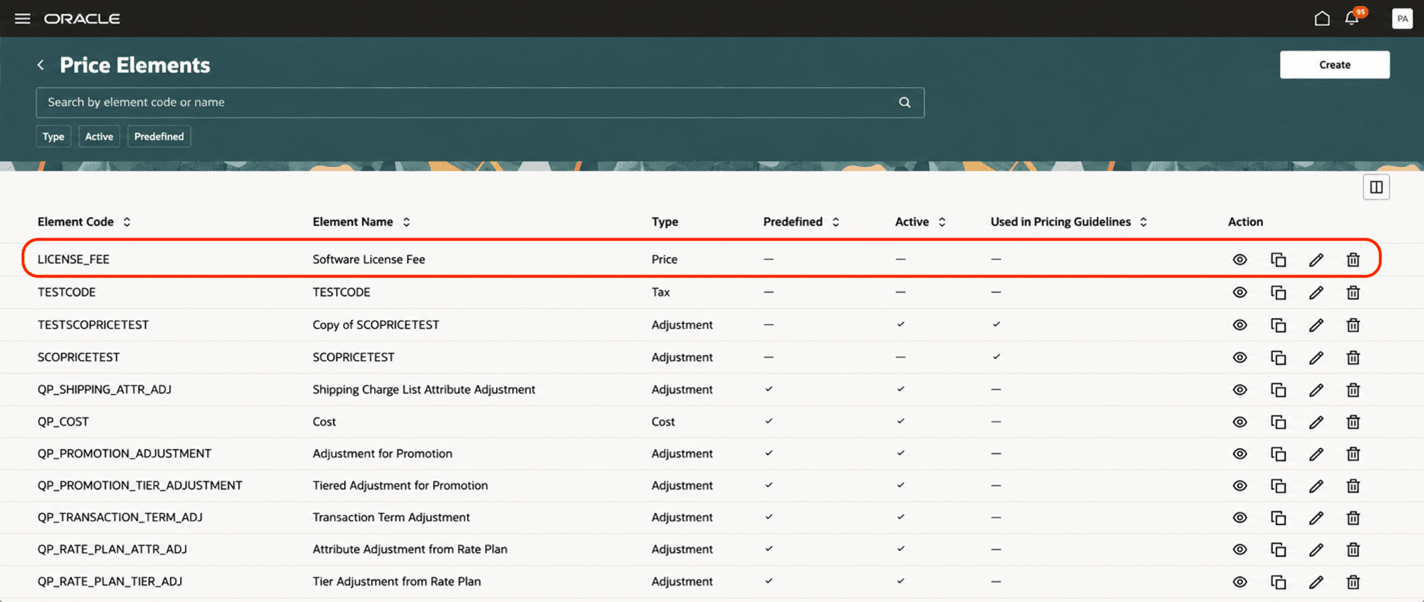
Price Elements Page Showing the Newly Created Price Element
Steps to enable and configure
You must enable the ORA_QP_PRICE_ELEMENTS_REDWOOD_ENABLED (Redwood Page for Price Elements Enabled)
Follow these steps to enable this feature:
- In the Setup and Maintenance work area, select the Tasks panel. Select Search, and then search for and select the Manage Administrator Profile Values task.
- On the Manage Administrator Profile Values page, search for and select the ORA_QP_PRICE_ELEMENTS_REDWOOD_ENABLED profile option code.
- In the Profile Values section, set the Site level to Yes.
- Yes = enables the feature
- No = disables the feature
- Click Save and Close. Changes in the profile value will affect users the next time they sign in.
Tips and considerations
- The redesigned page does not change the underlying price element functionality.
- Use predefined price elements, when possible, to reduce maintenance.
- Use the search box and filter chips to quickly narrow the list of price elements before you create or update one.
- Cost-type or accrual-type price elements cannot be used in Pricing Guidelines.
Key resources
Access requirements
Users who are assigned a configured job role that contains these privileges can access this feature:
- Manage Price Elements (QP_MANAGE_PRICE_ELEMENTS_PRIV)
- View Price Elements (QP_VIEW_PRICE_ELEMENTS_PRIV)
These privileges were available before this update.