AI Agent: Price Administration Assistant
Use the Price Administration Assistant to streamline how you change pricing. The agent will accept change requests through a chat experience and changes the list prices on price lists.
Realize these benefits:
- Faster time-to-market for price changes
- Increased operational efficiencies
- Reduce data entry errors
With the Price Administration Assistant, you can now quickly define or update your one-time and recurring prices for standard and subscription items on a price list. You can ask the Price Administration Assistant to perform the following types of requests:
- Add a price for an ergonomic keyboard on the Corporate Price List for $100 starting from today.
- Update the sale price of a gaming keyboard to 50 on the Corporate Price List starting on December 1.
- Increase the monthly fee for item AS54888 on the Corporate Segment Price List and Business World Corporate Price List to $9.99 starting on July 1.
Through a chat experience, the Price Administration Assistant analyzes the intent of your price charge request. The agent intelligently identifies the item, unit of measure, price list, charge definition, start date, and end date and determines the actions to perform on the request. The agent can accept default values into the prompt and then summarize the price request intent with additional information to execute the pricing updates. The agent validates against existing pricing rules and notifies you of any errors in the request. You approve the updated price request, and then the agent performs the pricing updates. It can add a price, update an existing price, end date an existing price, or create a new price for an existing item.
If the price request is sent through email, then the Price Administration Assistant analyzes the email contents to determine the intent of the price request. An email is sent to the approver and, after the approval is given, the agent makes the updates. An email confirming the changes is sent to the sender of the price request, and will include a summary of the intent of the price changes, any clarifications, and the results of the updates.
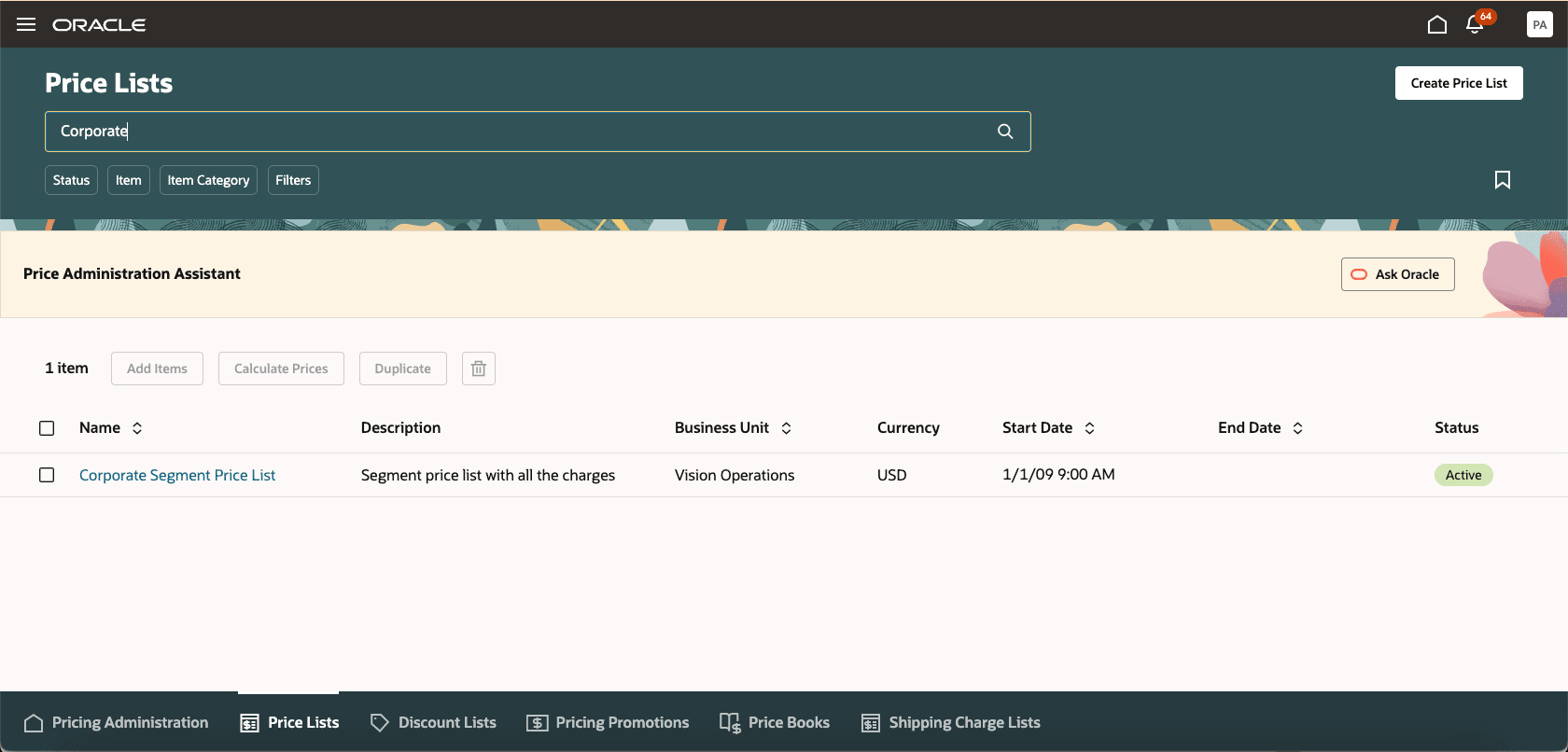
Launch the Price Administration Assistant from a Guided Journey
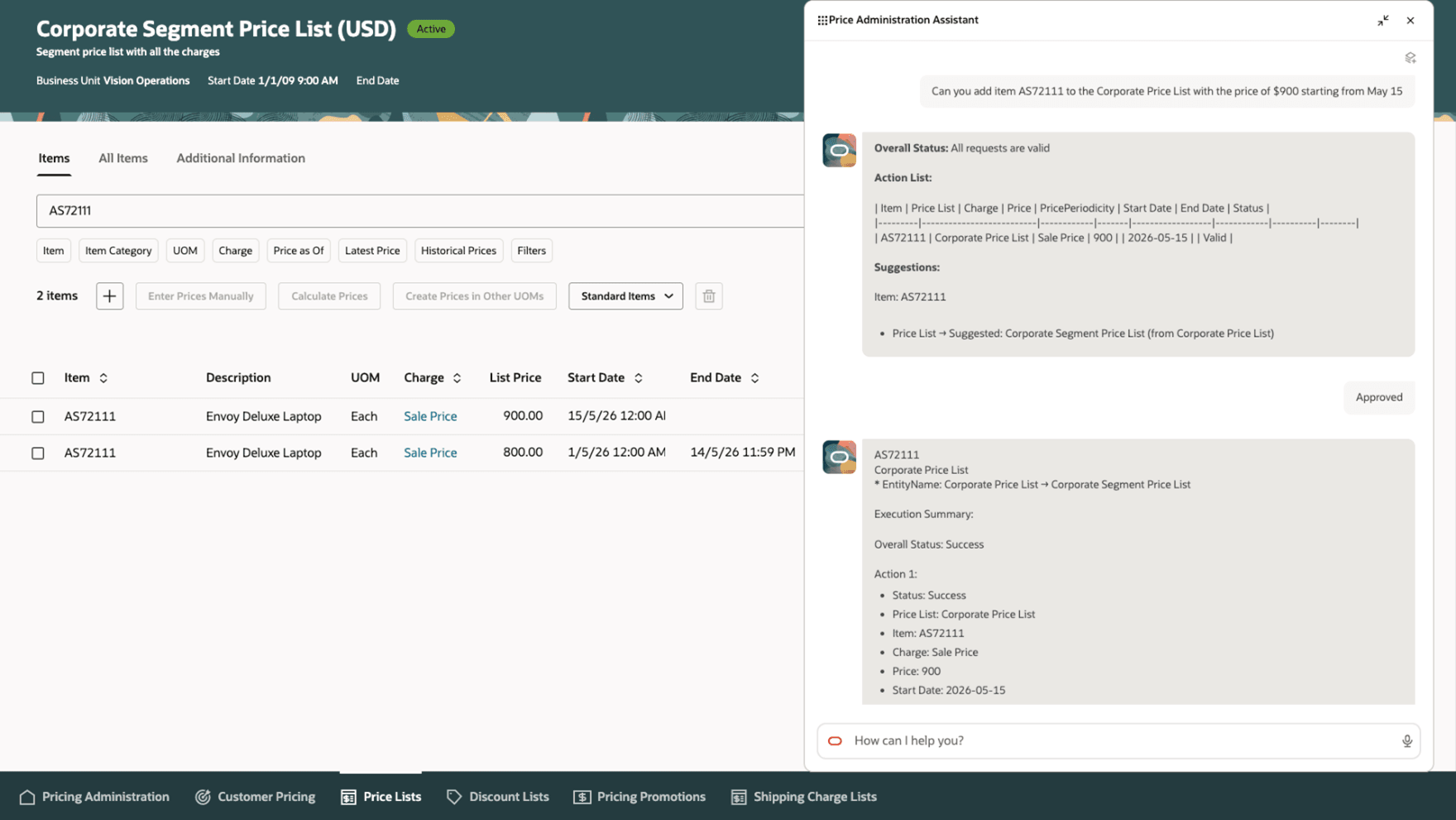
Chat Experience with the Price Administration Assistant
Steps to enable and configure
- Go to Home > Tools > AI Agent Studio, and then search for Price Administration Assistant.
- Click Copy Template. In the Copy Template dialog box, enter any combination of numbers and letters. Click Continue.
- Click Edit in Playground to examine the predefined descriptions and prompts for the agent you created.
You can modify the descriptions and prompts. When you finish, click Save and Test.
- After you run the test, click Done. Then click Publish. Return to the tool and verify that the agent you created is published.
- To make additional modifications, click Agent Teams at the bottom of the page, and then search for the assistant you just created. After you finish your modifications, click Save and Publish.
Tools and Tool Descriptions
| Tools | Description | Tool Name | Tool Code |
|---|---|---|---|
| Get User Details – Business Object | Retrieves Logged in user person number | Get User Details | ORA_GET_USER_DETAILS |
| Execute Pricing Actions – Business Object | Business object used for executing pricing actions on price lists. | Execute Pricing Actions | ORA_SCM_ORDERMANAG_PRICINGACTIONEXECUTIONOBJECT |
| Validate Pricing Actions – Business Object |
Business object used for validating pricing entity updates, such as price lists. | Validate Pricing Actions | ORA_SCM_ORDERMANAG_PRICINGENTITYVALIDATIONOBJECT |
| Price List Item Charges – Business Object | Business object used for retrieving price list item charges |
Price List Item Charges | ORA_SCM_ORDERMANAG_PRICELISTITEMCHARGES |
Working with the Price Administration Assistant on the Price Lists Page
As an example, the Price Administration Assistant can be accessed from the Price Lists page. After you add the Price Administration Assistant to the Guided Journey for the Price Lists page, you can toggle to the Price Administration Assistant to invoke the agent.
Add Price Administration Assistant to a Guided Journey
- To add the Price Administration Assistant to the Guided Journey, navigate to Home > My Client Groups > Journeys Setup > Guided Journey.
- On the Guided Journey page, click Create, set the following values, and then click Create Draft: Summary and Attributes Guided Journey.
Values to Enter for Your Guided Journey
| Attribute | Value |
|---|---|
| Name | Price Administration Assistant |
| Code | PRICE_ADMINISTRATION_ASSISTANT |
| Allow Access for External Users | No |
- Activate the journey
- Add the agent to the Price Lists page, and test it.
To add the Price Administration Assistant to the Price Lists page Guided Journey, navigate to Price Lists page > Settings and Actions > Edit Page in Visual Builder Studio. In the Page Properties section, enter the code for the guided journey.
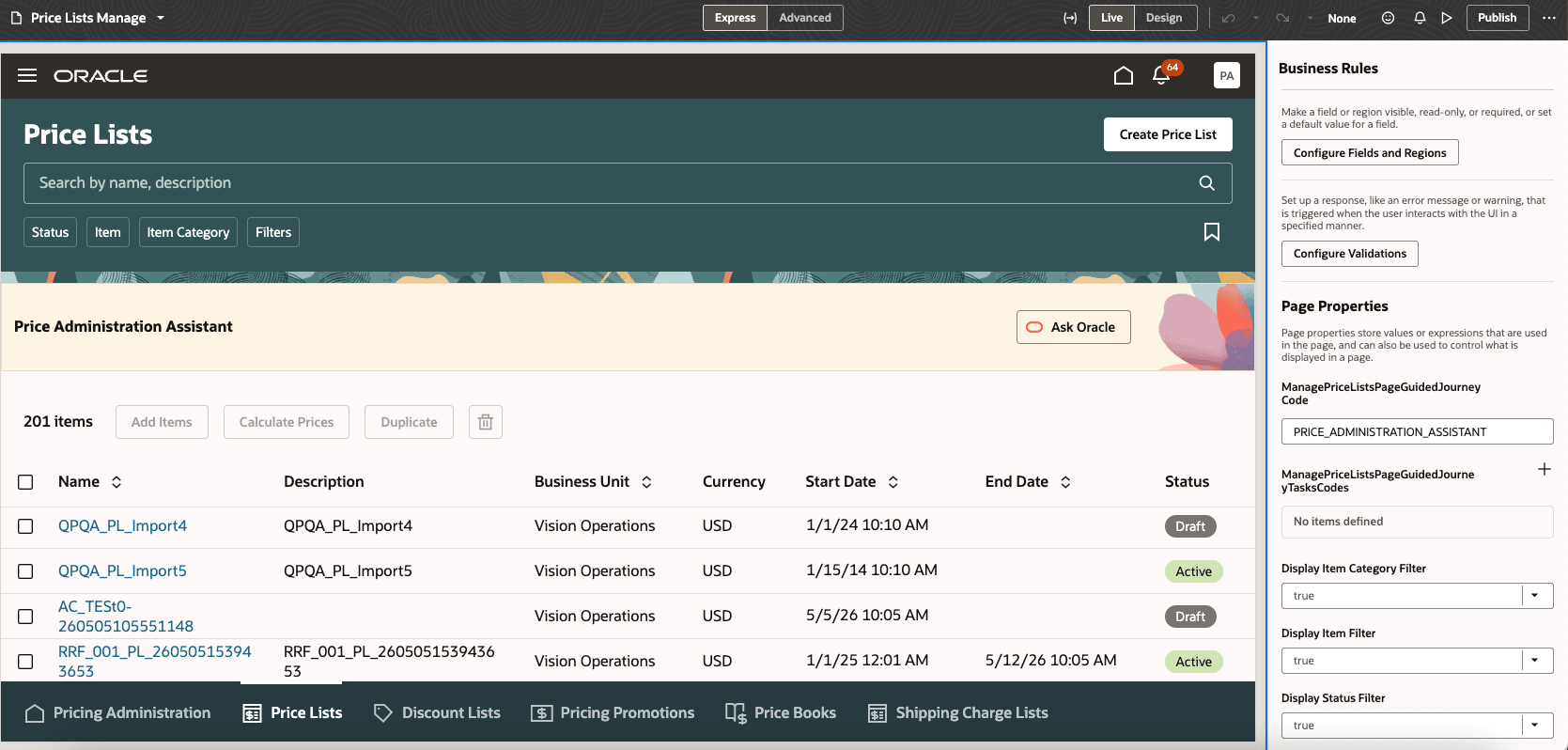
Successfully Added Price Administration Assistant on a Guided Journey
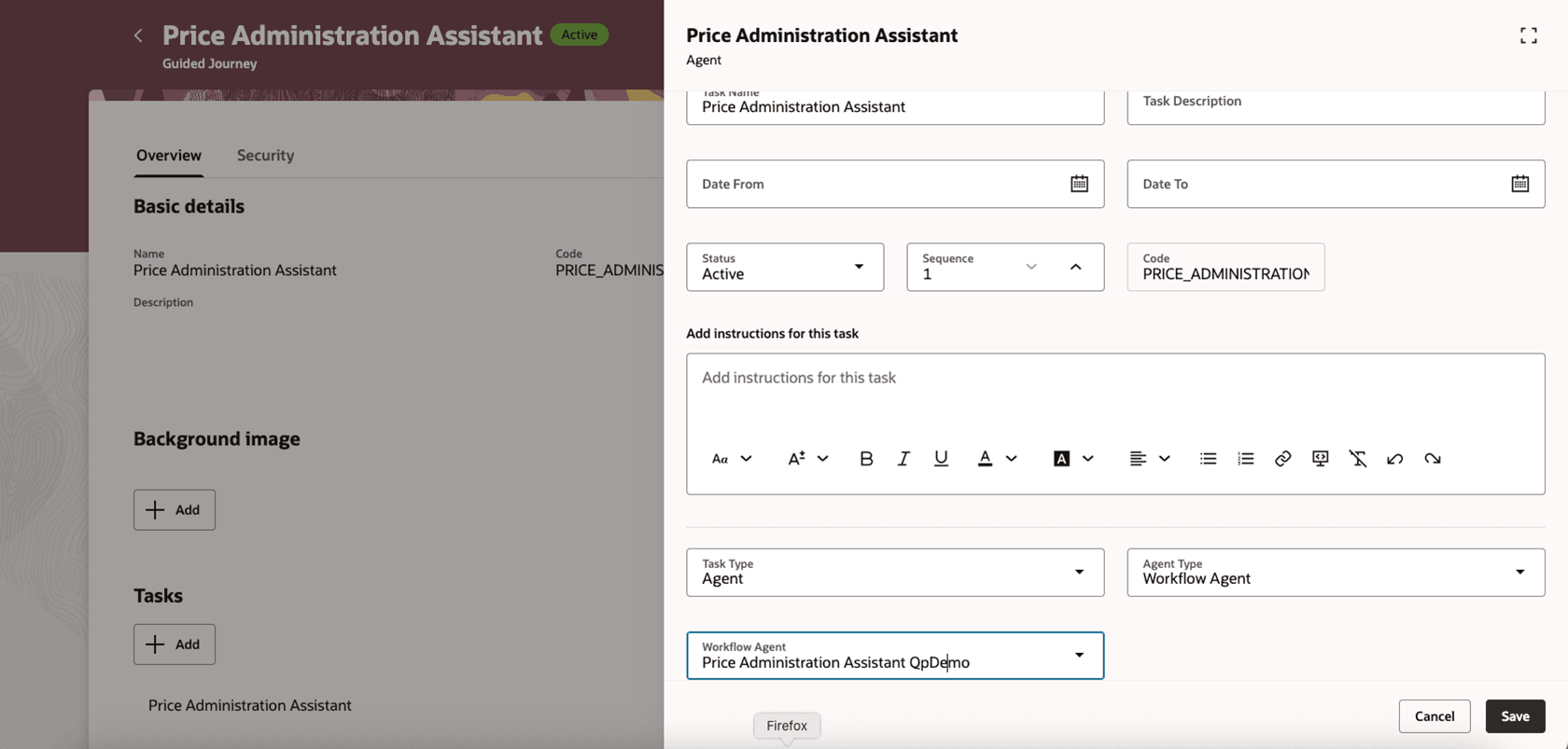
Price Administration Assistant
Tips and considerations
- Agent prompts can be changed to specify a default price list, a default pricing charge definition, and a default unit of measure.
- Based on the user login, the Price Administration Agent can update only those price lists that the user has access to.
- Please review all agent suggestions thoroughly before approving any changes.
- The Price Administration Assistant currently doesn t support price updates for models and coverage items.
Key resources
- Administering Pricing
- Enable a Guided Journey for Redwood Pages
- How do I use AI Agent Studio?
- Extending Redwood Applications for HCM and SCM Using Visual Builder Studio
Access requirements
To access the Oracle AI Agent Studio for Fusion Applications and manage SCM AI agents, users must be assigned a configured job role that contains these duty roles:
- SCM Intelligent Agent Management Duty (ORA_RCS_SCM_AI_AGENT_MANAGEMENT_DUTY)
- SCM Intelligent Agent Management Duty (ORA_RCS_SCM_AI_AGENT_MANAGEMENT_DUTY_HCM)
- Fai Genai Agent SCM Administrator Duty (ORA_DR_FAI_GENERATIVE_AI_AGENT_SCM_ADMINISTRATOR_DUTY)
To interact with AI agents on product pages, users must be assigned a configured job role that contains this duty role:
- Fai Genai Agent Runtime Duty (ORA_DR_FAI_GENERATIVE_AI_AGENT_RUNTIME_DUTY)
In the Security Console, filter by Roles and Permission Groups to find this duty role.
To allow users to interact with agents, you must also enable permission groups in the Security Console on those users' configured job roles that contain the Fai Genai Agent Runtime Duty role. You can enable permission groups when you manage the basic information of your configured job roles.