Redwood: Customer Strategies, Segments, and Profiles
Use redesigned pages in the Pricing Administration work area to search for, edit, and create pricing strategies, strategy assignment rules, segment pricing profiles, and segment pricing rules. Add more than one list to a pricing strategy in a single action, or use a scheduled process to do a mass action. Use improved filters to easily find your rules for segment pricing or strategy assignments.
Realize these benefits:
• Simplify how you set up pricing for your pricing strategies
• More user friendly experience to help streamline updates through mass actions
Use the newly redesigned Redwood pages to efficiently set up your segment pricing profiles, segment pricing rules, pricing strategy assignment rules, and pricing strategies. Some key enhancements to the feature include:
Segment Pricing Profiles
From the Pricing Administration landing page, navigate to the Actions and select the Manage Segment Pricing Profiles task.
Through this task, you can search for the segment pricing profiles, create new segment pricing profiles for your customers, and update the values for cost to serve, customer rating, customer size, customer value, and revenue potential.
Click Update Pricing Profiles to quickly update values for one or more pricing profiles.
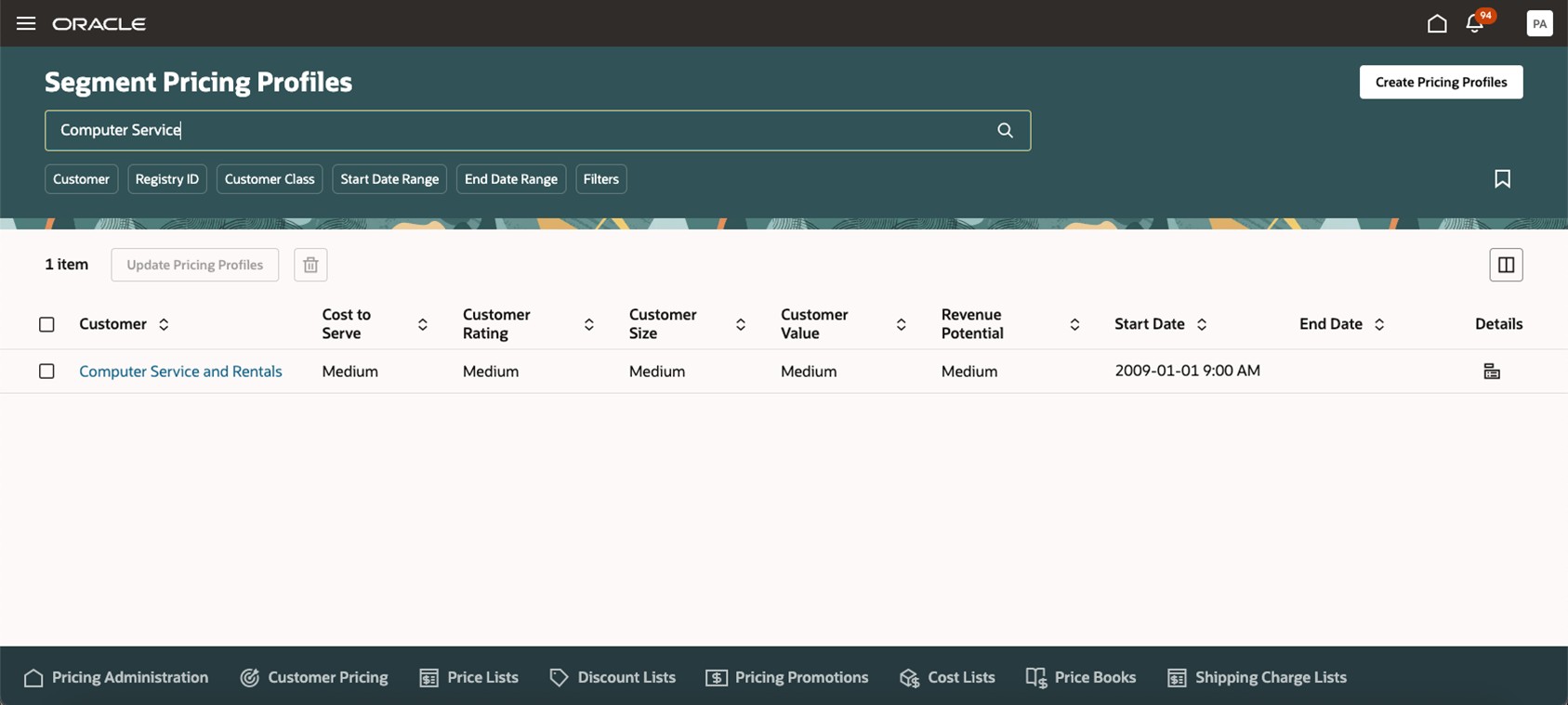
Set Your Segment Pricing Profiles for a Customer
Pricing Segments
From the Pricing Administration landing page, navigate to Actions and select the Manage Pricing Segments task. You can add your segment rules to assign the pricing segment based on the specific criteria, which can be based on the attributes from segment pricing profiles or other attributes you have defined.
Easily search across your rules for specific criteria or pricing segments using new filtering capabilities. Click Apply Filters and view the columns that you specified.
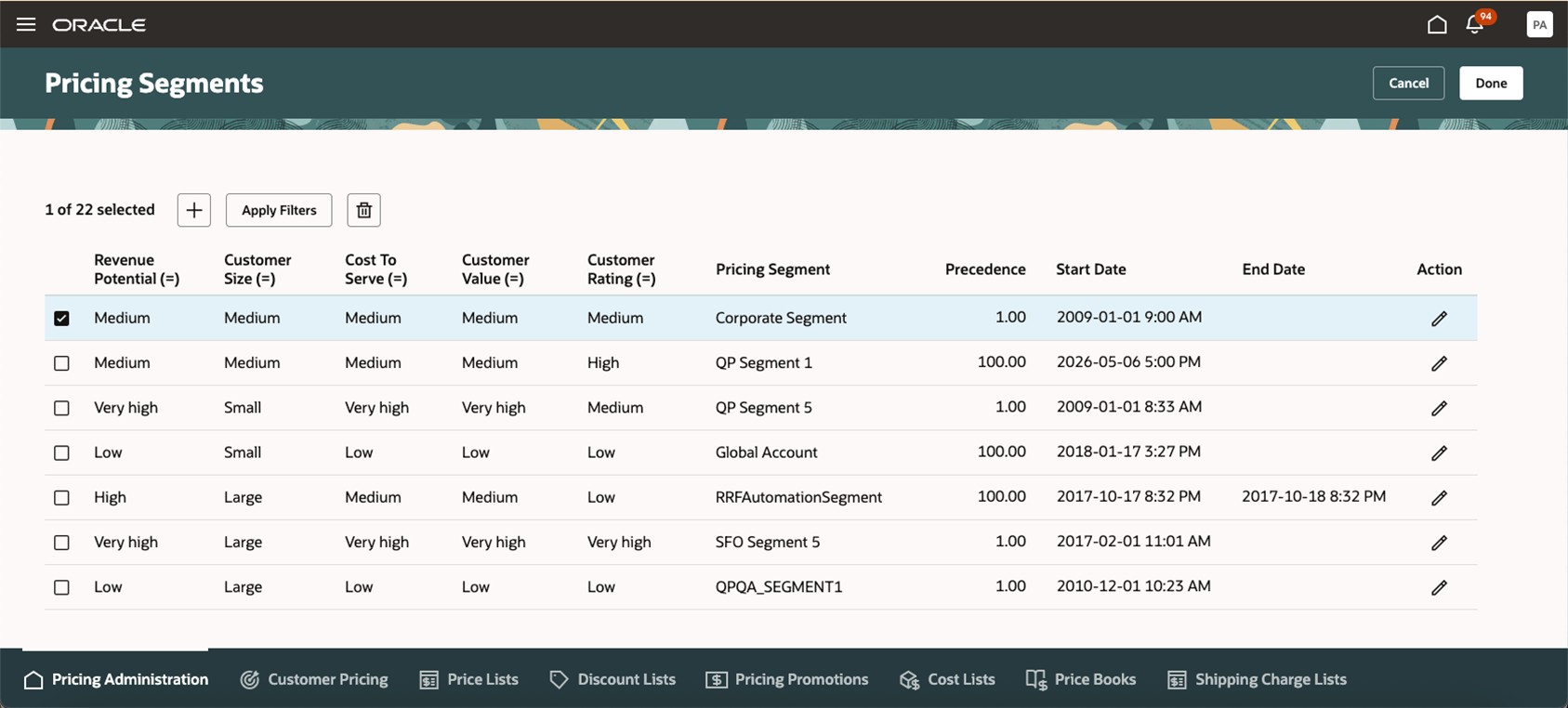
Assign Segment Rules Based on Criteria
Pricing Strategy Assignments
From the Pricing Administration landing page, navigate to Actions and select the Manage Pricing Strategy Assignments task. For a given pricing context, transaction type, and assignment level, you can specify the effectivity of the strategy assignment. Then click the View Details link to add the strategy assignment rule.
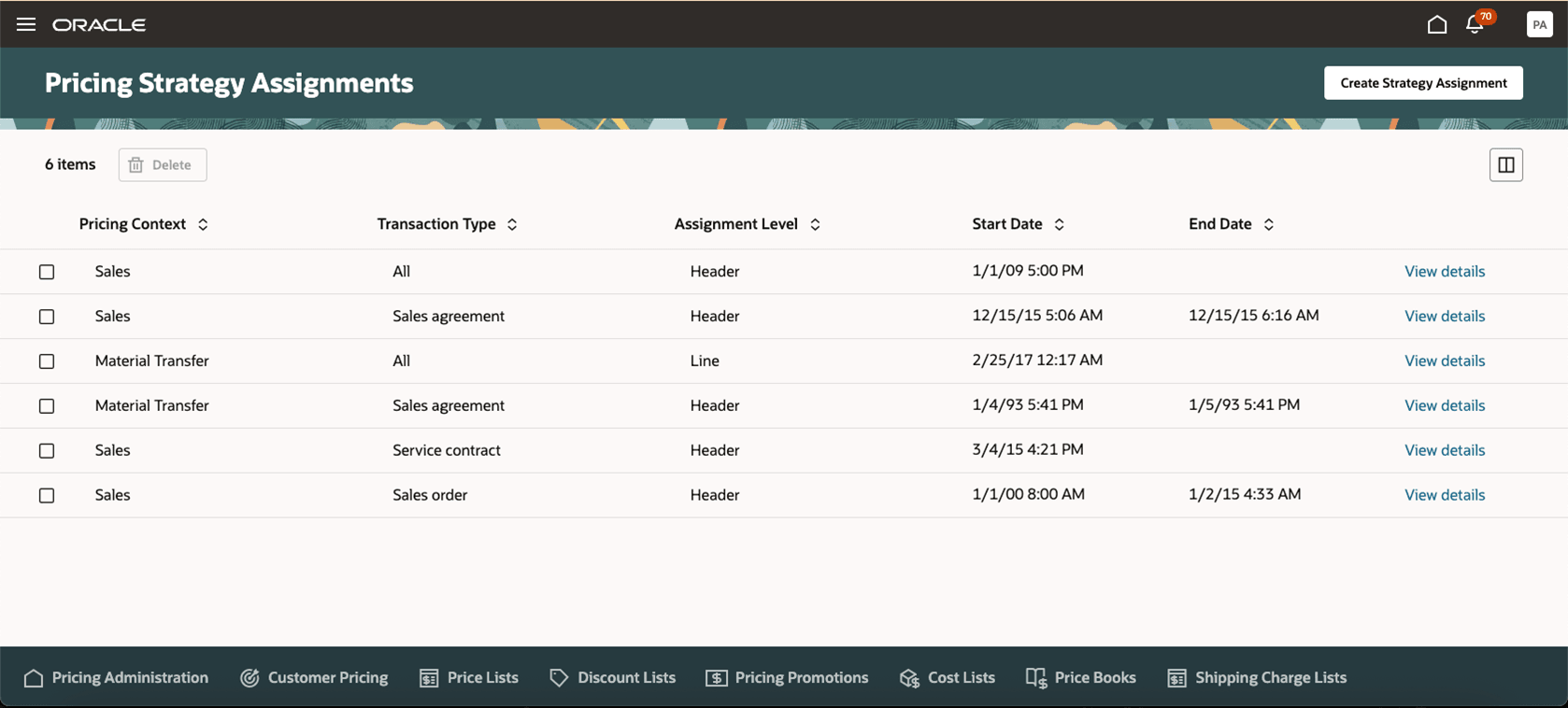
Pricing Strategy Assignments
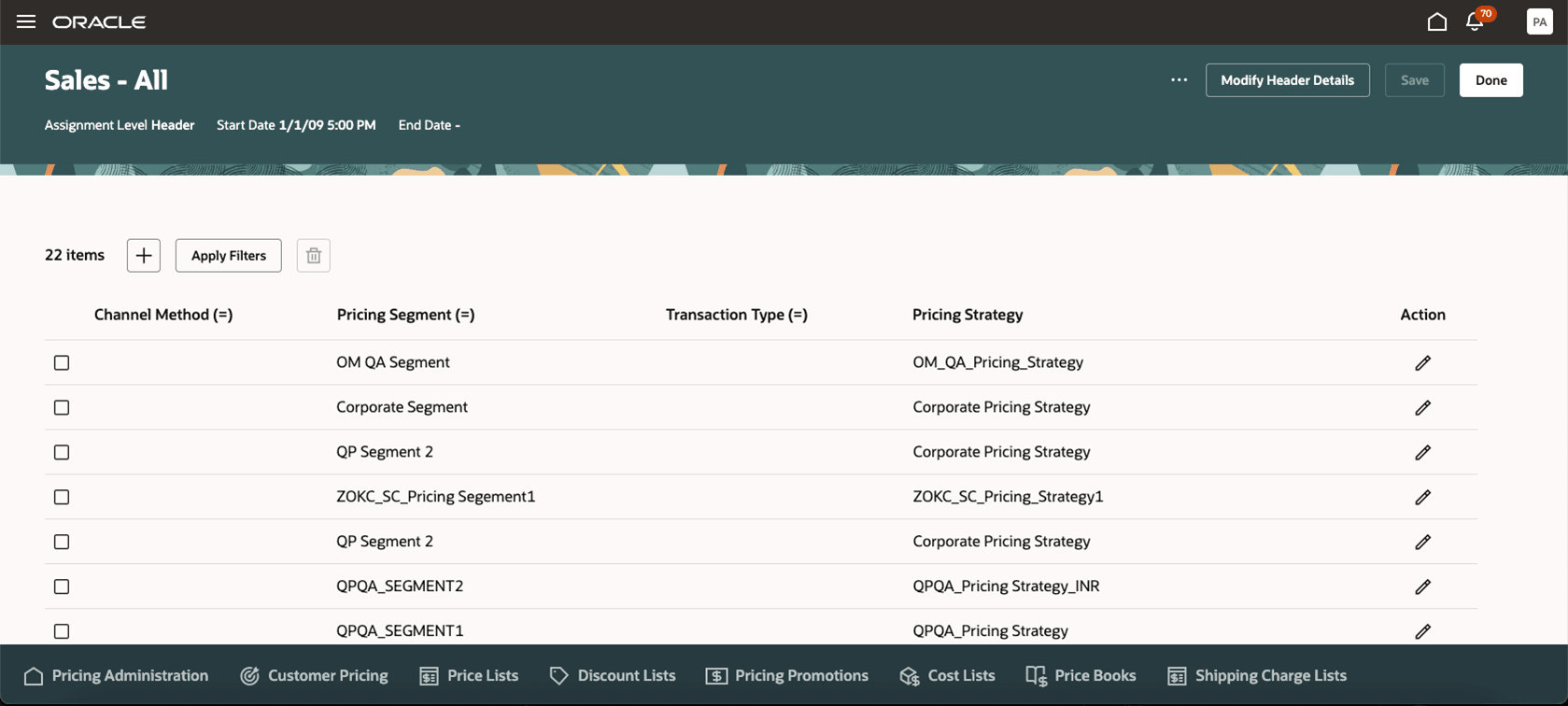
Select the Pricing Strategy Assignment to Define the Rules
You can add new assignment rules, update assignment rules, or delete assignment rules. Easily search across your rules for specific criteria or pricing strategies using new filtering capabilities. Click Apply Filters and view the columns that you specified.
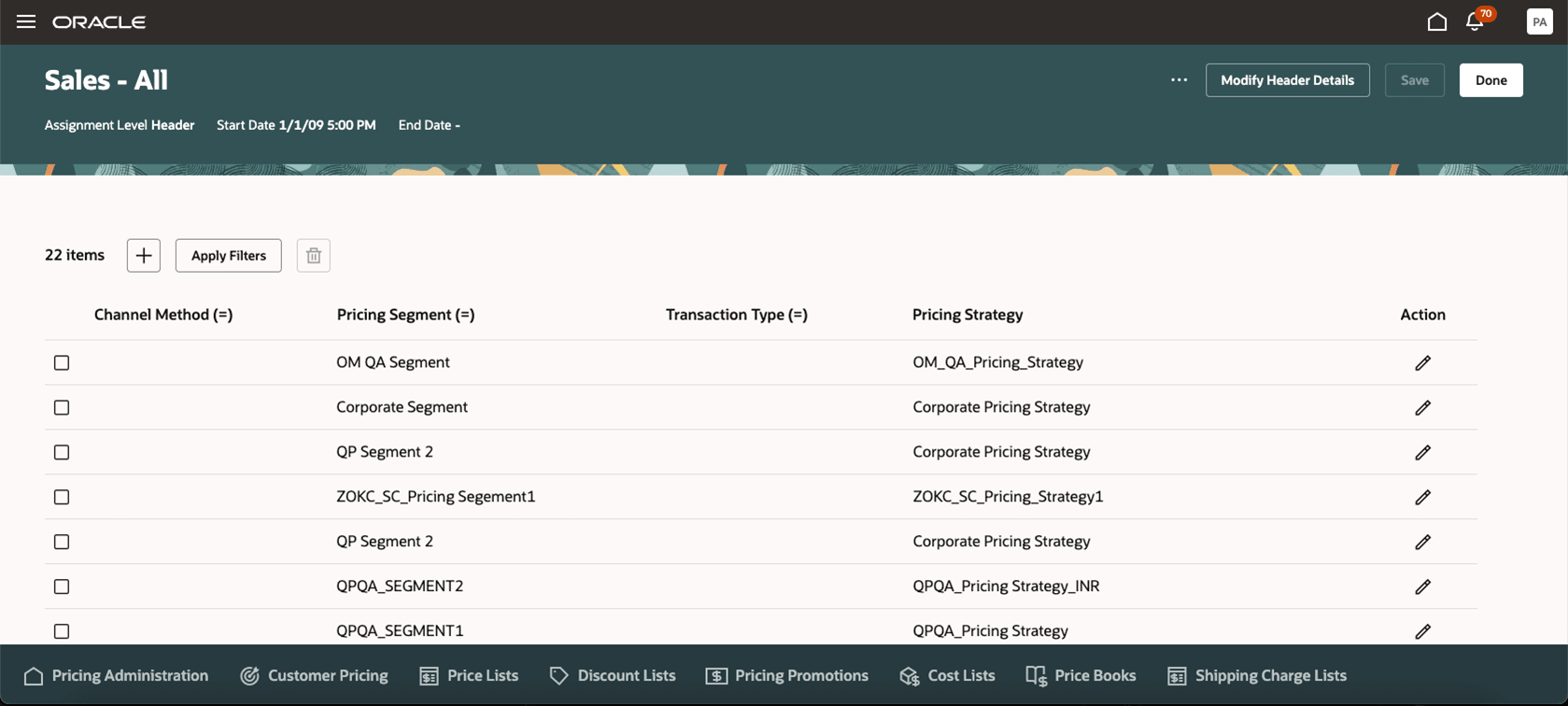
Pricing Strategy Assignment Rules
Pricing Strategies
From the Pricing Administration landing page, navigate to Actions and select the Manage Pricing Strategies task. You can search for strategies, create new strategies, update pricing for strategies, duplicate a strategy, or activate strategies.
You can use the filters to search for pricing strategies. Use the filter chips to narrow your list of strategies by default currency, status, or by the start date or end date.
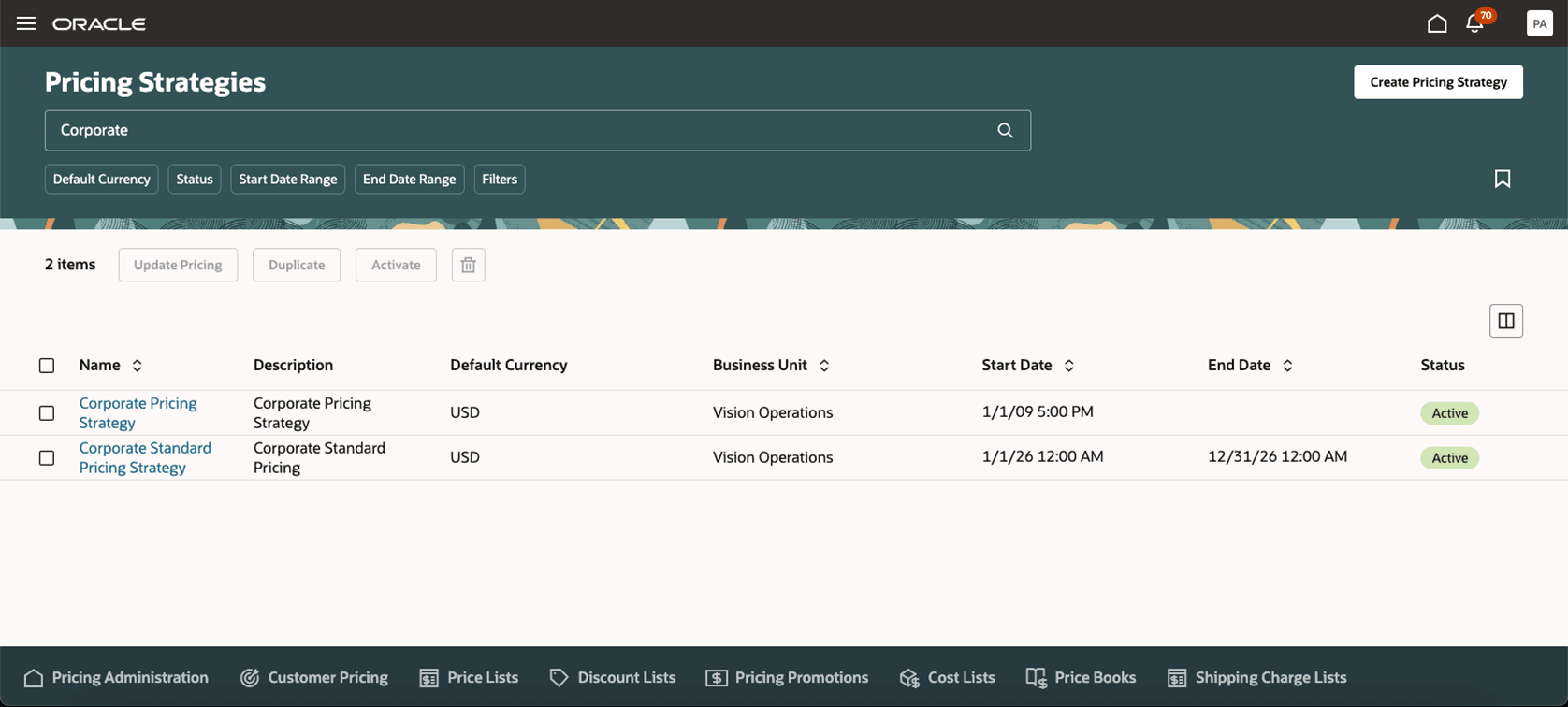
Pricing Strategies Overview
When you create a pricing strategy, you can associate various types of lists with the pricing strategy: price list, discount list, shipping charge list, cost list, and currency conversion list. After setting the default currency, you can also specify other currencies that Pricing can use to price the transaction.
For each type of list, you can associate one or more lists and Pricing applies the list according to the Priority attribute. In this example, it will apply the Q3 Price List - first, and then the Corporate Segment Price List. You can drag the list's rows to sequence the priority, so it meets your needs.
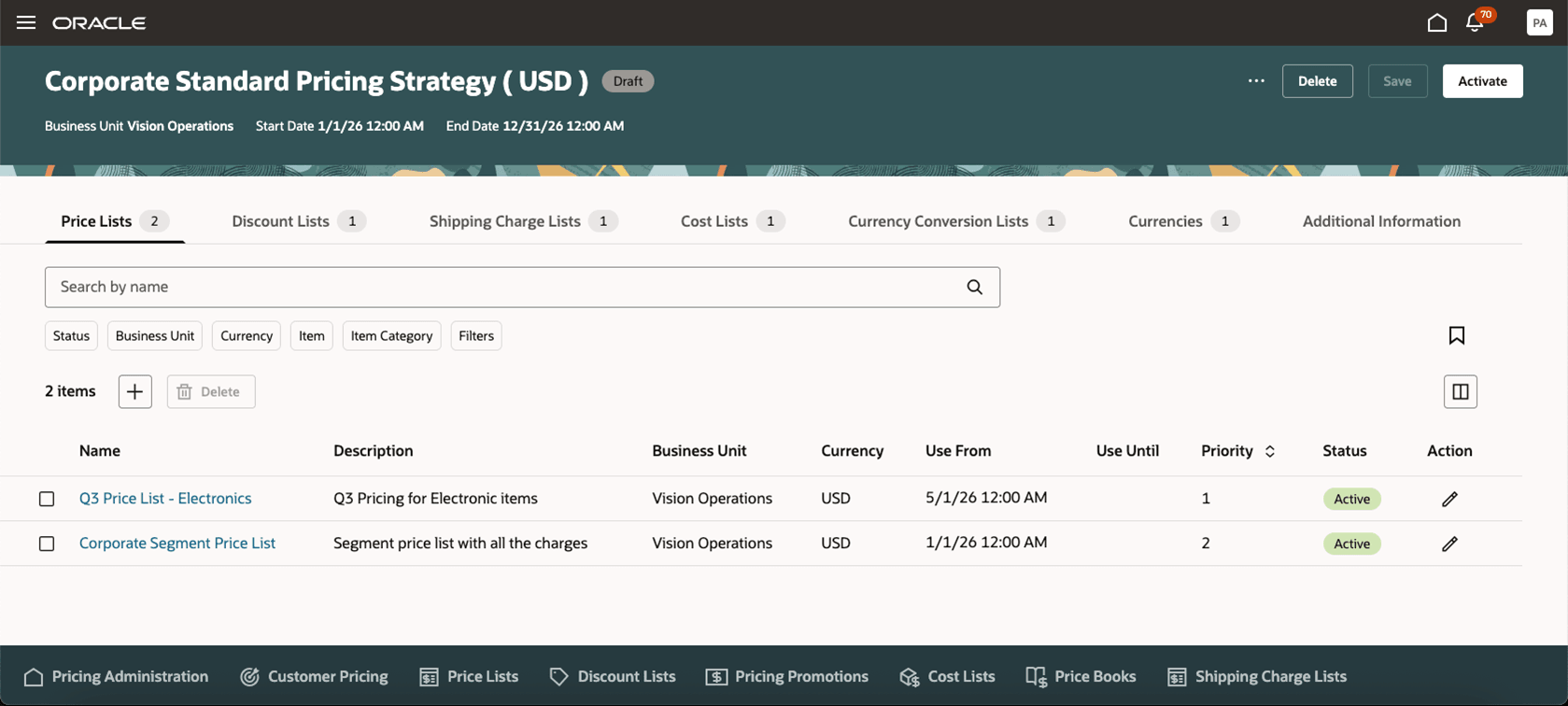
Price List on Pricing Strategies
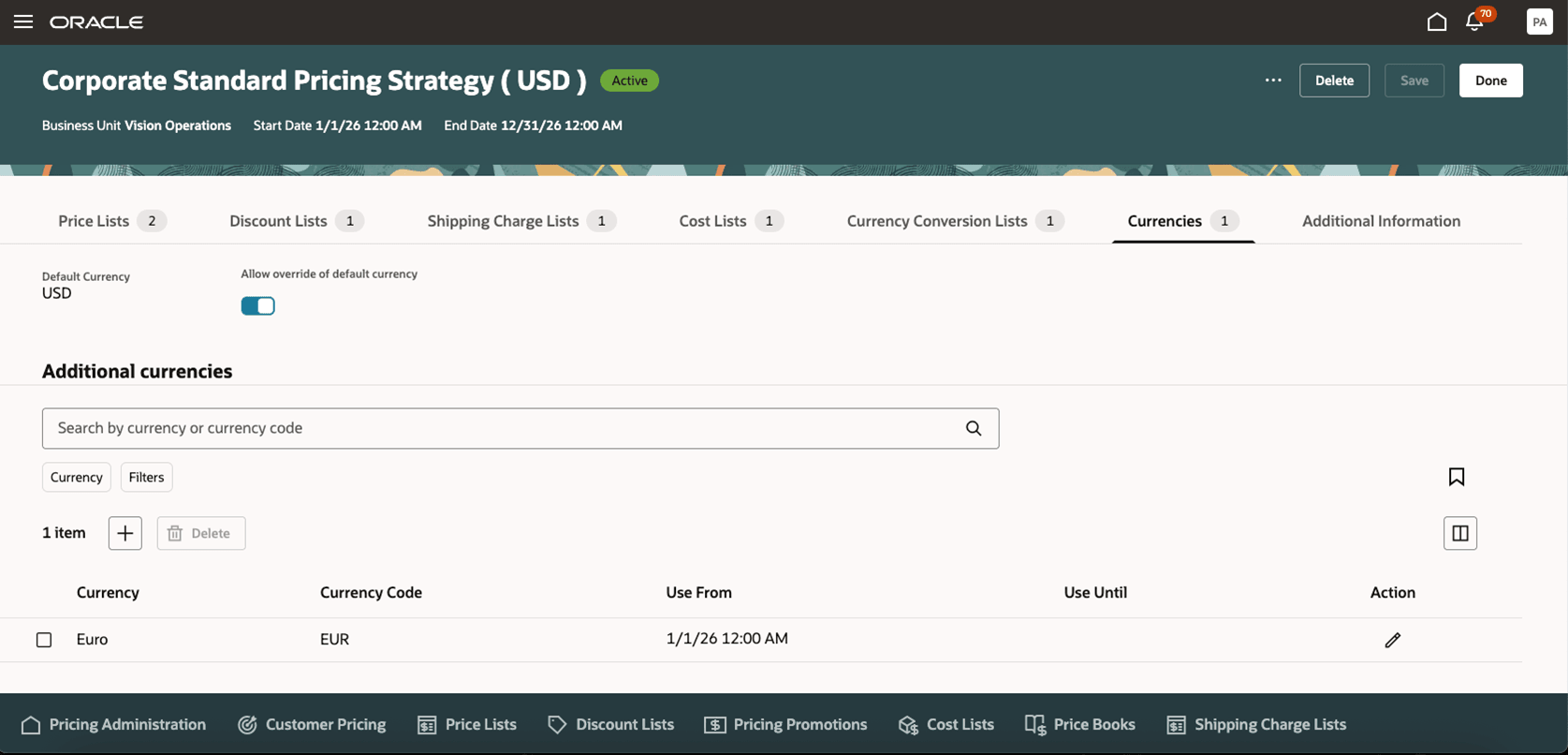
Currencies on a Pricing Strategy
Update Pricing on Pricing Strategies
From the Pricing Strategies overview page, you can select one or more pricing strategies to perform mass actions. Click the Update Pricing button to add price lists, discount lists, shipping charge lists, cost lists, currency conversion lists, and currencies to the selected strategies. The mass actions process initiates a scheduled process and updates the pricing strategies. You can view any errors in the process through a report.
You can:
- Add new price lists, discount lists, shipping charge lists, cost lists, or currency conversion lists for a set of dates.
- Add new currencies for a set of dates.
In this example, you selected two pricing strategies and now want to associate a discount list to both strategies.
Select the pricing strategies that you want to update, and then click Update Pricing:
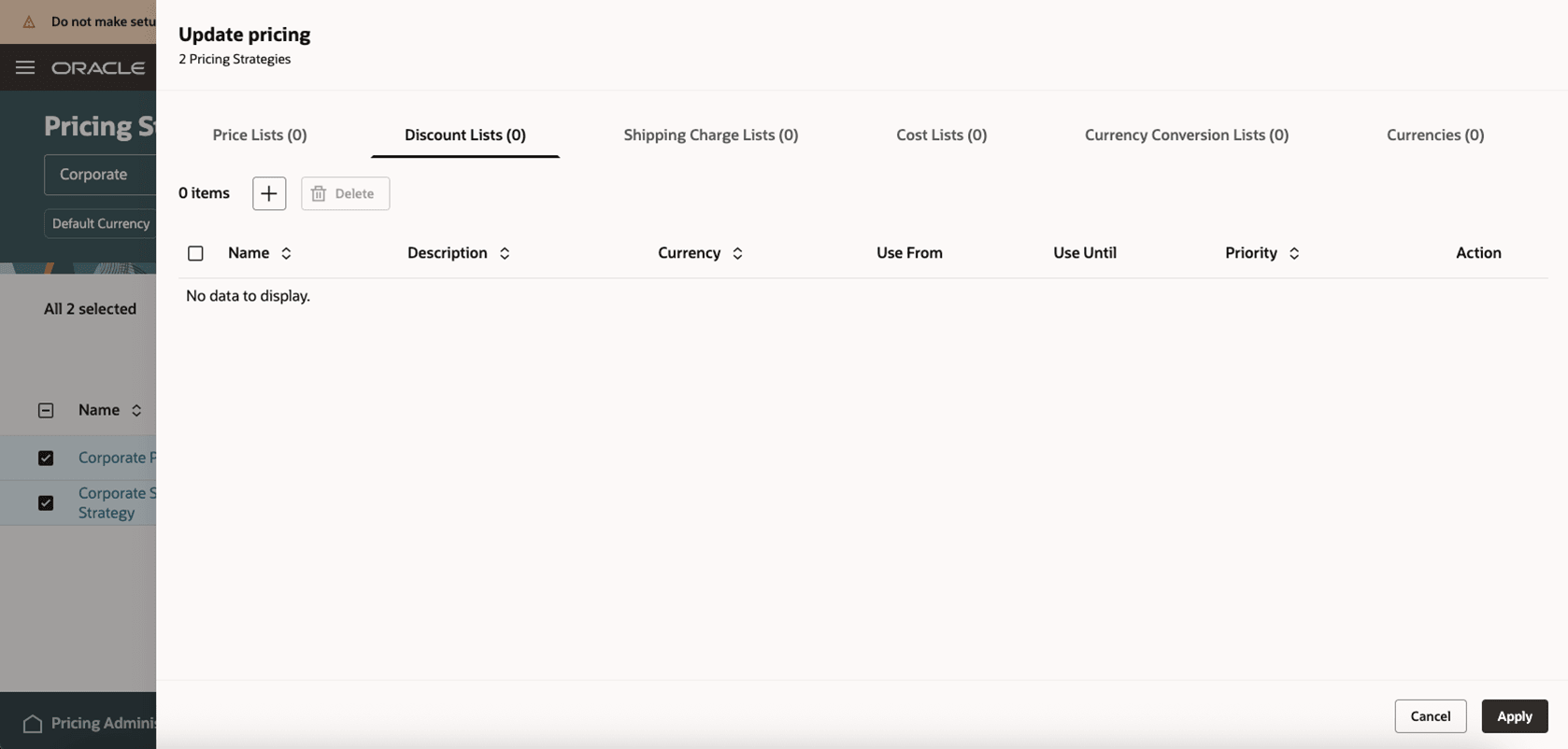
Update Pricing for Pricing Strategies
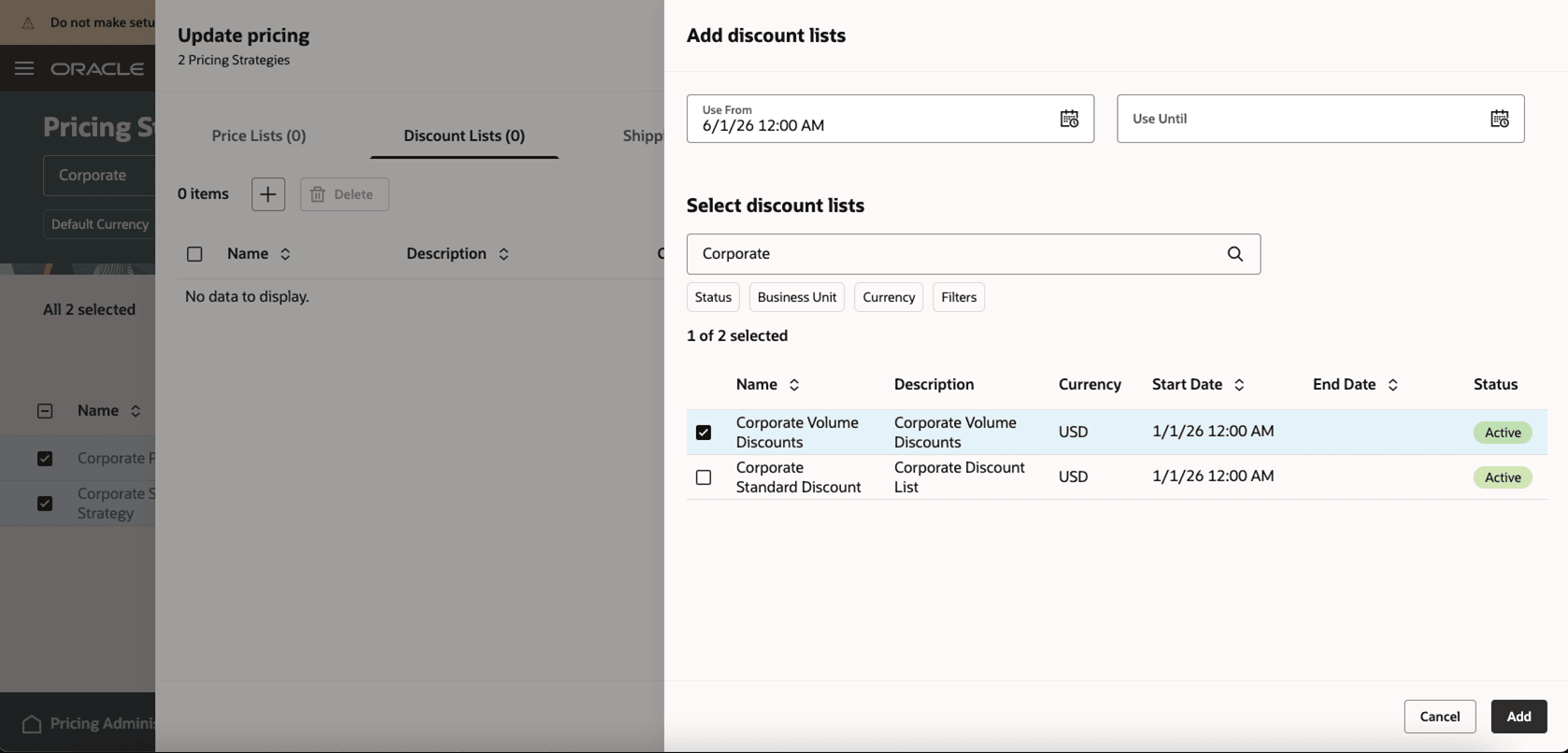
Select the Discount List to Add Through Update Pricing
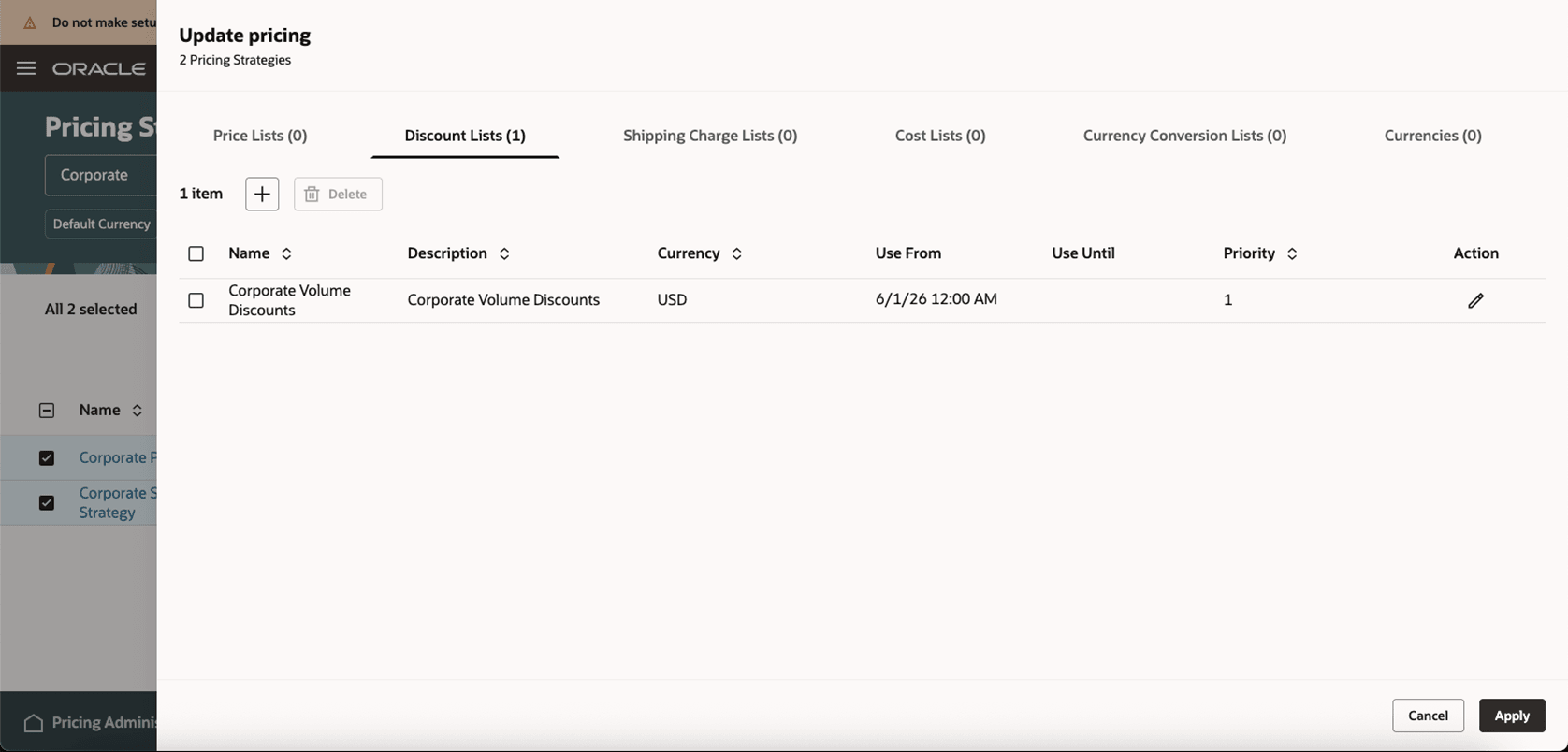
Clicking Apply Updates the Strategies
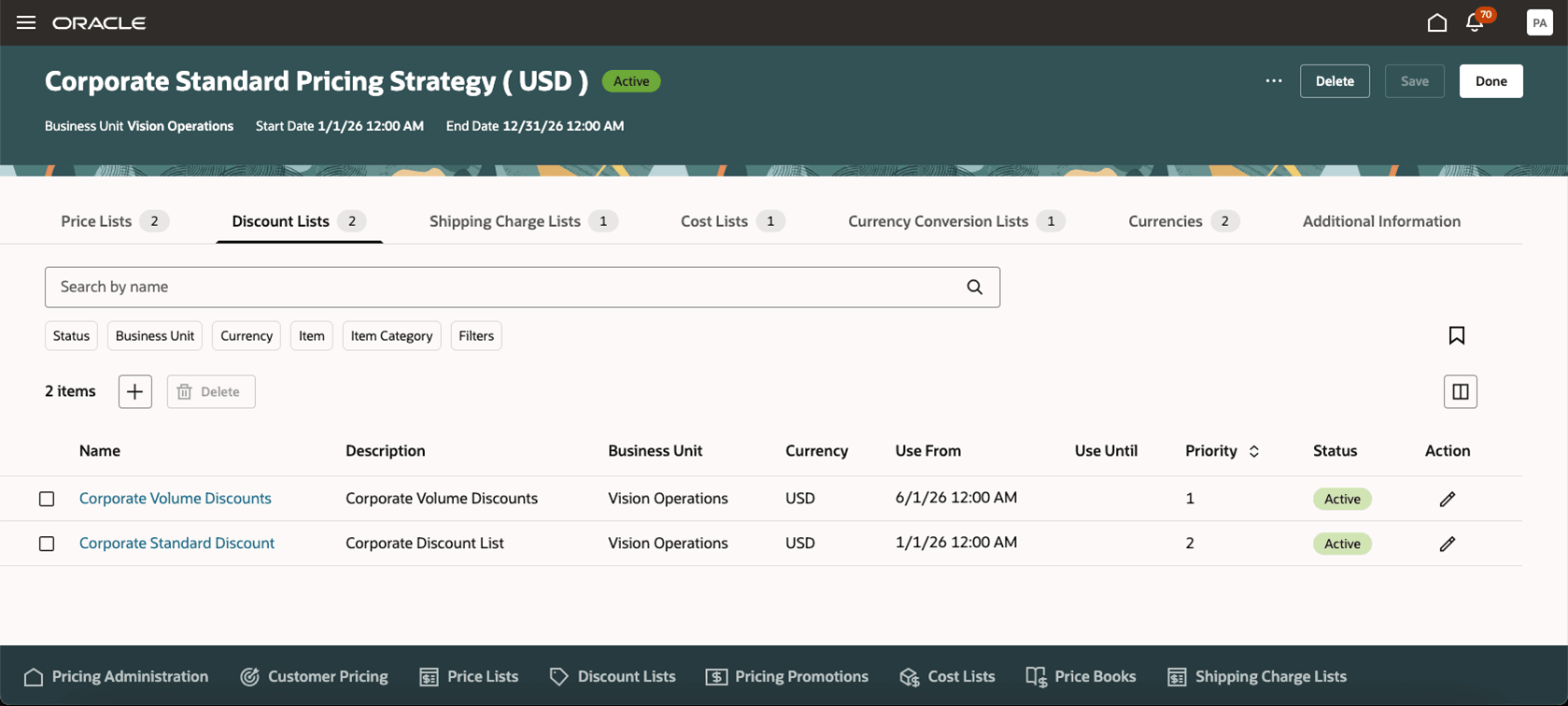
Review the Latest Updates
Steps to enable and configure
- To enable the Redwood Segment Pricing Profile and the Pricing Segments UI, go to Home > My Enterprise > Setup and Maintenance > Tasks > Search > Manage Administrator Profile Values, and then enable the Redwood Page for Segment Pricing Profiles and Pricing Segments Enabled profile option.
- To enable the Redwood Pricing Strategy Assignment and the Pricing Strategies UI, go to Home > My Enterprise > Setup and Maintenance > Tasks > Search > Manage Administrator Profile Values, then enable the Redwood Page for Pricing Strategies and Strategy Assignments Enabled profile option.
- For pricing segments, ensure you define the columns you plan to use for pricing segment in the Manage Matrix Classes setup. Select Pricing Segment to enter the details.
- For pricing strategy assignments, ensure you define the columns you plan to use for pricing strategy assignment in the Manage Matrix Classes setup. Select Sales Pricing Strategy Assignment to enter the details.
Tips and considerations
The list of values for customers in the Segment Pricing Profiles is filtered where the party usage is Customer.
Use the Apply Filters action to quickly search for rules in the Pricing Segments and Pricing Strategy Assignments UI.
Pricing segments and pricing strategy assignments can be date effective. Set the dates in Manage Matrix Classes for the respective matrix class.
Carefully review the updates after running Update Pricing. Review the error report and address any issues as needed.
Key resources
Access requirements
Users who are assigned a configured job role that contains these privileges can access this feature:
• Manage Customer Pricing Profiles (QP_MANAGE_CUSTOMER_PRICING_PROFILES_PRIV)
• View Customer Pricing Profiles (QP_VIEW_CUSTOMER_PRICING_PROFILES_PRIV)
• Manage Pricing Segments (QP_MANAGE_PRICING_SEGMENTS_PRIV)
• View Pricing Segments (QP_VIEW_PRICING_SEGMENTS_PRIV)
• Manage Pricing Strategy Assignments (QP_MANAGE_PRICING_STRATEGY_ASSIGNMENTS_PRIV)
• View Pricing Strategy Assignments (QP_VIEW_PRICING_STRATEGY_ASSIGNMENTS_PRIV)
• Manage Pricing Strategies (QP_MANAGE_PRICING_STRATEGIES_PRIV)
• Manage In-Progress Pricing Strategies (QP_MANAGE_IN_PROGRESS_PRICING_STRATEGIES_PRIV)
• View Pricing Strategies (QP_VIEW_PRICING_STRATEGIES_PRIV)
• Approve Pricing Strategies (QP_APPROVE_PRICING_STRATEGIES_PRIV)
• Manage Pricing Strategies Data (QP_MANAGE_PRICING_STRATEGIES_DATA_PRIV)
These privileges were available before this update.