Initiate Procurement Activities with Intake Requests
Initiate procurement activities for noncatalog goods and services using Intake Requests. You can either use an AI assistant to help with creating the request or manually create the request and submit it for review and approval.
At any time after you submit a request, you can see the set of review tasks applicable to it along with their statuses such as complete, in progress, and draft. After the reviews are completed, an outcome document is automatically created, and a link to the document is added to the request.
Intake requests - end-to-end process
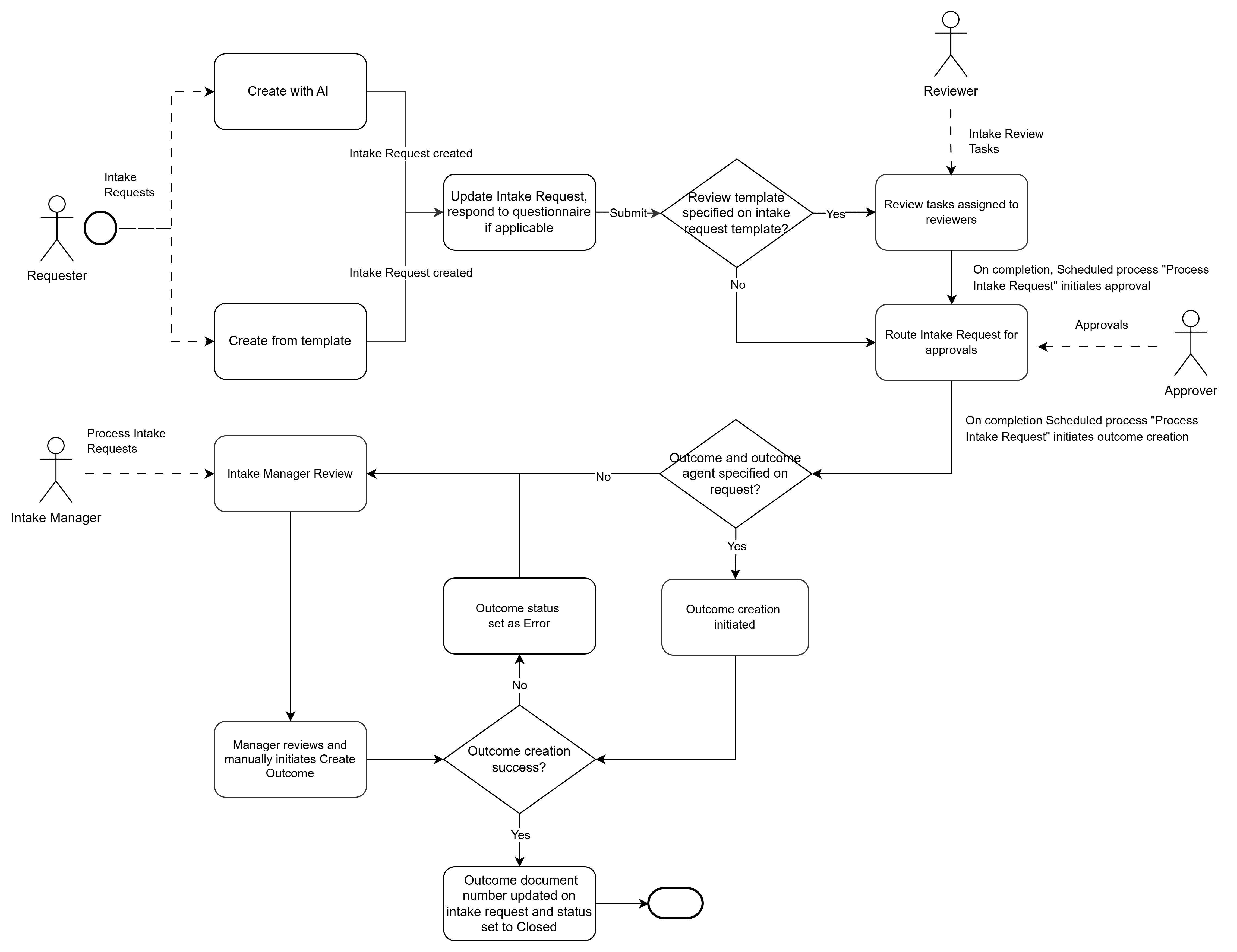
Intake Request Process
User personas
There are five user personas in the intake request process:
-
Requester — The user making the request. This can be any employee in the organization requesting for goods or services, or a procurement agent initiating a request for a specific outcome (for example, initiating a negotiation).
- Reviewer — The user assigned a review task for the request. This can be any employee in the organization.
- Intake Manager — The user responsible for managing exceptions and handling errors in processing the intake request before an outcome is successfully created. The intake manager is assigned when the intake request template is created.
- Approver — The user who approves the request. Approvers are notified through worklist notifications when there are intake requests requiring their approval.
- Administrator — The user who performs the setups such as creating questionnaires, intake request templates, and review templates.
Creating and managing intake requests (Requester)
Create and manage intake requests from the Intake Requests landing page, available as a quick action from the Self Service Procurement homepage. On the landing page that displays the list of requests you created, you can create new requests and edit existing ones.
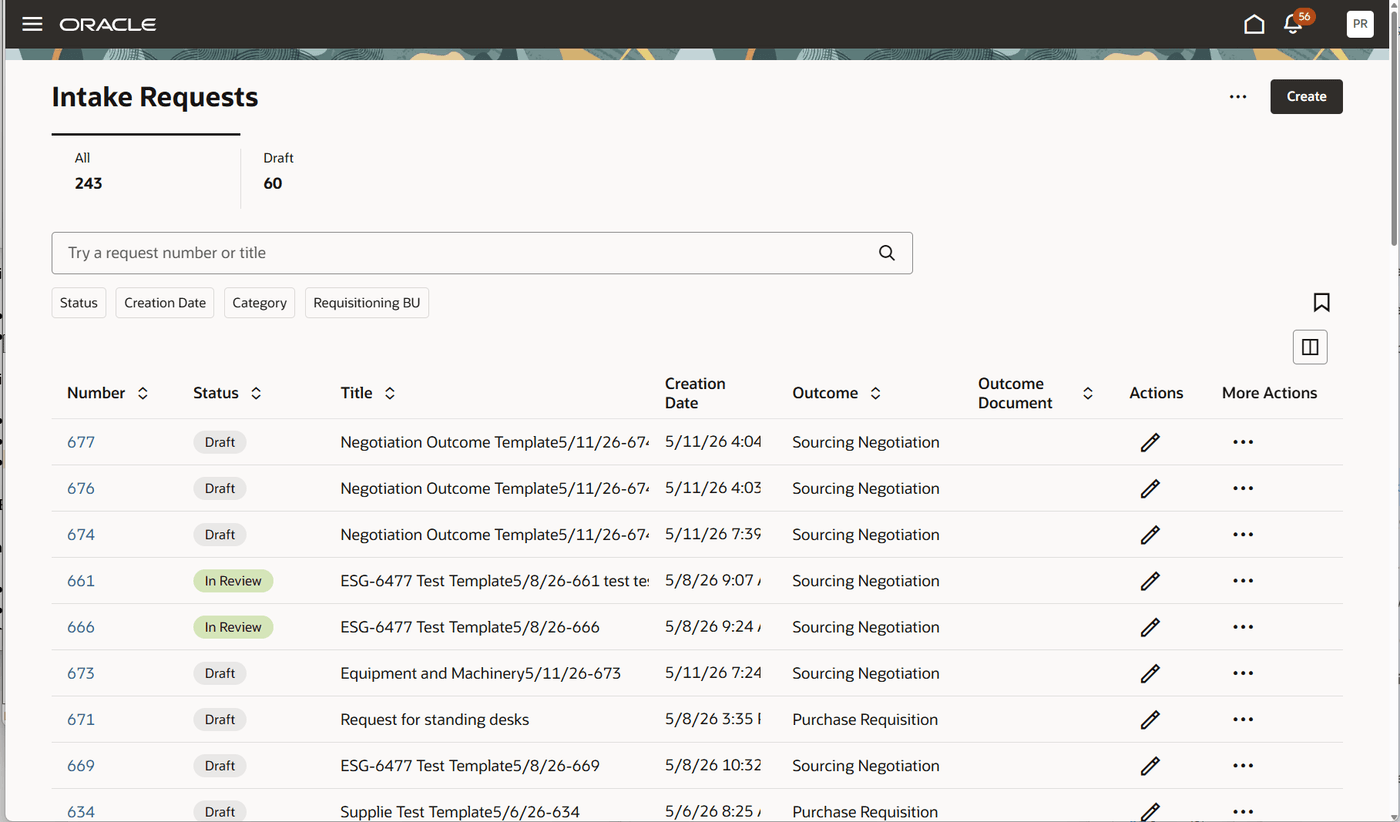
Intake Requests Landing Page (Requester)
Intake request preferences
You must set up requester preferences before you can create intake requests. Use the Preferences action on the Intake Requests landing page to open the Preferences drawer. You can specify a business function and business unit, and optionally a deliver-to location.
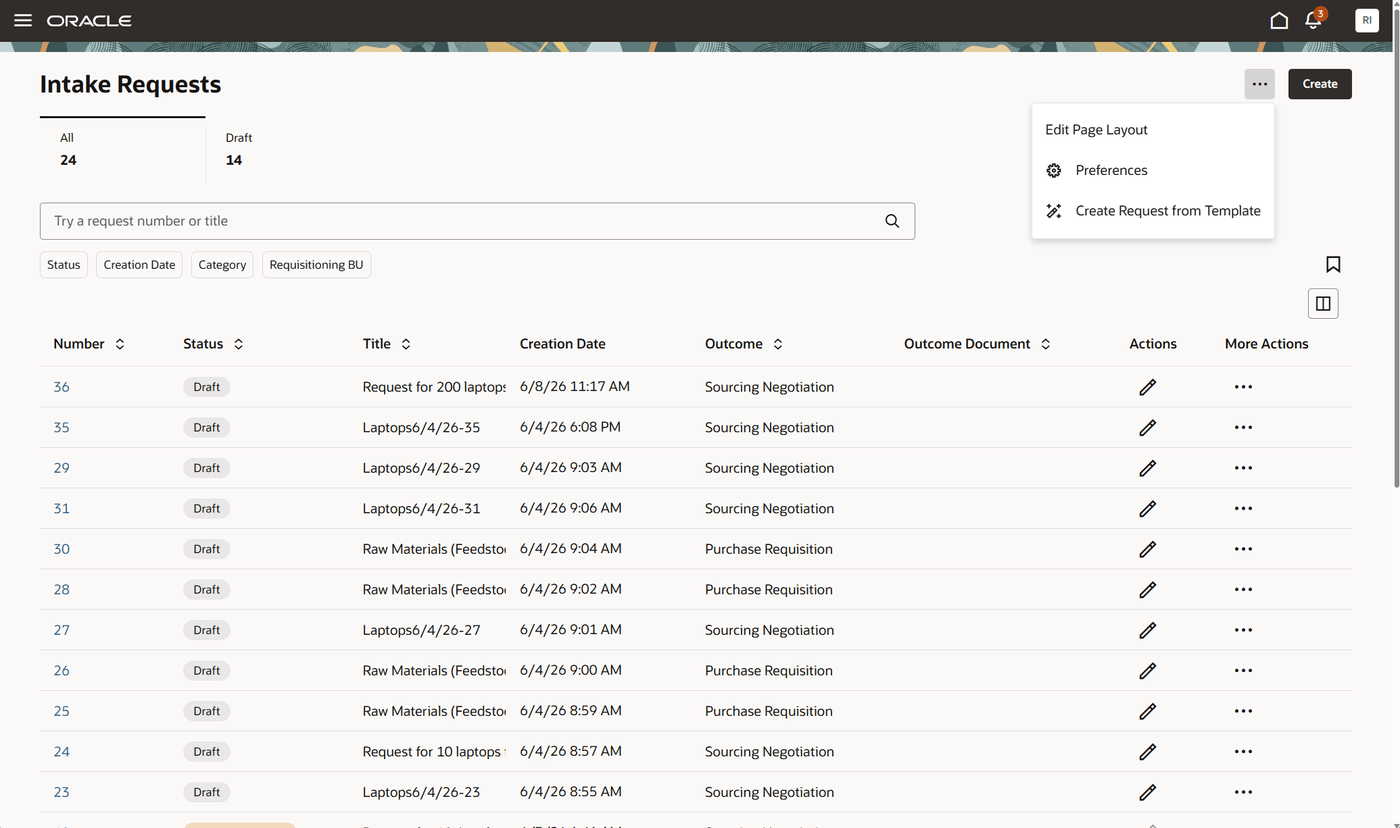
Preferences
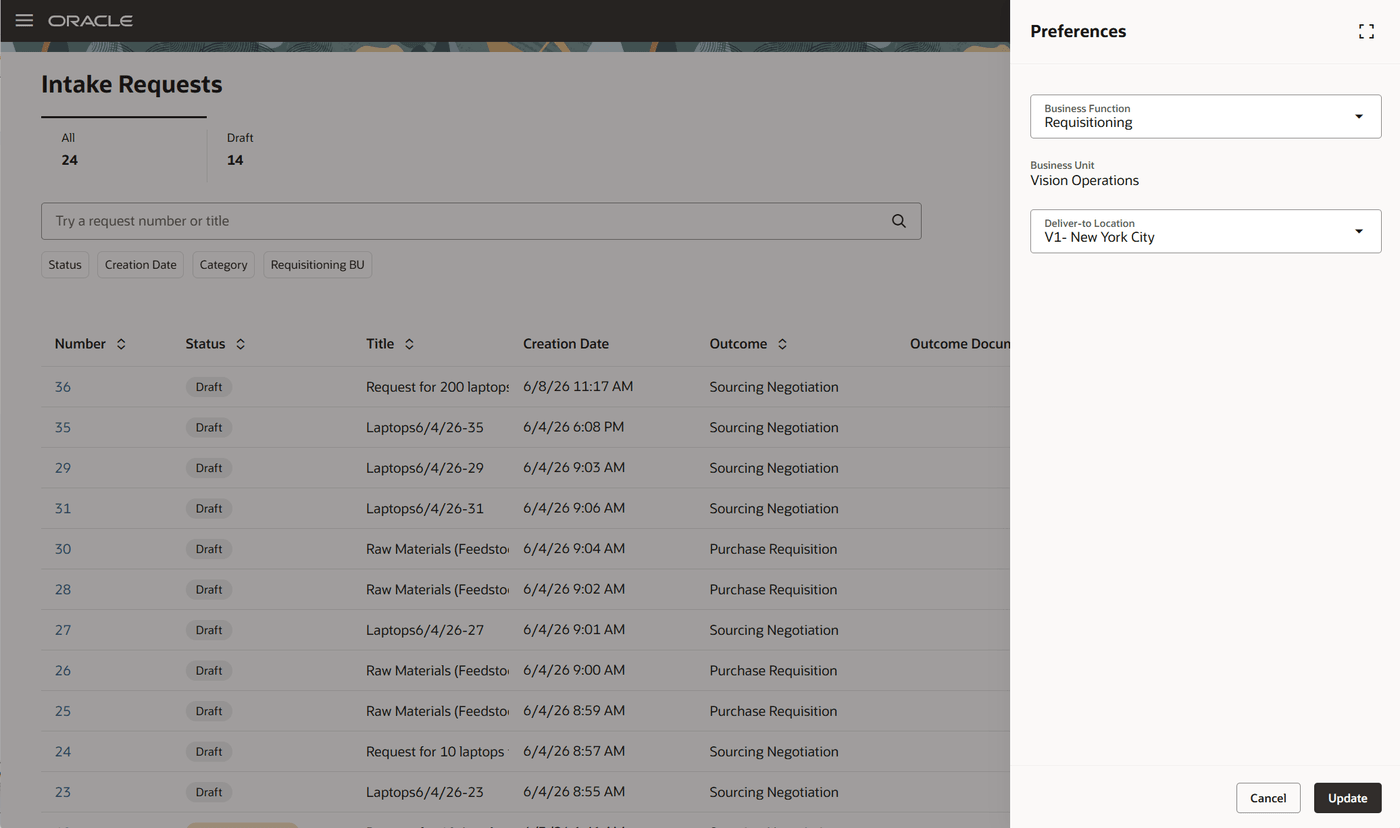
Intake Request Preferences Drawer on the Intake Requests Landing Page
- Business Function - Select Requisitioning (for standard users) or Procurement (for sourcing / buyer roles).
- Business Unit - If you select Requisitioning, the list displays the requisitioning business units associated with you. If you select Procurement, the list displays the business units where you're an active procurement agent.
- Deliver-to Location - Optionally, set a default location.
AI-assisted intake request creation
Use the Create action to launch a chat drawer where you interact with the Intake Request Creation Assistant and provide the request details. The agent prompts you for additional information if required, identifies the applicable template, fills out the fields identified in the template, and displays the request back to you for confirmation. To make changes, select Request Change; to proceed, select Approve. You must select either Approve or Request Change. When you approve, the request is created in Draft status and a link to the request, with its generated intake request number is provided. You can create additional requests at this point or close the chat session.
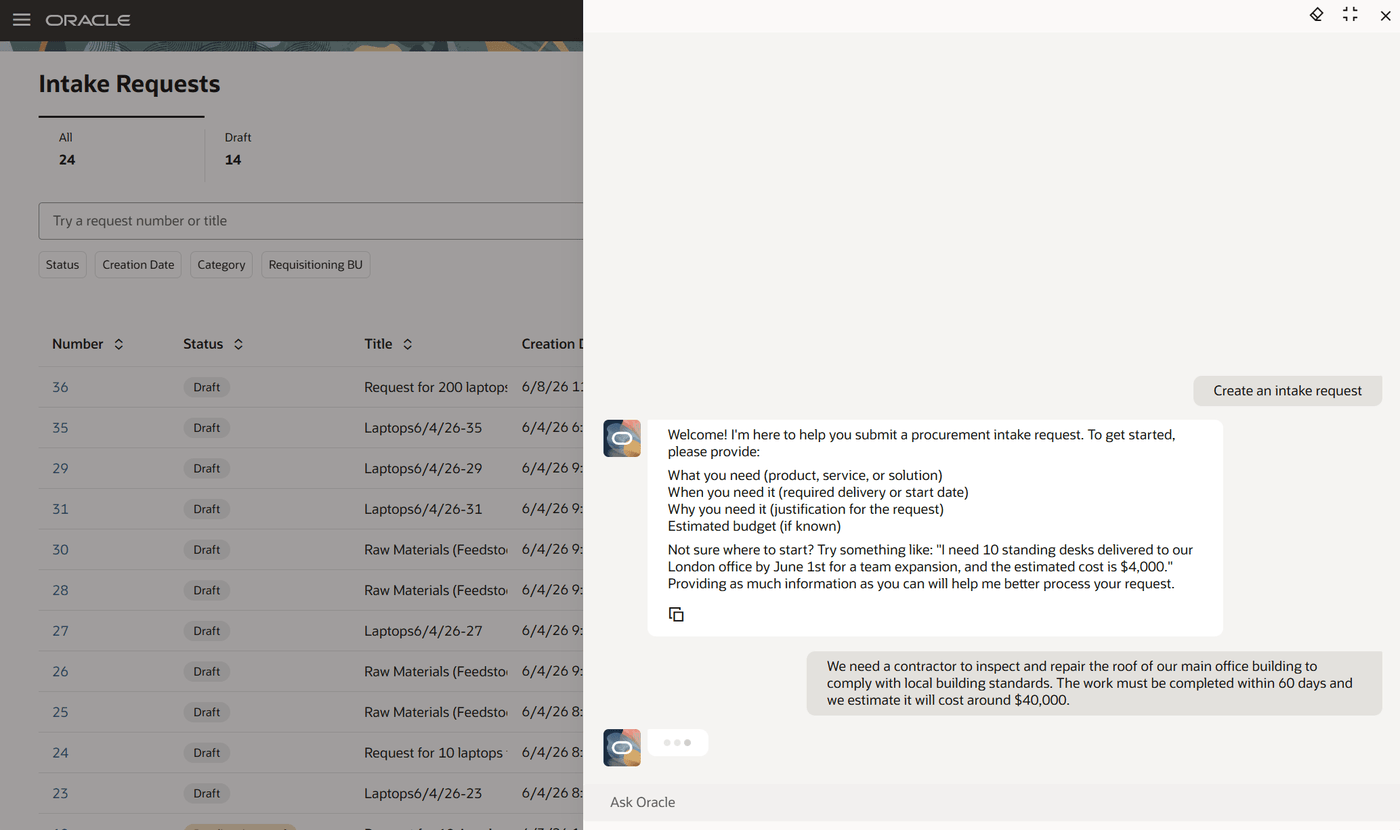
Intake Request Creation Assistant Interactions
Create intake request from template
Alternatively, you can create a request by selecting a template directly. When the site level profile option Create Intake Request from Template is enabled, the Create Request from Template option is available from the more actions menu on the Intake Requests landing page. Select a template from the list of values and select Create.
Update the request and complete the questionnaire
After you create a request, you can update it before submitting it for review and approval. If a questionnaire is specified on the template, it's copied to the request, and you can update it along with the other request details. When you save, if any fields flagged as required on the template are missing values, you're prompted to provide them.
Submit intake request
When you submit the request and if the intake request template has a review template associated, the status is set to In Review and the tasks specified on the template are assigned to the respective reviewers. If tasks are sequenced, a task that has preceding tasks isn't assigned until those preceding tasks are completed. The request becomes read only to you unless the option to Allow requester edits during review is enabled on the template. If the intake request template doesn't have a review template associated, the request is submitted for approval and the status is set to Pending Approval. Once approvals are completed, the status is set to Approved.
Viewing review task status
After you submit the request, use the View Review Tasks action on the intake request to view the status of the applicable review tasks. This shows how many reviews are completed, the reviewer for each task, and who's currently reviewing it.
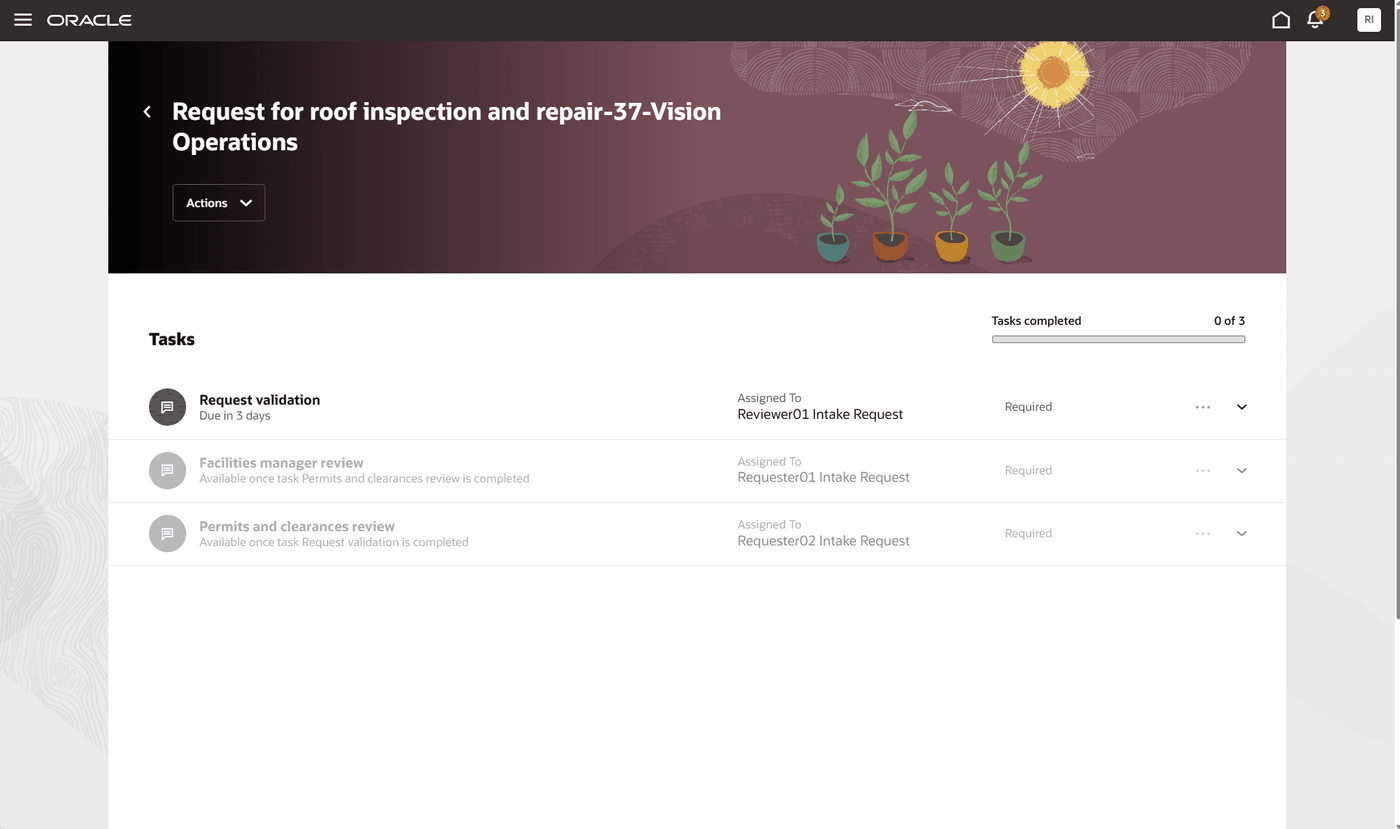
View Review Tasks — Review Task Status and Progress
Reviewing intake requests (Reviewer)
When a requester submits an intake request and a review template is specified, review tasks are created and assigned to the reviewers identified for each task. You're notified through a worklist notification when a task is assigned to you. Use the Intake Review Tasks page, available as a quick action from the Purchasing landing page (Purchasing - Intake Review Tasks / My Review Tasks), to see the tasks currently assigned to you.
A link to the intake request is provided within the review task. You can view the request details and update them if needed, and you can optionally specify review comments and add attachments to the task. After you complete the review task, mark it as Done to remove it from your queue. You can also update or cancel requests assigned to you for review, and you can view review status using the View Review Tasks action. You can see only the requests assigned to you for review.
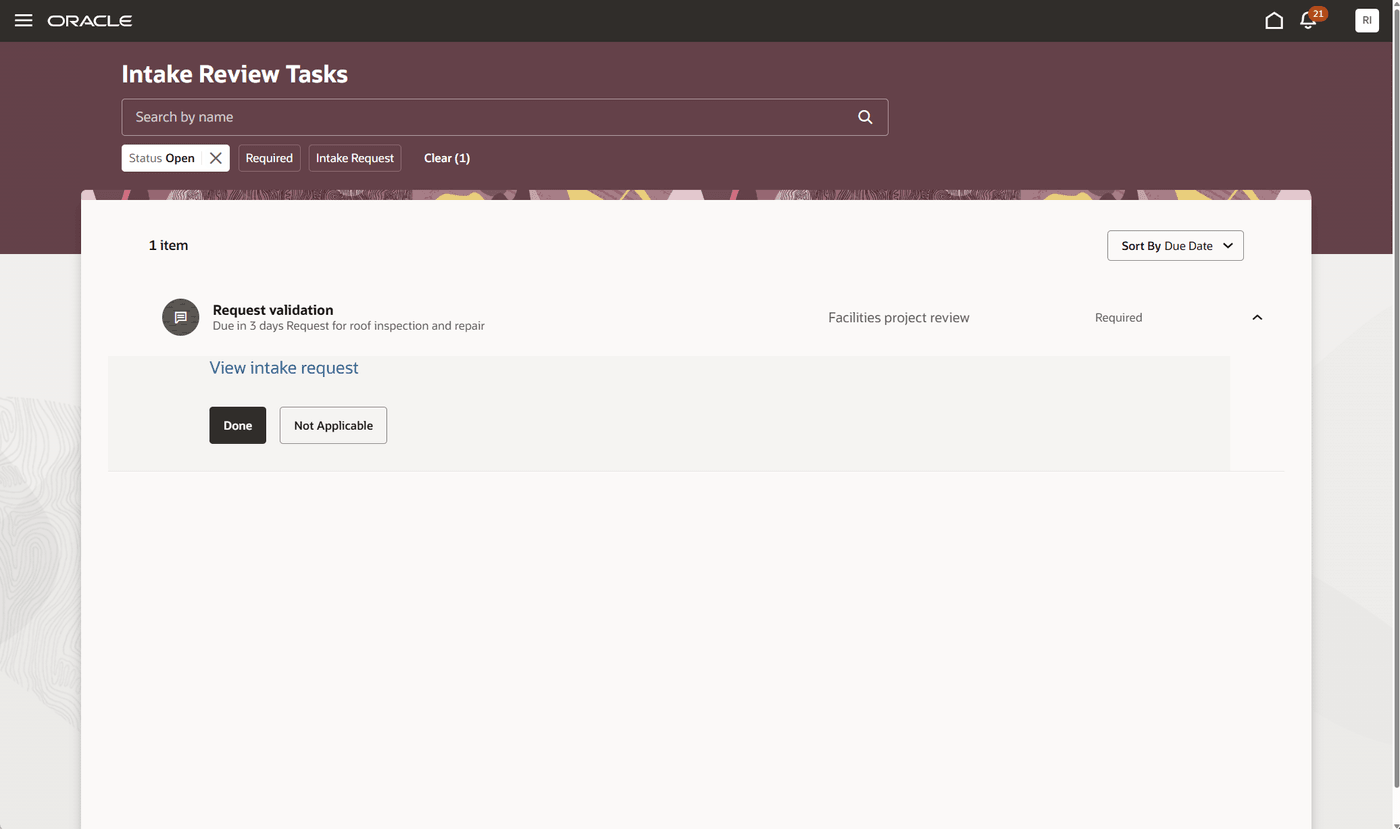
Intake Review Tasks Page (Reviewer)
Managing intake requests (Intake manager)
Use the Process Intake Requests page, available as a quick action from the Purchasing landing page (Purchasing - Process Intake Requests), to review and act on intake requests. The requests you can view and act on are based on the access granted in your procurement agent setup.
- Requests in any status other than Draft are displayed; you see requests where you're identified as the owner.
- You can edit requests in any status other than Closed and Canceled.
- Closed and canceled requests aren't actionable.
- You can close or cancel requests.
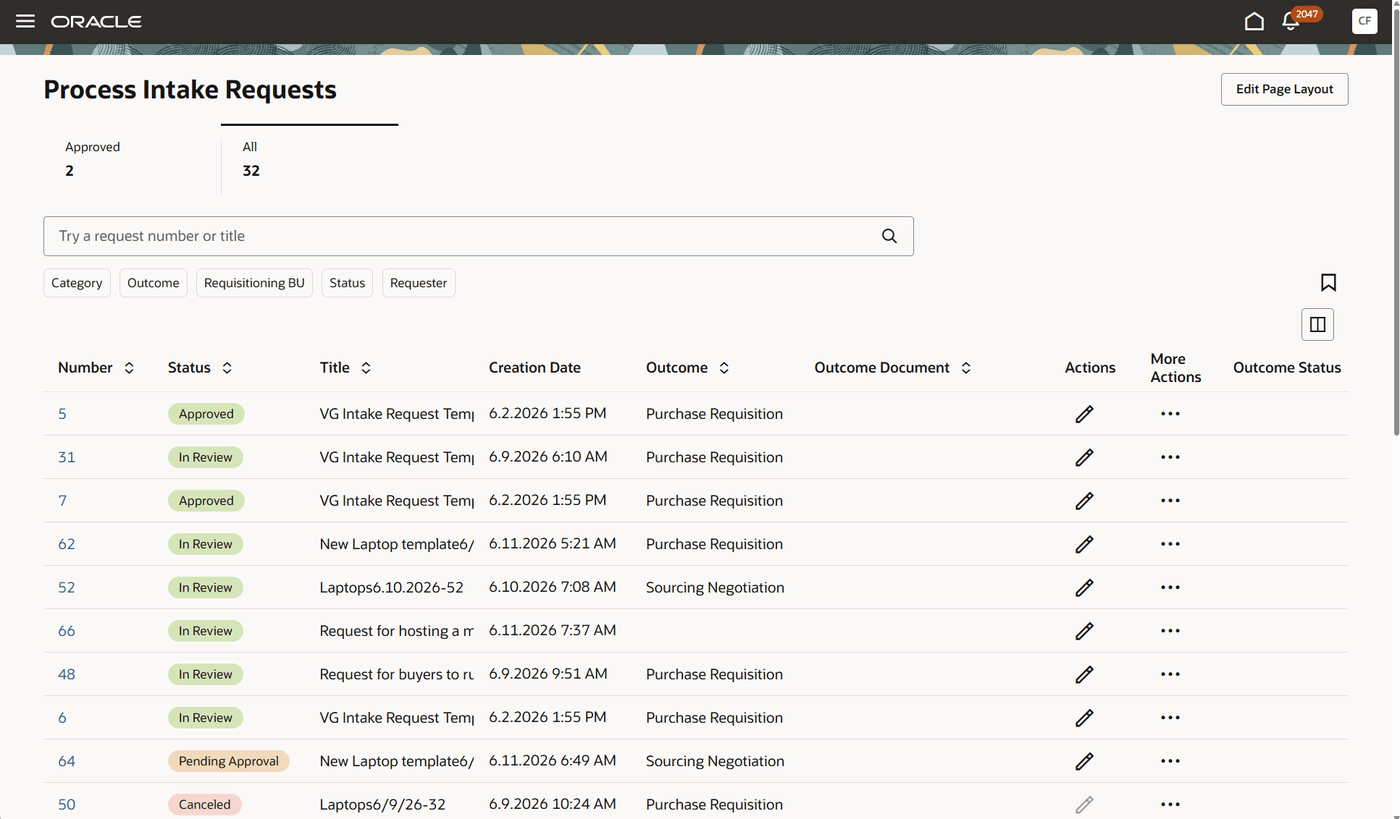
Process Intake Requests Page (Intake Manager)
Outcome creation
When an intake request is approved and an outcome is specified, the outcome document (requisition or negotiation) is created. Unless there's an exception, outcome documents are created automatically for all requests. The two exceptions are (a) no outcome is specified on the request, or (b) there was an error creating the outcome. In both cases, the request stays in Approved status and you must review and process it manually.
If the problem was missing or invalid data on the request, you can update the request and resolve the issue. If the problem is related to setup, contact the procurement administrator. After you resolve the issues, select the Create Outcome Document action to initiate outcome creation manually. You can create the outcome manually only for requests in Approved status with no outcome creation status, or with an outcome status of Error. If the intake request is successfully created, the outcome document number is displayed and the request status is updated to Closed. If creation fails, the outcome status is set to Error, the request stays in Approved status, and an error icon is displayed in the table. Select the icon to open a drawer showing the error details.
Steps to enable and configure
Use the Opt In UI to enable this feature. For instructions, refer to the Optional Uptake of New Features section of this document.
Offering: Procurement
Set profile options
To enable permission groups for roles, take these steps:
- In the Setup and Maintenance work area, search for the Manage Administrator Profile Values task using the search link in the Tasks panel tab.
- Search for the Enable Security Console External Application Integration (ORA_ASE_SAS_INTEGRATION_ENABLED) profile option and set the Site profile level to Yes.
In Manage Purchasing Profile Options, search and configure these two profile options:
- Intake Request Creation Agent (ORA_PO_INTAKE_REQUEST_CREATION_AGENT): Choose Intake Request Creation Assistant. This is required to enable the AI assisted creation experience.
- Create Intake Request from Template (ORA_PO_CREATE_INTAKE_REQUEST_FROM_TEMPLATE): Optionally set this to Yes to enable the Create Request from Template action.
Scheduled process: Process Procurement Intake Requests
The scheduled process Process Procurement Intake Requests processes intake requests in the In Review and Approved statuses.
- In Review: If all review tasks associated with the request are completed, the status is updated to Pending Approval. Requests remain In Review if all associated tasks are not completed.
- Approved: If an outcome is specified on the request, the job initiates the Intake Request Outcome Assistant and updates the outcome status to In Progress. On success, the outcome document is created, the outcome status is set to Completed, and the request moves to Closed. On failure, the outcome status is set to Error and the request remains Approved.
You can schedule this job based on your business requirements — for example, every 6 hours.
Create procurement agent
Use the Procurement Agents quick action and navigate to the Procurement Agents page. Select the Manage intake requests option to give access to manage intake requests to the users designated as intake managers, reviewers, and administrators.
Set up approvals
In BPM Worklist - Administrator - Task Configuration, search for ApproveIntakeRequest, configure the required approval rules (for example, on the Serial Preapproval rule within the Preapproval stage), and save and deploy the configuration.
Create intake request templates
From the Procurement landing page, use the Intake Request Templates quick action to set up and activate intake request templates. You have to activate a template before you can use it to create intake requests, and you must specify an Intake Manager to activate a template.
You can create different types of requests using templates — for example, a goods template and a service template, or more specific templates based on groupings of products or services. You create templates for a procurement BU and can optionally restrict a template to specific requisitioning business units. You can configure a template to include specific fields and defaults, plus other properties such as review task templates, a questionnaire, the outcome of the request, the person responsible for managing requests created from the template, and applicable business units. If necessary, you can use descriptive flexfields to capture additional information for a template.
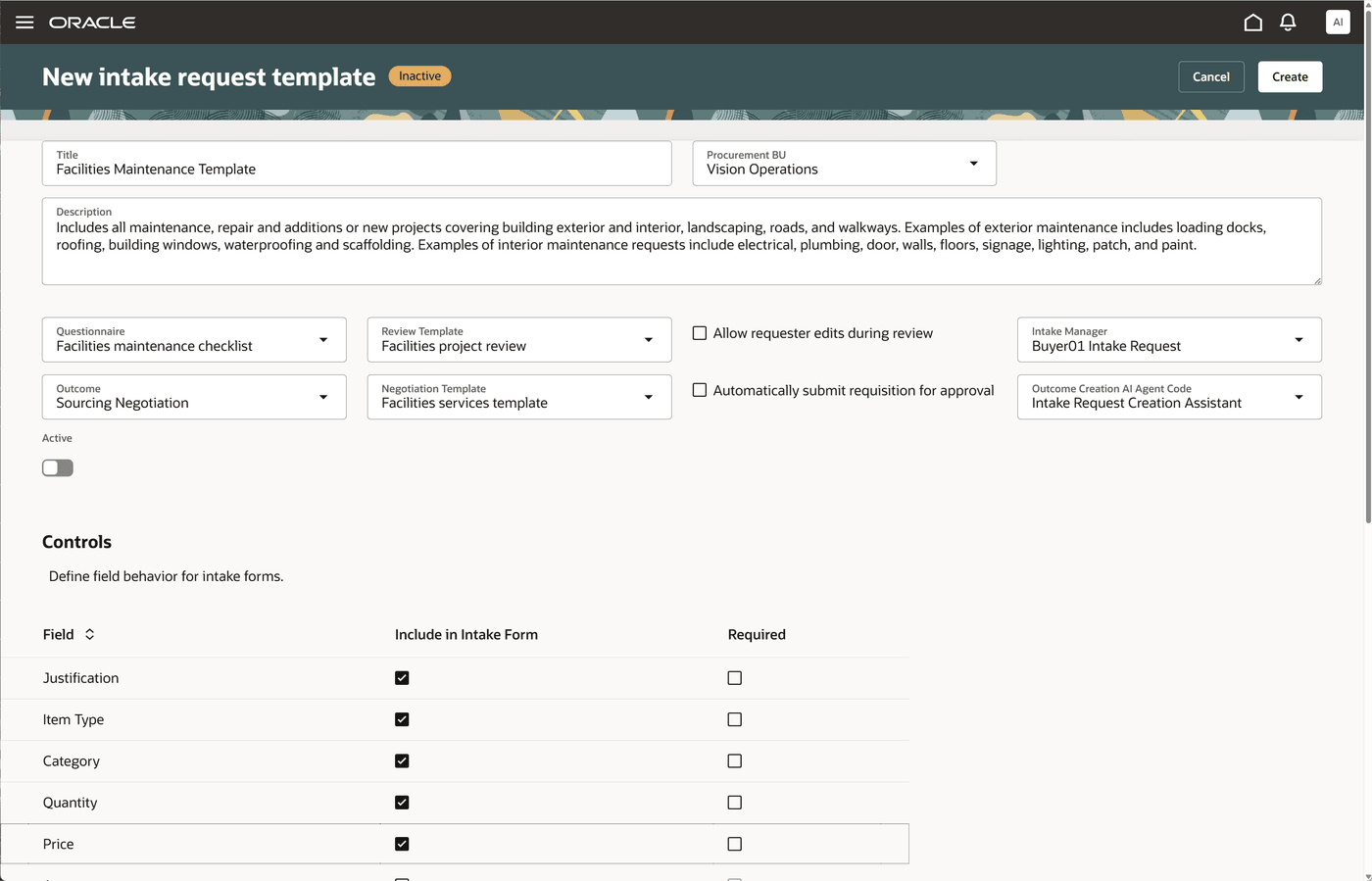
New Intake Request Template with the Controls Section for Field Behavior
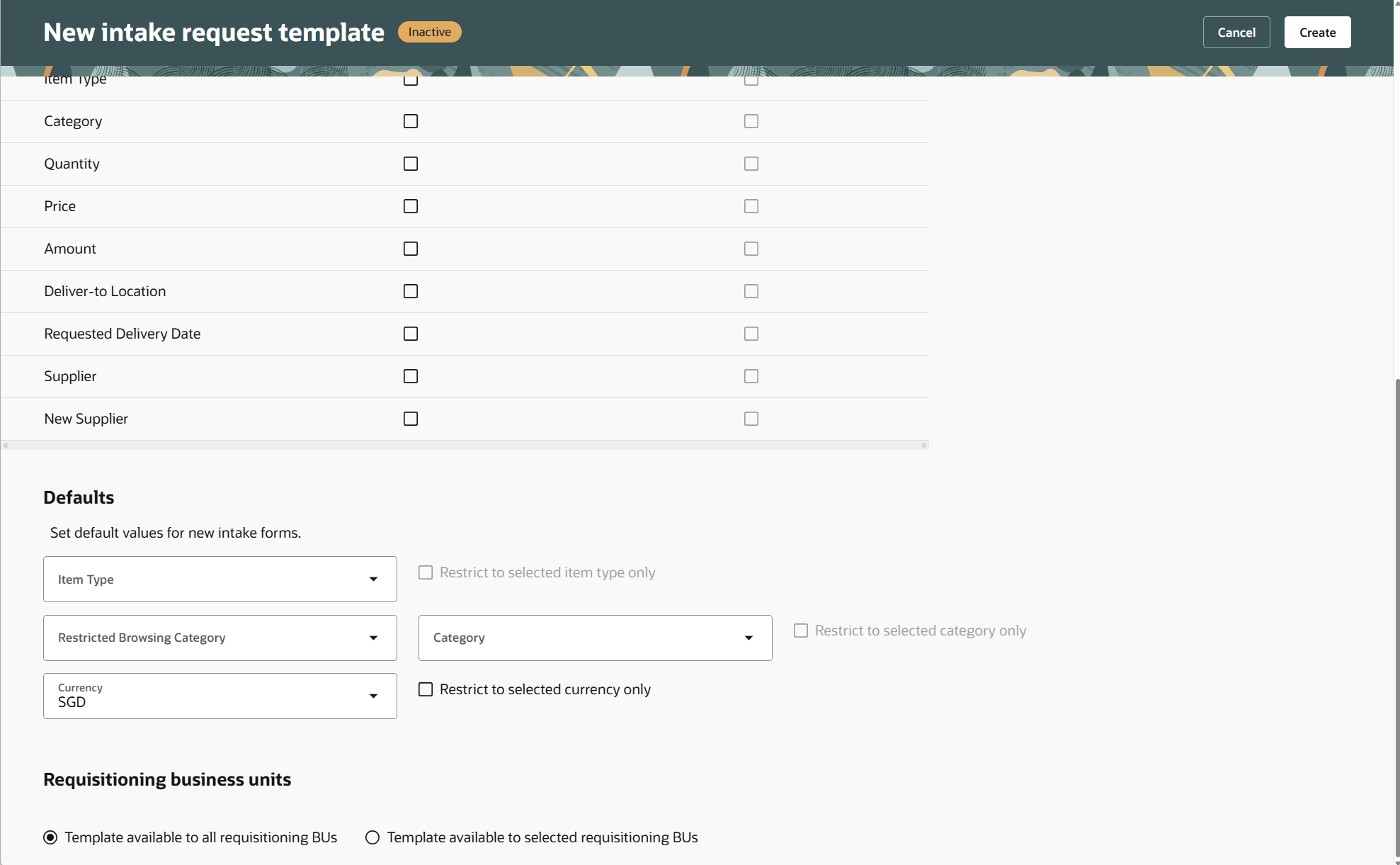
New Intake Request Template with the Defaults Section
Configure these key template properties:
- Outcome Creation AI Agent Code — This is a required field. You can't process intake requests created from templates that don't have an outcome agent specified. (Predefined value: Intake Request Outcome Assistant.)
- Outcome — Optionally specify the purchasing document created on approval of the request. Purchase Requisition and Sourcing Negotiation are the two outcomes that are ready to use. You can add your own custom outcome types and modify the Intake Request Outcome Assistant agent to process them.
- Negotiation Template — Specify this if the outcome is Sourcing Negotiation.
- Automatically submit requisition for approval — Available if the outcome is Purchase Requisition; select it to submit the requisition for approval when it's created.
- Defaults — Specify default values for Currency, Browsing Category, Category, and Line Type. If you specify a default, you can restrict the requester from changing it on the request.
- Allow requester edits during review — Optionally, allow requesters to edit a request after they submit it.
- Controls — Select which fields to include on intake requests created with the template and whether a value is required before submission. If you don't select anything, the only fields displayed are Title, Description, and Currency — these fields are always required.
- Active - Select this to activate the request.
Create intake review templates
From the Procurement landing page, use the Intake Review Templates quick action to set up and activate intake review templates. Use an intake review template to create and manage a list of tasks applicable to a request template. For example, a new piece of equipment or machinery may require verification of installation requirements and power requirements.
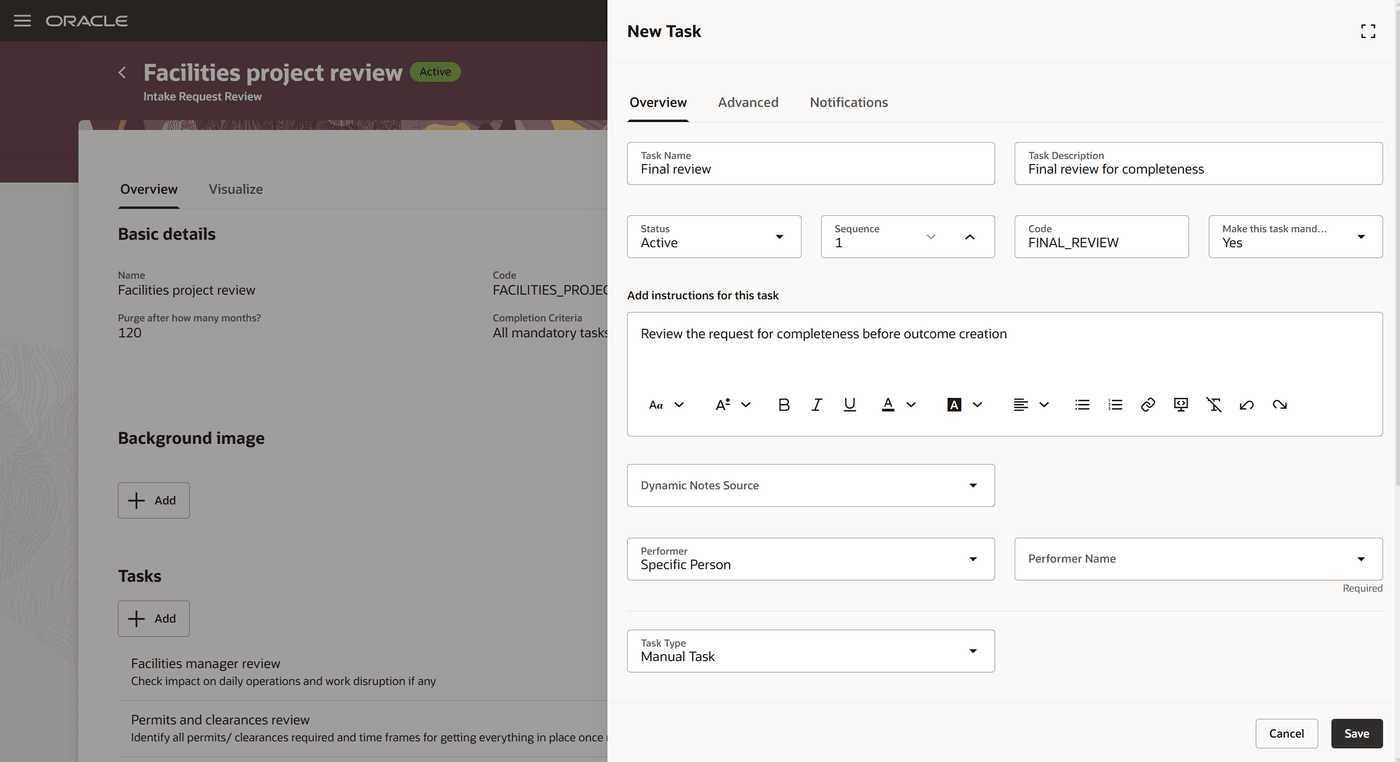
Review Template with the New Task drawer for Creating a Review Task
When a requester submits an intake request, if there's a review template associated with the intake request template, the tasks specified on this template are assigned to the performers identified on each task. For each task, you specify a Task Name, a Performer (Initiator, Specific Person, or Outcome Owner), and a Task Type (Manual Task, Questionnaire, or Document). The outcome owner is the intake request manager responsible for processing the request. You can also specify additional properties for each task.
Create Questionnaires
If you want to include questionnaires on intake request templates, you need to create questionnaire templates and questionnaires. For more information on how to setup and manage questionnaires, see this Questionnaires topic.
Questionnaire Templates
A questionnaire template consists of several questions, and you create questionnaires based on questionnaire templates. On the Fusion Cloud Applications landing page select the Talent - Questionnaire Templates action from the My Client Groups tab to create and update questionnaire templates. Select Procurement Requests as the subscriber when you create questionnaire templates; the subscriber also filters your search results to display only templates created for that subscriber.
Questionnaires
On the Fusion Cloud Applications landing page select the Talent - Questionnaires action from the My Client Groups tab to create and update questionnaires. A questionnaire consists of several questions and is based on a questionnaire template. You can add questions to a questionnaire in addition to those on the template. Select Procurement Requests as the subscriber when you create questionnaires for intake requests.
Tips and considerations
Intake request templates (Administrator)
- The Intake Request Creation Assistant evaluates only active intake request templates when identifying the template for a request.
- Specify an Intake Manager to activate an intake request template.
- Select the Outcome Creation AI Agent Code on the intake request template. If you don't then once intake requests are created from the template, the agent cannot be updated on the request, and there is no way to create an outcome from such requests.
- If you don't select anything in the Controls section, only Title, Description, and Currency are displayed on the request - these fields are always required.
- Requesters can edit In Review requests only if the Allow requester edits during review option is enabled on the template; it's disabled by default.
- Outcomes that are supported and ready to use are Purchase Requisition and Sourcing Negotiation. You can add custom outcome types and update the Intake Request Outcome Assistant to process them.
- If the outcome is Sourcing Negotiation, specify a negotiation template on the template. If the outcome is Purchase Requisition, you can optionally select the option to auto submit the requisition for approval.
Enabling intake requests (Administrator)
- The duty role for the Intake Review Tasks task is assigned by default to the Category Manager.
- You can schedule the Process Procurement Intake Requests scheduled process based on your business needs (for example, every 6 hours).
- To create intake requests with AI assistance, you must update the ORA_PO_INTAKE_REQUEST_CREATION_AGENT profile option to Intake Request Creation Assistant.
Intake requests (Requester)
- You can always edit a request in the Draft status, and you can also delete it.
- In Review requests are editable only if the Allow requester edits during review option is selected on the template (this is disabled by default).
- After reviews are complete, you can't edit the request in any subsequent status (Pending Approval, Approved, Closed, or Canceled).
- You can cancel the request when it's in the In Review, Pending Approval, Approved, or Rejected status.
- You can see only the requests you created.
- The requisitioning BU and procurement BU aren't visible or editable to the requester during creation. They're visible and editable by reviewers and intake managers.
- Requests are specific to procurement BU, making the request number unique within that BU. The intake request number is generated using Procurement Document Numbering (Document Type = Intake Request).
Process intake requests (Intake manager)
- You can create the outcome manually only for requests in Approved status with no outcome status or an outcome status of Error.
- You can't see intake requests that are in Draft status.
- You can't create an outcome document if you haven't been assigned the required privileges.
Key resources
For information about using Oracle Visual Builder Studio to extend your Redwood application pages, see Oracle Fusion Cloud HCM and SCM: Extending Redwood Applications for HCM and SCM Using Visual Builder Studio
For information on creating questionnaires, see Using Common Features of HCM - Questionnaires
Access requirements
Requesters
Users who are assigned a configured job role that contains this new duty role can create and update intake requests:
- Intake Request Management as Requester (ORA_PO_INTAKE_REQUEST_MGMT_REQUESTER_DUTY)
Reviewers
Users who are assigned a configured job role that contains this new duty role can perform intake review tasks and update intake requests:
- Intake Request Management as Reviewer (ORA_PO_INTAKE_REQUEST_MGMT_REVIEWER_DUTY)
Intake Managers
Users who are assigned a configured job role that contains this duty role and the additional privilege can update intake requests and create an outcome document from a request:
- New duty role: Intake Request Management (ORA_PO_INTAKE_REQUEST_MGMT_BUYER_DUTY)
- Existing privilege: Create Supplier Negotiation (PON_CREATE_SUPPLIER_NEGOTIATION_PRIV)
Intake Administrators
Users who are assigned a configured job role that contains this new duty role can perform intake request setup and administration tasks:
- Intake Request Administration (ORA_PO_INTAKE_REQUEST_ADMIN_DUTY)
For all user personas
- In addition to assigning the duty role, users must also add data security policies to their configured job role with these details:
Data Resource Resource AI Agent Workflow Data Set Select by instance set Condition Name Access the AI agent workflow for table FAI_WORKFLOWS_B for AI agent workflows associated to the relevant family Parameter 1 PRC Actions View AI Agent Workflow
- In the security console, for the configured job role check the Enable Permission Groups option.
- Under Role Hierarchy, add the duty role in Roles and Permission Groups tab.
- Users’ configured job roles must also contain privileges that allow access to the pages where AI agents are enabled.
Note: To access the Oracle AI Agent Studio for Fusion Applications and manage PRC AI agents, see Access Requirements for AI Agent Studio.