AI Agent: Inventory Optimization Advisor
The AI agent Inventory Optimization Advisor helps identify service level shortfalls by analyzing safety stock levels across the supply chain network and highlighting key components affecting inventory performance. It launches from a visualization showing top item service level shortfalls and supports interactive exploration of the bill of materials for end items and subassemblies, displaying service level sensitivity and cost data. You can adjust safety stock values directly through a link from the AI agent, which opens the safety stock adjustment table for the selected item and organization. The AI agent interaction begins with dynamic prompt questions tailored to the selected item, such as increasing service levels or reducing inventory costs, and supports drilling into subassemblies to refine analysis.
This capability enables you to improve service level attainment and reduce stock outs by identifying and addressing safety stock shortfalls across the supply chain network. It also increases inventory cost efficiency by highlighting components with the greatest impact on service levels and it simplifies inventory optimization through interactive exploration and direct adjustment of safety stock values.
The Inventory Optimization Advisor is available from the Inventory Plan’s Top Service Level Shortfall chart. To use it, first narrow down your organization selection by analyzing the Supply Chain Network.
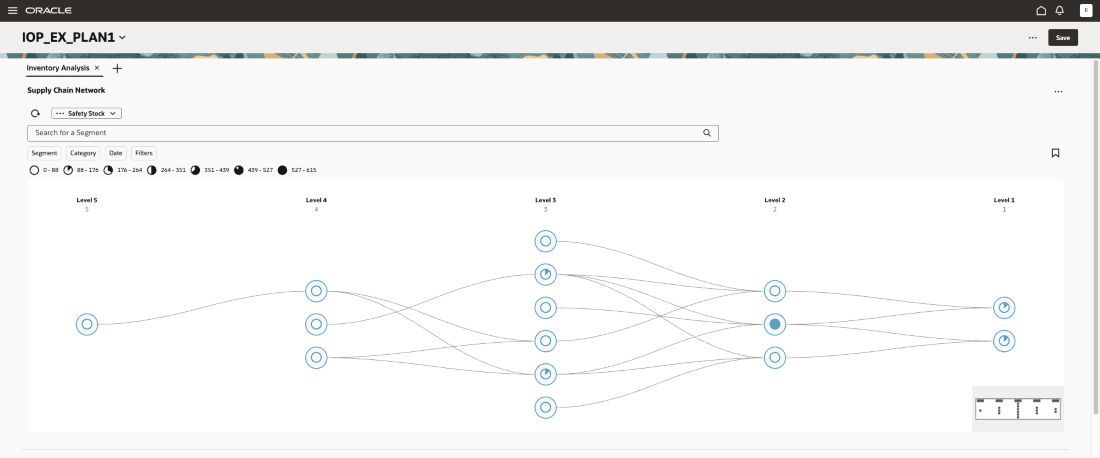
Supply Chain Network Diagram Displayed by the Safety Stock Measure
Select the Safety Stock Value measure.
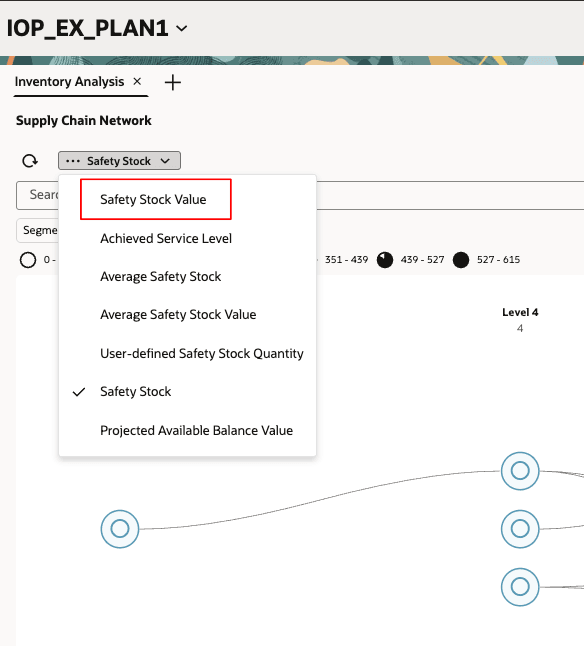
Selecting the Measure Used in Supply Chain Network Diagram
The Supply Chain Network diagram is refreshed using the Safety Stock Value measure.
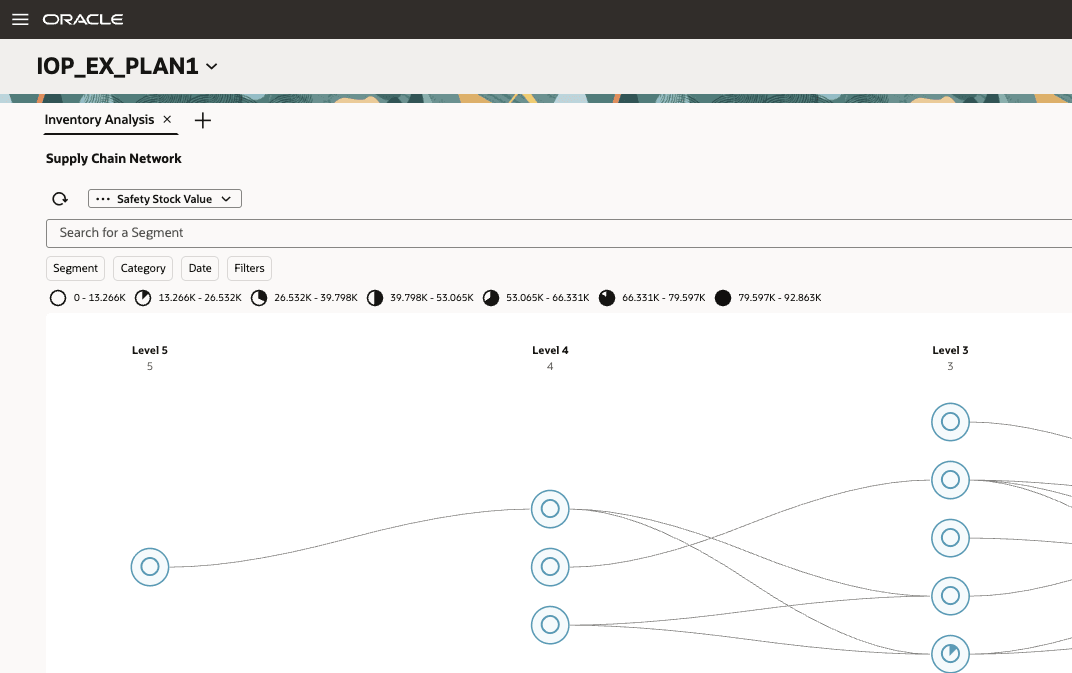
Supply Chain Network Diagram Displayed by the Safety Stock Value Measure
Select a node to see related safety stock value data. Select the desired organization, right click, and select Drill To > Top Service Level Shortfalls.
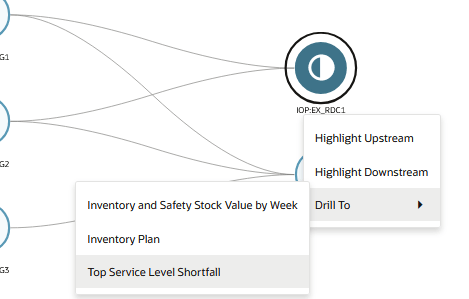
Supply Chain Network Drill To the Top Service Level Shortfall Chart
The Top Service Level Shortfall chart is shown for the selected organization.
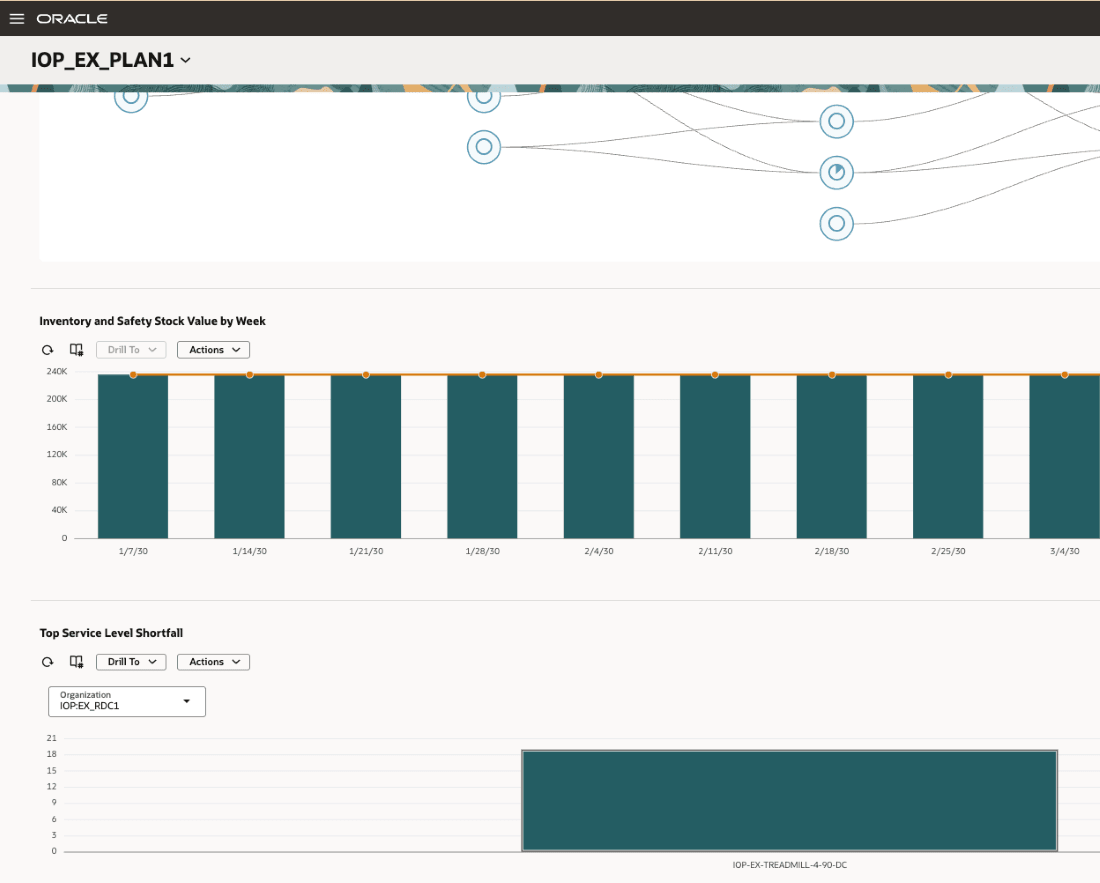
Top Service Level Shortfall Chart
Right click the desired end item in the chart. Select Drill To > Inventory Optimization Advisor.
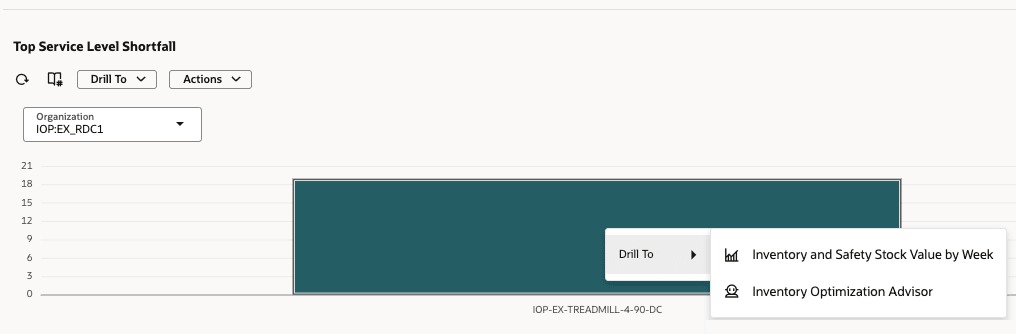
Top Service Level Shortfall Drill To the Inventory Optimization Advisor
The AI chat drawer opens, showing two questions:
- How can I increase service level for the selected item and organization?
Choosing this question returns a list of item-locations in the selected item's supply chain that have the greatest effect on service level, as measured by sensitivity to an increase in safety stock value. Increasing safety stock for these items has the greatest impact on the service level.
- How can I decrease inventory cost for the selected item and organization?
Choosing this question returns a list of item-locations in the selected item's supply chain that have the least effect on service level, as measured by sensitivity to a decrease in safety stock value. Decreasing the safety stock for these items can reduce cost with a low impact to service level.
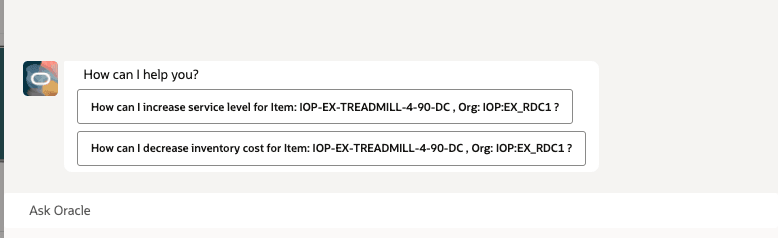
Chat Drawer Showing Initial Questions
Select one of the initial questions.
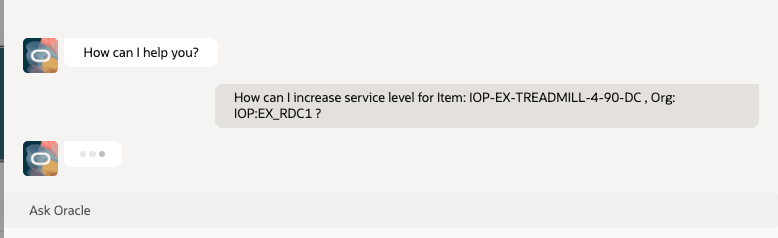
AI Agent Evaluating the Question
The Inventory Optimization Advisor analyzes your request and returns a list of the top items to review in the supply chain bill of the item with a service level shortfall. When finding ways to increase the service level, the items returned are listed in order of the Percentage Service Level Sensitivity to Safety Stock Value in Millions, from highest to lowest. When finding ways to decrease inventory cost, the items returned are listed in order of the Percentage Service Level Sensitivity to Safety Stock Value in Millions, from lowest to highest.
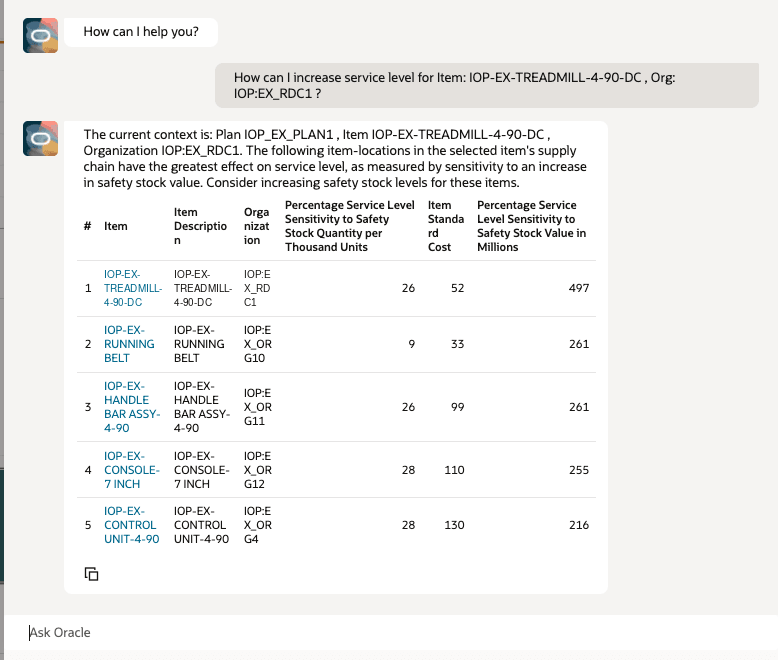
Inventory Optimization Advisor Shows a List of the Top Item-Locations to Consider
Select the link for the item you want to adjust. This opens the Inventory Plan table for the selected item and organization. Here you can adjust the safety stock as desired using the Adjusted Safety Stock Quantity measure.
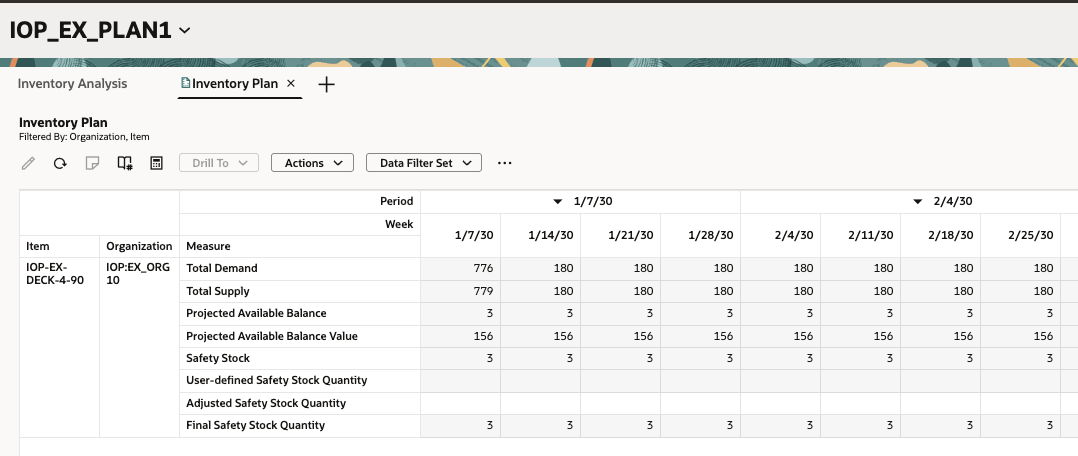
Inventory Plan Table for the Selected Item and Organization
After adjusting the safety stock quantities, run the plan to recalculate the service level changes.
Steps to enable and configure
You don't need to do anything to enable this feature.
Access requirements
Make sure that the profile option Enable VBCS Progressive Web Application User Interface (ORA_HCM_VBCS_PWA_ENABLED) is set to Y.
To interact with AI agents on product pages, users must be assigned a configured job role that contains this duty role:
- Fai Genai Agent Runtime Duty (ORA_DR_FAI_GENERATIVE_AI_AGENT_RUNTIME_DUTY)
To allow users to interact with agents, you must also enable permission groups in the Security Console on those users' configured job roles that contain the Fai Genai Agent Runtime Duty role. You can enable permission groups when you manage the basic information of your configured job roles.
Users' configured job roles must also contain privileges that allow access to the pages where AI agents are enabled.