Display Exceptions Related to Inventory Optimization Planning
The Exceptions page now shows violations related to inventory optimization planning, improving visibility into key inventory and budget issues. It reports exceptions when user-defined safety stock falls below recommended levels, when segments have service levels below targets, or when budgets are exceeded at segment and plan levels.
The Exceptions page includes new columns showing segment and plan-level inventory values, budgets, service levels, and exception durations. You can filter exceptions by segment, planner, attributes, and dates, and you can drill down from segment-level exceptions to detailed item-organization information.
With these updates, you can improve decision-making by providing clear visibility into inventory and budget exceptions at segment and plan levels. This increases responsiveness to service level shortfalls and budget overruns through detailed, filterable exception data. And drill-down navigation from segment summaries to item-level details simplifies issue identification.
Exceptions are automatically generated after every plan run. Planners can monitor these at both the plan level and the segment level and can investigate further for deeper analysis. Oracle Inventory Optimization Planning introduces four new predefined exceptions. These predefined exceptions enable planners to quickly identify items and segments where safety stock recommendations, service level targets, or budget constraints are not being met, and to take corrective action.
Setting Up Exceptions
To generate exceptions, you must include the exception set in the Plan Options for your plan. The exception set is what drives which exceptions the plan evaluates when it runs.
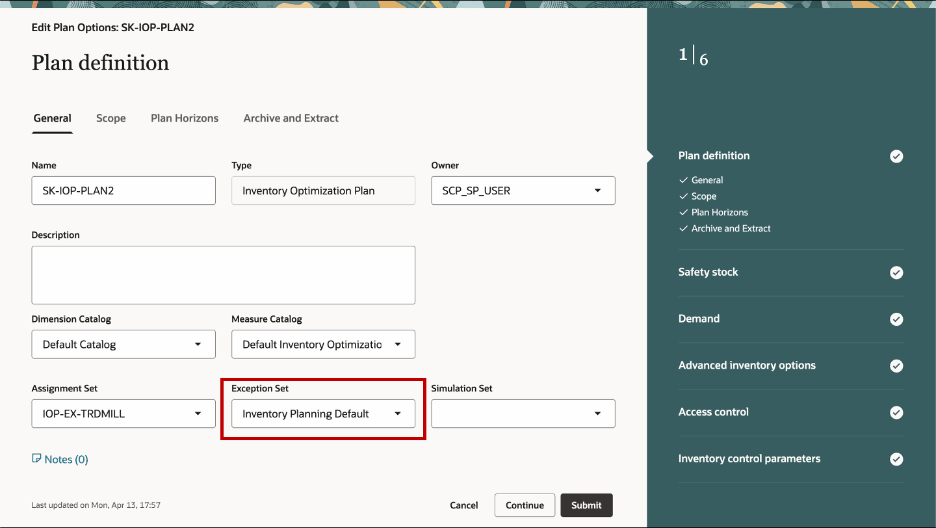
Exception Set Definition in Plan Options
The default exception set is named Inventory Planning Default and includes the following predefined, plan-and-segment-based exceptions:
1. Segments with Service Level Less than Target – This exception is generated when a segment isn’t achieving its target service level.
For example, you may have assigned a target service level (such as 95%) to a segment of products.
• After running the plan, the system calculates the achieved service level and compares it with the target service level for each segment. Inventory optimization planning calculates the achieved service level for each combination of item, organization, and planning bucket. But it’s calculated only for end items based on a percentage of demands satisfied on time and in full based on the safety stock.
Possible causes for this exception may be:
• Inventory optimization planning always generates supplies to meet the calculated safety stock requirement to meet the demand and lead time variabilities. Hence, in most cases the achieved service level would match the target service level. However, it takes into account any user adjustments—either as an Adjusted Safety Stock Quantity measure input or user-defined safety stock for the item—and calculates the achieved service level based on those amended safety stock quantities. In those cases, when you adjust the safety stock quantity lower, then the achieved service level could be lower than the target.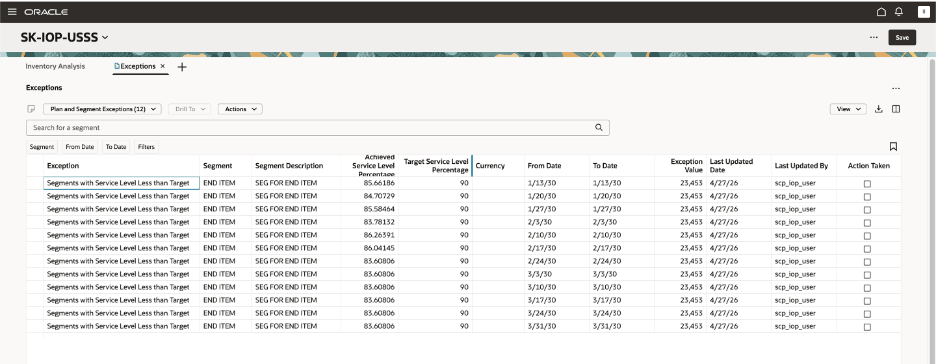
Segments with Service Level Less than Target Exceptions
2. Segments with Budget Overrun – This exception detects when the inventory value being held for a segment exceeds the budget that the planner has allocated for that segment.
This exception is generated whenever the inventory value (based on the Projected Available Balance Value measure) in any bucket is higher than the budget specified for the segment. Whenever a budget is specified with a specific currency in the Plan Options, the inventory value for all items is always converted to that currency and then compared.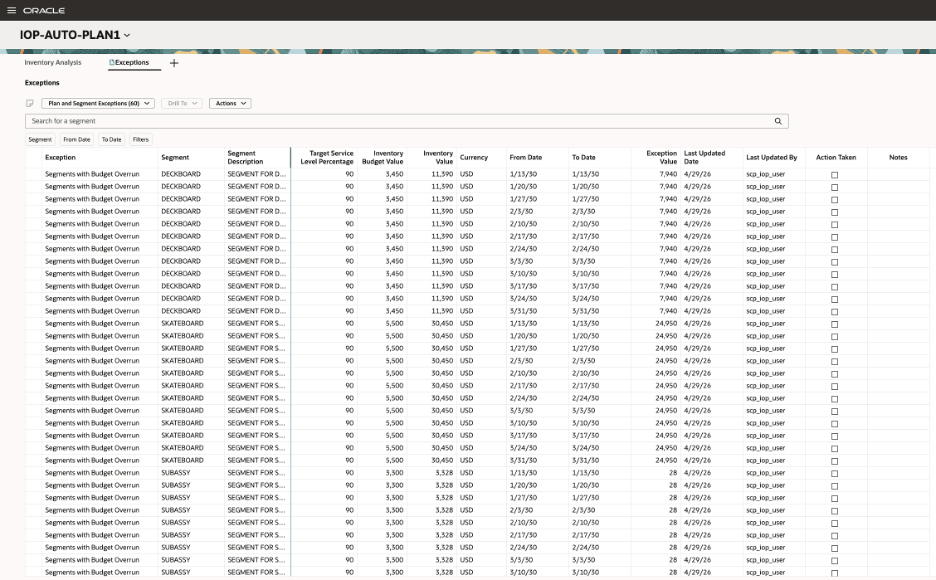
Segments with Budget Overrun Exceptions
3. Plan-Level Budget Overrun – This exception detects when the total inventory value for all the items in the plan exceeds the budget that the planner has set at the plan level.
This exception is similar to the Segments with Budget Overrun exception, but is evaluated at the entire plan level rather than individual segments.
Both Plan-Level Budget Overrun and Segments with Budget Overrun exceptions can be generated for the same plan and are complementary in nature. For example, you can have a plan with 10 segments and a budget specified at the plan level and only 2 of the 10 segments. The segment-level exceptions are generated only for the 2 segments and the plan-level exception is generated based on the inventory value of all 10 segments.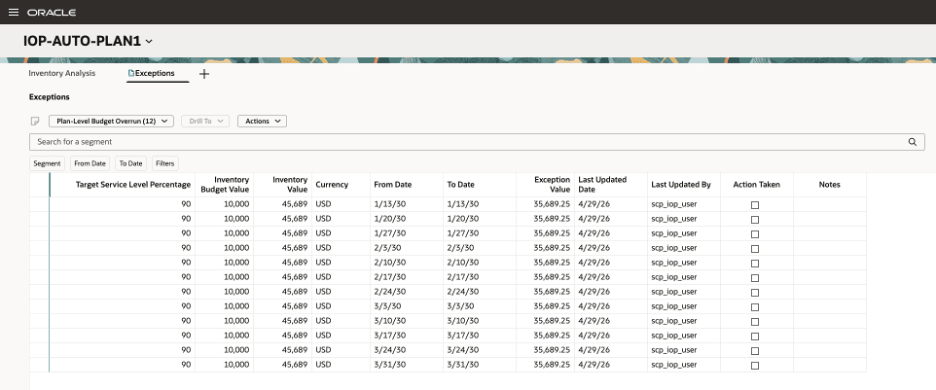
Plan-Level Budget Overrun Exceptions
4. Items with User-defined Safety Stock Less than Recommended Quantity – This is a measure-based exception that detects when the user-defined safety stock quantity for an item is lower than the calculated quantity.
This exception helps identify manually overridden safety stock values that haven't been updated to reflect changes in demand variability, lead time increases, forecast uncertainty, or revised service level targets.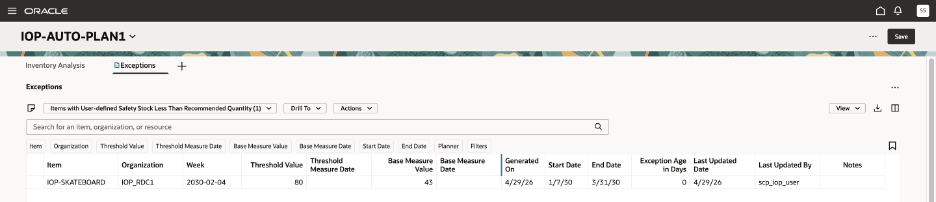
Items with User-defined Safety Stock Less than Recommended Quantity
Accessing the Exceptions Visualization
The Exceptions visualization can be accessed by either of the following methods.
Open the Exceptions Visualization As a New Page
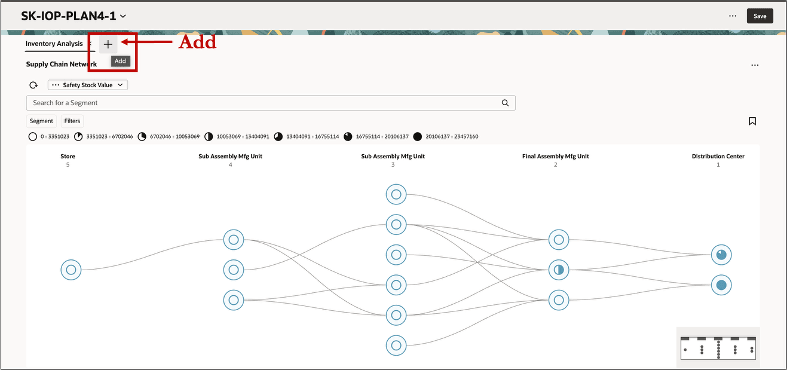
Access an Exception
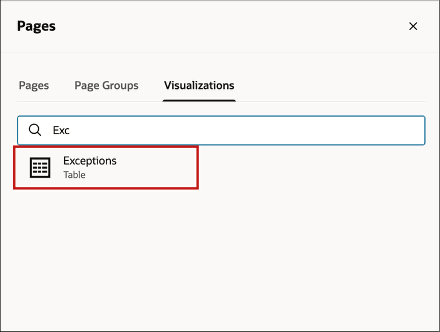
Visualizations Tab
After you run a plan, to view a list of exceptions, open your plan and then select the Add (+) icon. Then search for and select Exceptions from the Visualizations tab. This will open the Exceptions visualization as a new, temporary page. You can use this method to open the Exceptions visualization for ad-hoc analysis.
Add the Exceptions Visualization to an Existing Page
After you run a plan, select the Edit Page Layout action. This opens the Content library drawer, which contains all the available visualizations. Search for Exceptions and then either click and drag or click the plus (+) icon to add the visualization to the desired section of your page.
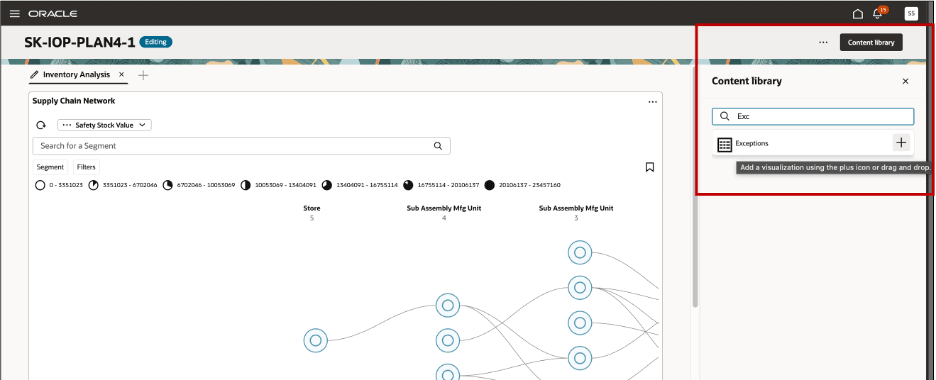
Adding an Exception to a Page
Adding an Exception
You can add your own custom, measure-based exception to an Exception set. To use that Exception set for a plan, you must then add it in the Plan Options.
To create or modify an exception set in the Inventory Optimization Planning work area, select Planning Exception Sets from the Tasks panel.
Create Exception
To access the Configure Exceptions page:
1. Select the More Actions (...) icon.
2. Select View More.
3. Select Configure Exceptions in the Configuration section.
The Configure Exceptions page opens in a new browser tab.
Note: You can create only measure-based exceptions.
To create an exception:
1. Select the Add (+) button on the Configure Exceptions page.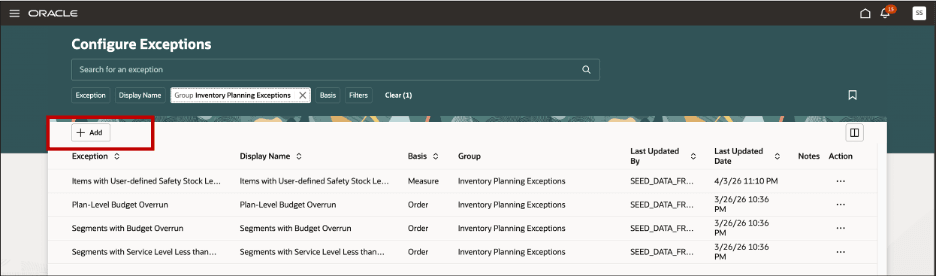
Create an Exception
The New Exception page opens on the Configure Exceptions page in the same tab.
2. In the General properties section, select one or more applicable exception groups and then enter an exception name and display name.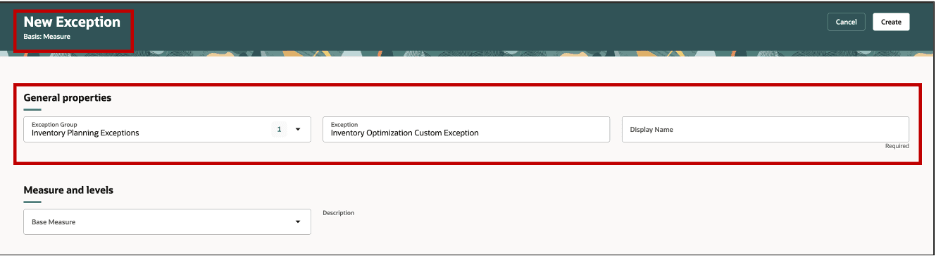
General Properties for an Exception
3. In the Measure and levels section, select the measures for the exception and the levels at which the exception needs to be computed. 
Measure and Levels for an Exception
4. Select the exception threshold and associated threshold type, either Value or Measure, in the Threshold section. Selection of a threshold is optional.
5. Configure notifications for the exception in the Notification section. Notification configuration is optional.
6. Select Create.
The exception is created and is now displayed on the Configure Exceptions page.
For more details on measure-based exceptions refer to the Configure Measure-Based Exceptions topic in Oracle Help Center.
Steps to enable and configure
You don't need to do anything to enable this feature.
Key resources
For more details on measure-based exceptions, refer to the Configure Measure-Based Exceptions topic in the Using Supply Chain Planning Common Features guide in the Oracle Help Center.
Access requirements
Users who are assigned a configured job role that contains these privileges can access this feature:
- Manage Exceptions (MSC_MANAGE_PLANNING_EXCEPTIONS_PRIV)
- Configure Exceptions (MSC_CONFIGURE_PLANNING_EXCEPTIONS_PRIV)
These privileges were available prior to this update.