Recover deleted demand plans
You can now recover a deleted demand plan from the Trash page when the plan is deleted inadvertently. After recovering the plan, you can verify it before continuing demand planning. Administrators can permanently delete demand plans from the Trash page when they're no longer needed.
This feature helps reduce recovery time and dependency on My Oracle Support when demand plans in production are deleted by mistake. Keeping deleted demand plans on the Trash page helps you recover planning work without restoring a backup environment to copy plan data back to production.
Move a demand plan to the trash
For demand plans, on the Plans page, on the menu that’s available in the Action column, the Delete Plan menu item has been replaced with the Move to Trash menu item.
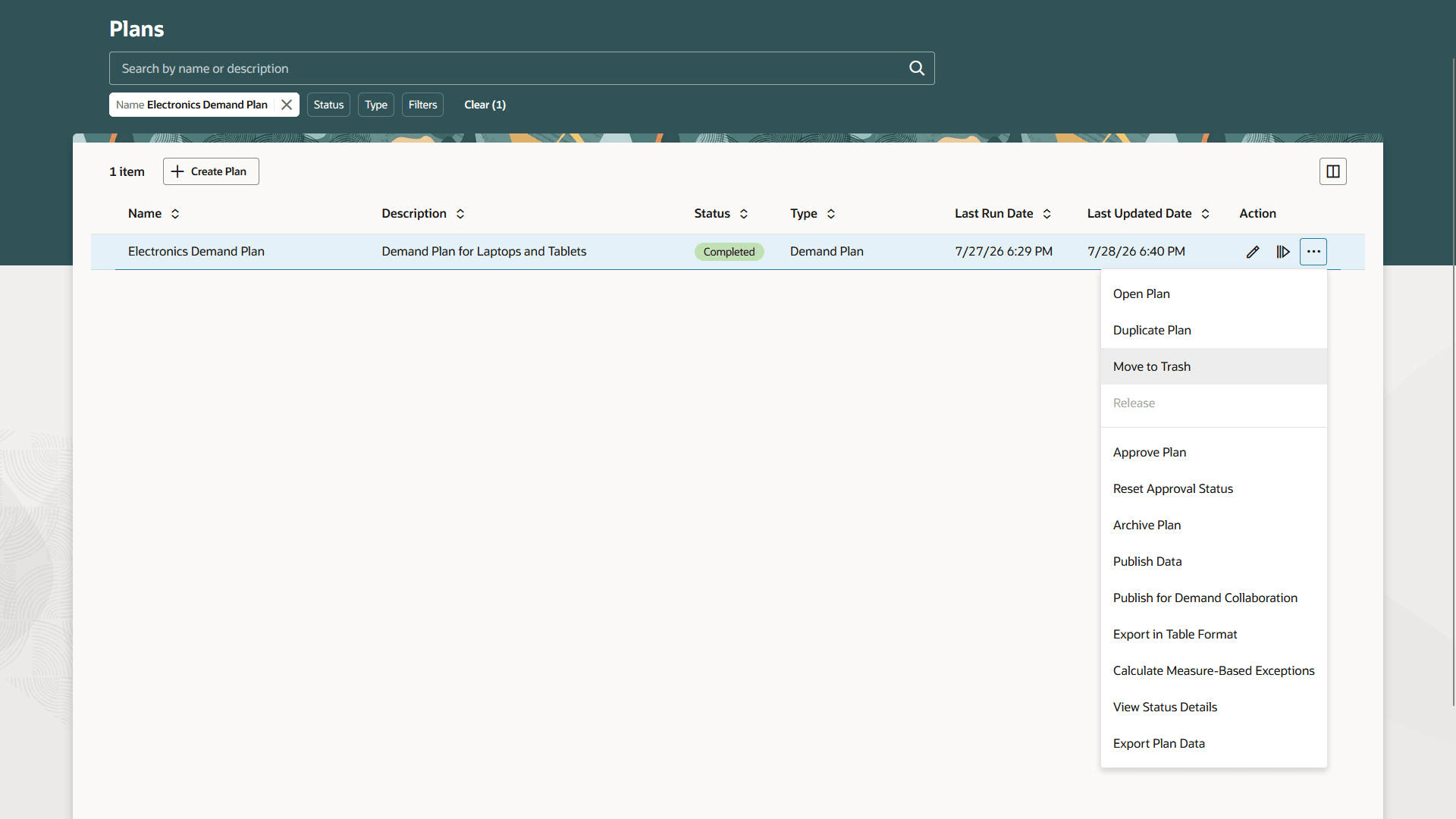
Menu item for moving demand plan to trash
When you select Move to Trash, you’ll be prompted to confirm the action.
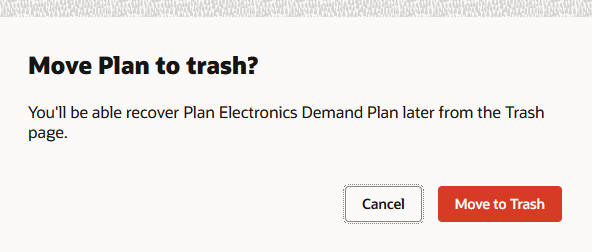
Warning message for moving demand plan to trash
After you confirm the move to the trash, a scheduled process will be submitted, and a message will be displayed providing the ID of the scheduled process.

Confirmation message for moving demand plan to trash
When the scheduled process completes, the plan won’t be available in the context selector for the Supply Chain Planning work area or listed on the Plans page.
Restore a demand plan from the trash
To restore the plan, open the Trash page. In the Actions drawer for the Plan Inputs or any open plan, under Configuration, select Trash.
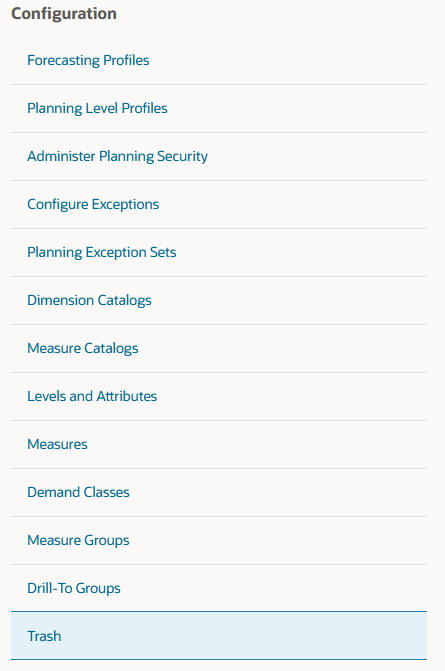
Actions drawer
The Trash page opens on a new web browser tab and lists all the plans in the trash. You can search by the plan name or description, in addition to filtering the rows by the deleted date, deleted by, owner, and other suggested filters.
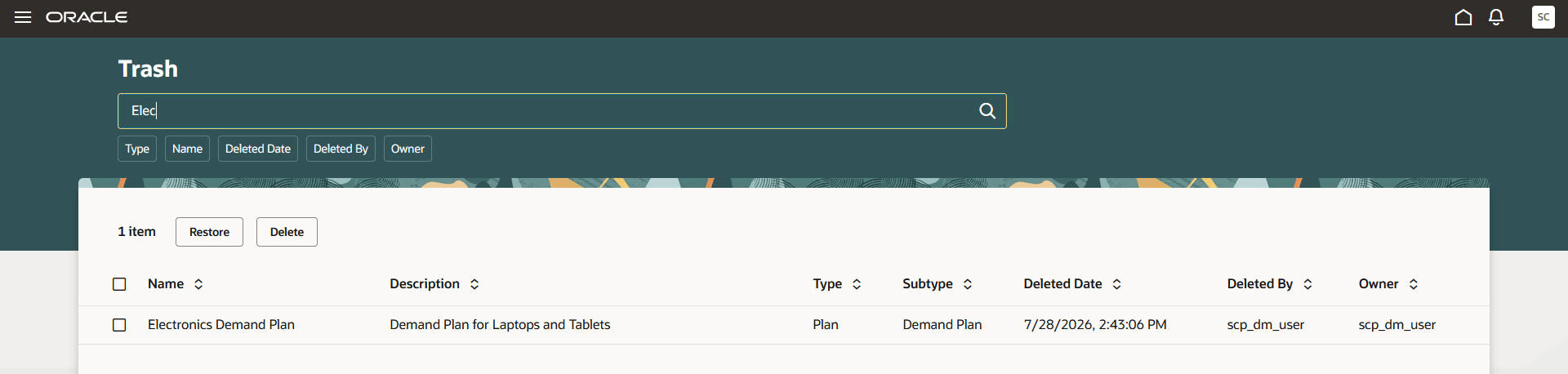
Trash page
To restore a demand plan, select it, and select Restore. You’ll be prompted to confirm the action.
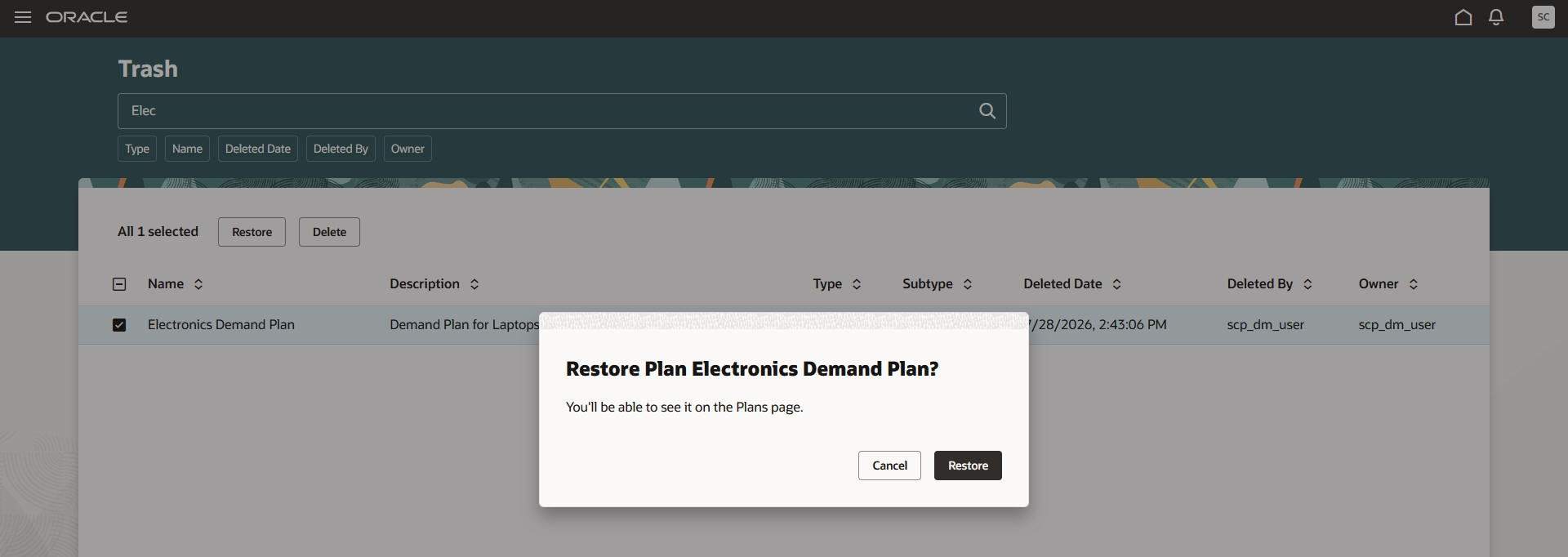
Warning message for restoring demand plan on Trash page
Once the plan is restored, it’ll once again be available in the context selector for the Supply Chain Planning work area and listed on the Plans page.
The drawer for plan status details will show the demand plan as having been moved to the trash and restored.
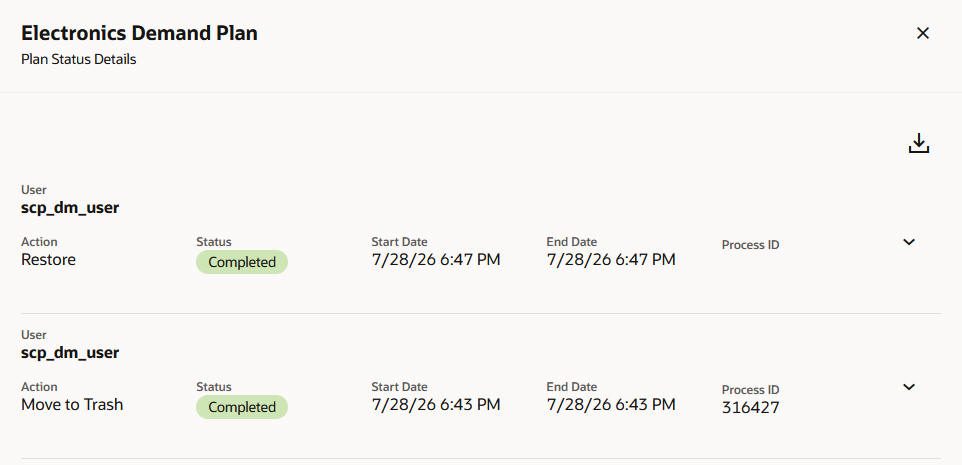
Plan Status Details drawer for deleted and restored demand plan
To permanently delete a plan, select it on the Trash page, and select Delete. You will be prompted to confirm the action.
When a plan is deleted from the Trash page, the plan is permanently deleted and can’t be recovered.
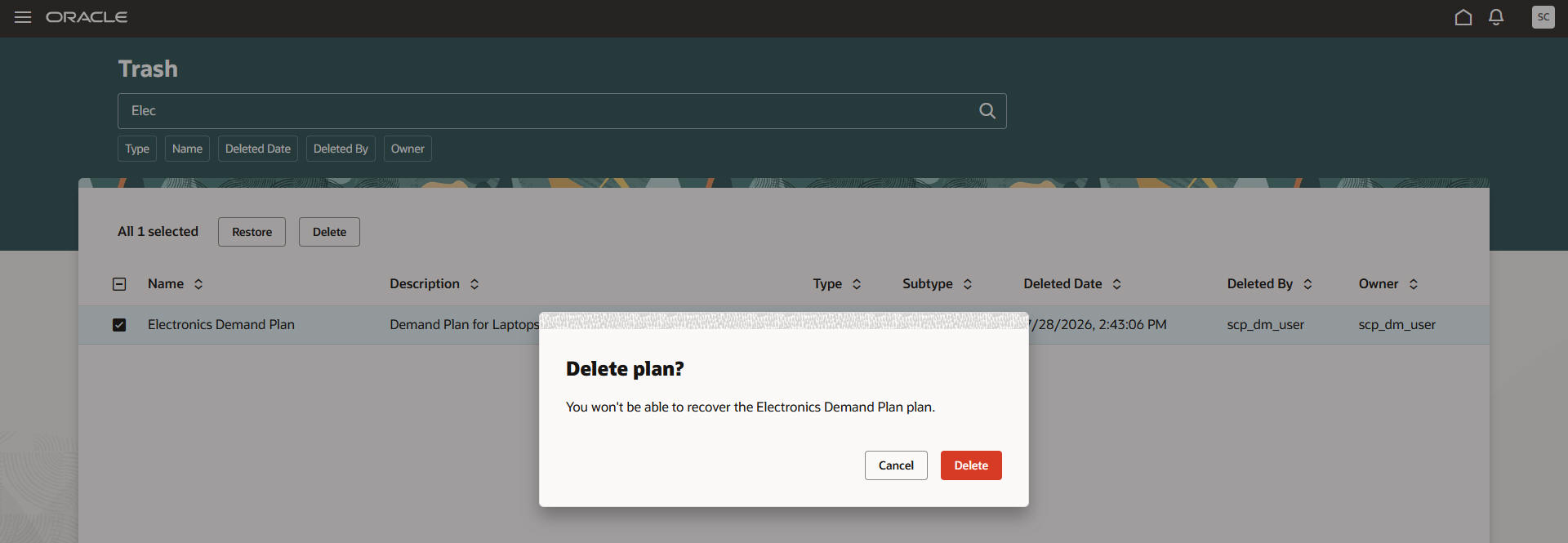
Warning message for deleting demand plan on Trash page
Steps to enable and configure
Ensure that your user-defined roles have the new privileges required by this feature.
Tips and considerations
- This feature applies to only demand plans.
When you delete plans of other types using the Delete Plan menu item on the menu that’s available in the Action column on the Plans page, the plans will be permanently deleted and can’t be recovered.
- Access to the Trash page should preferably be reserved for administrators.
The privilege to delete plans in the trash should be granted to only administrators.
- This feature is intended to provide users with the ability to recover public, production plans that were deleted by mistake.
- This feature can also be used for recovering private plans.
If users delete their private plans by mistake and need to have them restored, an administrator should be requested to restore the plan. Preferably, users shouldn’t be given access to the Trash page.
- Users with access to the Trash page will be able to restore any plan regardless of whether they own the plan or not.
- Users with access to the Trash page and the privilege to delete plans in the trash will be able to permanently delete any plan regardless of whether they own the plan or not.
- When you restore a plan, if another plan exists with the same name, then the name of the restored plan will have “Restored <number>-” prepended to the plan name, where <number> is a sequential number. The number will be incremented if a restored plan already exists with the same plan name. If the resulting plan name is longer than 30 characters, it’ll be truncated. A confirmation message will be displayed providing the name of the restored plan.
- Automated cleanup of plans that have been in the trash for a set period of time (for example, 90 days) is targeted for a future update. This functionality will diminish the need for manually deleting plans from the trash.
Key resources
Visit https://redwood.oracle.com/ for more information about the Redwood experience.
Access requirements
If you’re using user-defined job roles, then you need to add the privileges identified as new in this update as well as validate that you have the existing privileges that are listed.
| Privilege name | Privilege name and code | Comment |
|---|---|---|
| Existing |
Delete Plans MSC_DELETE_PLANS_PRIV |
For moving demand plans to the trash |
| New |
Manage Trash MSC_MANAGE_TRASH_PRIV |
For opening the Trash page and restoring any plan from the trash The Trash link in the Actions drawer will be provided to users who have this privilege. |
| New |
Permanently Delete From Trash MSC_PERMANENTLY_DELETE_FROM_TRASH_PRIV |
For permanently deleting a plan from the trash The Manage Trash privilege must also be granted to users who need to permanently delete plans. |