Simulate demand while tuning forecasts
You can modify forecasting profiles directly from Simulate demand drawer when the forecasting profiles enable simulation edits, and you have the required privilege. You can use the Modify forecasting profile link in the Simulate demand drawer to open the selected forecasting profile on a new tab of your web browser for editing through the guided process for forecasting profiles.
Forecasting profiles now include these settings:
- Allow edits during simulation
- Exclude from plan run
The first setting controls whether the forecasting profile can be opened for editing from the Simulate demand drawer. The second setting prevents the forecasting profile from appearing in the Run plan drawer or Batch Run Plan scheduled process.
This capability helps improve forecast-tuning efficiency by letting you open forecasting profiles from the Simulate demand drawer. Edits of forecasting profiles are governed through privileges, and control is available over which forecasting profiles are available for plan runs.
This functionality lets you tune forecasting methods, feature groups, and forecasting parameters without leaving the simulation workflow.
After updating the forecasting profile, you can rerun the simulation to compare the impact of your forecasting-profile changes with the forecast generated during the plan run.
The checkbox to exclude the forecasting profile from the plan run and scheduled process lets organizations create forecasting profiles for forecast tuning without exposing them during normal plan execution.
When you open the guided process for forecasting profiles after selecting the Modify forecasting profile link in the Simulate demand drawer, the fields in the General step are read-only. You can make changes in the Features, Methods, and Parameters steps.
After you make your changes, select the Submit button. A confirmation message is displayed. Select the Close button to close the tab for the guided process, and then return to the tab on which you’ve opened the Simulate demand drawer for your plan.
If you want to discard your changes, select the Cancel button in the guided process. A banner message will be displayed to confirm that you want to discard your changes, and you’ll need to close the tab and return to the tab on which you’ve opened the Simulate demand drawer for your plan.
Steps to enable and configure
Follow these steps to set up the functionality:
- If you use user-defined job roles, first assign your users or yourself the new privilege named MSC_EDIT_FORECASTPROFILE_SIMULATE_DEMAND.
You don’t need to perform this step if your users or you have the existing privilege named MSC_EDIT_FORECASTING_PROFILES_PRIV.
- Open the forecasting profile that will be used for simulation. In the General step in the guided process for forecasting profiles, select the Allow edits during simulation checkbox.
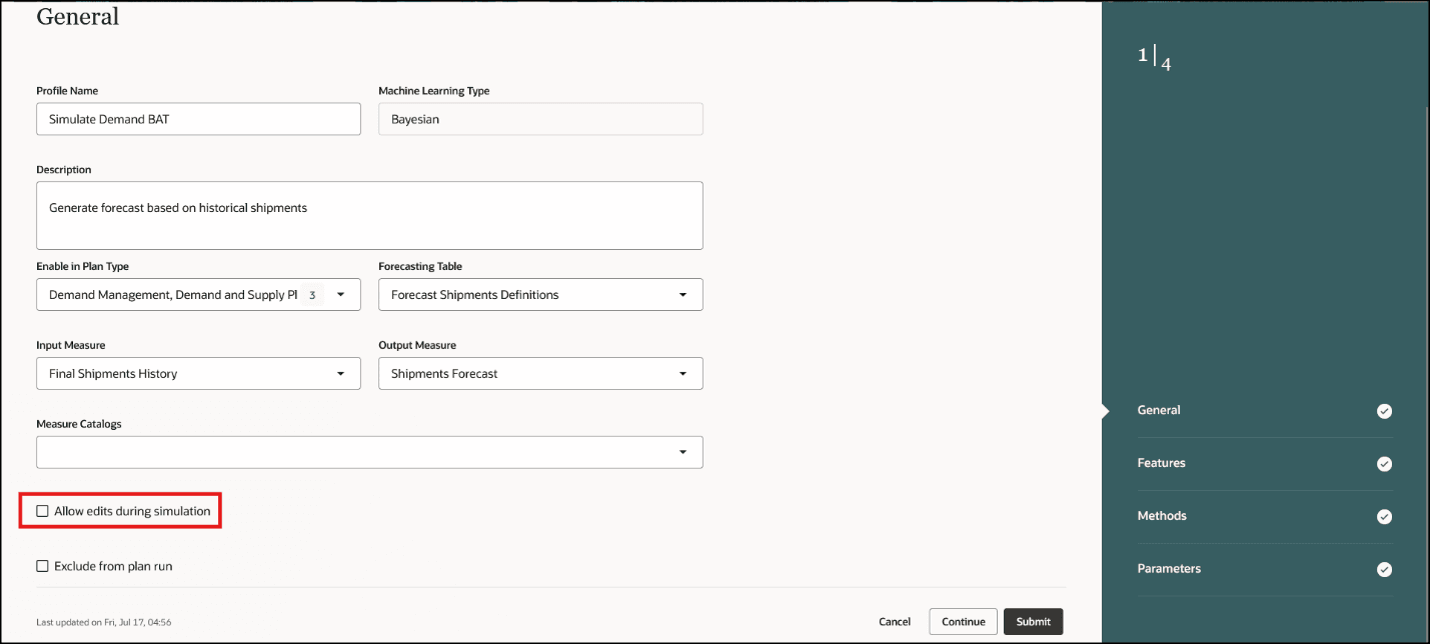
Checkbox for allowing edits during simulation
- If you don’t want the forecasting profile to be used during plan runs, select the Exclude from plan run checkbox.
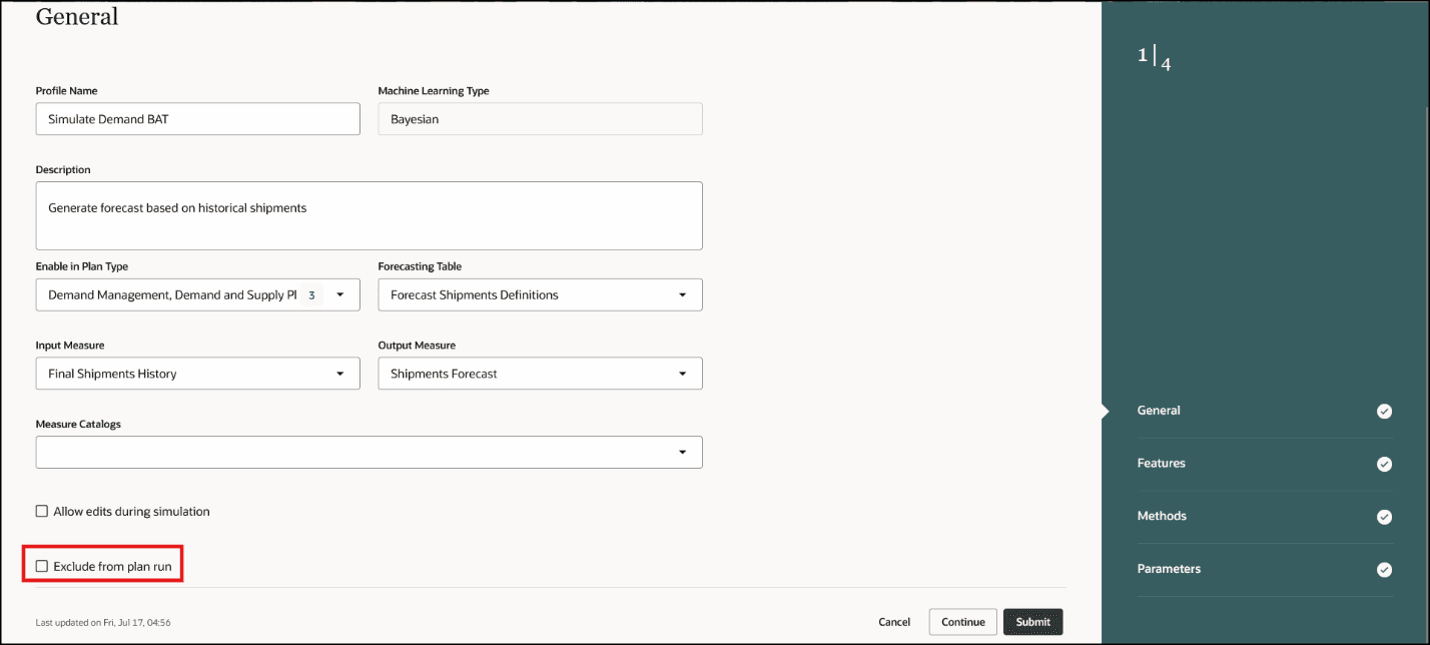
Checkbox for excluding forecasting profile from plan run
Tips and considerations
- The Modify forecasting profile link is displayed only for users who have the required privilege to edit forecasting profiles while simulating demand.
- When you select the Exclude from plan run checkbox, the forecasting profile isn’t available in the Redwood Run plan drawer and Batch Run Plan scheduled process but is available for demand simulation.
However, selecting this checkbox doesn’t prevent the forecasting profile from being available through the Run Plan dialog box on the classic UI.
- The forecasting profile must be added to the plan definition to be available for demand simulation.
Key resources
Refer to the Cloud Applications Readiness content for the following:
- Redwood: Simulate Demand Using a New User Experience.
- Redwood: Simulate Demand Using Additional Details
Visit https://redwood.oracle.com/ for more information about the Redwood user experience.
Access requirements
If you’re using user-defined job roles, then you need to add the privileges identified as new in this update as well as validate that you have the existing privileges that are listed.
| Privilege status | Privilege name and code | Comment |
|---|---|---|
| New |
Edit Forecasting Profile in Simulate Demand |
You don’t need this privilege if you have the Edit Forecasting Profiles privilege. |
| Existing |
Edit Forecasting Profiles |
This privilege is required if you need to edit forecasting profiles from the Forecasting Profiles page. |
| Existing |
Simulate Demand Forecast |
NA |