Redwood: Simulate Demand Using Additional Details
Using the Simulate demand drawer from pivot tables in demand and demand and supply plans, you can select a forecasting profile; select output measures, forecasting methods, and levels; and run a simulation that produces decomposed results (totals and by forecasting methods). This capability provides deeper insights into what drives your forecast through forecast decomposition by forecasting methods and feature group.
The Simulate demand drawer now has these tabs:
- Profile and Scope tab
- Decomposition tab
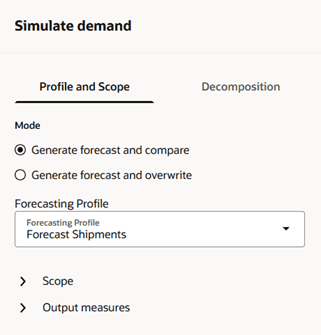
Profile and Scope Tab
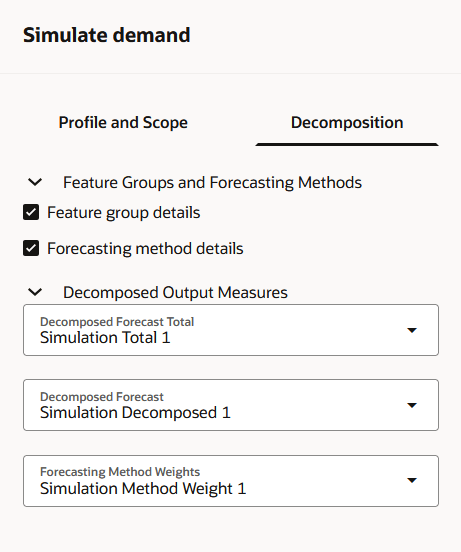
Decomposition Tab
On the Decomposition tab, you can select the Feature group details and Forecasting method details checkboxes to decompose the demand forecast by feature groups and forecasting methods respectively. When you select the Feature group details checkbox, the Decomposed Forecast Total and Decomposed Forecast fields are enabled. When you select the Forecasting method details checkbox, the Forecasting Method Weights field is enabled.
When the mode on the Profile and Scope tab is set to generate forecast and compare, the Decomposed Forecast Total, Decomposed Forecast, and Forecasting Method Weights fields default to the Simulation Total 1, Simulation Decomposed 1, and Simulation Method Weight 1 measures respectively.
When the mode on the Profile and Scope tab is set to generate forecast and overwrite, the fields for decomposed output measures are disabled and default to the output measures associated with the selected forecasting profile.
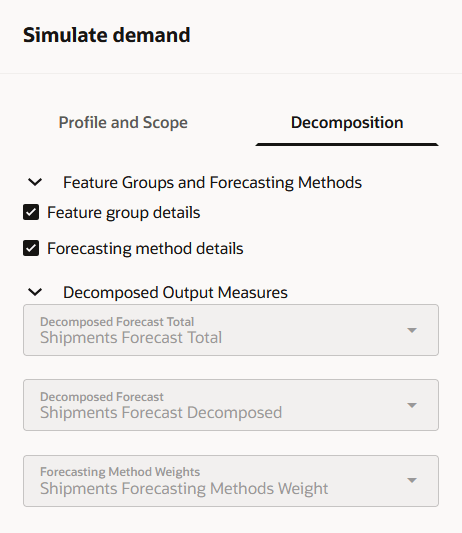
Decomposition Tab in Generate Forecast and Overwrite Mode
Steps to enable and configure
You don't need to do anything to enable this feature.
Tips and considerations
- The Redwood version of demand simulation doesn’t support the following:
- Duplicating a forecasting profile, modifying its definition, and then using the duplicated forecasting profile for demand simulation.
- Modifying the forecasting methods, feature groups, and forecasting parameters before the demand simulation.
- Adding the output measures to the pivot table if they’re not already included.
- Enabling forecast decomposition by feature groups and/or forecasting methods could increase the time needed for demand simulation.
- You can select forecasting profiles of only the Bayesian machine learning type that are included in the plan to simulate demand.
- Page-level search selections for your plan aren’t applied to the scope for demand simulation.
- If you submit the scheduled process for demand simulation with the Highlighted selection in table option selected in the Scope section on the Profile and Scope tab but without selecting a cell, the demand is simulated for the entire table.
- Define the simulation scope using dimension levels that are part of the forecasting table for the forecasting profile. For example, if the forecasting table is defined with the Item and Organization dimension levels, you should set the simulation scope using these dimension levels. Otherwise, the simulated forecast may differ from the forecast generated after the plan run.
- The specified output measures for saving the simulation results must be manually added to the pivot table if they aren’t already included.
- The Simulate Demand menu item is available only in a pivot table that’s opened from a demand or demand and supply plan.
- A restriction was introduced in the 24A update to prevent planners from opening pivot tables while a plan is running. This restriction also covers the opening of pivot tables during demand simulation for both demand and demand and supply plans.
You can bypass this restriction by entering allowOpenPivotWhenPlanRunning=yes in the Demand Parameter Overrides field on the Demand Control Parameters tab in the Technical options step in the guided process for creating or editing your plan. This override will restore the behavior before 24A, allowing pivot tables to be opened during demand simulation as well as when the plan is running.
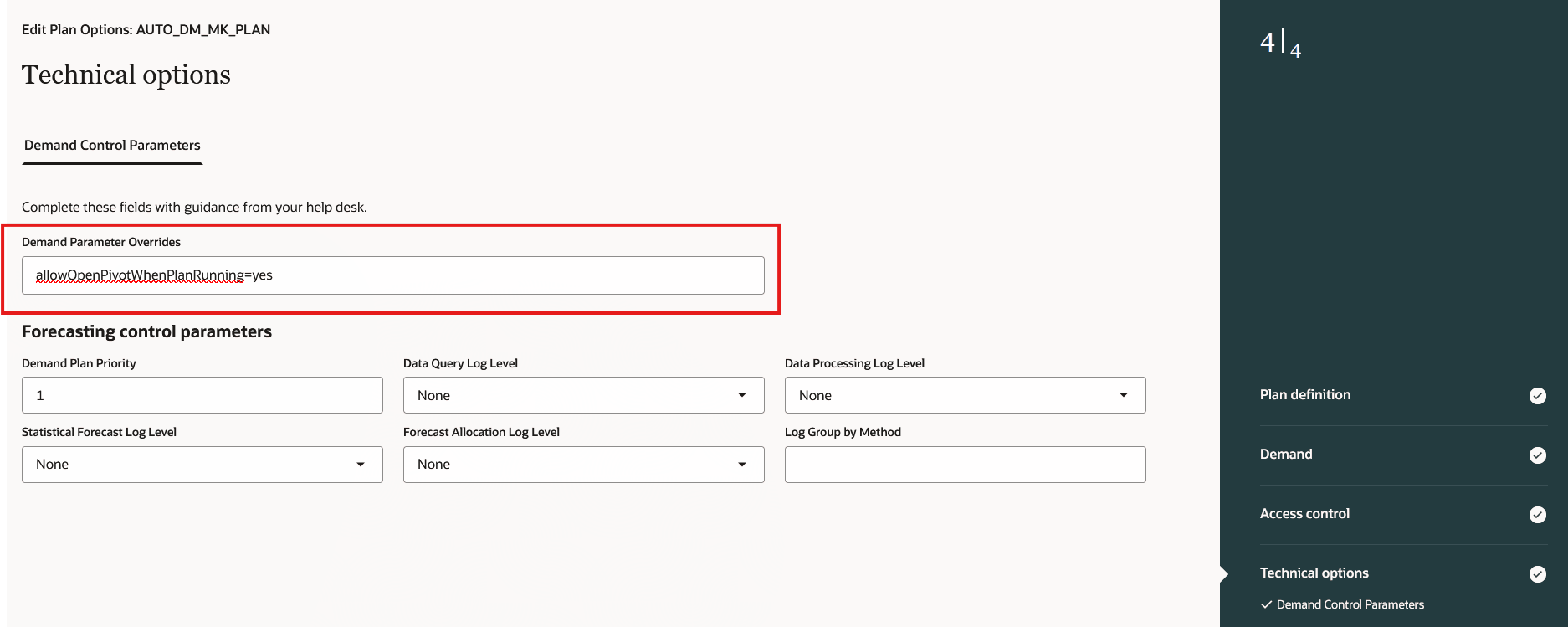
Technical Options Step in Guided Process
Key resources
- Redwood: Simulate Demand Using a New User Experience (Update 25B)
- Visit https://redwood.oracle.com/ for more information about the Redwood experience.
Access requirements
Users who are assigned a configured job role that contains these privileges can access this feature:
- Generate Forecast Details (MSC_GENERATE_FORECAST_DETAILS_PRIV)
- Simulate Demand Forecast (MSC_SIMULATE_DEMAND_FORECAST_PRIV)
These privileges were available prior to this update.