Redwood: Manage Forecasting Profiles with Additional Capabilities
In Update 25D, you could use the Redwood experience to view, duplicate, edit, and delete a forecasting profile. In this update, you can create a forecasting profile and configure it for use with a machine learning model on the Oracle Cloud Infrastructure (OCI) Data Science platform.
In the Redwood work area named Supply Chain Planning, for a demand, demand and supply, or replenishment plan, on the More Actions menu, select View More, and in the Actions drawer, in Configuration, select Forecasting Profiles.
The Forecasting Profiles page will open on a new tab and display a list of forecasting profiles.
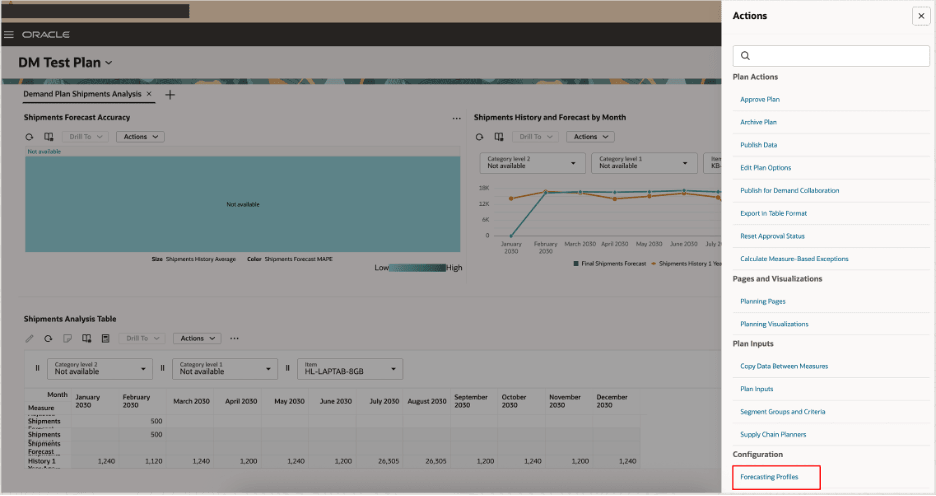
Actions Drawer
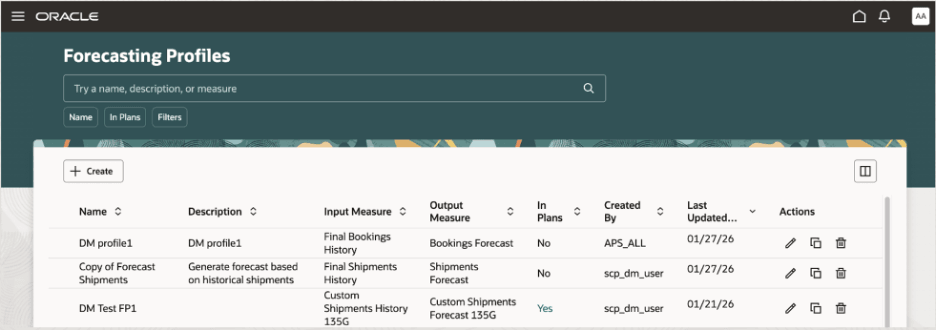
Forecasting Profiles Page
Note: If you have edit privileges, you can create and edit forecasting profiles. If you have view privileges, you can only view the forecasting profile details.
Once a forecasting profile is created, you can view or edit the details. But, you can’t change the machine learning type.
You can run your plan with the forecasting profile and review the plan output.
Create a Forecasting Profile for Bayesian Machine Learning
Follow these steps to create a forecasting profile that uses Bayesian machine learning:
- Select the Create button on the Forecasting Profiles page.
The guided process for creating the forecasting profile will open on the same tab.
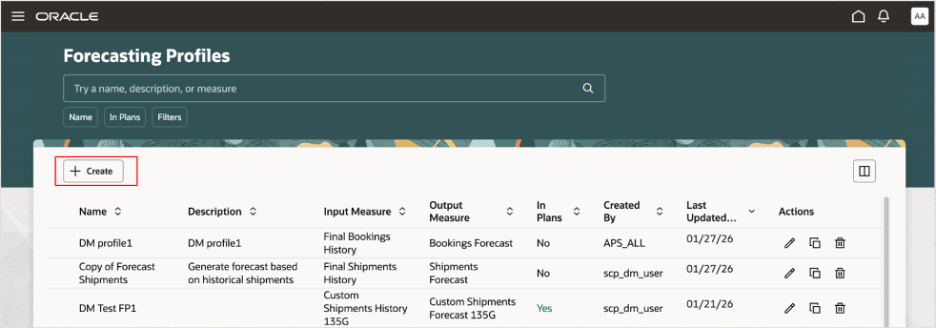
Create Button on Forecasting Profiles Page
- Select Continue to move from a step to the next step, or go directly to a step.
- General: Specify the name, description, plan types, forecasting table, input measure, output measure, and measure catalogs. Select Bayesian as the machine learning type.
The options in the Features, Methods, and Parameters steps will change for the machine learning type.
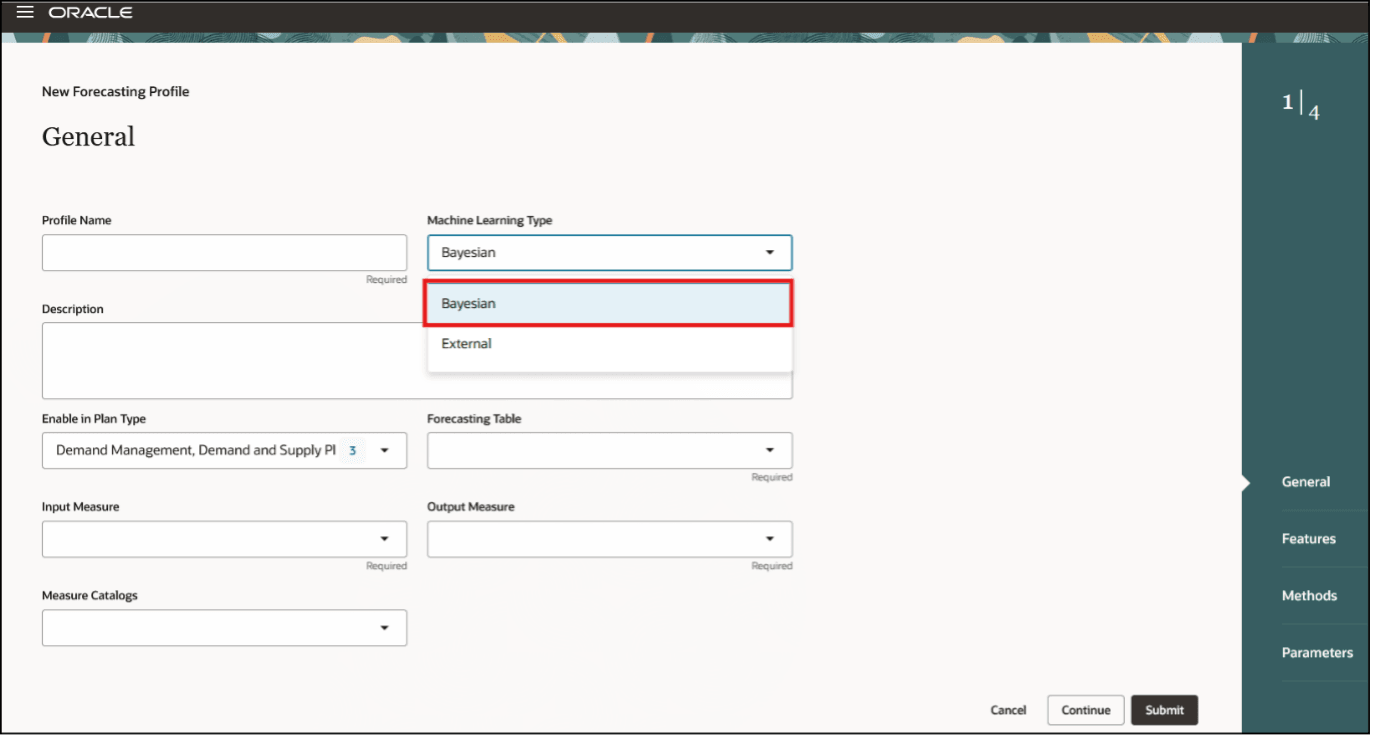
General Step in Guided Process for Creating Forecasting Profile for Bayesian Machine Learning
- Features: Add and edit the feature groups for the forecasting profile.
In the classic interface, decomposition groups were used for grouping causal factors for forecasting profiles of the Bayesian machine learning type and listed on the Decomposition Groups tab in the Manage Forecasting Profiles dialog box. In the Redwood interface, decomposition groups are referred to as feature groups and listed in the Features step of the guided process.
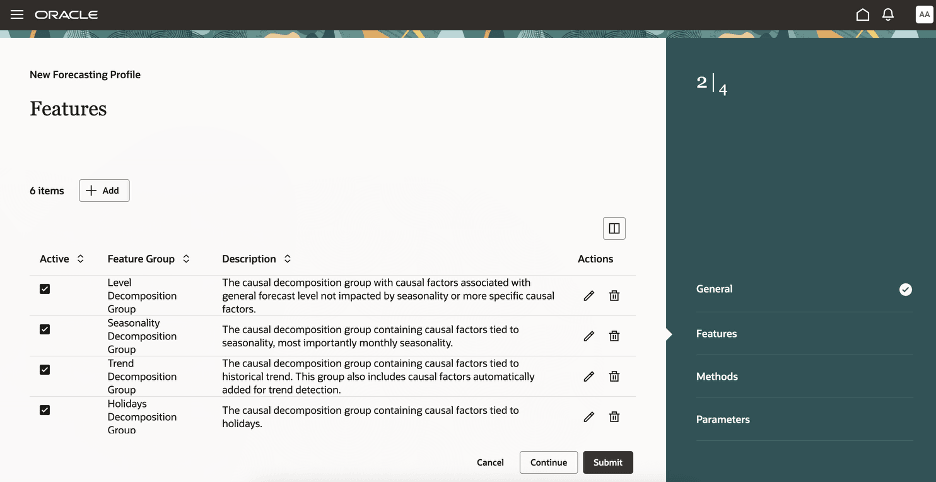
Features Step in Guided Process for Creating Forecasting Profile for Bayesian Machine Learning
- Methods: Select and edit the forecasting methods and method parameters for the forecasting profile.
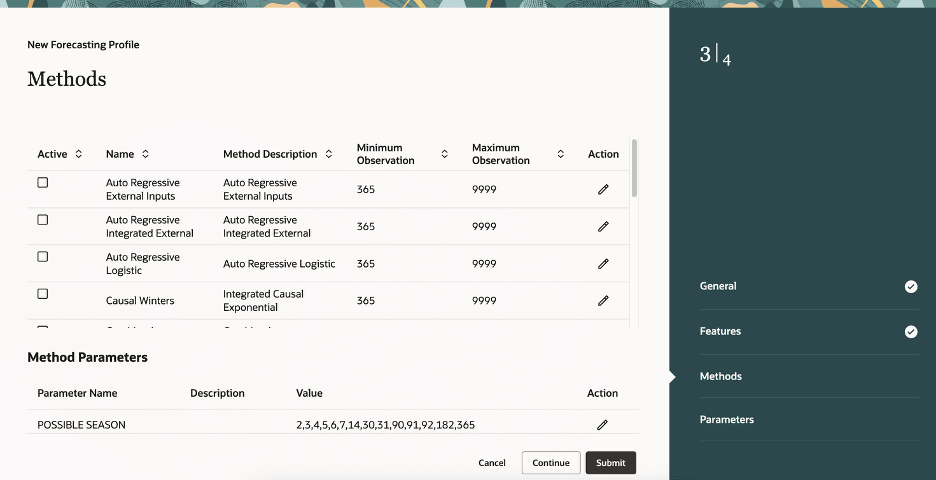
Methods Step in Guided Process for Creating Forecasting Profile for Bayesian Machine Learning
- Parameters: Select and edit the forecasting parameters for the forecasting profile.
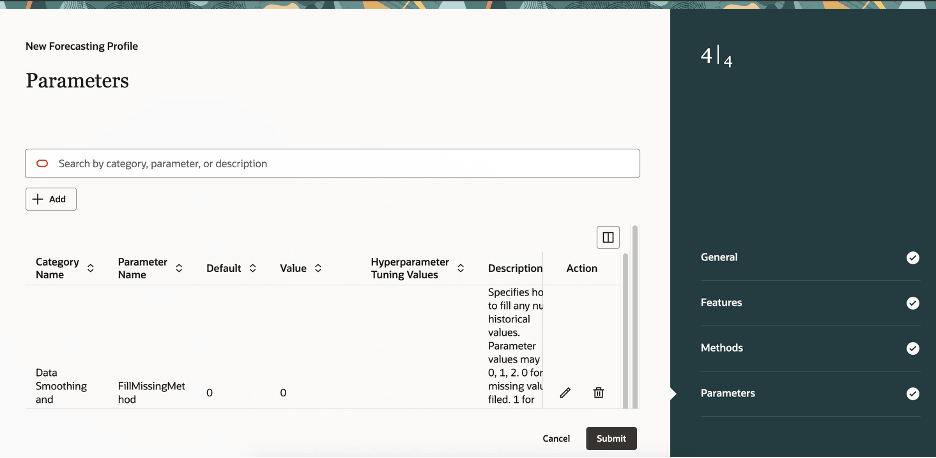
Parameters Step in Guided Process for Creating Forecasting Profile for Bayesian Machine Learning
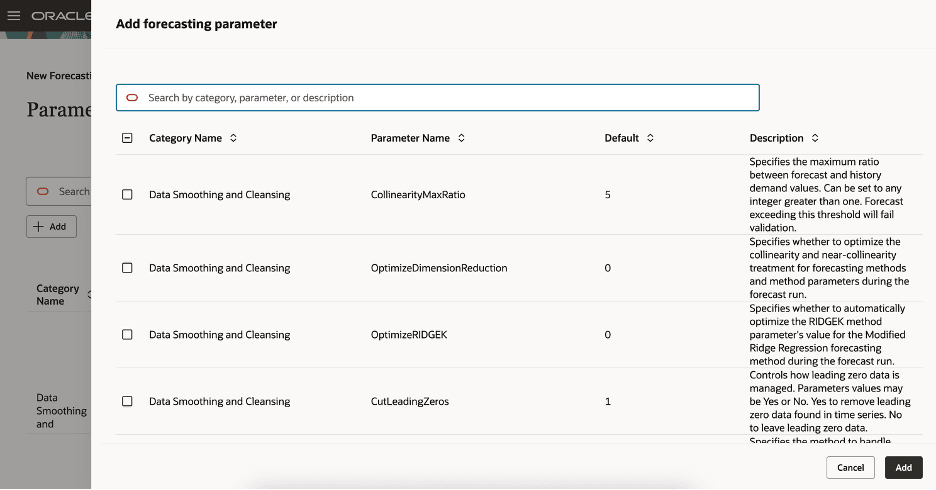
Add Forecasting Parameter Drawer for Forecasting Profile for Bayesian Machine Learning
- Once you’ve reviewed and updated the settings, select Submit.
You’ll see the refreshed Forecasting Profiles page and a confirmation message.
If any errors or warnings occur, then a message will be displayed.
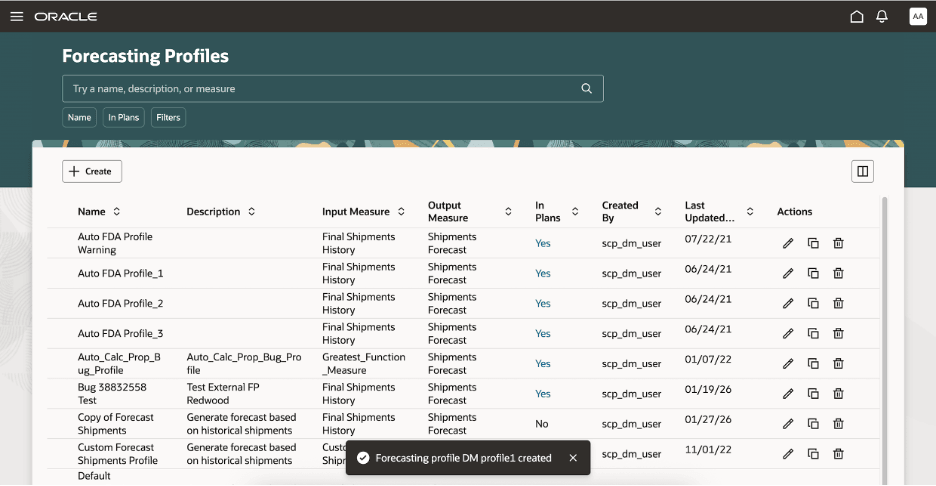
Confirmation Message for Creation of Forecasting Profile
Create a Forecasting Profile for External Machine Learning
Follow these steps to create a forecasting profile that uses a machine learning model on the OCI Data Science platform:
- Select the Create button on the Forecasting Profiles page.
The guided process for creating the forecasting profile will open on the same tab.
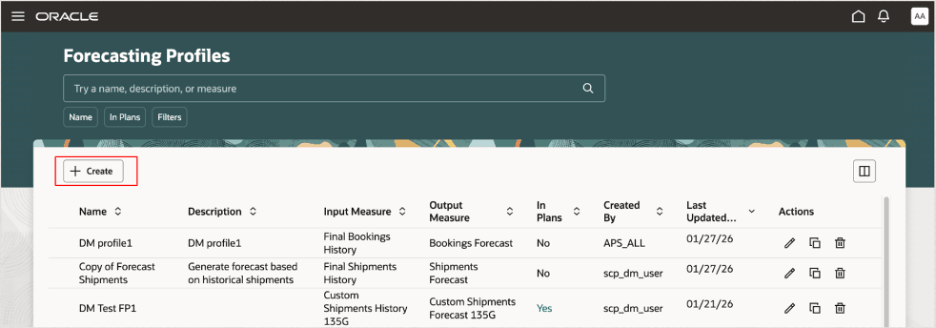
Create Button on Forecasting Profiles Page
- Select Continue to move from a step to the next step, or go directly to a step.
- General: Specify the name, description, plan types, forecasting table, input measure, output measure, and measure catalogs. Select External as the machine learning type.
The options in the Features, Methods, and Parameters steps will change for the machine learning type.
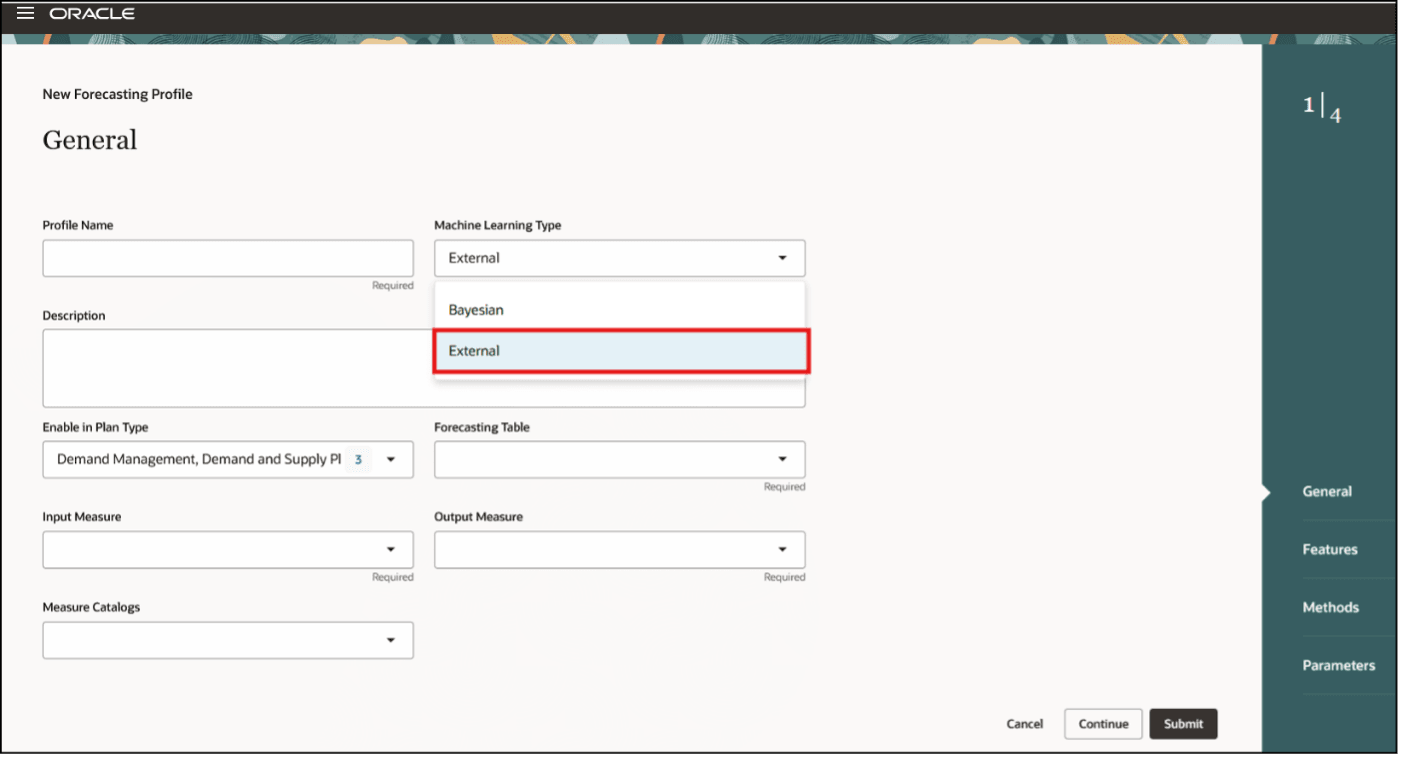
General Step in Guided Process for Creating Forecasting Profile for External Machine Learning
- Features: Create feature groups using measures, Product dimension levels, or Item attributes.
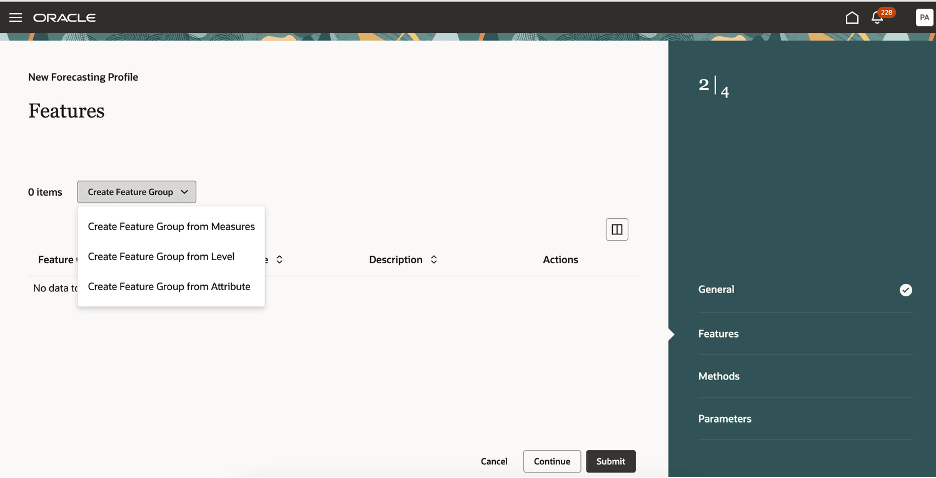
Features Step in Guided Process for Creating Forecasting Profile for External Machine Learning
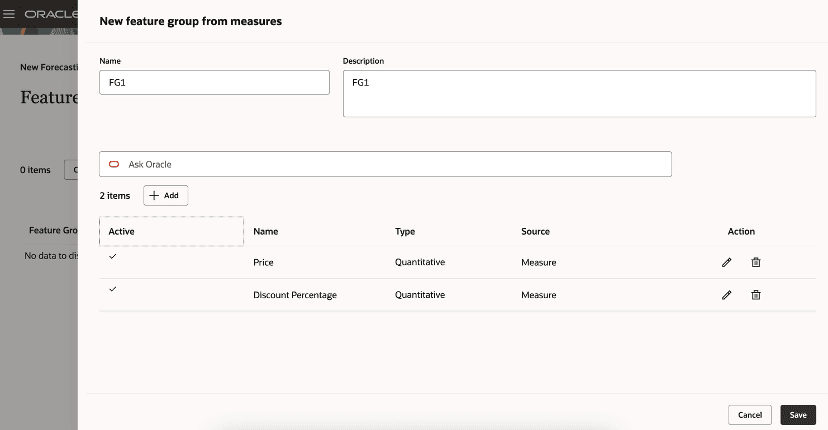
Drawer for Creating Feature Group Based on Measures for External Machine Learning
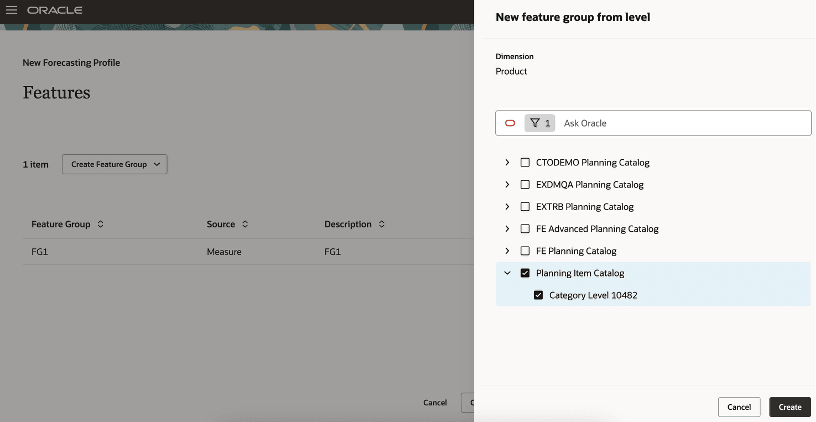
Drawer for Creating Feature Group Based on Product Dimension Levels for External Machine Learning
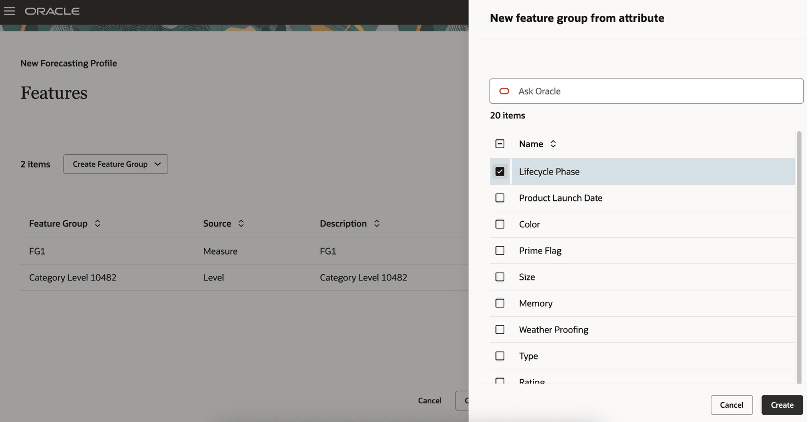
Drawer for Creating Feature Group Based on Item Attributes for External Machine Learning
- Methods: Review the forecasting method named User-Defined Forecasting Model that’s selected by default and can’t be disabled.
This forecasting method refers to the forecasting model that you’ve trained and deployed in the OCI Data Science platform and for which you’ll specify the ModelURL forecasting parameter.
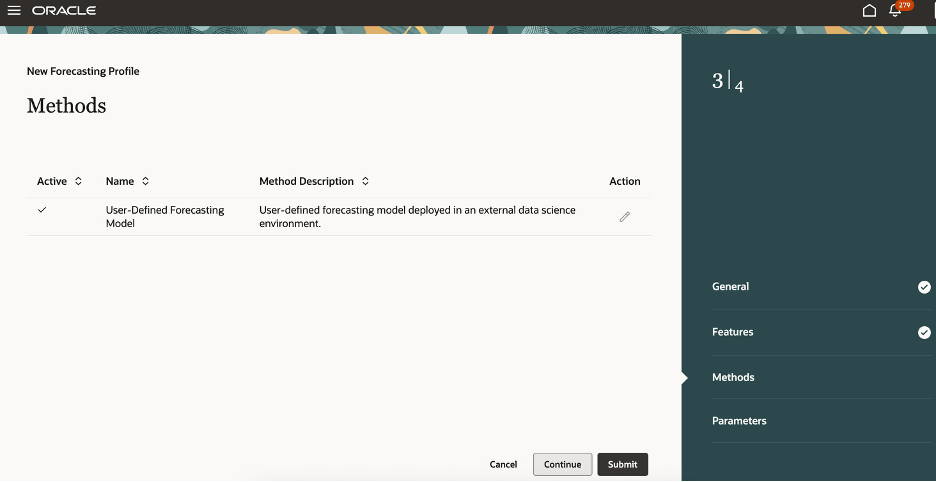
Methods Step in Guided Process for Creating Forecasting Profile for External Machine Learning
- Parameters: Edit the forecasting parameters for the forecasting profile.
Oracle Demand Management requires the credentials for the external forecasting model and OCI Data Science platform to request predictions through a REST API. Select the Edit icon for a forecasting parameter to edit the value in the Value column.
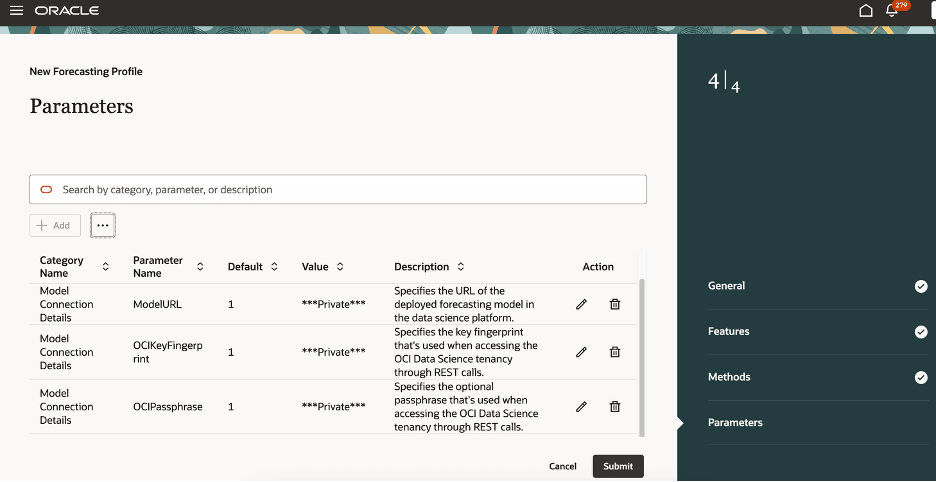
Parameters Step in Guided Process for Creating Forecasting Profile for External Machine Learning
- Once you’ve reviewed and updated the settings, select Submit.
You’ll see the refreshed Forecasting Profiles page and a confirmation message.
If any errors or warnings occur, then a message will be displayed.
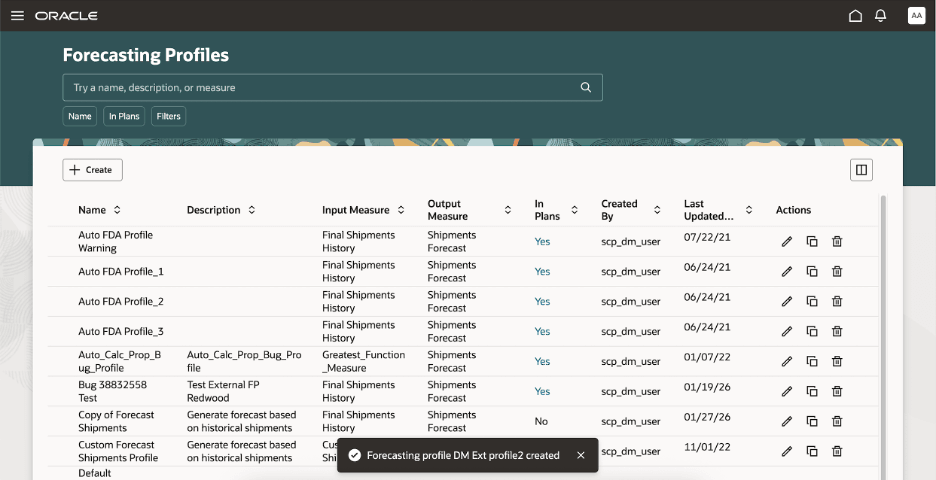
Confirmation Message for Creation of Forecasting Profile
Steps to enable and configure
You don't need to do anything to enable this feature.
Tips and considerations
- You can use forecasting profiles that are based on External machine learning in only demand and demand and supply plans.
- You can use a forecasting profile that’s based on External machine learning to support only one user-defined forecasting model in the OCI Data Science platform.
- You must align the plan’s forecasting time level with the time aggregation of the forecasting model that’s deployed in the OCI Data Science platform. For example, if you’ve trained the forecasting model using shipments data and features aggregated to the Gregorian month, then set the plan’s forecasting time level to the Gregorian month.
- You must align the non-time aggregation levels of the forecasting table for the forecasting profile with the non-time aggregation levels of the forecasting model in the OCI Data Science platform. For example, if you’ve created and trained the forecasting model at the Item and Customer Site levels, then define the forecasting table at the Item and Customer Site levels.
- Only the owner of the forecasting profile that’s based on External machine learning can view and edit the forecasting parameters.
- For security purposes, the value that the owner of the forecasting profile provides for the OCIPrivateKey forecasting parameter isn’t displayed in the Parameters step after the forecasting profile is created.
Key resources
Refer to the Cloud Applications Readiness content for the following features:
- Redwood: Manage Forecasting Profiles Using a New User Experience (Update 25D)
- Forecast Using External Machine Learning Models (Update 24C)
Visit https://redwood.oracle.com/ for more information about the Redwood experience.
Access requirements
Users who are assigned a configured job role that contains these privileges can access this feature:
- Edit Forecasting Profiles (MSC_EDIT_FORECASTING_PROFILES_PRIV)
- View Forecasting Profiles (MSC_VIEW_FORECASTING_PROFILES_PRIV)
These privileges were available prior to this update.