Redwood: Review Hyperparameter Tuning Results from the Planning Advisor
With the AI-driven hyperparameter tuning capabilities in Oracle Demand Management, you can automate the process of identifying forecasting parameter values to increase forecast accuracy.
With this update, you can use the Planning Advisor in Redwood to review hyperparameter tuning outcomes more efficiently. You can receive dedicated hyperparameter tuning notifications in the Redwood UI and review the summary for quick assessment. Your administrator can optionally configure a Redwood page that you can open from the Planning Advisor to view the details behind the summary.
Follow these steps to configure a user-defined Redwood page that you can open from the Planning Advisor for your hyperparameter tuning notifications:
Note: In this write-up, it’s assumed that you are modifying an existing forecasting profile that’s already been added to a demand plan. Also, it’s assumed that a user-defined Redwood page has been created with visualizations for analyzing the results of hyperparameter tuning.
- In the Redwood work area named Supply Chain Planning, for a demand plan that uses automated hyperparameter tuning, select More Actions > View More to open the Actions drawer, and then select Forecasting Profiles in the Configuration section.
The Forecasting Profiles page will open on a new tab of your web browser.
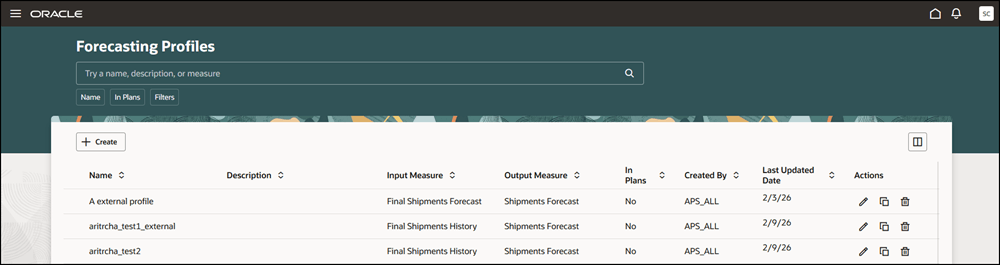
Forecasting Profiles Page
- Search for the forecasting profile that’s being used for hyperparameter tuning for the demand plan.
- Select the Edit icon for the forecasting profile.
The guided process for editing the forecasting profile will open on the same tab.
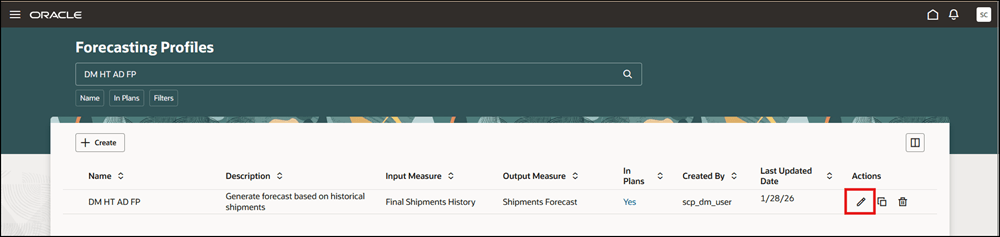
Edit Icon for Selected Forecasting Profile
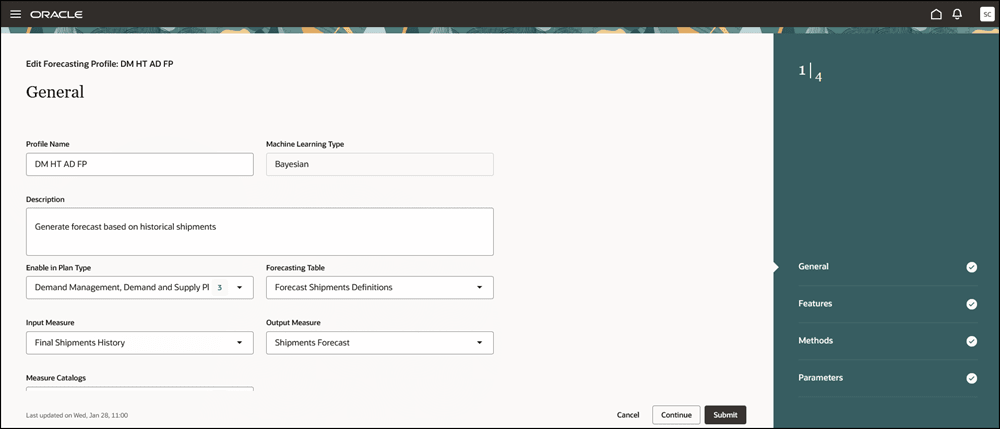
Guided Process for Editing Forecasting Profile
- Select the Parameters step.
- Select the Add button.
The Add forecasting parameter drawer will open.
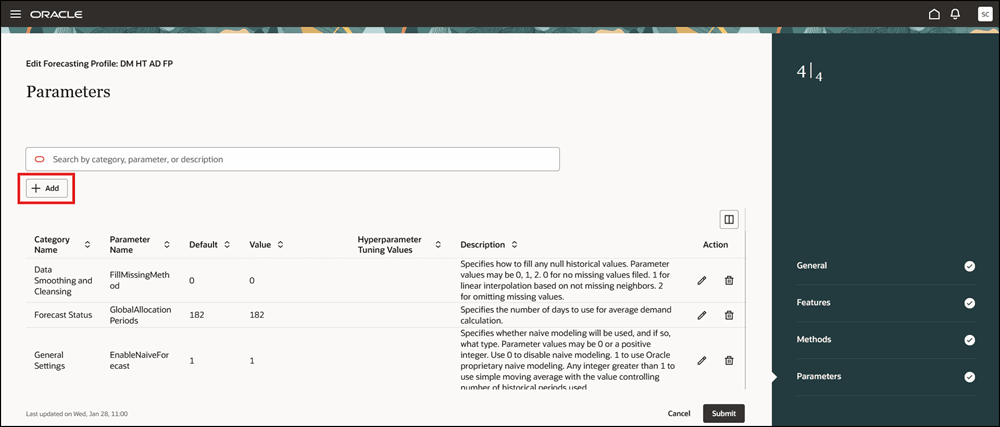
Add Button in Parameters Step
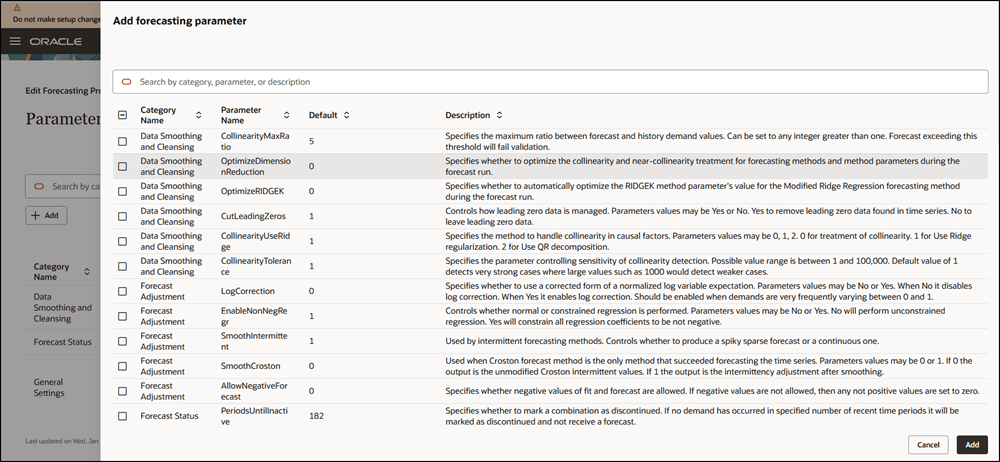
Add Forecasting Parameter Drawer
- Search for the HypertuneAdvisorPageLayout forecasting parameter, select it, and select Add.
The Add forecasting parameter drawer will be closed, and you will return to the Parameters step.
- Select the Edit icon for the HypertuneAdvisorPageLayout forecasting parameter.
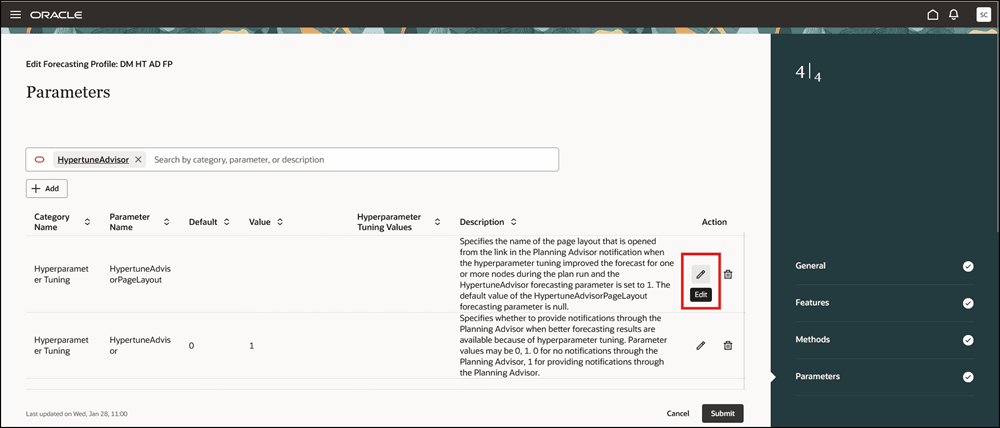
Edit Icon for Forecasting Parameter
- In the list in the Value column for the forecasting parameter, select the user-defined Redwood page that should open from the Planning Advisor with the hyperparameter tuning information.
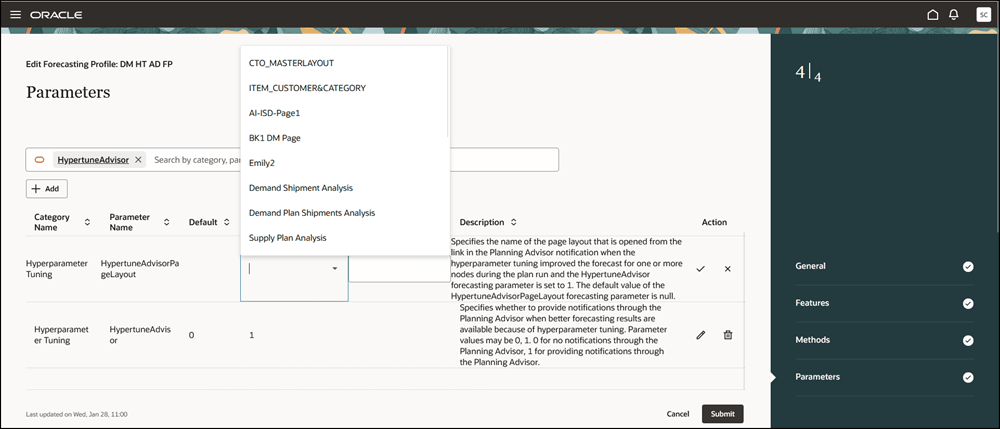
List of Pages for Forecasting Parameter
- Save your work, and select Submit.
You will return to the Forecasting Profiles page.
- Run the demand plan that contains the modified forecasting profile.
If there are notifications for hyperparameter tuning or other reasons, the Planning Advisor menu item will be available in the More Actions menu.
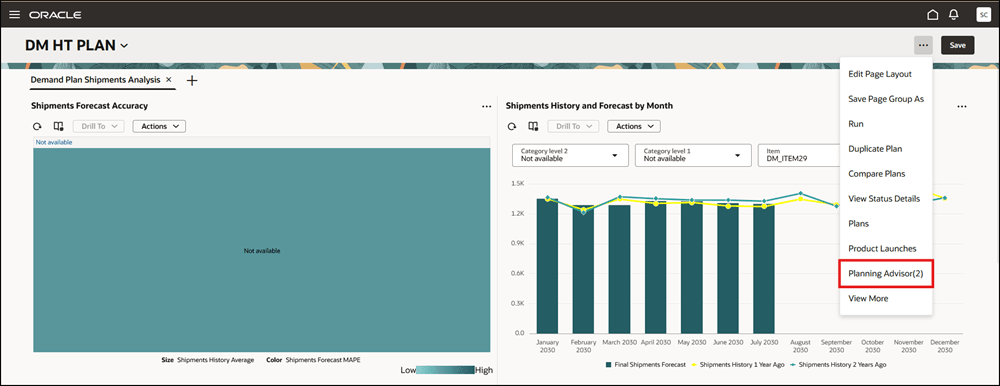
Menu Item for Planning Advisor
- Select Planning Advisor.
The Planning advisor drawer will open.
- Select the notification for hyperparameter tuning.
The details of the notification will be displayed in the drawer.
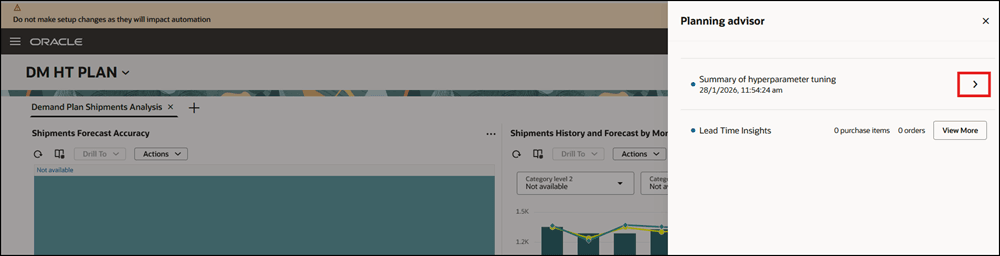
Hyperparameter Tuning Notification
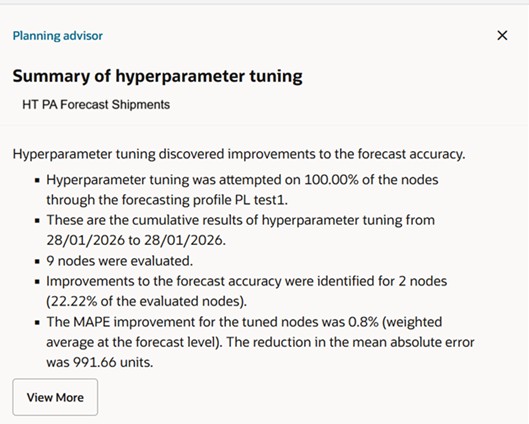
Details of Hyperparameter Tuning Notification
- Select the View More button.
The configured Redwood page for the HypertuneAdvisorPageLayout forecasting parameter opens on a new tab for the plan.
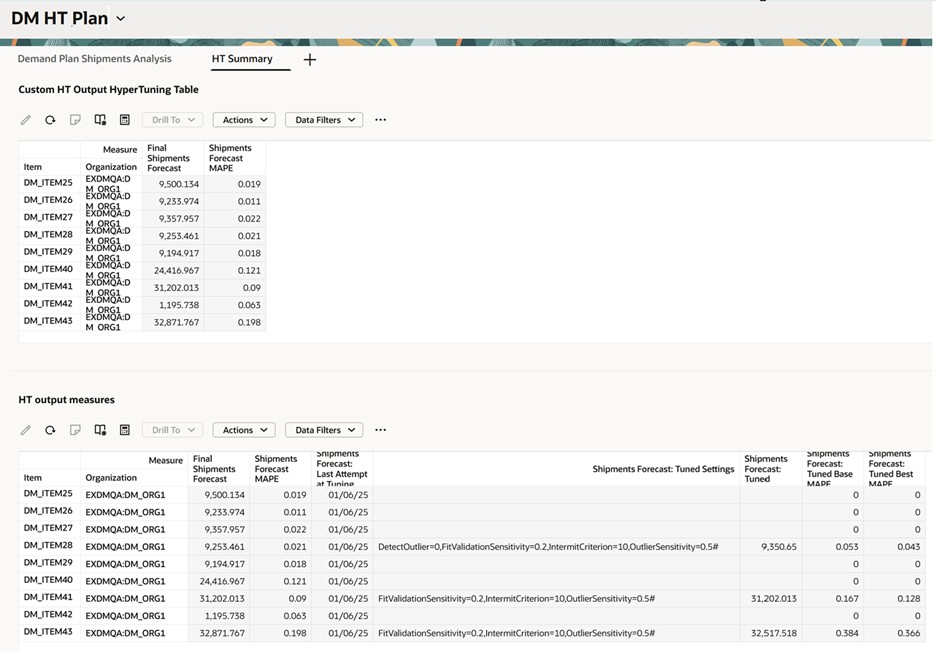
Configured Page for HypertuneAdvisorPageLayout Forecasting Parameter
Steps to enable and configure
You don't need to do anything to enable this feature.
Key resources
Refer to the Cloud Applications Readiness content for the following:
- Use Automated Hyperparameter Tuning to Improve Forecast Accuracy (24B)
- Control Automated Hyperparameter Tuning at the Plan Level (24C)
- Receive Planning Advisor Notifications for Automated Hyperparameter Tuning (24C)
Visit https://redwood.oracle.com/ for more information about the Redwood experience.
Access requirements
Users who are assigned a configured job role that contains these privileges can access this feature:
- Edit Forecasting Profiles (MSC_EDIT_FORECASTING_PROFILES_PRIV)
- Edit Plan Options (MSC_EDIT_PLAN_OPTIONS_PRIV)
- Edit Plans (MSC_EDIT_PLANS_PRIV)
These privileges were available prior to this update.