Hide any filter in the filter bar in user-specific layout
With this update, you can hide any filter in a filter bar as part of a user-specific layout. You can personalize planning pages by removing unused filters from the view while keeping the layout tailored to your own planning work.
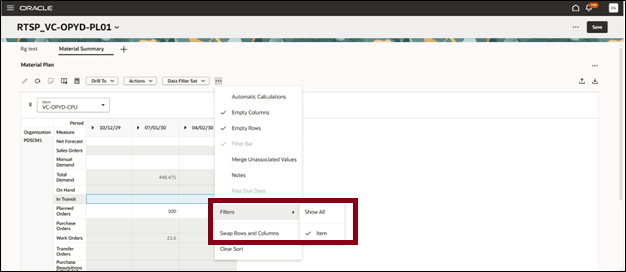
The following screenshot shows the Item filter present in the filter bar. You can hide it by deselecting the filter name in the Filters submenu. The values in the visualization are automatically aggregated when the filter for the dimension is deselected and hidden.
Steps to enable and configure
Use the Opt In UI to enable this feature. For instructions, refer to the Optional Uptake of New Features section of this document.
Offering: Supply Chain Planning
Tips and considerations
If you want to use the Redwood: Hide any Filter in the Filter Bar in User-Specific Layout feature, then you must opt in to its parent feature: Replenishment Planning. If you’ve already opted in to this parent feature, then you don’t have to opt in again
Access requirements
No separate privilege is required to access this feature.