Group visualizations and drill-to-action logically
You can now add a visualization group to the drill-to-link menu. You can easily access these visualizations through the drill-to action. You can create, edit, delete a group of visualizations.
You can find the related pages, visualizations, agents, and external links more quickly while preserving existing default visualizations during migration.
Group Visualizations and Drill-to Actions Logically
Drill-to menus can become difficult to navigate when many visualizations, pages, planning agents, and external links are configured. Previously, all drill-to actions were displayed as a single flat list, making it difficult to locate the desired action.
With this update, drill-to actions are organized into logical groups, making navigation simpler and more intuitive. You can create and manage your own drill-to groups to organize all tables and graphs according to your business requirements. In addition, pivot tables are now identified with a dedicated icon, making them easier to distinguish from standard tables throughout the application.
Key benefits
With this update you can:
- Improve drill-to menu usability by organizing actions into logical groups instead of displaying a single long list.
- Quickly locate frequently used drill-to actions.
- Organize Pivot tables and graphs into user-defined drill-to groups.
- Manage drill-to groups directly from the Visualizations page.
- Assign and remove visualizations from groups without additional configuration.
Drill-to actions are organized into logical groups
Drill-to actions are now displayed under logical groups instead of a flat list.
The drill-to menu displays groups that are available by default, in the following order:
- Default Group: Contains application pages and visualizations that aren't configurable, such as Supplies and Demands, Items, Exceptions, Build Plan, and other drill-to actions.
- Pages: Contains application pages configured as drill-to actions.
- Planning Agents: Contains configured AI Planning Agents for visualizations that support planning agent workflows.
- External Links: Contains configured external links, including default links such as Source Details.
- User-Defined Groups: Contains all tables and graphs assigned to user-created groups.
- Unassigned Visualizations: Contains visualizations that aren't assigned to any group appear unassigned at the top of the drill-to menu.
In the drill-to menu:
- Actions within each group are displayed alphabetically.
- Groups appear only when they contain at least one drill-to action.
- User-defined groups appear after the default groups in alphabetical order.
- A separator between the default and user-defined groups is displayed only when user-defined groups exist.
Create and manage user-defined drill-to groups
- Go to Actions > Drill-To Groups.
The Drill-To Groups page opens. You can create a new group, assign or unassign visualizations to a group.
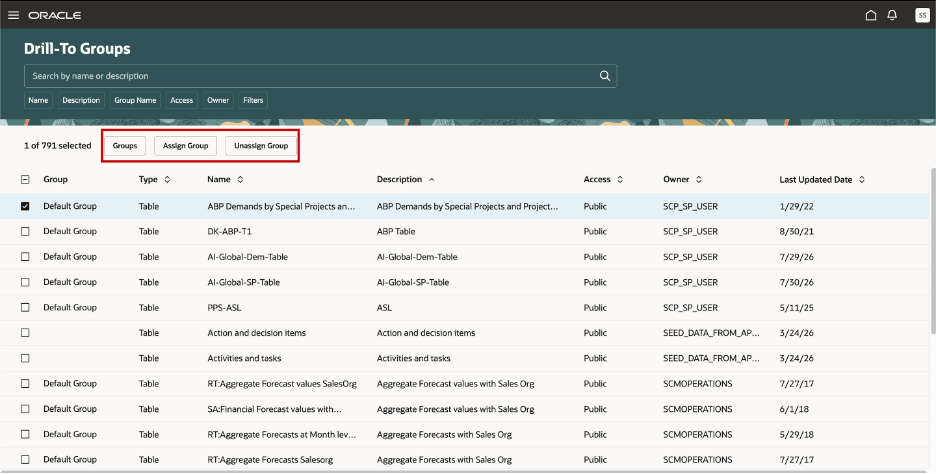
Drill-To Groups page
2. Select Groups.
This opens a drawer.
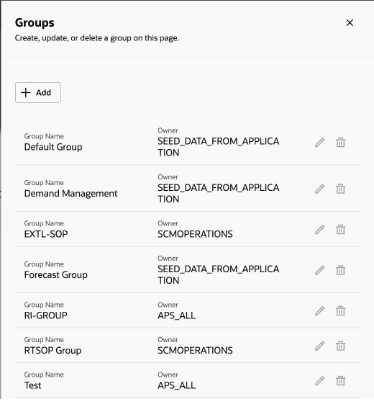
Groups drawer
In Groups, drawer, you can:
- Create new drill-to groups.
- Rename existing user-defined groups.
- Delete user-defined groups.
- View all user-defined groups together with the default Default Analytics Group.
Important:
- Groups are displayed alphabetically.
- Group names are required and must be unique.
- Only the owner of a group can rename or delete it.
Creating a group
1. Select Add.
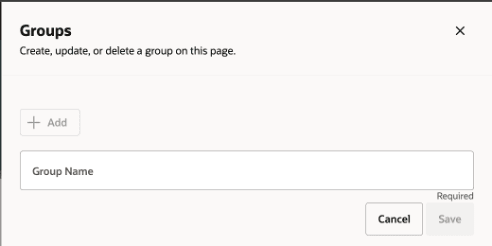
Creating a group
2. Enter a unique group name.
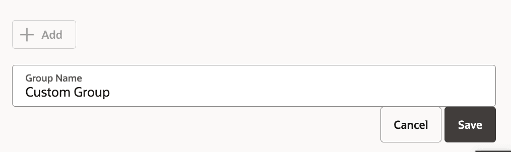
Entering a unique group name
3. Click Save.
Note: New groups are automatically displayed in alphabetical order after they are saved.
Editing a group
Existing groups can be renamed inline.
To edit an existing group, select the Edit icon available in the row.

Editing a group
Deleting user-defined groups
Before you delete a group, remember that if the group doesn't contain any visualizations, only the group is removed. If the group contains visualizations, those visualizations are automatically reassigned to the default Default Analytics Group.
Note: Deleting a group doesn't delete any visualizations.
Assigning visualizations to drill-to groups
You can assign pivot tables and graphs to the default or user-defined drill-to groups directly from the Visualizations page.
To assign visualizations:
- Select one or more visualizations.
- Select Assign Group.
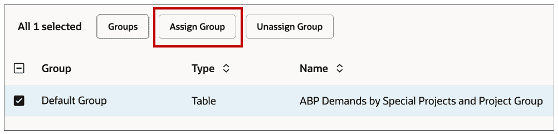
Assigning groups
3. Select a group from the list of available groups. The list displays the default groups and user-defined groups alphabetically.
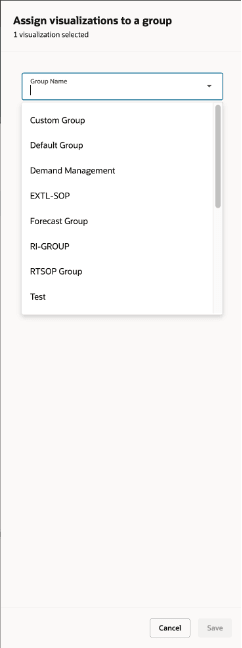
List of available groups
4. Select Save.
The selected visualizations are assigned to the chosen group.
Important
- Each visualization can belong to only one group at a time. Assigning a new group replaces the previous assignment.
- Visualizations assigned to the default group appear under that group in the drill-to menu.
Visualizations assigned to a user-defined group appear under that group and are listed alphabetically with the other visualizations in the group.
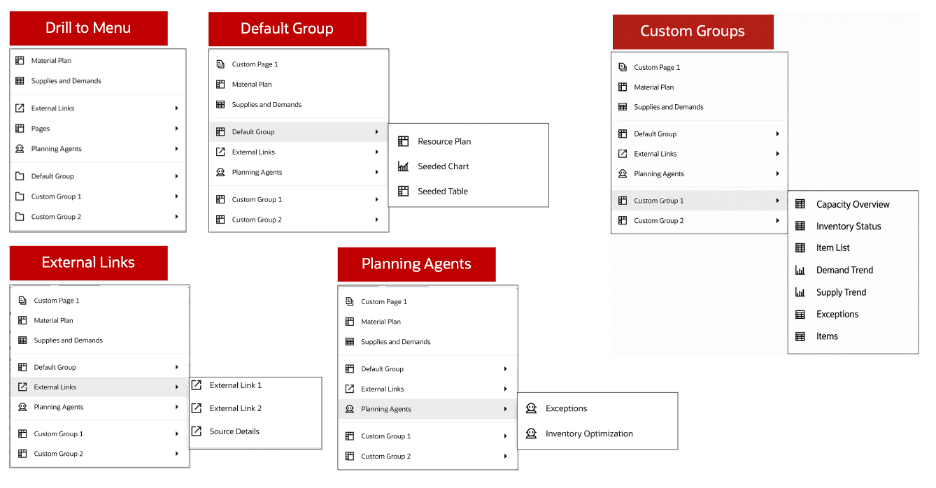
Default and user-defined groups
Removing visualizations from drill-to groups
You can remove a visualization from its current drill-to group without deleting the visualization.
To remove group assignments:
- Select one or more visualizations.
- Select Unassign Group.
The visualization is removed from its current drill-to group
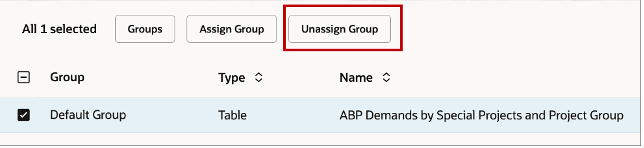
Unassigning visualizations from a group
Unassigned visualizations remain available in the Unassigned list and can be assigned to another group at any time.
You can unassign visualizations from the Default Analytics Group or any user-defined group.
Steps to enable and configure
Use the Opt In UI to enable this feature. For instructions, refer to the Optional Uptake of New Features section of this document.
Offering: Supply Chain Planning
Tips and considerations
If you want to use the Redwood: Group Visualizations and Drill-to-Action Logically feature, then you must opt in to its parent feature: Replenishment Planning. If you’ve already opted in to this parent feature, then you don’t have to opt in again
Key resources
Access Requirements
| Privilege | Title | Description |
|---|---|---|
| MSC_MANAGE_PLANNING_PAGES_PRIV | Manage Planning Pages | Allows users to create, view, edit, duplicate, delete, and organize Supply Chain Planning pages and page groups, including configuring their planning views and access settings. |
| MSC_VIEW_PLANNING_OBJECTS_REST_SERVICE_PRIV | View Planning Objects | Lets users view Planning objects—such as planning pages, page groups, tables, graphs, and pivot-table configurations. |