Access the exceptions and notes agent from other plan types
With this update, Planning Advisor for Exceptions and Notes, the existing AI agent template is now available to configure or use in demand plans, replenishment plans, inventory optimization plans, and sales and operations plans. You can quickly understand the most important exceptions in the plan to be addressed while understanding any other plan notes that may have been entered.
The Planning Advisor for Exceptions and Notes is available using the prebuilt AI Agent template in AI Agent Studio, listed in the SCM product family of templates. You can use as it is or make a copy of the template and refine the prompts as needed. The predefined Planning Advisor for Exceptions and Notes can be integrated directly into a plan’s primary action menu, under the existing Planning Advisor menu.
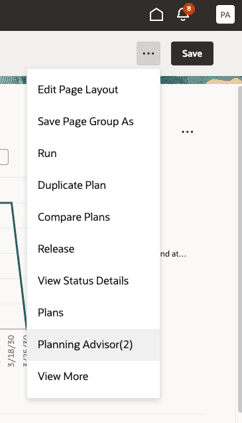
Planning advisor option
Before you begin, you need to enable the Notes and Exceptions advisor. Refer to the Steps to Enable section.
- From the Actions menu, select Planning Advisor.
The Planning AI Advisor drawer opens. You can see the Use Plan Exceptions Assistant and the Use Plan Notes Assistant.
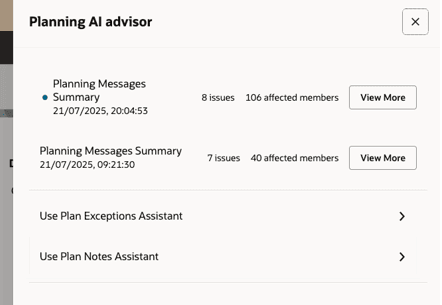
Planning advisor drawer
- Add access to the Exceptions Advisor for the existing supply plans and demand and supply plans or for the following newly supported plans:
- Demand plans
- Replenishment plans
- Sales and Operations plans
- Inventory Optimization plans
- Add access to the Notes Advisor for the newly supported Inventory Optimization plans or for the following existing plans:
- Demand plans
- Demand and Supply plans
- Replenishment plans
- Sales and Operations plans
- Supply plans
Note that you will need to implement your own agent to access exceptions for the new plan types. Business objects for the supply, resource, supplier, and measure-based exceptions are available in the business objects section of the AI Agent Studio.
Steps to enable and configure
To include a predefined Notes and Exceptions Advisor, you must enable it. Notes and exceptions advisors are enabled individually for each plan type. After you enable them, they are displayed as the Plan Notes Assistant and Plan Exceptions Assistant in the Planning Advisor drawer.
To enable a planning advisor:
- Open the menu at the top right of the page.
- Select Edit Page in Visual Builder Studio.
- Go to the Page Properties section.
- Assign the AI Agent Team Code value to the placeholder constant.
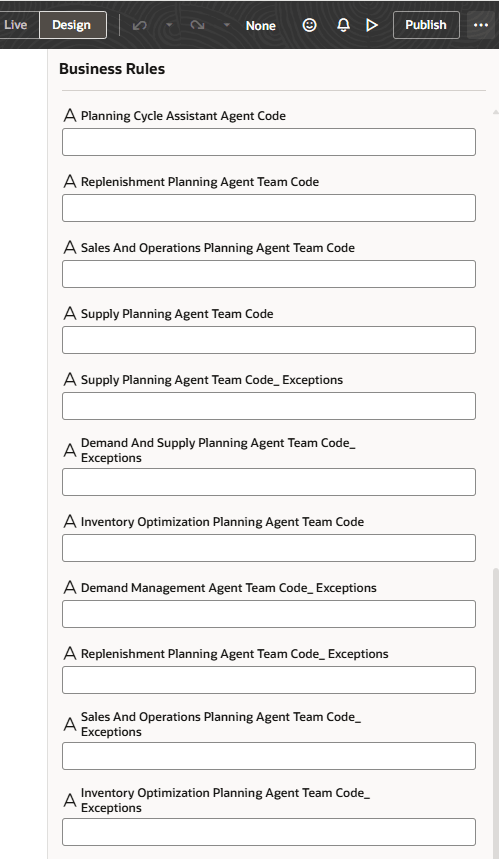
Business rules variables
- Open the Business Rules for the applicable plan type.
- Locate the Business Rules variables.
- Add your agent values to the variables.
The agents appear in the Planning Advisor list.
The new business rules added in this update are as follows:
| Business rule constant | AI agent |
|---|---|
| InventoryOptimizationPlanningAgentTeamCode | Notes Agent Link |
| InventoryOptimizationPlanningAgentTeamCode_Exceptions | Exceptions Agent Link |
| DemandManagementAgentTeamCode_Exceptions | Exceptions Agent Link |
| ReplenishmentPlanningAgentTeamCode_Exceptions | Exceptions Agent Link |
| SalesAndOperationsPlanningAgentTeamCode_Exceptions | Exceptions Agent Link |
The following table lists the existing plan-specific business rule variables, available prior to this update:
| Business rule constant | AI agent |
|---|---|
| DemandAndSupplyPlanningAgentTeamCode | Notes Agent Link |
| DemandAndSupplyPlanningAgentTeamCode_Exceptions | Exceptions Agent Link |
| SupplyPlanningAgentTeamCode | Notes Agent Link |
| SupplyPlanningAgentTeamCode_Exceptions | Exceptions Agent Link |
| DemandManagementAgentTeamCode | Notes Agent Link |
| ReplenishmentPlanningAgentTeamCode | Notes Agent Link |
| SalesAndOperationsPlanningAgentTeamCode | Notes Agent Link |
Tips and considerations
You can use AI Agent Studio to use or copy a preconfigured agent template to create Agents for your business processes. To automatically add a suffix to all artifacts in your agent team, you can Copy Template instead of Use Template. When you copy a template, you're directly taken to the agent team canvas where you can edit the agent team settings, agents, tools, and topics. The Use Template option takes you through a step-by-step process for configuring each artifact in the agent team.
Key resources
How do I use AI Agent Studio?
AI Agent: Planning Advisor for Exceptions (25D What's New)
AI Agent: Analyze Supply Chain Planning Notes
Access requirements
To access the Oracle AI Agent Studio for Fusion Applications and manage SCM AI agents, users must be assigned a configured job role that contains these duty roles:
- SCM Intelligent Agent Management Duty (ORA_RCS_SCM_AI_AGENT_MANAGEMENT_DUTY)
- Fai Genai Agent SCM Administrator Duty (ORA_DR_FAI_GENERATIVE_AI_AGENT_SCM_ADMINISTRATOR_DUTY)
To interact with AI agents in product pages, users must be assigned a configured job role that contains this duty role:
- Fai Genai Agent Runtime Duty (ORA_DR_FAI_GENERATIVE_AI_AGENT_RUNTIME_DUTY)
To allow users to interact with agents, you must also enable permission groups in the Security Console on those users' configured job roles that contain the Fai Genai Agent Runtime Duty role. You can enable permission groups when you manage the basic information of your configured job roles.
Users' configured job roles must also contain privileges that allow access to the pages where AI agents are enabled.