Receive purchase orders in field service Receive Part UI
You can now receive eligible purchase order lines from the Receive Parts page by selecting the Purchase Orders tab in in-app navigation. Users can search for a purchase order, item, or supplier, apply filters as needed, and review the returned purchase order lines in the search results.
The search results show the purchase order lines available for receiving and provide the actions needed to continue the receiving process. Depending on the item type, users can either select eligible uncontrolled lines for bulk receipt or use the row-level receive action to open the corresponding receive drawer.
This feature supports uncontrolled, serial-controlled, lot-controlled, and lot-and-serial-controlled items. Supported serial control types are Predefined serial number and Dynamic entry at inventory receipt. Supported receipt routing types are Standard Receipt and Direct Delivery. This feature applies only to purchase order lines with the Inventory destination type.
Search list
Shows the Purchase Orders tab search, filters, and purchase order line results. Users can review line details and identify the lines available for receiving.
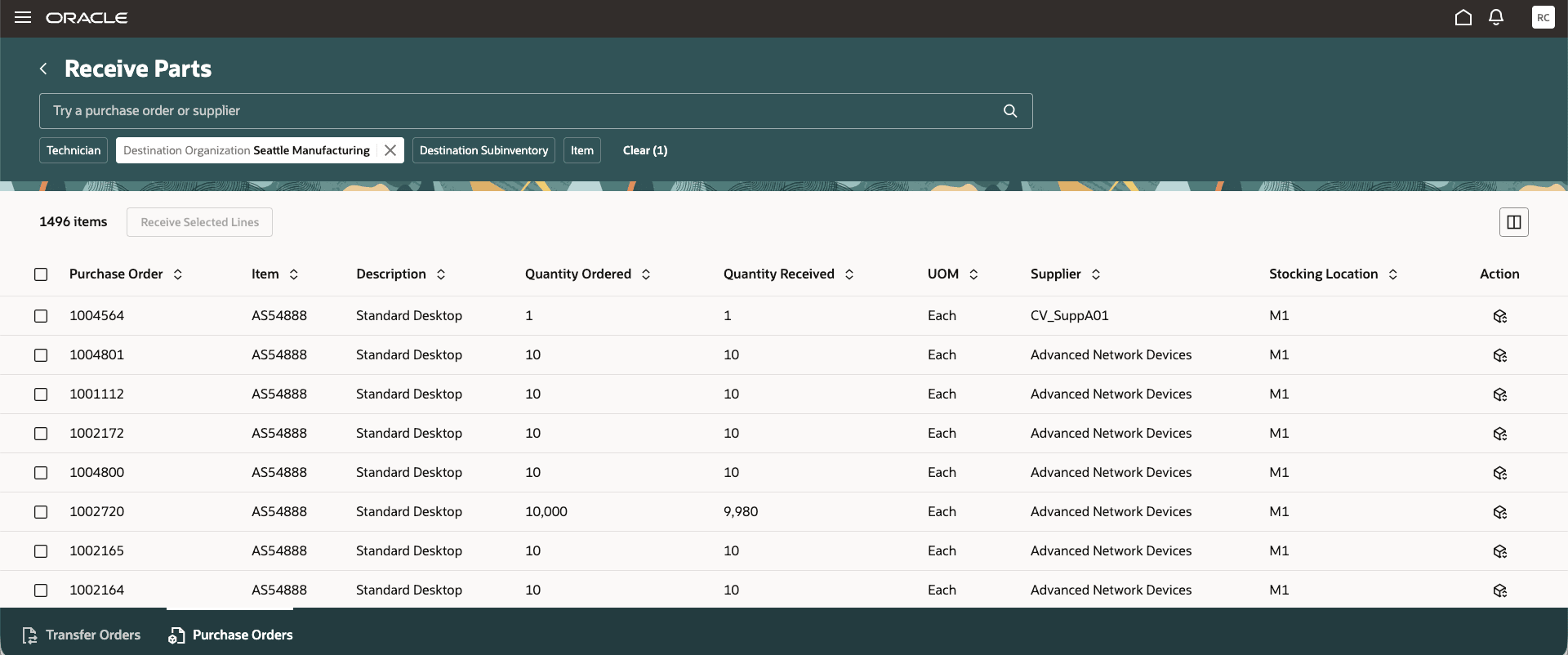
Receive parts for purchase orders search list
Receive purchase order - uncontrolled (non-serial and non-lot) item bulk receiving
Shows how users receive an uncontrolled item by entering the receipt quantity for a single line. Eligible uncontrolled lines can also be selected for bulk receipt.
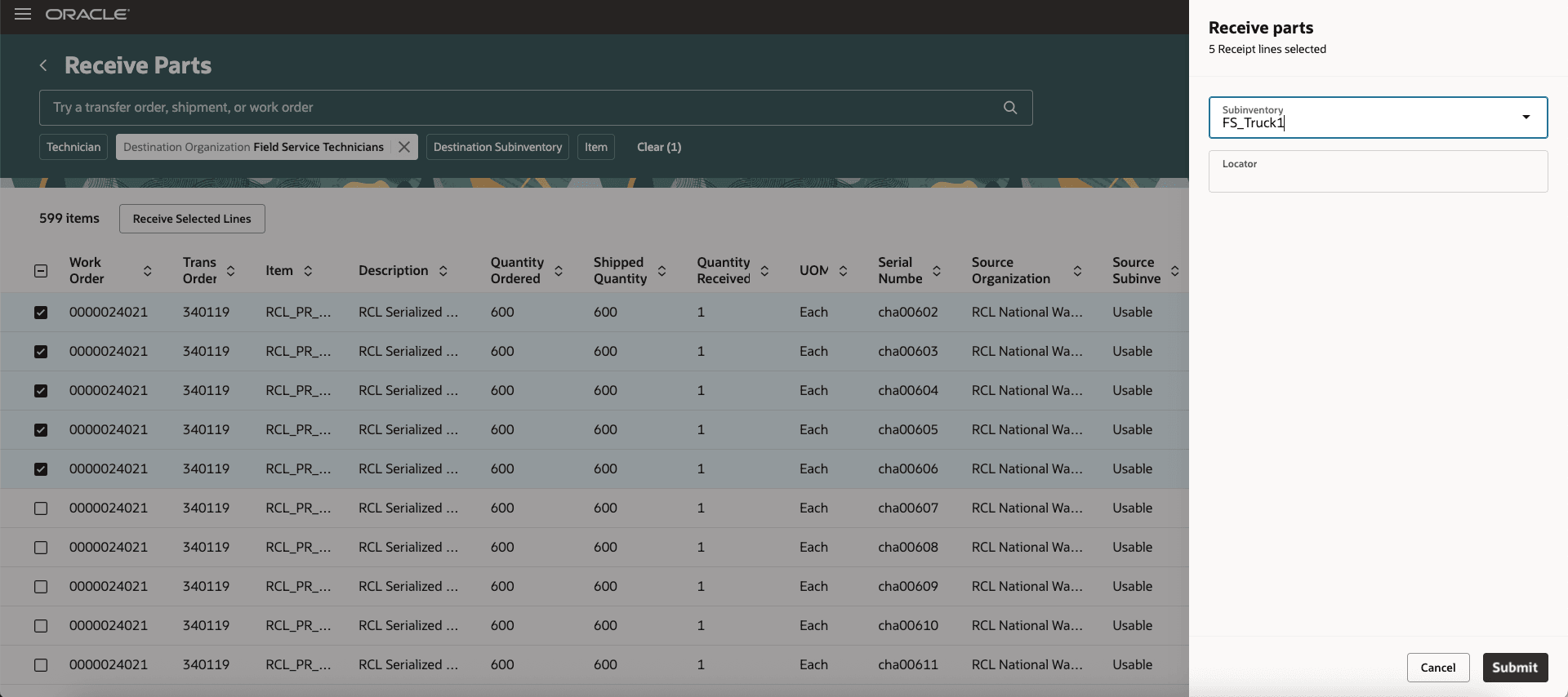
Receive parts for purchase orders bulk receiving
Receive purchase order - serialized item
Shows how users receive a serialized item with quantity fixed to one. Depending on item setup, the serial number is selected from a list or entered manually. Users must receive these lines one at a time and provide the required serial number.
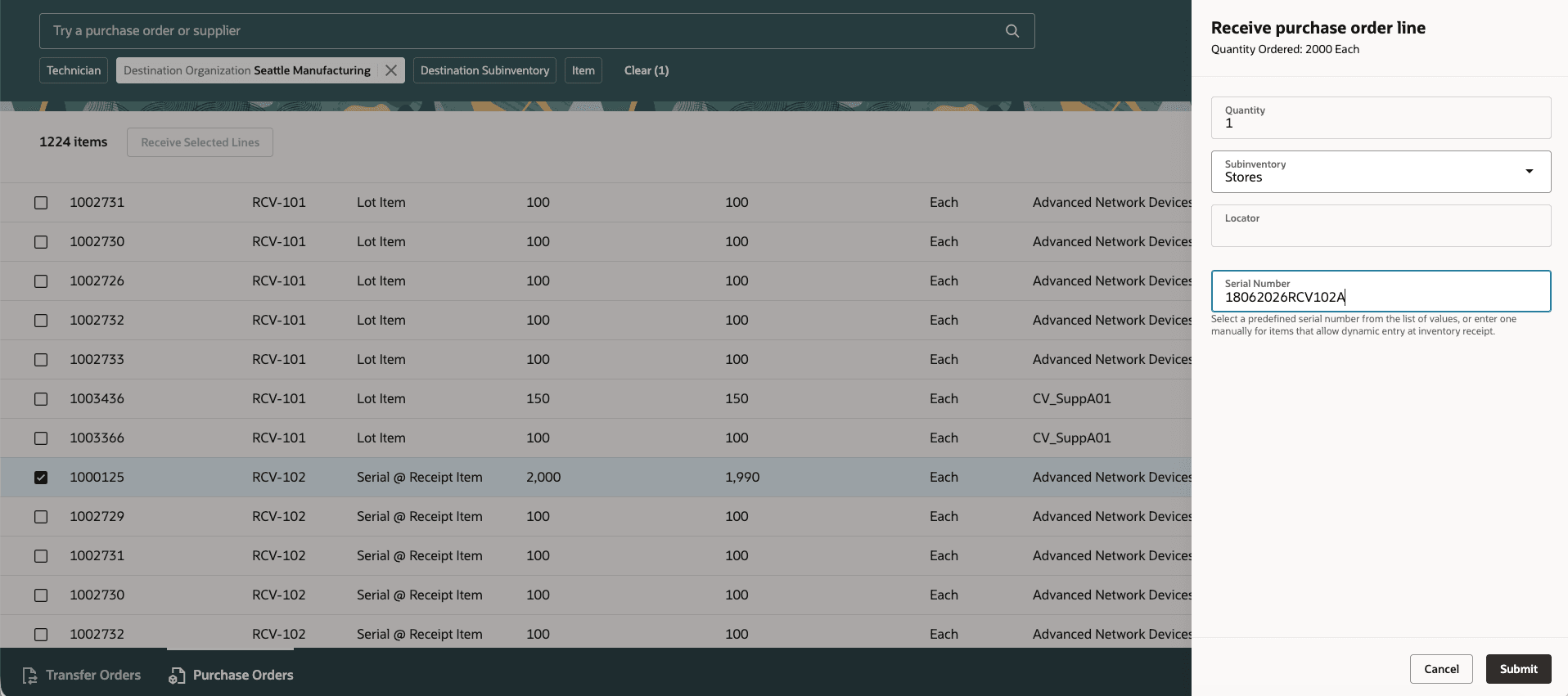
Receive purchase order for serial-controlled item
Receive purchase order - lot item
Shows how users receive a lot-controlled item by entering or selecting the lot number and confirming the receipt quantity.
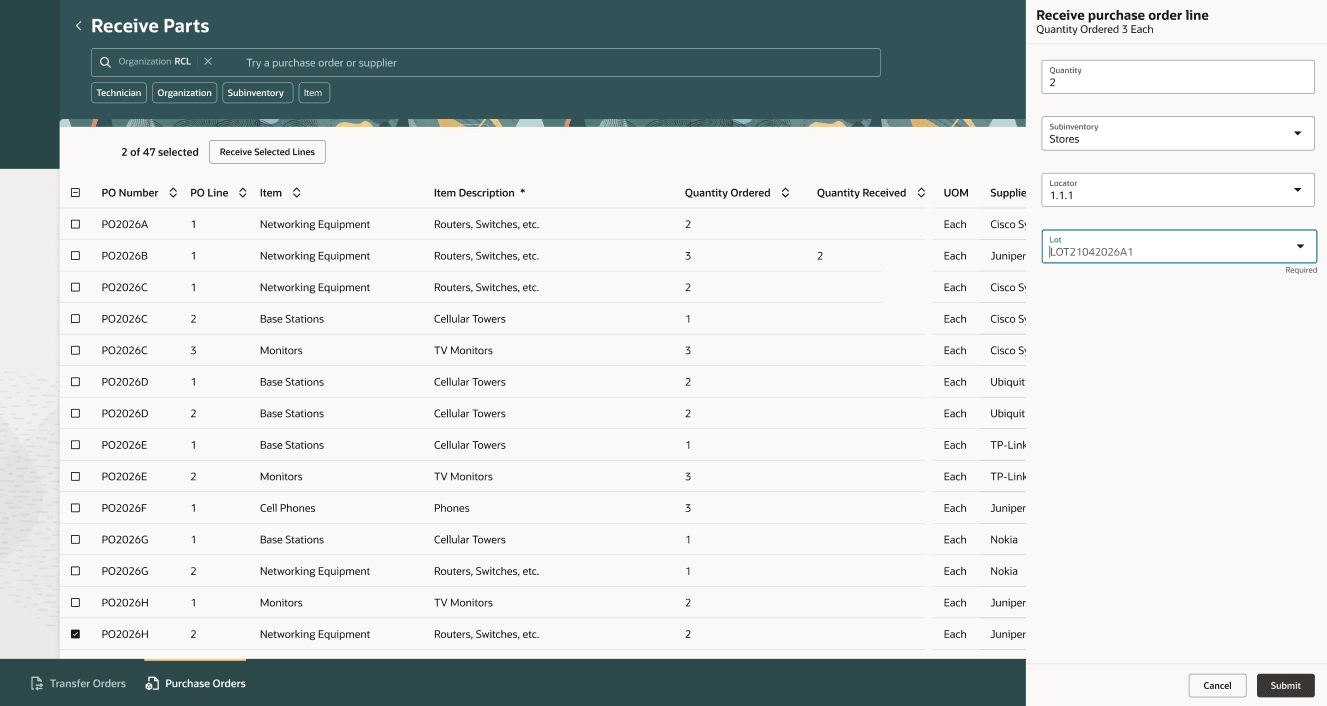
Receive purchase order for lot item
Receive purchase order - lot- and serial-controlled item
Shows how users receive a lot- and serial-controlled item by entering the required lot and serial details for one quantity at a time.
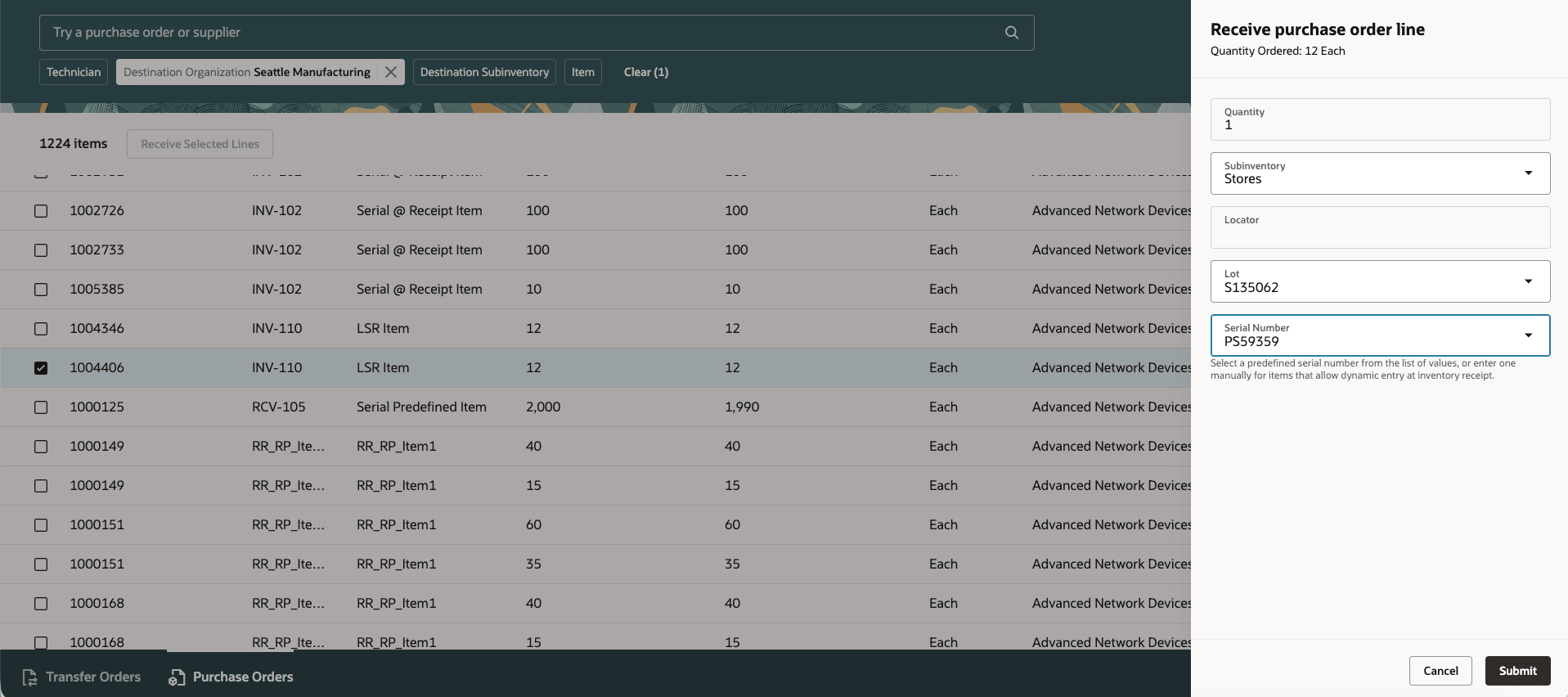
Receive purchase order for lot- and serial-controlled item
This feature lets users receive purchase order lines from the Receive Parts page, making the process easier to access and use. It helps users find the right purchase order lines quickly through purchase order specific search, filters, and result details.
Steps to enable and configure
You don't need to do anything to enable this feature beyond the existing receiving access and inventory setup. Ensure that users who need to use this feature have access to the Receive Parts page.
Tips and considerations
- Transfer Orders remains the default tab.
- Purchase order receiving supports only eligible PO lines with the Inventory destination type.
- Supported routing types are Standard Receipt and Direct Delivery.
- Bulk receive is supported only for eligible uncontrolled items.
- Controlled items must be received through the line-level drawer.
- Serial-controlled and lot- and serial-controlled receipts are processed one unit at a time.
Access requirements
Users need all these these privileges to access this feature.
access requirements
| Privilege status | Privilege name and code |
|---|---|
| Previously delivered | Access Receive Parts (RCL_ACCESS_RECEIVE_PARTS_PRIV) |
| Previously delivered | Access Receive Parts for Technician (RCL_FSTECH_ACCESS_RECEIVE_PARTS_PRIV) |