Use business rules and guided journey enhancements to configure Redwood pages
Business rules let you control the behavior of fields within Redwood pages. This includes automatically defaulting field values and validating user-entered data based on your organization's business requirements. In this update, business rules are expanded to support additional capabilities on the Redwood Asset Details page, helping reduce manual data entry, improve data quality, and enforce business policies without configuration.
You can now configure business rules for these capabilities:
- Automatically generate asset numbers by configuring a default value expression for the Asset Number field. For example, you can generate asset numbers using a fixed prefix and timestamp:
return 'AST-' + new Date().toISOString().replace(/[-:TZ.]/g, '').slice(0, 14);
This expression generates values similar to AST-20260706142303.
- Validate meter reading entries by configuring validation rules that warn users or prevent submission when entered values exceed business-defined thresholds or tolerances. For example, you can prevent users from entering readings greater than 200, or configure a rule that rejects readings more than 25% above the previous reading:
const lastReadingValue = Number($objectContext.contextMeterObj?.LastReadingValue);

const readingValue = Number($fields.ReadingValue?.value?.());
return Number.isFinite(lastReadingValue)
&& Number.isFinite(readingValue) && readingValue > lastReadingValue * 1.25;
This screenshot shows an example of a validation that validates users are entering a valid reading with two separate conditions.
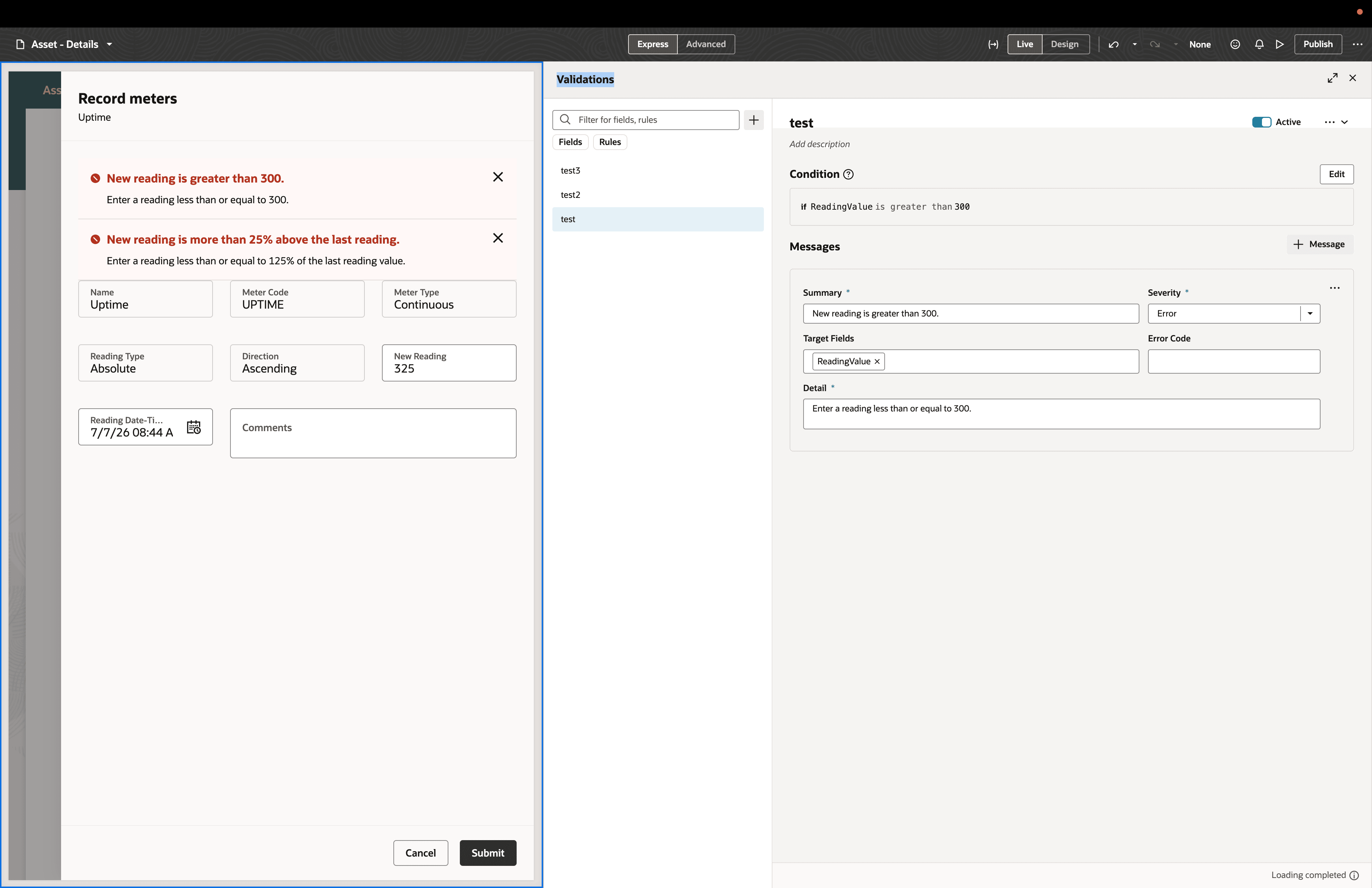
Example of asset meter reading validation using Business Rules
Business rule validations are evaluated when users perform actions such as Save or Submit. When a validation evaluates to true, the configured warning or error message is displayed and, when configured as an error, the transaction can't proceed until the validation criteria are met.
This feature helps organizations improve data quality and consistency by automating asset number generation and validating meter readings using configurable business rules.
Reduce manual data entry and improve asset data quality by automating asset number generation and enforcing business-specific validation rules.
Steps to enable and configure
Leverage the Visual Builder Studio to expose your applications. To learn more about extending your application using Visual Builder, visit Oracle Help Center > your apps service area of interest > Books > Configuration and Extension.
Tips and considerations
- You can determine whether you can extend a specific page using Visual Builder Studio by using the Edit Page in Visual Builder Studio task from the Setting and Actions menu.
- Keep the Pages list closed while you work in Visual Builder Studio Express mode to get a cleaner view of the page you’re extending.
Key resources
- Follow the instructions here to Access Visual Builder Studio and start extending your application pages in Visual Builder Studio.
- Refer to these resources for additional information:
Access requirements
If you are using custom job roles, then you need to validate that you have the previously delivered privilege.
| Privilege status | Privilege name and code |
|---|---|
| Previously delivered |
Administer Sandbox FND_ADMINISTER_SANDBOX_PRIV |