Capture effective date ranges on deviation change requests
Deviation change requests have been enhanced in the Redwood experience to streamline the deviation management process.
You can now:
-
Capture the deviation effective period.
-
Add notes for affected objects.
-
Manually complete approved deviation change requests after the deviation period has ended.
The new Effective From and Effective To fields enable you to define the period during which the affected objects are under deviation.
These fields are optional and do not restrict or control the change management process for the deviation change request. They are provided for tracking and documentation purposes only.
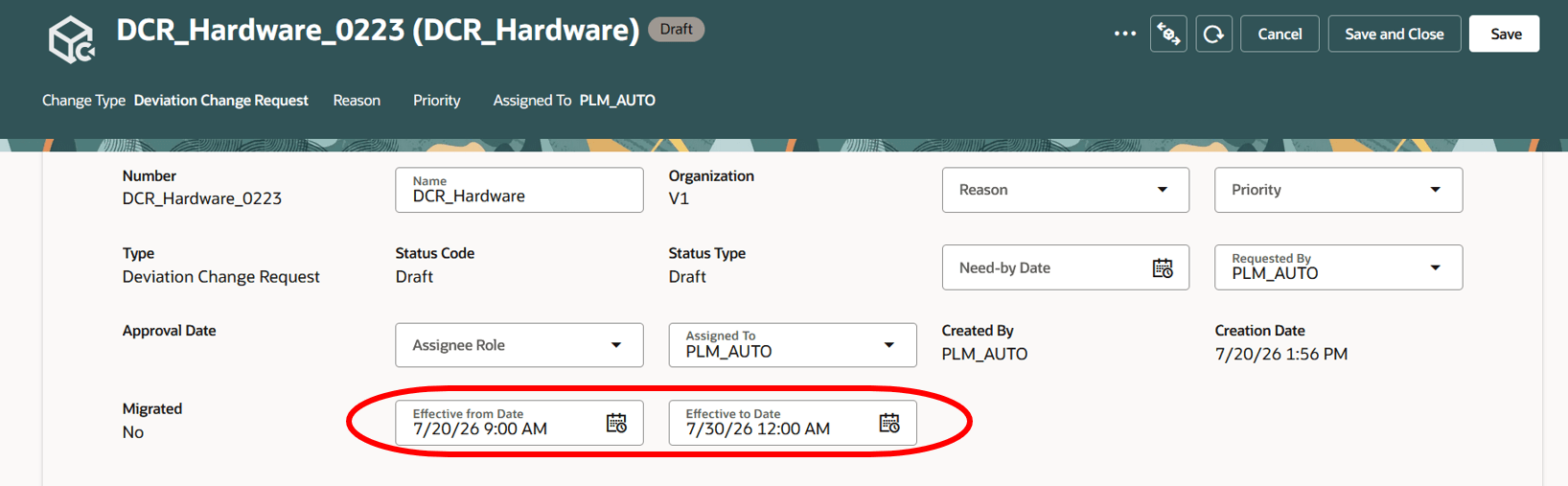
Deviation change request with effective from and effective to fields
Here are some additional enhancements on deviation change requests.
-
Capture additional information using the Notes field.
-
Configure a deviation change request to remain in Approval status after all approvals are completed.
-
Add a previous revision as an affected object.
Notes field
A new Notes field is available on the Affected Objects tab of a deviation change request. Use this field to capture additional information or the reason for including a specific affected object.
The Notes field is also available for change requests, problem reports, and corrective actions, allowing users to record comments or supporting information for affected objects.
Configure a Deviation Change Request to Remain in Approval Status
A new workflow configuration option is available for deviation change request types. You can now configure a deviation change request to remain in the Approval status after all required approvals are completed. In this state, the deviation is considered effective. After the deviation period ends, users can manually promote the deviation change request to the Completed status.
-
In the Setup and Maintenance work area, navigate to the following:
-
Offering: Product Management
-
Functional Area: Change Orders
-
Task: Manage Change Order Types
-
Select the deviation change request type you want to configure.
-
On the Workflow tab, leave the Automatic Promotion Status field blank.
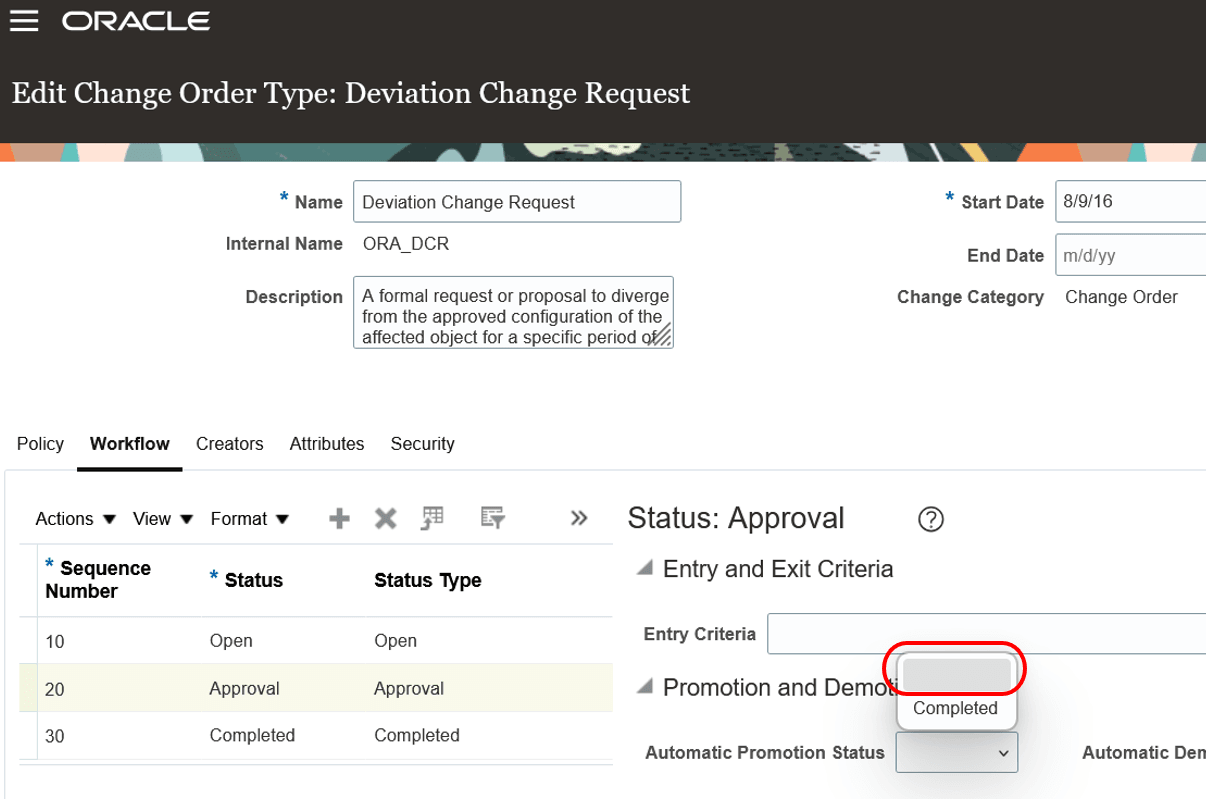
Set the automatic promotion status field blank
You can add a past revision of an affected object to a deviation change request when needed, allowing you to place a specific past revision under deviation. This capability is also supported for problem reports and corrective actions.
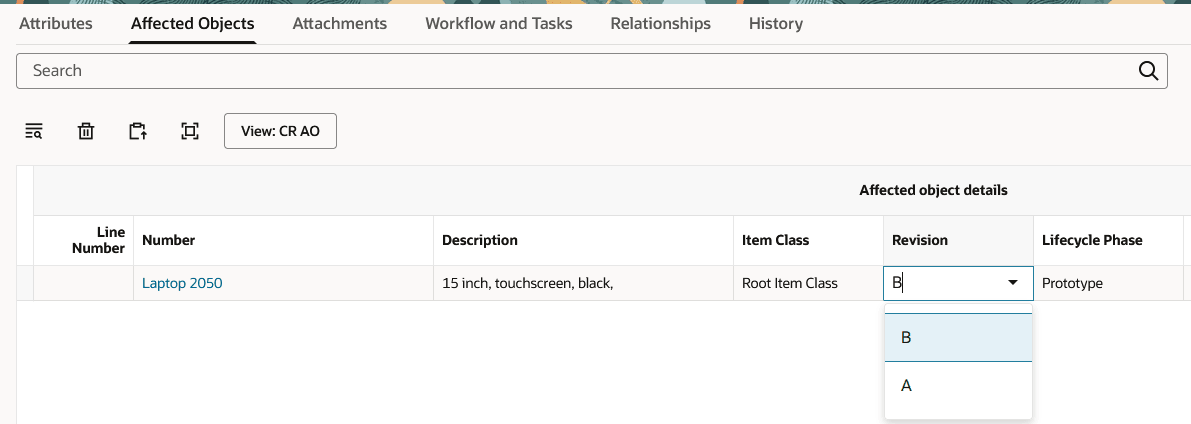
Add a past revision as an affected object
This feature benefits your business by the following:
-
Improves deviation process management: Enables organizations to define and track the effective period of a deviation and manually complete Deviation Change Requests when the deviation has ended, providing better control over temporary exceptions.
-
Strengthens documentation and traceability: Allows users to capture notes for affected objects and reference past item revisions, creating a more complete audit trail and preserving the business context behind deviations.
-
Provides greater workflow flexibility: Supports configurable approval workflows that allow approved deviations to remain active until users explicitly complete them, aligning the process with real-world operational requirements.
-
Enhances compliance and quality oversight: Improves visibility into deviation activities through effective dates, supporting information, and revision history, helping organizations manage product quality and regulatory compliance more effectively.
Steps to enable and configure
You don't need to do anything to enable this feature.
Tips and considerations
-
All the new deviation change request features are designed for Redwood.
-
The Effective From, Effective To, and Notes fields are optional. Existing deviation change requests will continue to open and progress even if these values are blank.
-
You can add Notes as a field in the affected objects custom views, also available in view. This field is made available in Change Requests, Problem Reports, and Corrective Actions,
-
The affected object revision can be changed before the deviation change request is saved. After the request is saved, the revision can't be modified. To change the revision, remove the affected object and add it again.
-
Ability to add past revisions of affected objects is also available for Problem Reports and Corrective Actions.
-
The existing access configured through access control lists (ACLs) on deviation change requests will continue to apply.
-
New fields, Effective From, Effective To, and Notes are available in the workflow summary report.
Key resources
-
Oracle Fusion Cloud SCM Using Product Development Guide, available on the Oracle Help Center.
-
Oracle Fusion Cloud SCM Using Product Master Data Management Guide, available on the Oracle Help Center.
-
Oracle Fusion Cloud SCM Implementing Product Management Guide, available on the Oracle Help Center.
Access requirements
Users who are assigned a configured job role that contains these existing privileges can access this feature:
|
Privilege name and code |
|---|
|
To view or edit workflows on the new workflow pages, or to access notifications, For deviation change requests:
For problem reports:
For corrective and preventive actions:
|
|
To create deviation change requests from the search pages or when using links in Actions on the Product Management home page:
|
|
To create workflows from the item, either through a Needs Approval rule or by using the Assign to action. In addition, in order to duplicate a workflow and create relationship between source and target workflow objects:
|
|
To approve or reject deviation change requests:
|
|
To terminate deviation change requests:
|
|
To change status, delete, terminate, restart, or cancel a workflow:
|
|
To select or be selected as an Assigned To user or assignee role on a workflow:
|
|
To view the history tab on the deviation change request:
|
|
To run the change order details report:
|
|
To send a workflow object:
|