Use import batches
You can import items using the Redwood Import Batches User Interface.
To import items, go to the Product Management Search page and select Import Batch in the context switcher as shown in the following screenshot.
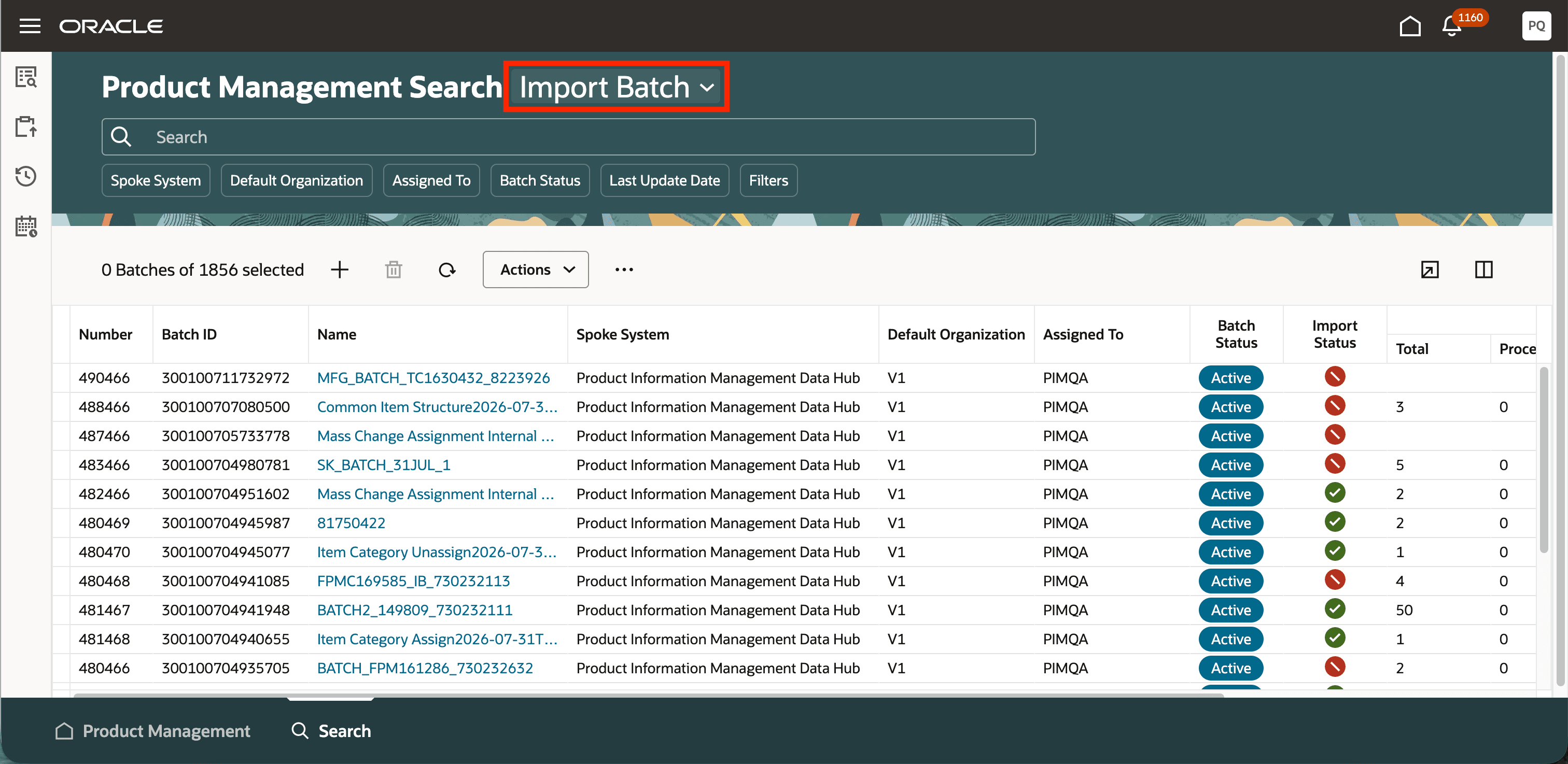
Product Management import batch
The import batches created to import items are displayed on the Product Management Import Batch page. You can view the created batch, user it's assigned to, and monitor the status of the batch.
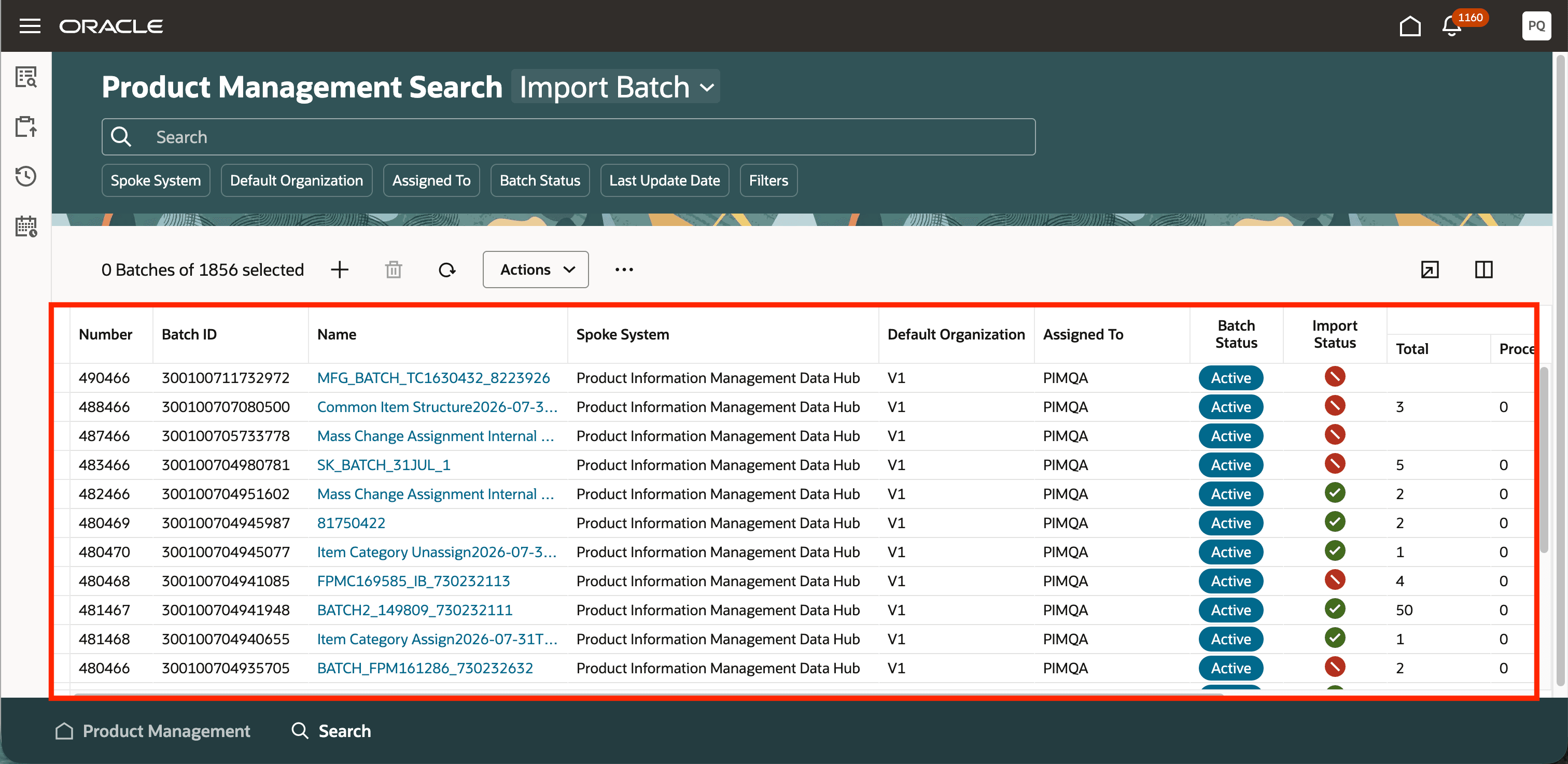
Product Management import batch details
You can also perform the following actions on this page:
- Search import batches based on the batch name or number
- Use the suggested filters beneath the Search box to refine the import batch search results
- Create, edit, and delete import batches
- Complete, reject, reactivate, and reassign an import batch
- Purge all, completed, or error rows of an import batch
- Refresh and export the import batch details
- Manage the import batch table columns
You can import items using the import items action, uploading a data file, and selecting an import map in the Import Items drawer.
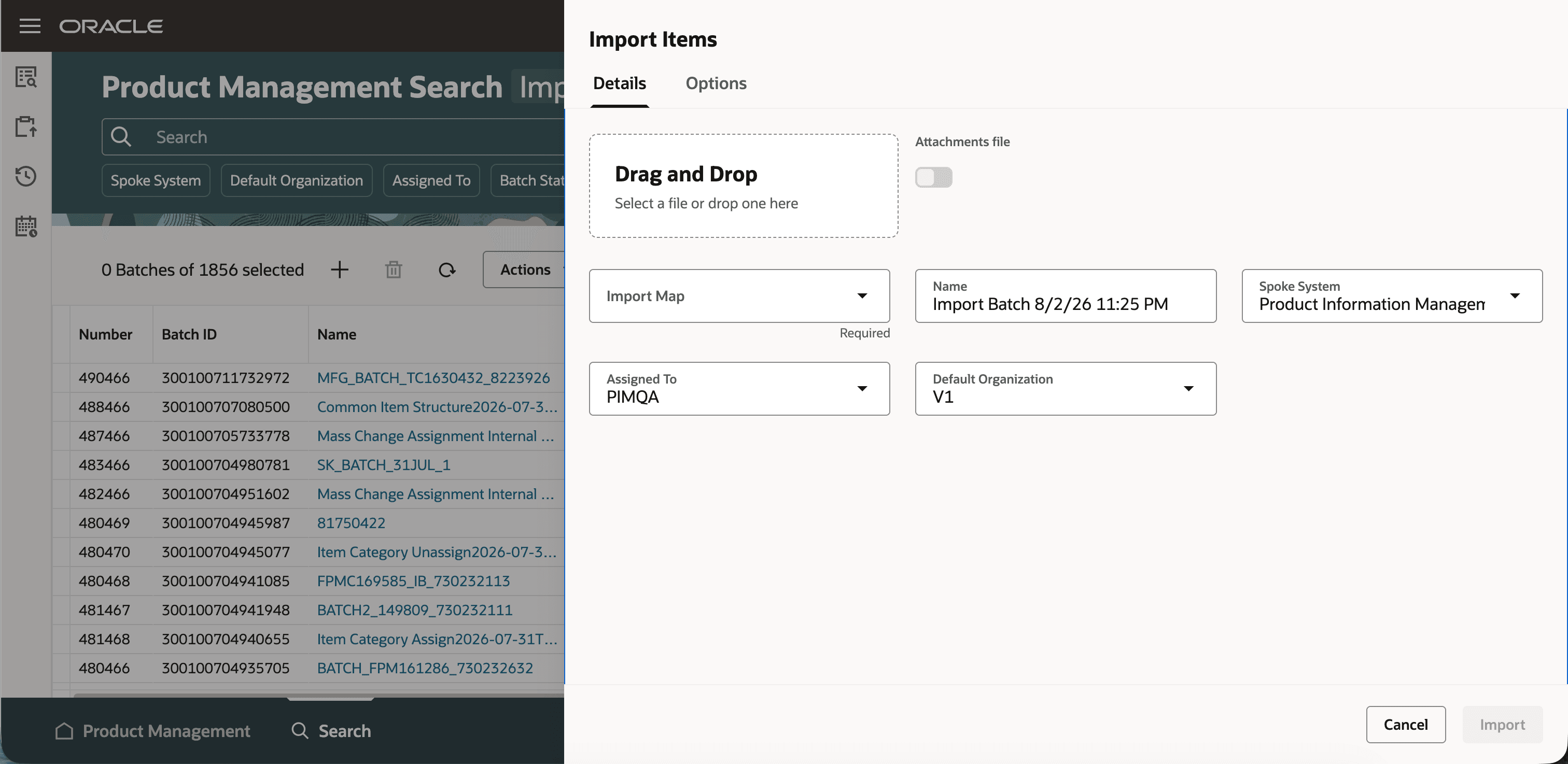
Product Management import items drawer
You can also set the batch options on the Options tab of the Import Items drawer.
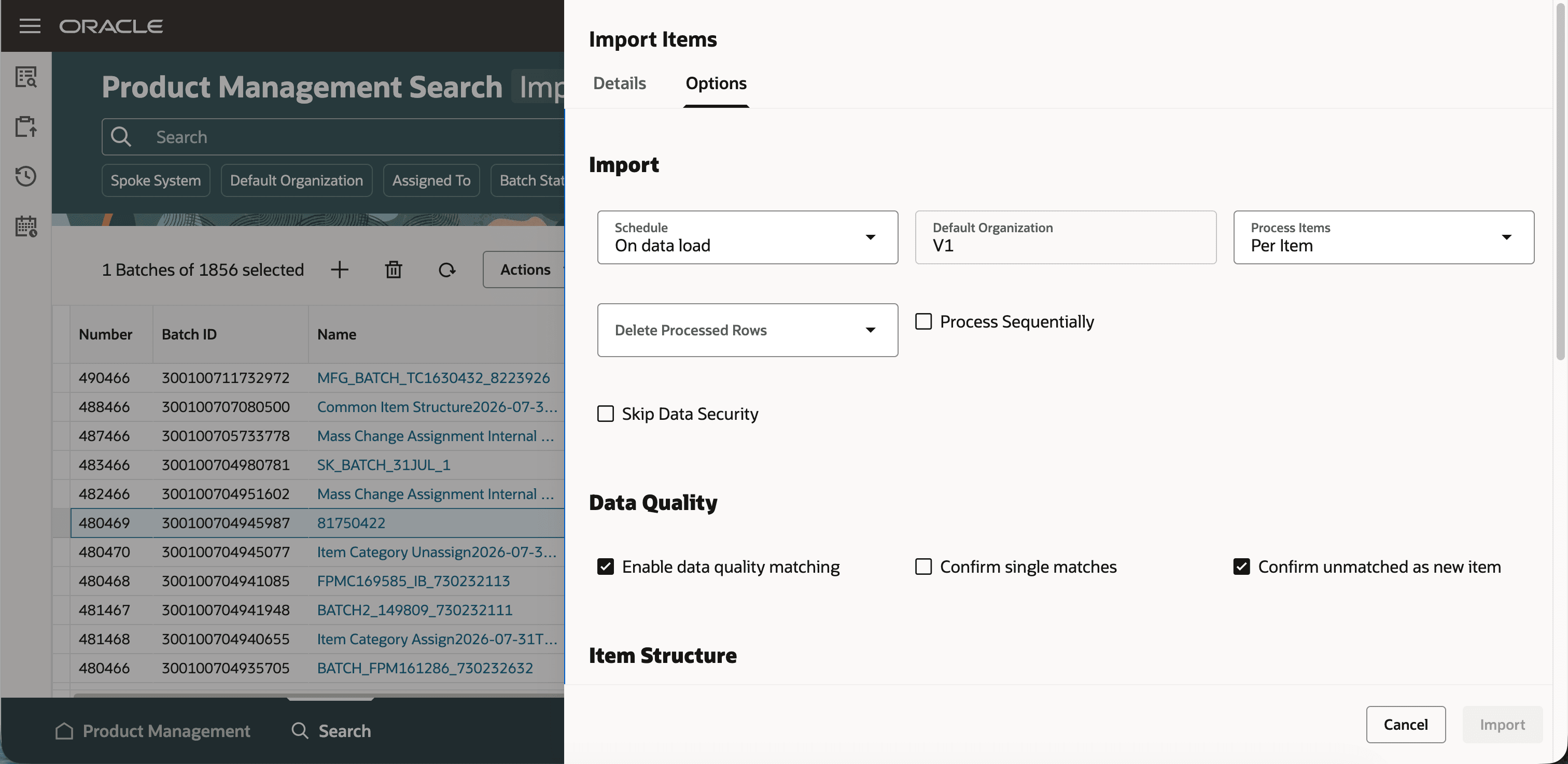
Product Management import batch options
Open the import batch to check the status of the items being imported. You can view the items that need review, are ready for import, imported successfully, and the workflows created through import.
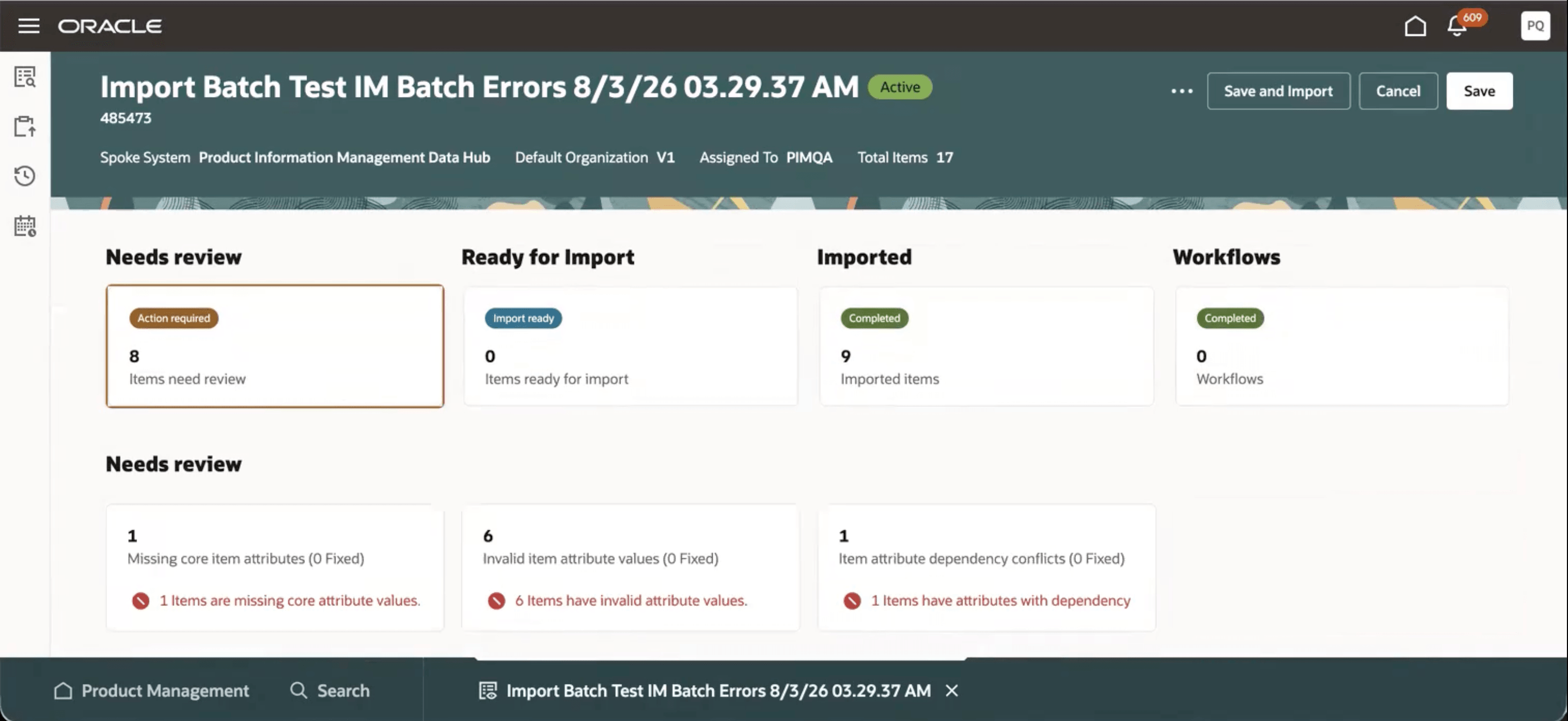
Import batch: Needs review card
Select the Needs review card to view the items that have import errors or multiple matches.
The import errors are grouped in the following error categories:
- Missing core item attributes
- Invalid item attribute values
- Item attribute dependency conflicts
- Permission issues
- Structure errors
- Catalog and category errors
- Item relationship errors
- Attachment and file errors
- Association conflicts
- Application errors
To view the import errors, select any of the import error category cards to open the respective import errors in a guided process step.
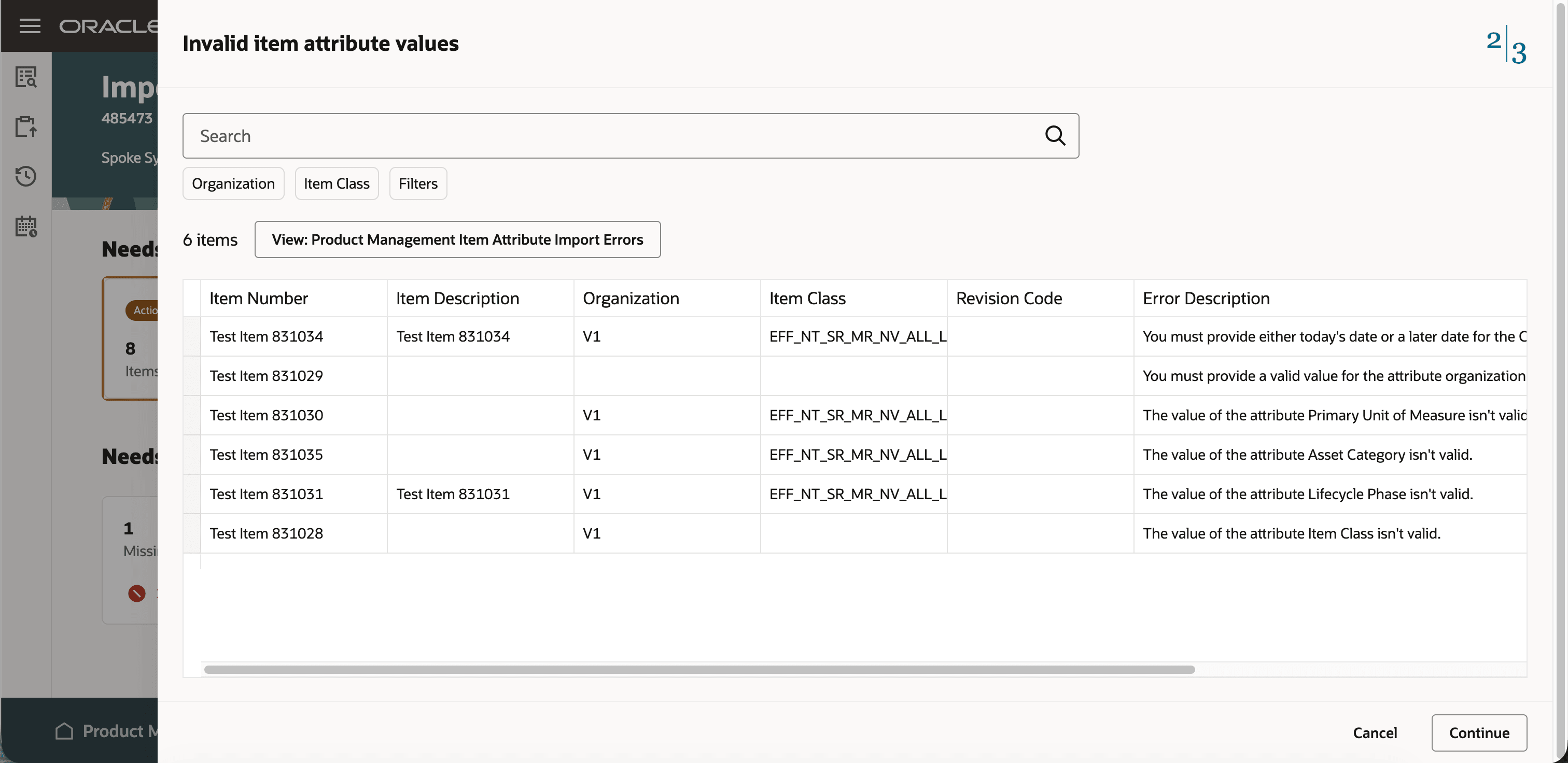
Import errors guided process
In addition to the preceding import error categories, following are the additional cards:
- Ready for Import card: Select this card to view the items that are ready for import.
- Imported card: Select this card to view the items that were imported successfully.
- Workflows card: Select this card to view the workflows created by the import process.
You can also export the items with errors and ready for import to an Import Map Smart Spreadsheet using the Manage in Spreadsheet action and then selecting an Import Map.
After correcting the import errors in the smart spreadsheet, upload them to the import batch for importing them.
You can index the item interface attributes using the Index Management page and views of import batches using the View Management page.
Publication batches
You can view publication status using the Redwood Publication Batches User Interface.
To view publication batches, go to the Product Management Search page and select Publication Batch in the context switcher as shown in the following screenshot.
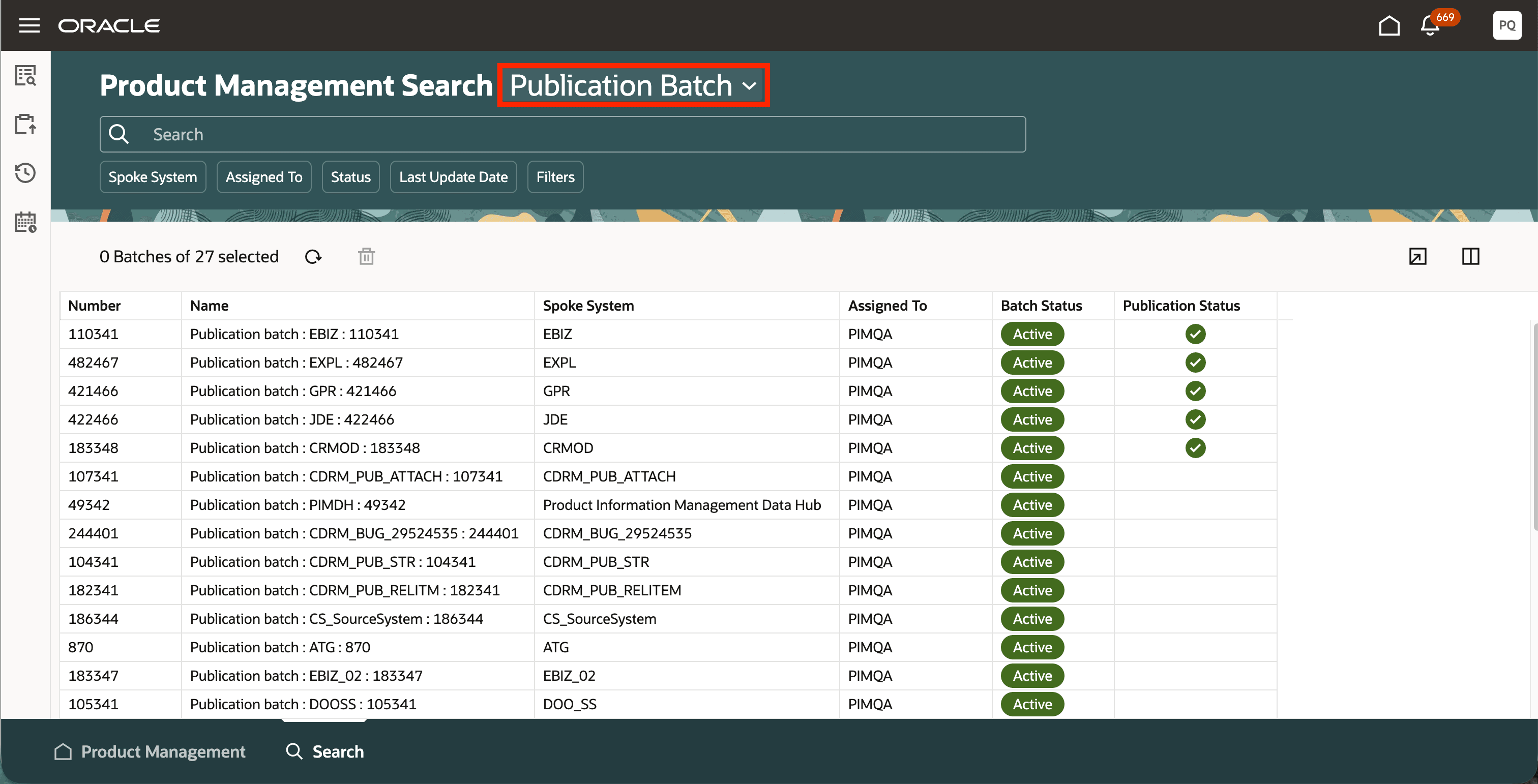
Product Management publication batch
The publication batches created to publish items are displayed on the Product Management Publication Batch page. You can view the created batch, user it's assigned to, and monitor the status of the batch.
You can also perform the following actions on this page:
- Search publication batches based on batch name or number
- Use the suggested filters beneath the Search box to refine down the publication batch search results
- Delete publication batches
- Refresh and export the publication batch details
- Manage the publication batch page columns
- Refresh and export the publication batch details
- Manage the publication batch page columns
This feature benefits your business by reducing context switching and rework by bringing batch monitoring, file upload, batch submission, and error correction, into one experience. Errors are organized into distinct categories, providing a clear delineation of error types. This enables improved prioritization and faster resolution to the most impactful issues. It also aids any coordination on resolution across different error categories. Separate import and publication batch pages ensures each experience remains focused on the actions relevant to that batch type.
Steps to enable and configure
- Follow these steps to enable or disable this feature:
- In the Setup and Maintenance work area, search for and select the Manage Administrator Profile Values task.
- On the Manage Administrator Profile Values page, search for and select the ORA_EGI_ITEM_BATCHES_REDWOOD_ENABLED profile option code.
- In the Profile Values section, set the Site level to Y or N. The default value is N.
o Y = enables the feature
o N = disables the feature - Select Save and Close. Changes in the profile value will affect users the next time they sign in.
You'll have the option to enable or disable this feature for 2 quarterly updates. After that, this feature will be enabled by default.
- Assign privileges to the users who need to access the Product Management Import Batch and Edit Import Batch pages for managing the import batches.
- Assign privileges to the users who need to access the Product Management Publication Batch page for managing the publication batches.
- Index the item interface attributes using the Index Management page.
Tips and considerations
- Data quality checks aren’t supported for import batches created from the Redwood user interface.
- Monitor the progress of the import scheduled process of an import batch by opening the Process ID page by selecting the Import Status icon.
- Monitor the progress of the publication scheduled process of a publication batch by opening the Process ID page by selecting the Publication Status icon.
- Purge the item records in an import batch by:
- Setting the Delete Processed Rows option of the import batch.
- Setting the Delete Processed Rows option of the Item Import scheduled process.
- Using the Purge Interface Tables scheduled process.
- Using the purge actions on the Product Management Import Batch page.
- Purging the item records in an import batch also purges the item interface index records.
- Select an import batch and use the Refresh Data action on the Redwood Product Management Import Batch page to refresh the item counts of the import batch. You can select a maximum of 10 import batches to refresh their item counts.
Key resources
- Oracle Fusion Cloud SCM: Using Product Master Data Management Guide, available on the Oracle Help Center.
- Oracle Fusion Cloud SCM: Implementing Product Management Guide, available on the Oracle Help Center.
Access requirements
If you’re using custom job roles, then you need to add privileges identified as new in this update as well as validate that you’ve the previously delivered privileges listed.
Duty role and privileges to access import batches:
| Duty role and privilege status | Duty role and privilege name and code |
|---|---|
| New | Manage Product Management Import Batches ORA_EGI_IMPORT_BATCHES_DUTY |
| New | Manage Import Batches EGI_MANAGE_IMPORT_BATCHES_PRIV |
| New | Edit Import Batch EGI_EDIT_IMPORT_BATCH_PRIV |
Duty role and privileges to access publication batches:
| Duty role and privilege status | Duty role and privilege name and code |
|---|---|
| New | Manage Product Management Publication Batches (ORA_EGI_PUBLICATION_BATCHES_DUTY) |
| New | Manage Publication Batches (EGI_MANAGE_PUBLICATION_BATCHES_PRIV) |