Manage contract user variable values in purchasing documents
Allow buyers to enter, update, and view contract user variable values for purchase orders, purchase agreements, and their change orders when using terms templates from Enterprise Contracts. When a purchase order, purchase agreement, or corresponding change order contains a terms template with contract user variables, buyers can review and update those variable values directly from the purchasing document. The entered values must match the variable definitions in Enterprise Contracts, including the data type or list of values, and are incorporated into the generated contract terms.
In addition, when duplicating purchase orders or purchase agreements, you can choose whether to copy existing contract user variable values to the new document.
These screenshots highlight this feature.
Associate a contract terms template that contains user variables with your purchasing document and see the Edit Variable Values button enabled.
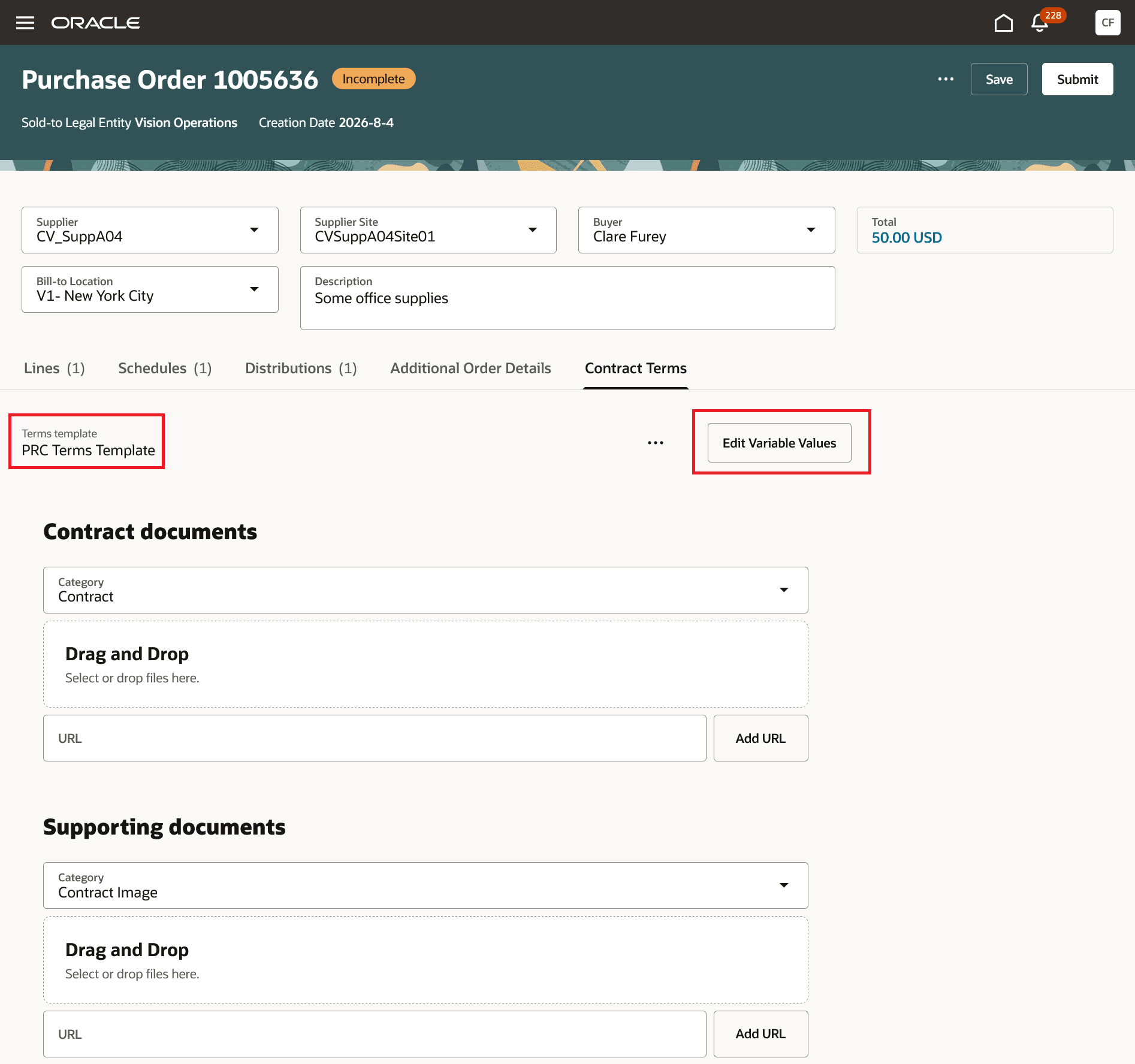
Purchase order terms template with user variables
Select Edit Variable Values to provide values for each variable.
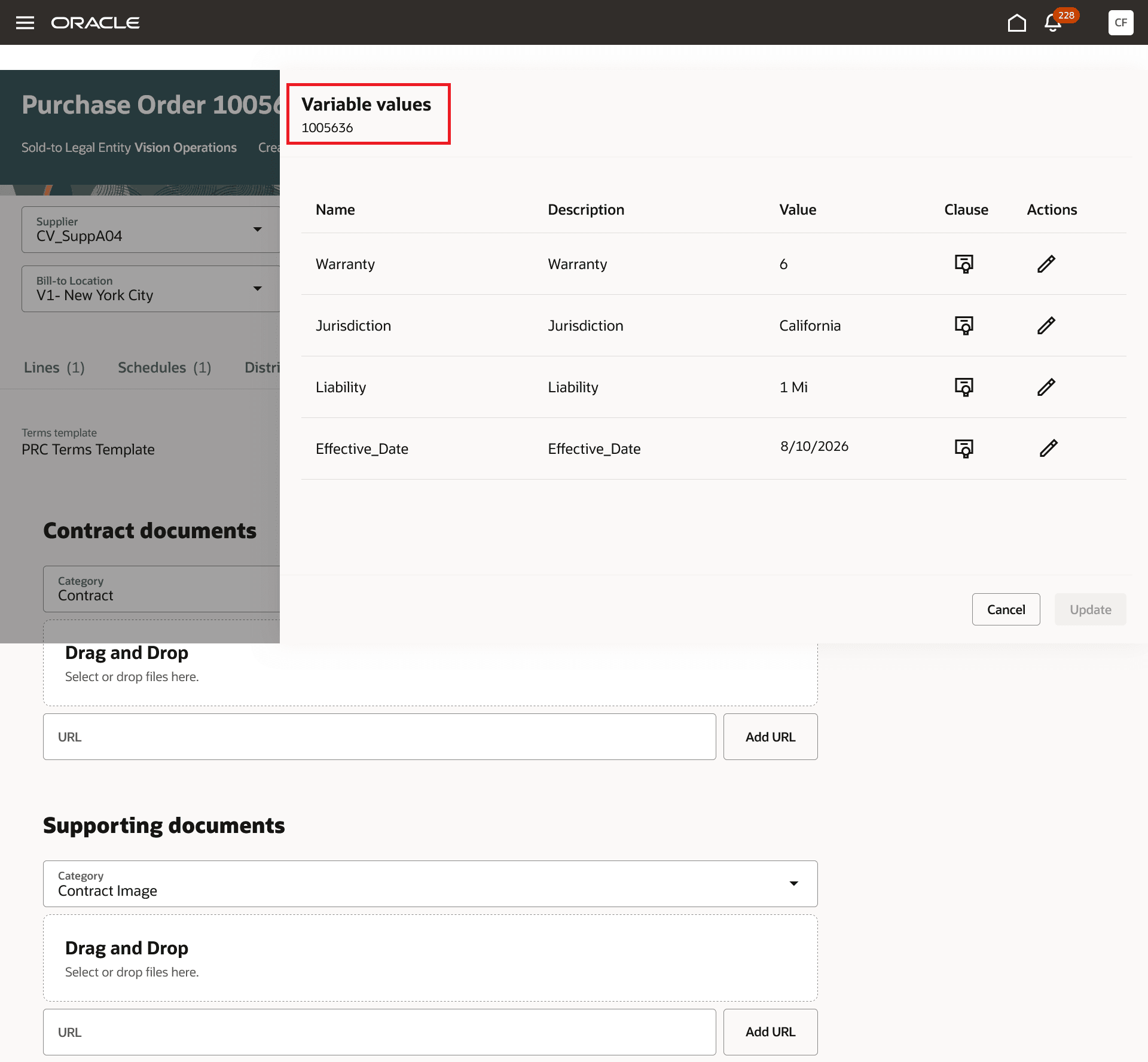
Edit contract user variable values
Select Clause to see the contract clauses that reference the user variable.
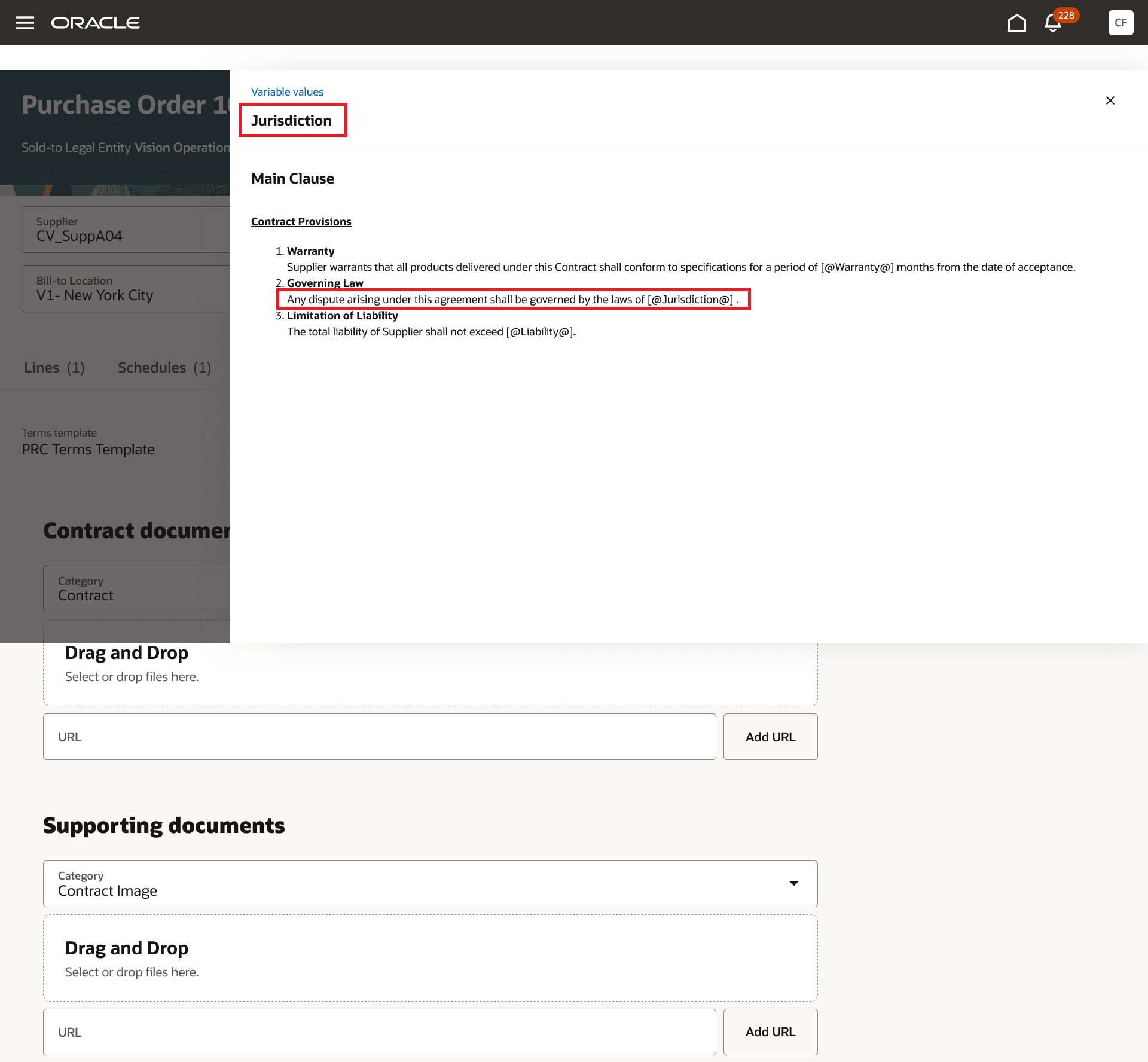
Clauses that reference the selected user variable
See the warnings when the purchasing document is validated and user variable values are missing.
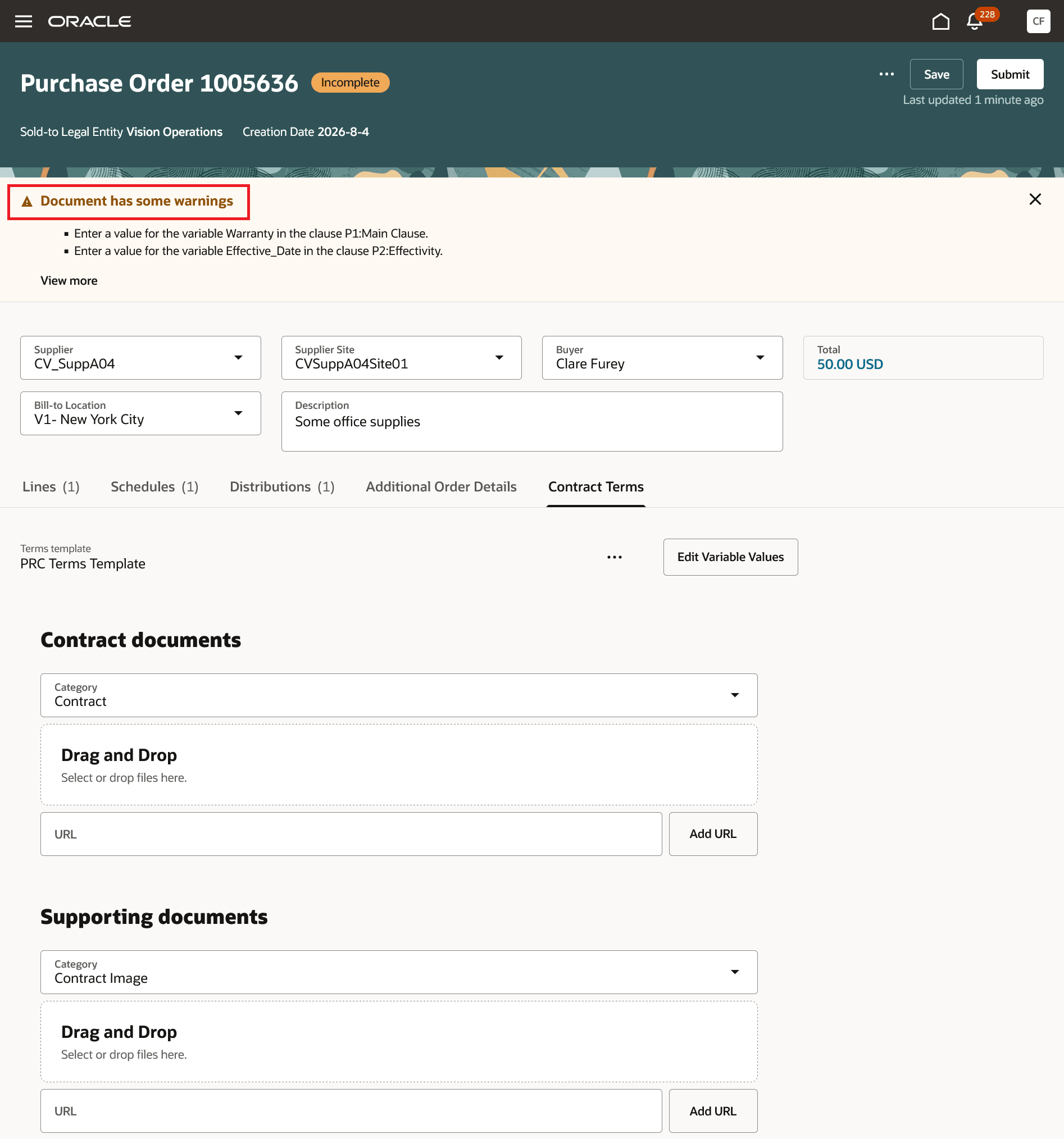
Purchase order validation
Select Duplicate Purchase Order to duplicate a purchasing document with a terms template that contains user variables. Indicate whether you want to copy the user variable values provided with the source document.
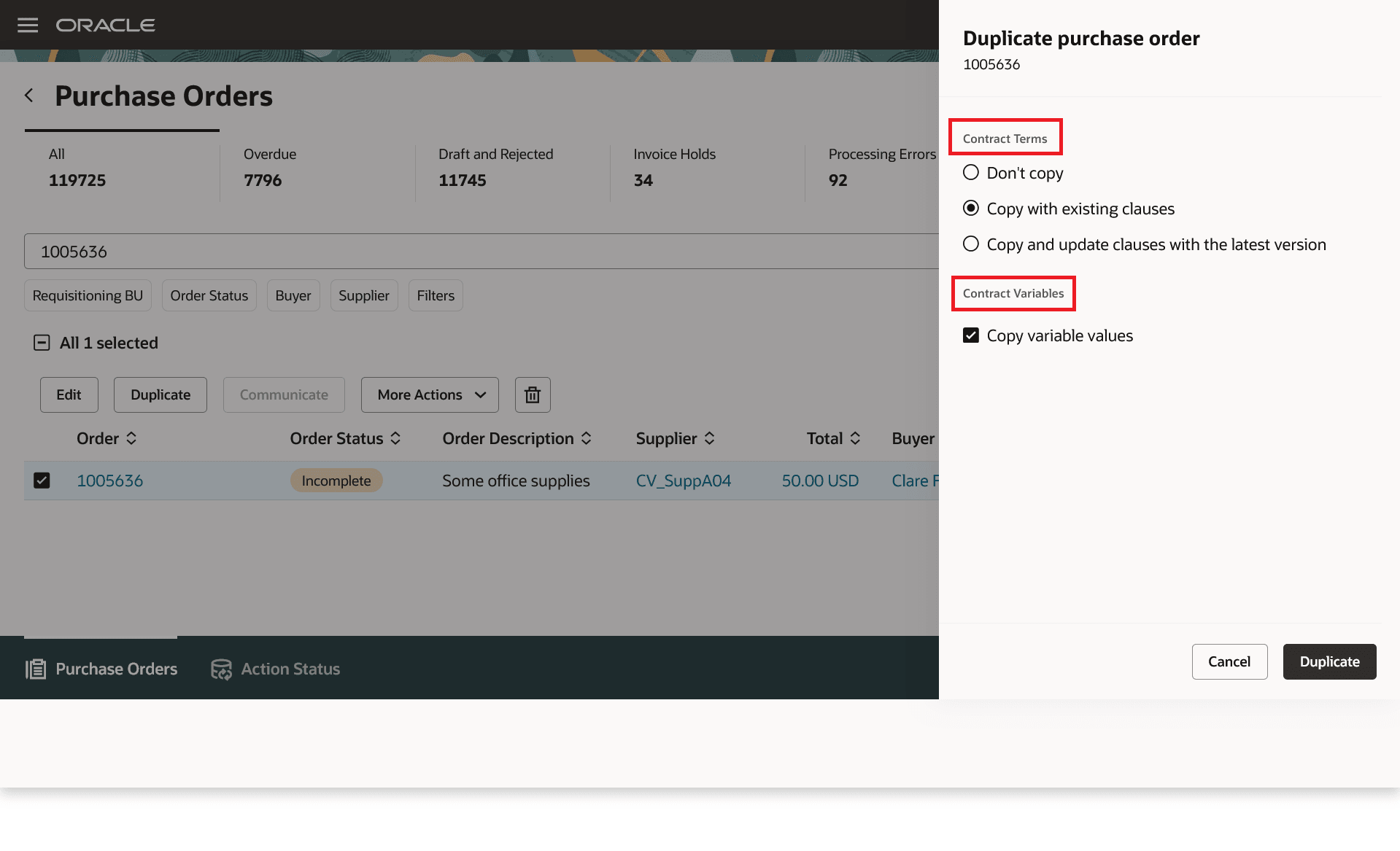
Purchase order duplication
View the purchasing document PDF to see the user variable values embedded in the clauses of the terms template.
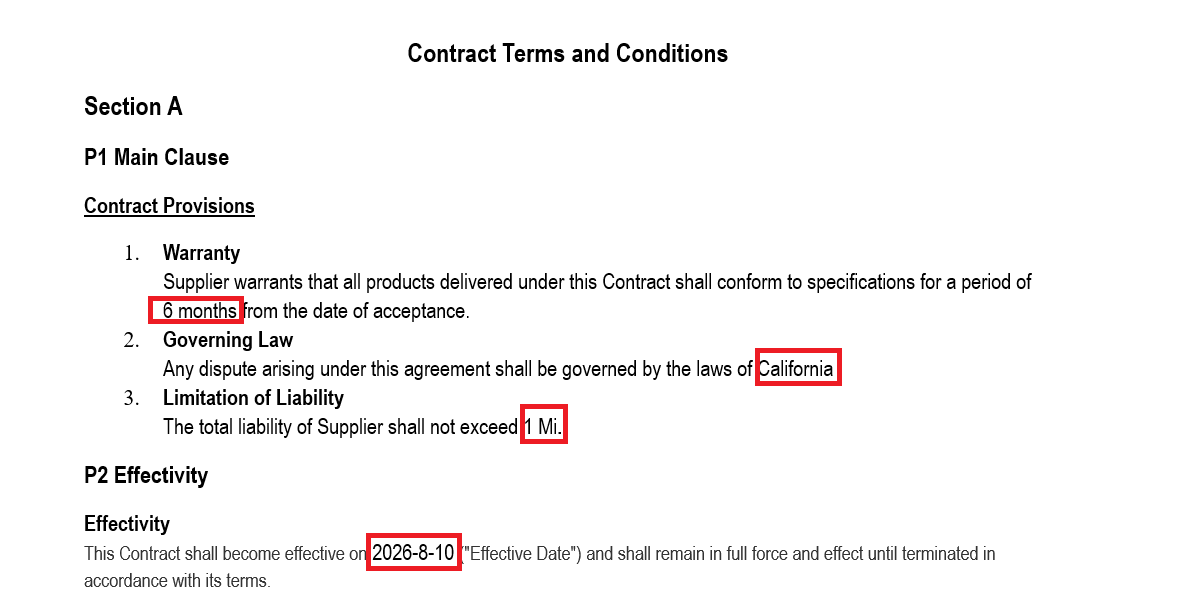
Contract terms template with user variable values replaced
This feature enables buyers to personalize contract terms without modifying clause content or creating multiple versions of the same terms template. By allowing variable values to be maintained directly in Purchasing, organizations can reuse standardized contract language while tailoring contract details for individual transactions.
Steps to enable and configure
You don't need to do anything to enable this feature.
Tips and considerations
- This feature supports only contract user variables. To view or update system variables, use Enterprise Contracts.
- The Edit Variable Values action is available only when:
- The user is editing a draft purchasing document as a buyer.
- A terms template is associated with the document.
- The associated terms template contains at least one contract user variable.
- Create contract user variables in Enterprise Contracts and associate them with contract clauses that are included in a terms template.
- Variable values must conform to the user variable definition configured in Enterprise Contracts, including:
- Supported data types
- List of values
- Field length restrictions
- Date selection using a calendar picker
- Previously saved variable values are displayed when reopening the Variable Values drawer.
- Selecting Apply Latest Terms Template may update the list of available variables based on the latest template revision. Existing values are retained for variables that remain in the updated template.
- Removing the contract source, or changing the contract source from a terms template to a primary document attachment, removes all contract variables associated with the purchasing document.
- User variable values are included in generated contract documents as part of the purchasing document PDF.
- Selecting Submit or Validate for a purchasing document may return warnings if any user variable value is missing.
Key resources
- To know how to create descriptive flexfield variables, refer to the Creating Descriptive Flexfield Variables topic.
Access requirements
If you're using custom job roles, then you need to validate that you have the previously delivered privilege listed.
| Privilege status | Privilege name and code |
|---|---|
| Existing |
View Contract Terms OKC_VIEW_CONTRACT_TERMS_AND_CONDITIONS_PRIV |