Collaborate on procurement documents and intake requests using Microsoft Teams
Create and open Microsoft Teams conversations directly from supported procurement documents and intake requests. Use the View Conversation action to collaborate with others about a purchase order, blanket purchase agreement, contract purchase agreement, purchase requisition, intake request, or a related change order.
Select View Conversation from the actions menu to open Microsoft Teams in a new browser tab. If a conversation doesn’t already exist for the document, a new chat is created. If a conversation exists, the same chat opens so you can continue the discussion.
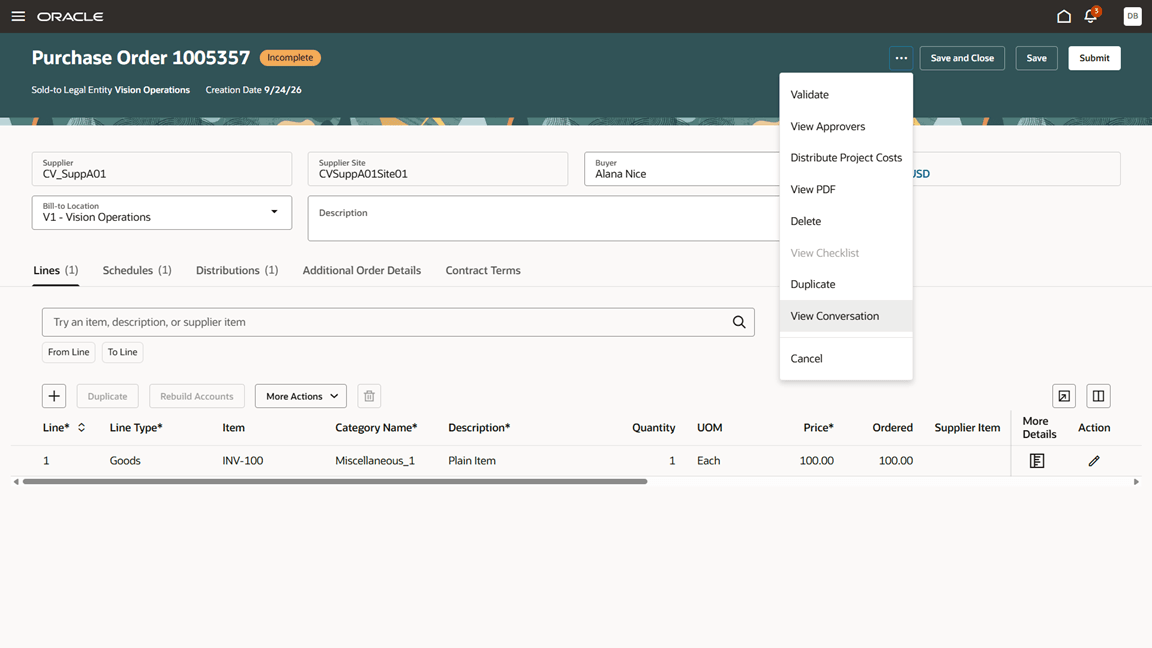
Open a Microsoft Teams conversation from a purchase order
For purchasing documents, a new conversation automatically includes the person who starts the conversation and the document buyer. If that person is also the buyer, they’re included only once. You can add other participants directly in Microsoft Teams.
The Teams conversation title includes information such as the document type and number to help participants identify the document being discussed. For example, the title for a purchase order conversation includes the PO prefix, purchase order number, and sold-to legal entity.
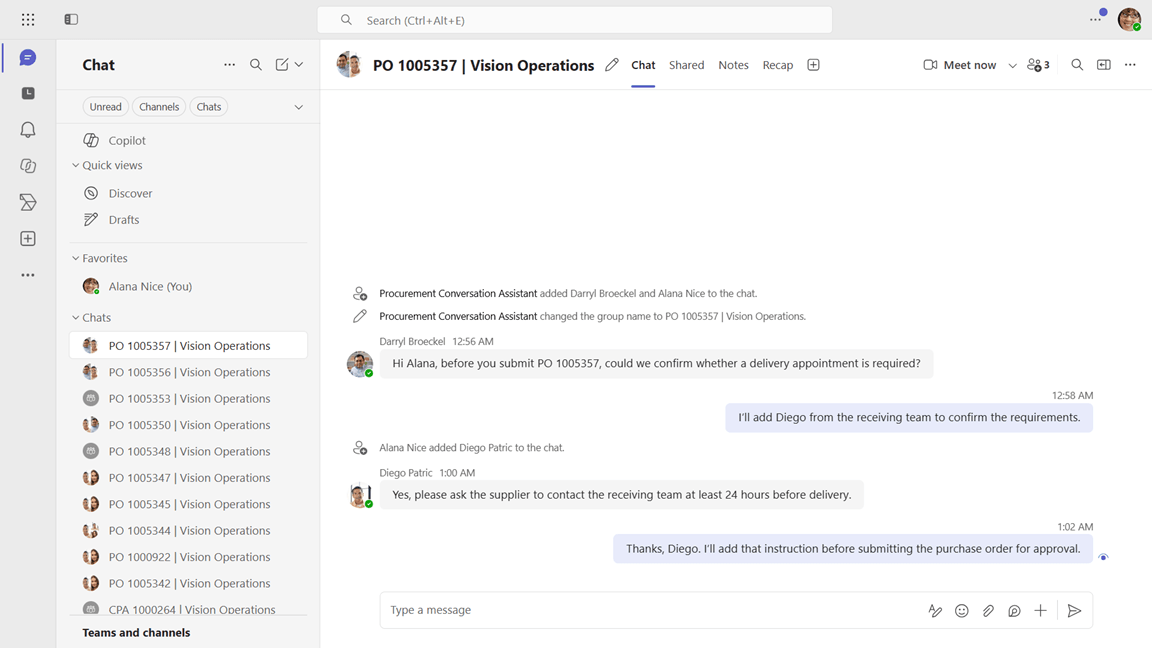
Collaborate with the document buyer and add participants to the Microsoft Teams conversation
For purchase requisitions, the View Conversation action is available on the Requisition Details page. Users with access to the page can start a conversation or open an existing conversation for the requisition.
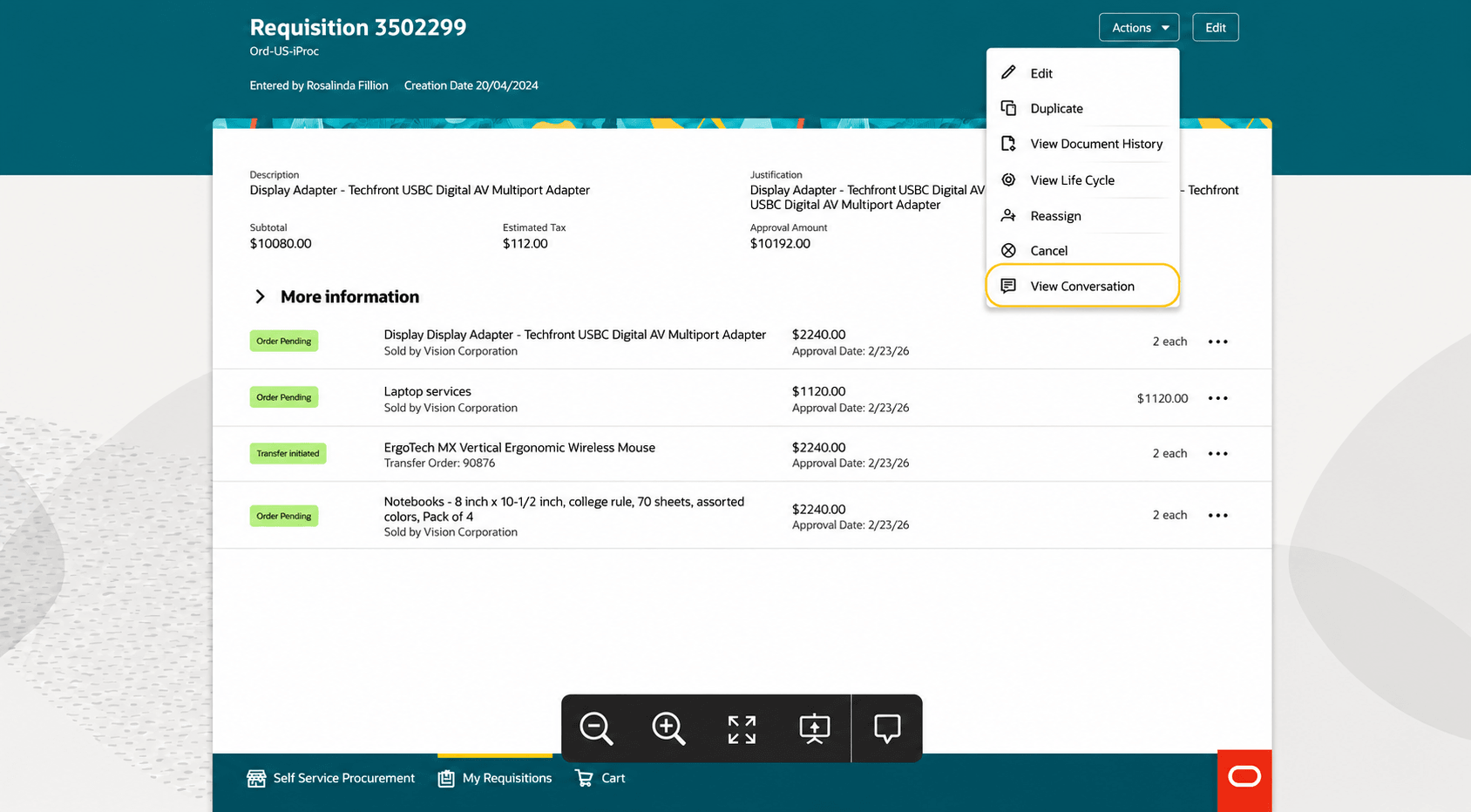
Open a Microsoft Teams conversation from a requisition
For intake requests, the View Conversation action is available on the requester, intake manager, and reviewer pages. Users with access to the intake request can start a conversation or open an existing conversation for that request.
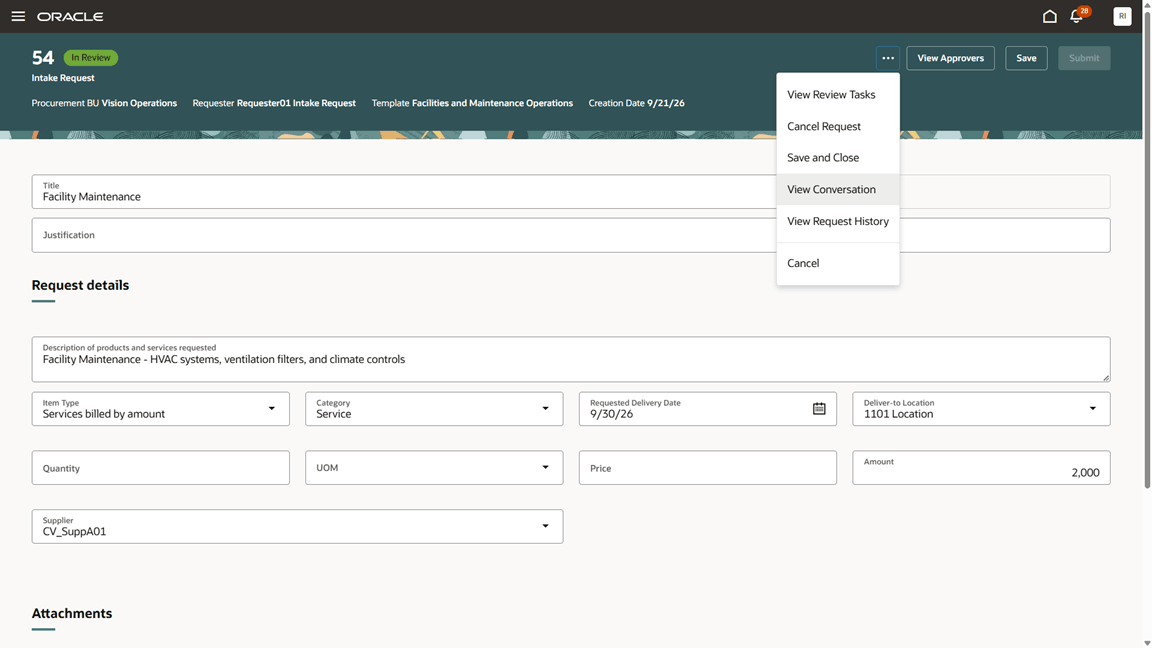
Open a Microsoft Teams conversation from an intake request
When the requester starts a conversation, the requester and intake manager are automatically added to the Microsoft Teams conversation. When a user with the Reviewer role selects View Conversation, that user is added to the existing conversation if they aren’t already a participant.
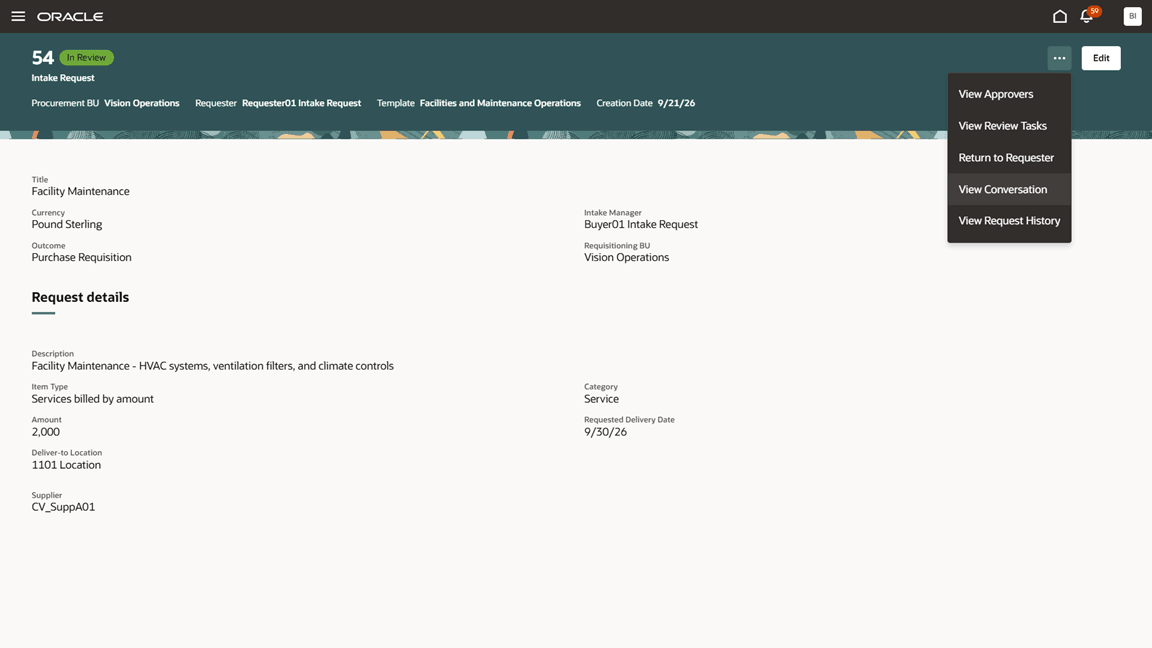
Open the intake request conversation while reviewing the request
This feature helps procurement teams collaborate more efficiently by eliminating the need to manually create and locate Microsoft Teams chats. They can maintain a single conversation history for a document and its related change orders, quickly return to previous discussions directly from the procurement application, and support collaboration as document responsibilities change.
Steps to enable and configure
- Configure Microsoft Entra and Microsoft Graph:
- In the Microsoft Entra admin center, register an application under App registrations. Enter a descriptive application name, such as Procurement Conversation Assistant. This name is displayed in Microsoft Teams system messages when the application creates or updates a conversation.
- On the application Overview page, copy the Application (client) ID.
- Select Certificates & secrets, create a client secret, and securely store the secret Value.
- Select API permissions and add the following Microsoft Graph application permissions:
- Chat.Create
- Chat.ReadBasic.All
- ChatMember.ReadWrite.All
Then select Grant admin consent and confirm the action. Verify that the status of each permission is Granted.
- On the application Overview page, select Endpoints. Copy the OAuth 2.0 token endpoint (v2). Use this tenant-specific endpoint as the Token URL when configuring the Teams connection in Fusion AI Studio.
- Configure the Microsoft Teams connection in Fusion AI Studio:
- In Fusion AI Studio, open the Integrate Teams Chat tool used by the Procurement Conversation Assistant workflow. Under External REST configuration, review or enter the following values:
- Instance URL: This value is preconfigured as https://graph.microsoft.com/v1.0 and is read-only. No action is required.
- Authentication: Select OAuth 2.0 client credentials.
- Client ID: Enter the Application (client) ID from the Microsoft Entra application registration.
- Client Secret: Enter the client secret value created in Microsoft Entra.
- Scope: Enter https://graph.microsoft.com/.default.
- Audience: Leave this field blank.
- Token URL: Enter the OAuth 2.0 token endpoint (v2) copied from the Microsoft Entra application registration.
- Use Body for client credentials: Retain the delivered setting.
- Save the tool configuration.
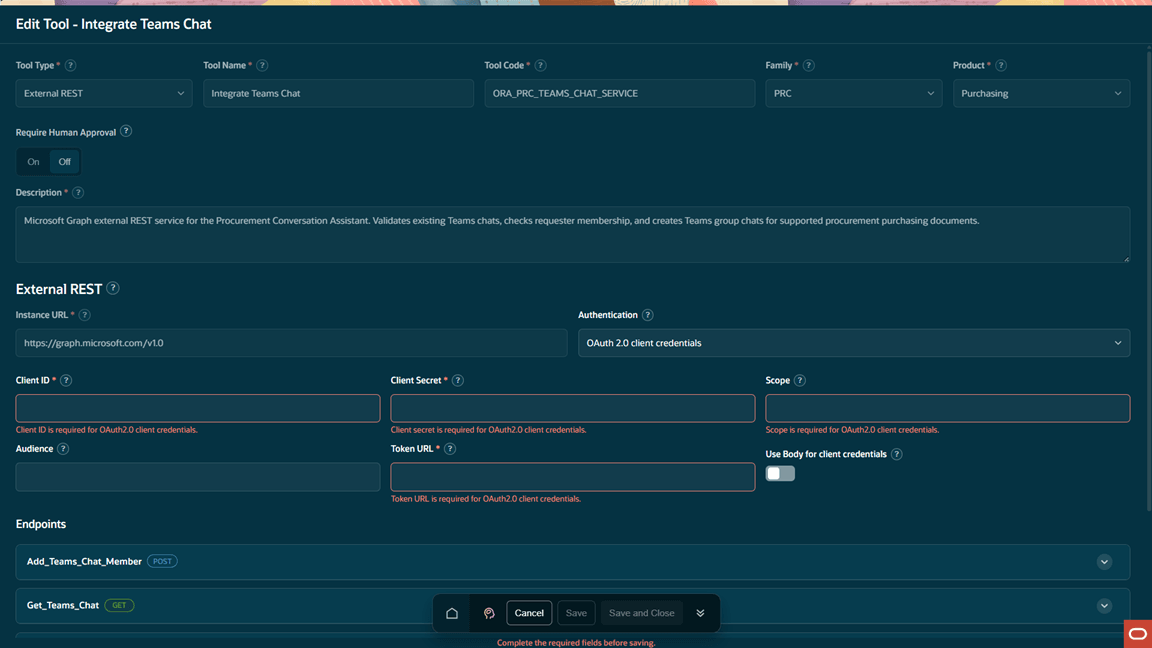
Enter the required Microsoft Entra credentials in the Integrate Teams Chat tool
- In Fusion AI Studio, open the Integrate Teams Chat tool used by the Procurement Conversation Assistant workflow. Under External REST configuration, review or enter the following values:
- Verify user identities: For each requester and participant, ensure that the email address configured in the Fusion user account matches the user principal name (UPN) of the corresponding Microsoft Entra account. Ensure that the corresponding Microsoft Entra account is enabled for Microsoft Teams. Access to a procurement document or intake request in Fusion is separate from membership in its associated Microsoft Teams chat.
- Enable View Conversation on each applicable page:
- In Fusion, open each applicable procurement or intake request page.
- Select Edit Page in Visual Builder Studio.
- Select Configure Page Properties.
- Under Header, set View Conversation Agent to Procurement Conversation Assistant.
- Publish the extension.
- Repeat these steps for each applicable view and edit page.
-
Enabling View Conversation on a view page doesn’t automatically enable it on the related edit or change-order page.
Tips and considerations
- Adding someone to a Microsoft Teams conversation doesn’t grant that person access to the associated procurement document or intake request in Fusion.
- Users might be prompted to sign in to Microsoft Teams when they open a conversation.
- Discussions in Microsoft Teams don’t submit, approve, or otherwise update procurement documents or intake requests. Complete these actions in Fusion.
- A procurement document and its related change orders share the same Microsoft Teams conversation. For example, selecting View Conversation from a purchase order or one of its change orders opens the conversation associated with the base purchase order. This prevents separate conversations from being created for individual change orders.
- For purchasing documents, if the buyer is updated, selecting View Conversation adds the current buyer to the existing Microsoft Teams conversation. The previous buyer isn’t automatically removed; manage Microsoft Teams conversation participants directly when needed.
- When View Conversation is enabled for a page, its availability isn’t restricted by the procurement document status.
- Users must have a Fusion user account whose configured email address matches the user principal name (UPN) of a Microsoft Entra account that is enabled for Microsoft Teams.
- Plan for client secret renewal and update the Microsoft Teams connection when the client secret changes.
- For purchase requisitions:
- A new Microsoft Teams conversation includes the person who starts the conversation, the preparer, requesters, and assigned buyers.
- Subsequent changes to the preparer, requester, or assigned buyer don’t automatically update the Microsoft Teams conversation participants. Manage conversation participants directly in Microsoft Teams.
Key resources
-
For information about using Oracle Visual Builder Studio to extend your Redwood application pages, see Extending Redwood Applications for HCM and SCM Using Visual Builder Studio.
-
For information about access prerequisites for AI Agent Studio and external REST tools, see Access Requirements for AI Agent Studio.
Access requirements
Users need all of the following duty roles to access Oracle AI Agent Studio for Fusion Applications and manage PRC AI agents:
| Duty role status | Duty role name and code |
|---|---|
| Previously delivered |
PRC Intelligent Agent Management Duty |
| Previously delivered |
PRC Intelligent Agent Management Duty ORA_PO_PRC_AI_AGENT_MANAGEMENT_DUTY_HCM |
| Previously delivered |
Fai Genai Agent PRC Administrator Duty ORA_DR_FAI_GENERATIVE_AI_AGENT_PRC_ADMINISTRATOR_DUTY |
Users need the following duty role to interact with AI agents in product pages:
| Duty role status | Duty role name and code |
|---|---|
| Previously delivered |
Fai Genai Agent Runtime Duty ORA_DR_FAI_GENERATIVE_AI_AGENT_RUNTIME_DUTY |
In the Security Console, filter by Roles and Permission Groups to find this duty role.
To allow users to interact with agents, you must also enable permission groups in the Security Console on those users’ custom job roles that contain the Fai Genai Agent Runtime Duty role. You can enable permission groups when you manage the basic information of your custom job roles.
Users’ custom job roles must also contain privileges that allow access to the pages where AI agents are enabled.
See Access Requirements for AI Agent Studio (for administrators) and How can I give users access to AI agents (for end-users) for more information.