Shipment Load Planning Workspace
The Shipment Load Planning Workspace converts eligible planning orders into load recommendations that you can review, revise, and approve before changes are applied. You can use the agentic application to evaluate planned orders across the first eight weeks of the plan horizon for a selected replenishment or supply plan. The application generates shipment load recommendations by considering factors such as lane, Shipping Method, Equipment Profile, Equipment Group, weight and volume capacity, pallets, utilization targets, pull-in rules, and multi-source pickup rules. To improve equipment utilization, it can consolidate shipments by pulling eligible planned orders from later weeks into earlier loads within a controlled pull-in window.
The workspace provides comprehensive visibility into the recommended shipment plan through key metrics insights, including changes in load count, pull-in recommendations, equipment utilization, unassigned orders, validation exceptions, selected and excluded order reasons, and before-and-after utilization views by week. You can also download the Shipment Load Recommendation workbook, which serves as a detailed planner review artifact containing all considered orders, proposed container assignments, pull-in recommendations, release group linkage, not-loaded orders, and any validation exceptions.
This capability improves shipment load planning decisions by identifying consolidation opportunities while adhering to lane, equipment, capacity, utilization, and multi-source pickup rules. It provides clear explanations for the recommended shipment loads, reduces manual planning effort, and enables planners to operationalize approved shipment load groupings with greater confidence.
From Oracle Fusion Cloud Supply Planning, click Shipment Load Planning Workspace to open the workspace. Use Ask Oracle to search for and switch plans when you need to change the plan context. Click Define an Outcome and then select Generate load recommendations for a plan to create a new outcome in which the agent evaluates eligible orders against lane, shipping method, equipment, capacity, utilization, pull-in, and multisource pickup rules. It then presents explainable load recommendations and exceptions for review before any changes are applied.
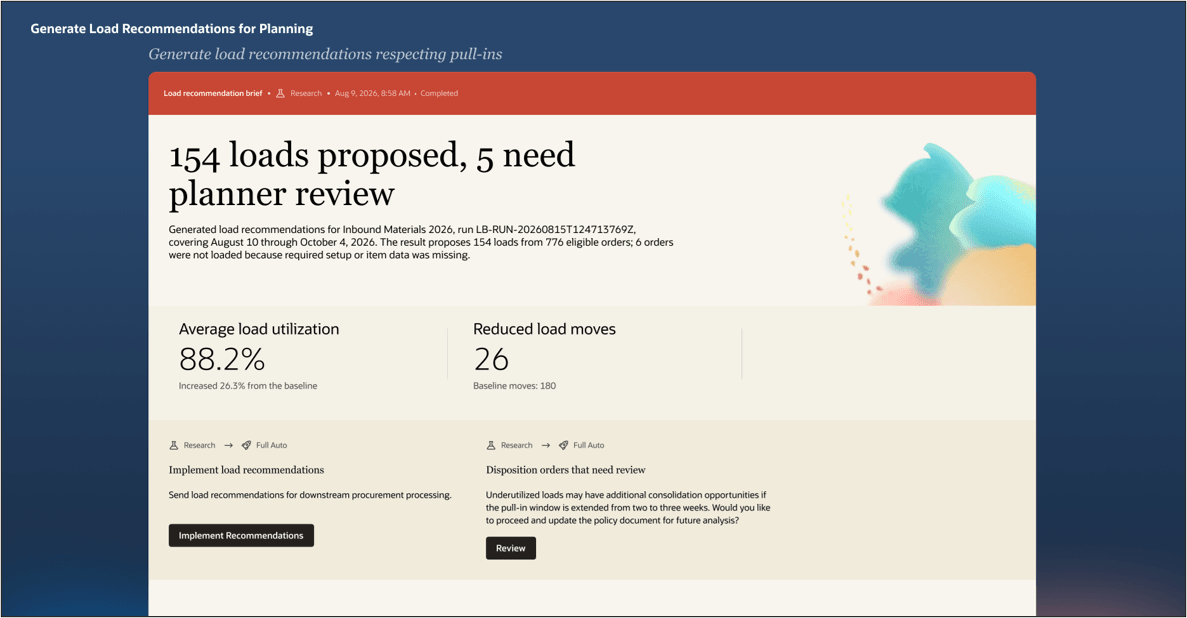
Review proposed loads, utilization improvements, reduced load moves, and exceptions before implementing the recommendation
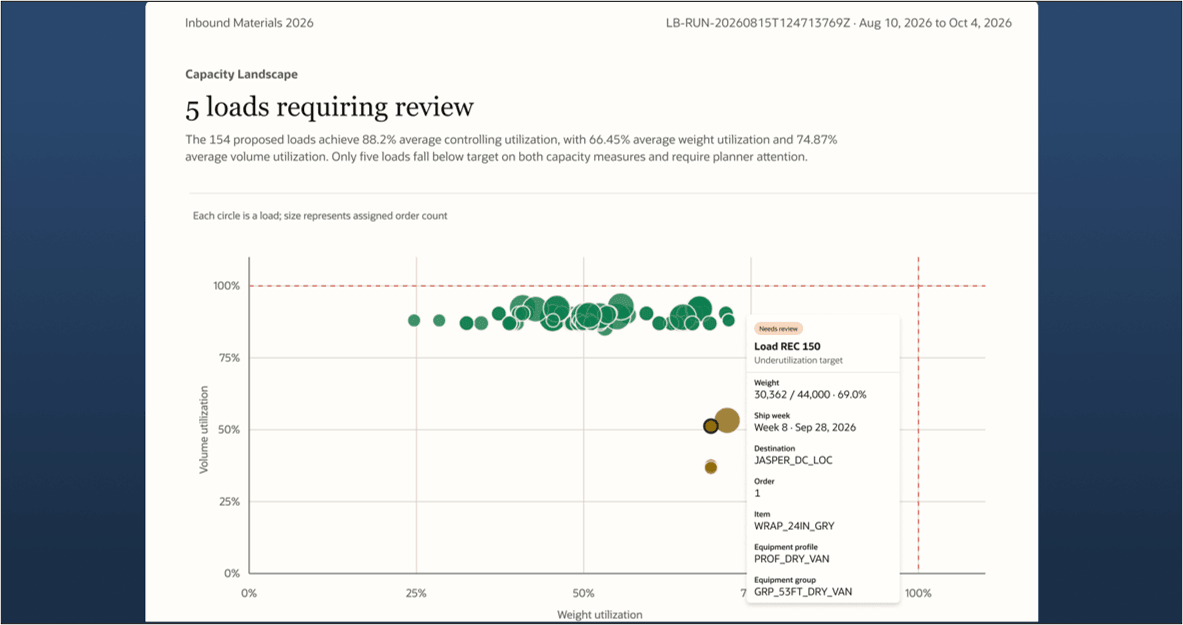
Review underutilized loads in the Capacity Landscape and inspect the order, equipment, and shipping details requiring attention
Each outcome suggests relevant next tasks, such as implement load recommendations or disposition orders that need review. After reviewing the high-level analytics, you can use the prompt to ask questions about the in-context outcome and select implement load recommendations to process the recommendations to planning. If detailed changes are needed, you can download the Shipment Load Recommendation workbook, review and modify the recommendations in the spreadsheet, upload the revised workbook to the agentic app, and use the prompt to request that the updated recommendations be processed to planning. Processing applies the recommendations to planning but doesn't execute transportation.
Steps to enable and configure
Before you use the Shipment Load Planning Workspace, complete the applicable shipping equipment, network, data loading, and policy configuration.
1. Configure shipping equipment and units of measure
a. In Oracle Supply Planning, open the Actions menu and click the Shipping Equipment task.
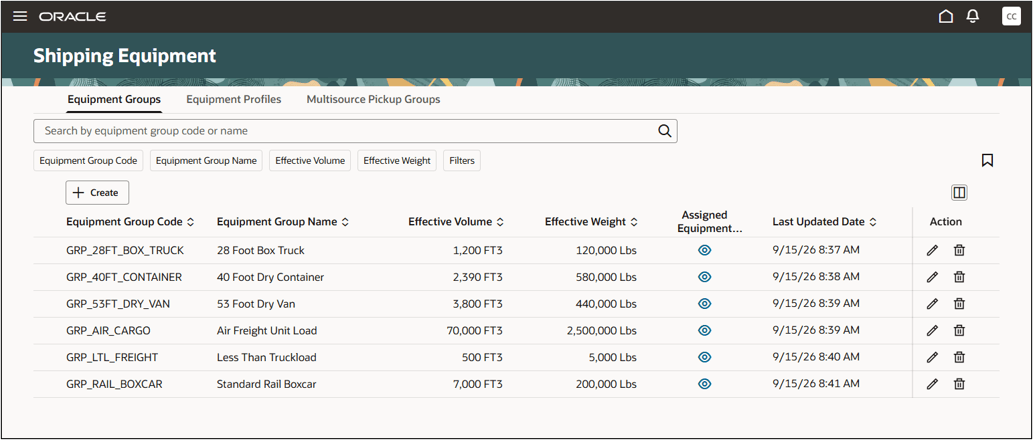
Shipping Equipment page and available setup tabs
b. On the Equipment Groups tab, create the required equipment groups. Define each group's Effective Weight, Effective Volume, associated Unit of Measure, and Maximum Capacity for each applicable shipping unit of measure.
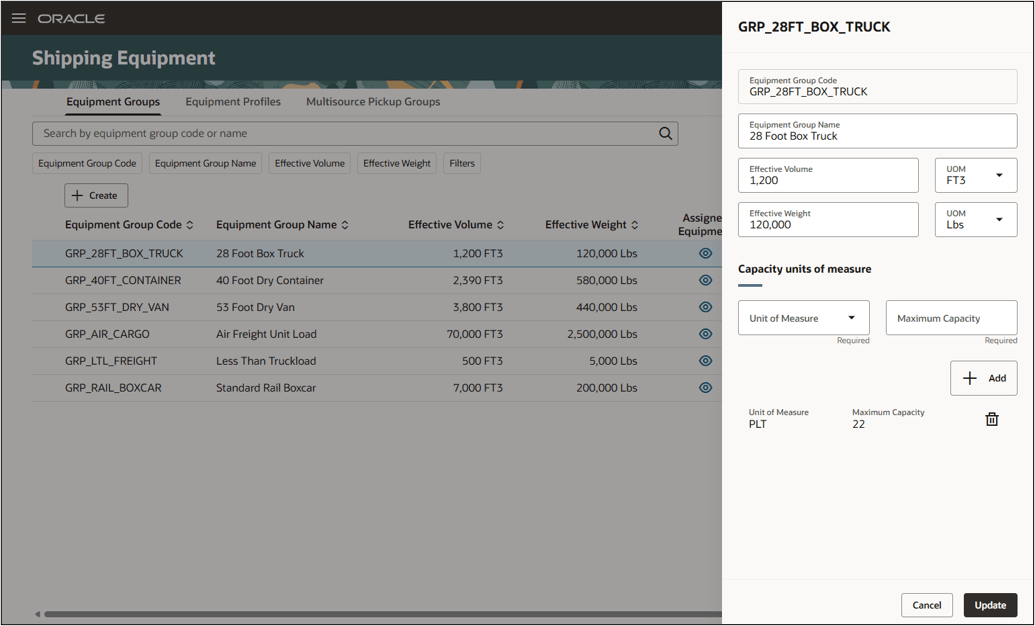
Equipment group capacity and shipping units of measure
c. On the Equipment Profiles tab, create the required equipment profiles and assign the applicable equipment groups. In this release, the workspace considers only the equipment group assigned priority 1 when generating load recommendations. For example, if a profile contains equipment groups with priorities 1 and 2, the workspace evaluates only the priority 1 equipment group and doesn't fall back to priority 2.
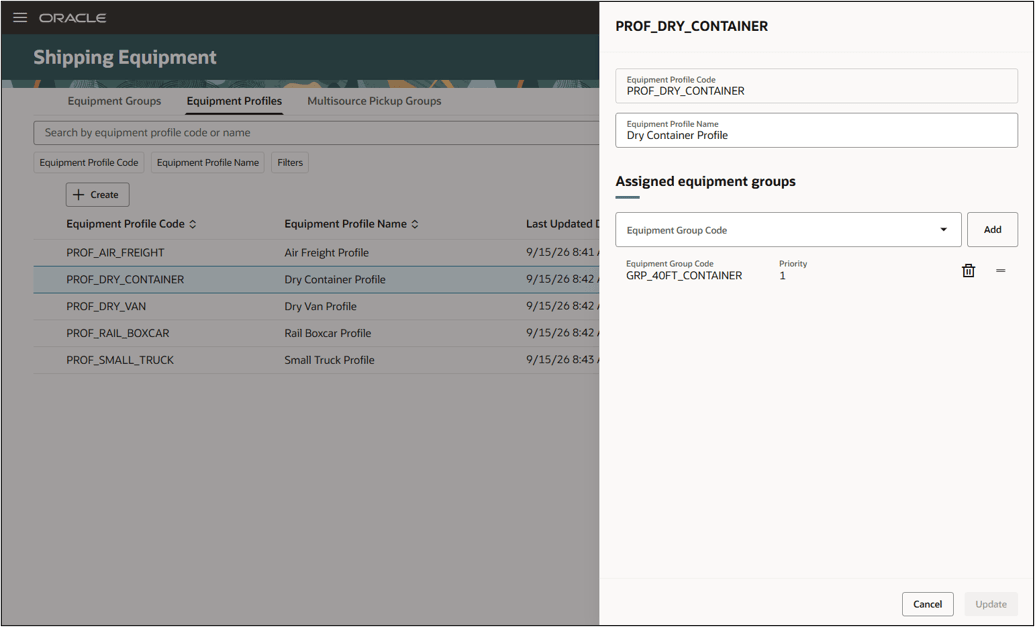
Equipment profile and assigned equipment group priority
d. In the Setup and Maintenance work area, use the Manage Unit of Measure task to ensure that the required weight, volume, and capacity units of measure and conversions are available.
2. Configure lanes and multisource pickup
a. In the Supply Network Model work area, open Interlocation Shipping Networks. Assign the applicable equipment profiles to each source-and-destination lane and Shipping Method combination.
b. If you use multisource pickup, create the required groups on the Multisource Pickup Groups tab. Add the source organizations and supplier sites that can participate in the same load. Each member must have a valid lane and Shipping Method to the same receiving organization. Assign the multisource pickup group to the applicable lane and equipment profile to allow eligible orders from its members to be consolidated into loads for that receiving organization. The group identifies the permitted pickup locations but doesn't define the pickup sequence.
Example: A multisource pickup group contains two supplier sites and one source organization, each with a valid lane and Shipping Method to the same receiving organization. Under the shipped policy, the workspace can consolidate eligible orders from all three locations into one load, subject to the applicable equipment, capacity, utilization, and other planning rules.
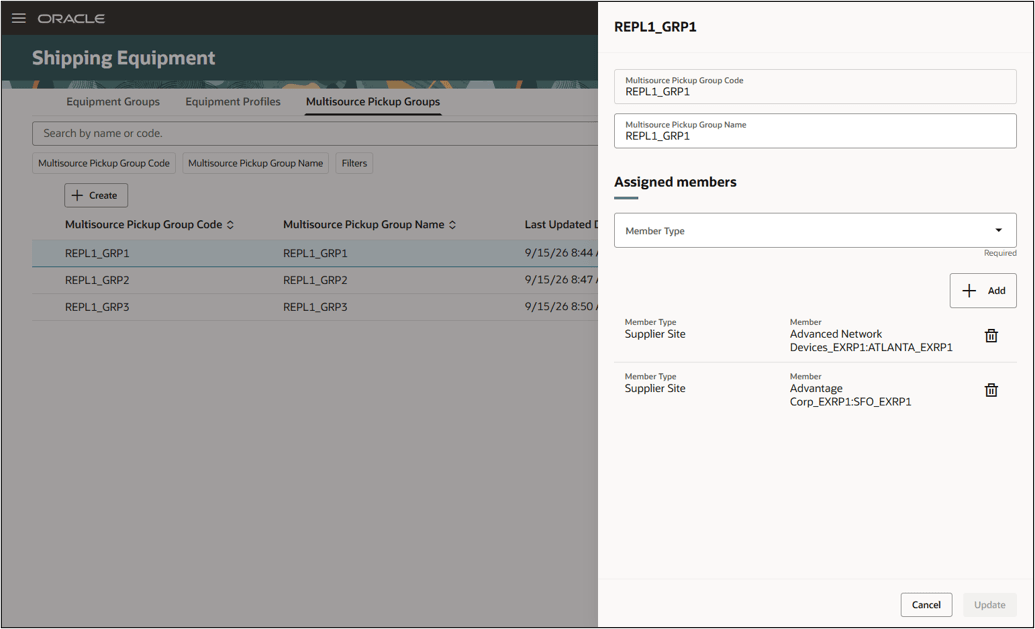
Multisource pickup group and assigned members
3. Load setup data using FBDI
Alternatively, use the updated ScpInterLocationShipMethodsImportTemplate to import interlocation Shipping Method setup, including Equipment Profiles and the Multisource Pickup checkbox. Use the new ScpShippingEquipmentImportTemplate to import Equipment Groups, Equipment Profiles, and Equipment Group Associations.
4. Configure the Shipment Load Planning Workspace policy
a. Go to Navigator > Tools > AI Agent Studio, click Policy Models > Policies, and open Shipment Load Planning Workspace Policy. Because the published policy is read-only, click Customize policy.
b. Under Functions, open getLoadPlanningPolicy, click Source Code, and update the applicable settings. These settings include the planning horizon, date-movement policy and pull-in window, maximum pickup locations per move, planner-approval requirement, minimum weight and volume utilization targets, and equipment-group-specific utilization targets.
c. The shipped defaults are 75% minimum weight utilization, 85% minimum volume utilization, and a maximum of three distinct pickup locations per load. Test getLoadPlanningPolicy, verify the returned values, and publish the customized policy.
d. Confirm that the Get Load Planning Policy workflow node references Shipment Load Planning Workspace Policy and the getLoadPlanningPolicy function. Publish the workflow only if this reference changed and run a controlled workspace test to verify the revised policy values.
Note: Don't use the Policy Documents section to customize this workspace policy. Update the getLoadPlanningPolicy function instead.
Tips and considerations
- The Load Builder evaluates orders that have a supplier site and a suggested ship date within the first eight weeks of the planning horizon. Eligible orders include purchase orders and purchase requisitions that aren't canceled or being canceled, and planned orders that are ready or marked for release.
- Purchase orders and purchase requisitions are assigned to loads using their current suggested ship dates and aren't pulled into an earlier week.
- Only unfirmed planned orders can be pulled into an earlier week, by no more than two weeks. Firmed planned orders retain their suggested ship dates, and the Load Builder doesn't recommend push-outs.
- Shipping Method comes from the planning order. Orders with missing or unresolved lane, equipment, capacity, or unit-of-measure data are excluded with an explanation.
- Multisource pickup is used only when explicit group setup permits the source participants, lane, equipment context, and pickup-stop count.
- Review and approve the recommendations before changes are applied. The workspace supports planning decisions and doesn't execute transportation or replace Oracle Transportation Management.
Key resources
- Use Oracle Fusion Claw to create autonomous outcomes with agentic applications
- See the Using Supply Planning guide available on Oracle Help Center.
- See the Implementing Supply Chain Planning guide available on Oracle Help Center.
- Refer to the 26D File-Based Data Import (FBDI) for SCM guide for more information and to download the FBDI templates.
Access requirements
You need the following privileges to access this feature:
Privileges for Shipping Equipment Setup
| Privilege status | Privilege name and code |
|---|---|
| New | Monitor Supply Planning Work Area (MSC_MONITOR_SUPPLY_PLANNING_WORK_AREA_PRIV) |
| New | Search and View Equipment Groups and Profiles (MSC_VIEW_EQUIPMENT_GROUPS_PROFILE_PRIV) |
| New | Manage Equipment Groups and Profiles (MSC_MANAGE_EQUIPMENT_GROUPS_PROFILE_PRIV) |
Privilege for Shipment Load Planning Workspace
| Privilege status | Privilege name and code |
|---|---|
| New | Manage Shipment Load Planning Recommendations (MSC_MANAGE_SHIP_LOAD_PLANNING_RECOMMENDATIONS_PRIV) |