Filter by multiple product catalogs
Use category filters in planning visualizations to select categories from the product hierarchies listed in a plan's Dimension Catalog. The Category list of values displays both the category name and the associated product hierarchy, helping you choose the right category when similar category names exist across product hierarchies. Category filtering is supported through suggested filters, the filters drawer, and column filters wherever applicable.
The capability is available in Supplies and Demands, Items, Exceptions, Demand Fulfillment, Late Demand Analysis, Order Comparison, and Build Plan. This capability can also be used in Plan Inputs and Simulation Sets. For Supplies and Demands, the item's immediate parent category from each configured product hierarchy is included so that you can filter by category from those hierarchies.
This helps improve planning analysis by letting you filter data with the product hierarchy that match the business context. Consistent category filtering across planning views reduces manual filtering work and helps you compare results more efficiently.
You can now select categories from the product hierarchies defined in a plan's Dimension Catalog and use them to filter data across several Supply Planning visualizations.
The capability applies to the following visualizations:
- Items
- Supplies and Demands
- Exceptions
- At-Risk Demands
- Demand Fulfillment Recommendations
- Late Demand Analysis
- Order Comparison
- Build Plan
This is also applicable to Plan Inputs and Simulation Sets for Items and Supplies and Demands.
When you select a product category from the list of values (LOV), the LOV displays the Level 1 categories (the level members immediately above the item level) from all product hierarchies in the dimension catalog. The top line of each pair in the list is a category, and the second line displays the associated catalog. You can select multiple categories of a catalog to filter the records. After you select the categories, the list is filtered to show only rows whose item's fall into the selected categories (any other filter criteria are also applied).
You can open the category filter through the primary facet.
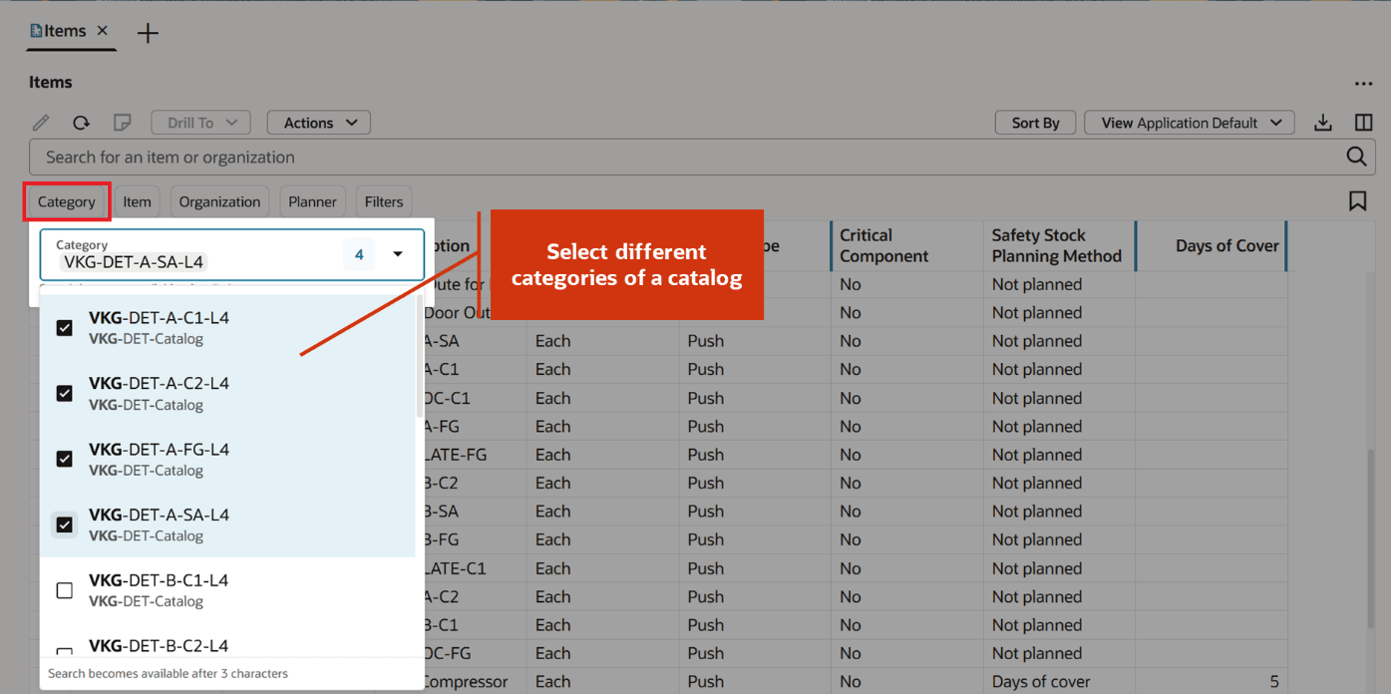
Category filter on items
The Category column shows the categories used for filtering, along with the items associated with those categories.
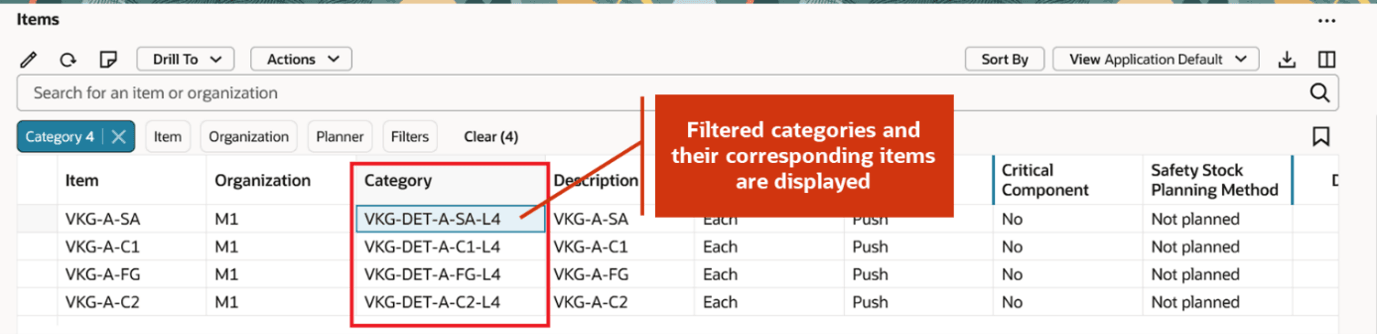
Filtered categories and their items
If in a visualization, the category filter is on the filter panel drawer, you can open it from there as well.
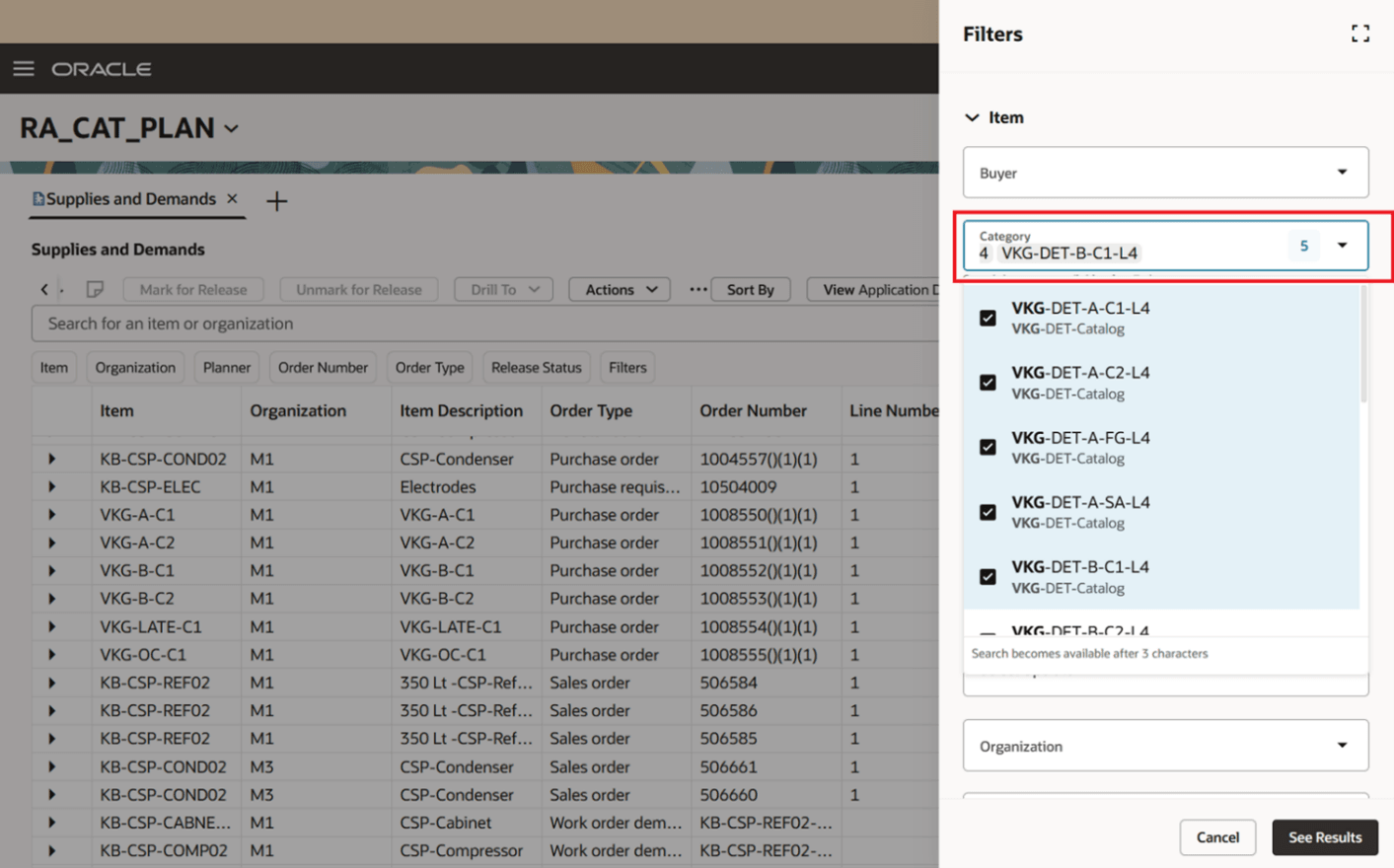
Category filter in the filter drawer
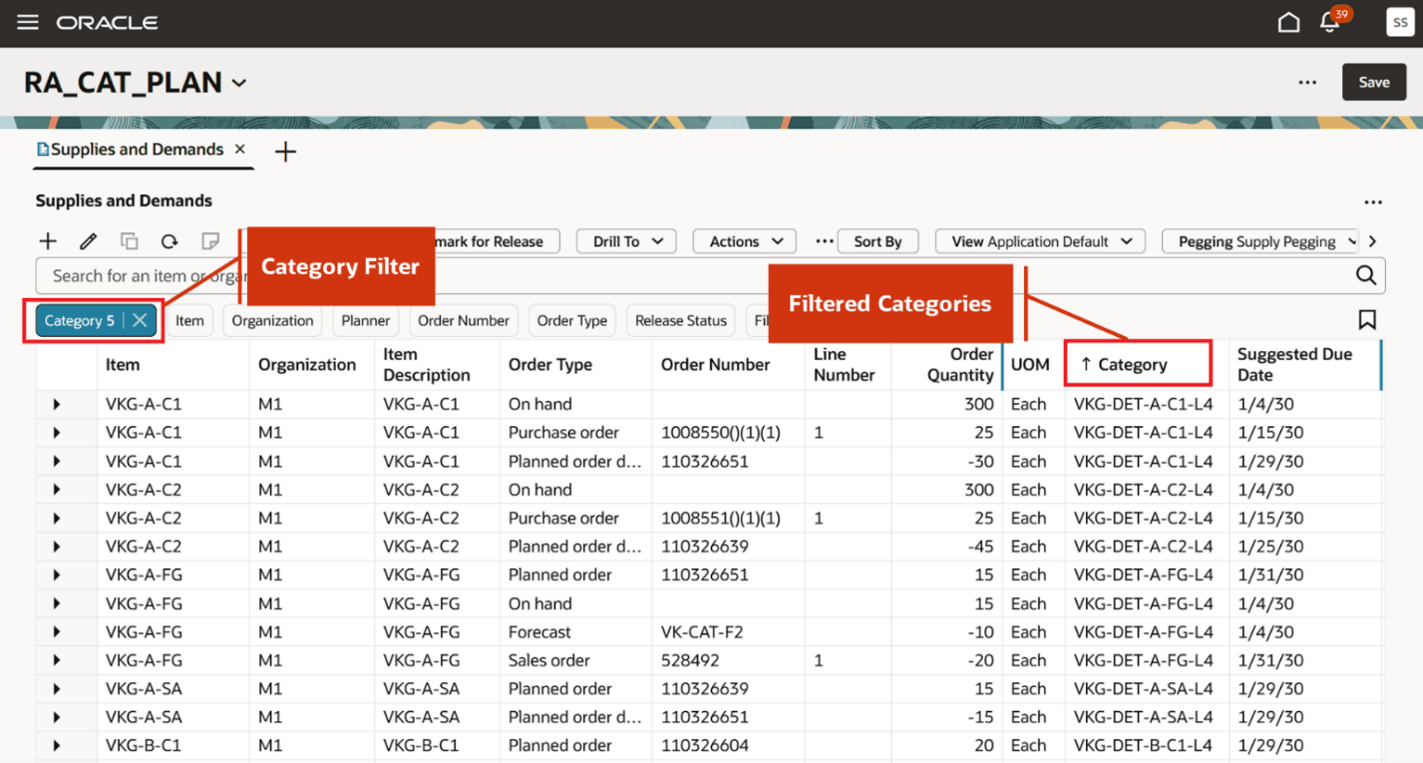
Filtered categories in Supplies and Demands
By default, when you open any visualization, categories from the default catalog are displayed. This behavior applies to all visualizations mentioned above. The default catalog is identified by the Default suffix appended to its name.
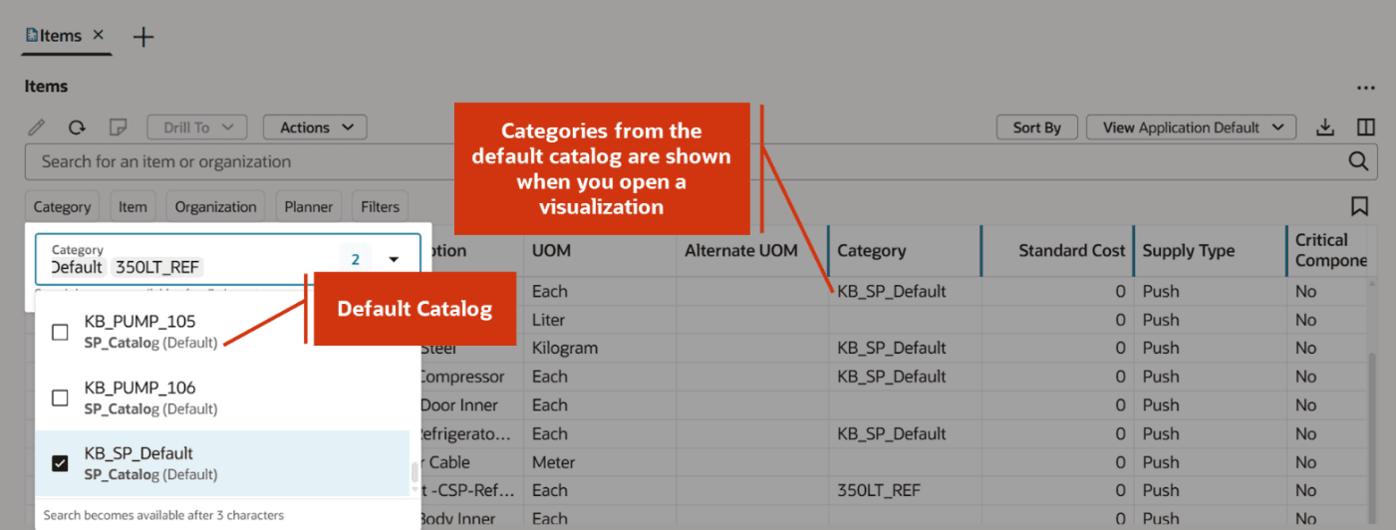
Default catalog
You must select the categories from a single catalog only. If you try to select the categories across catalogs, no records are displayed and an error message is displayed.
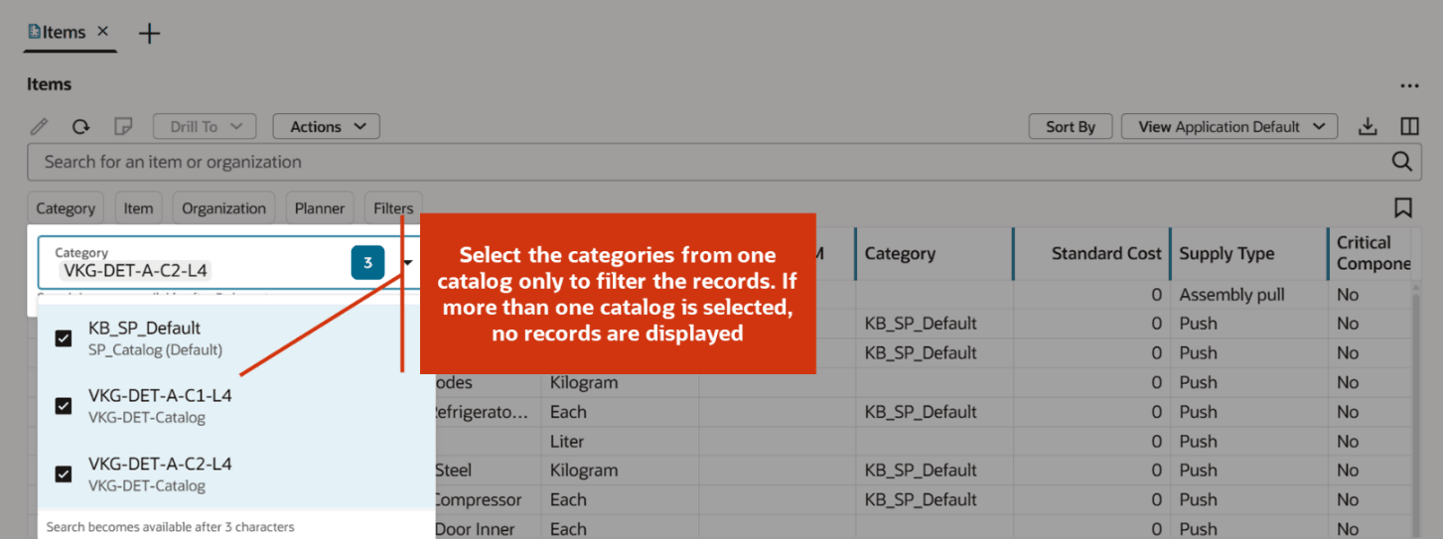
Select categories only from one catalog
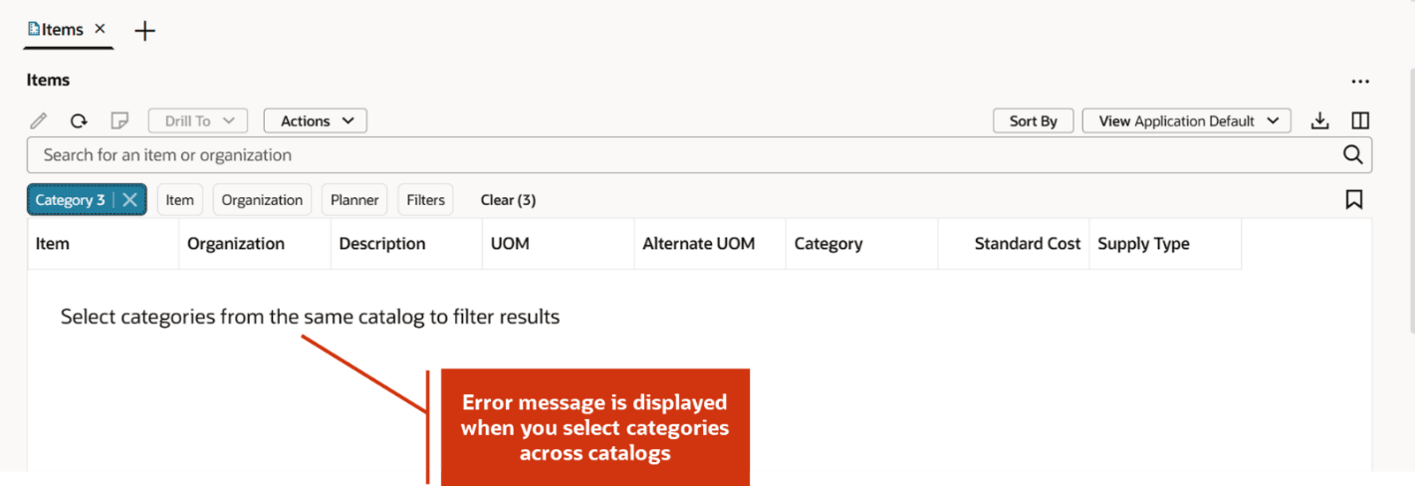
Error message
The column filter of the Category column is enhanced to include the catalog. After you select a catalog, the corresponding categories are listed. The default catalog is displayed by default.
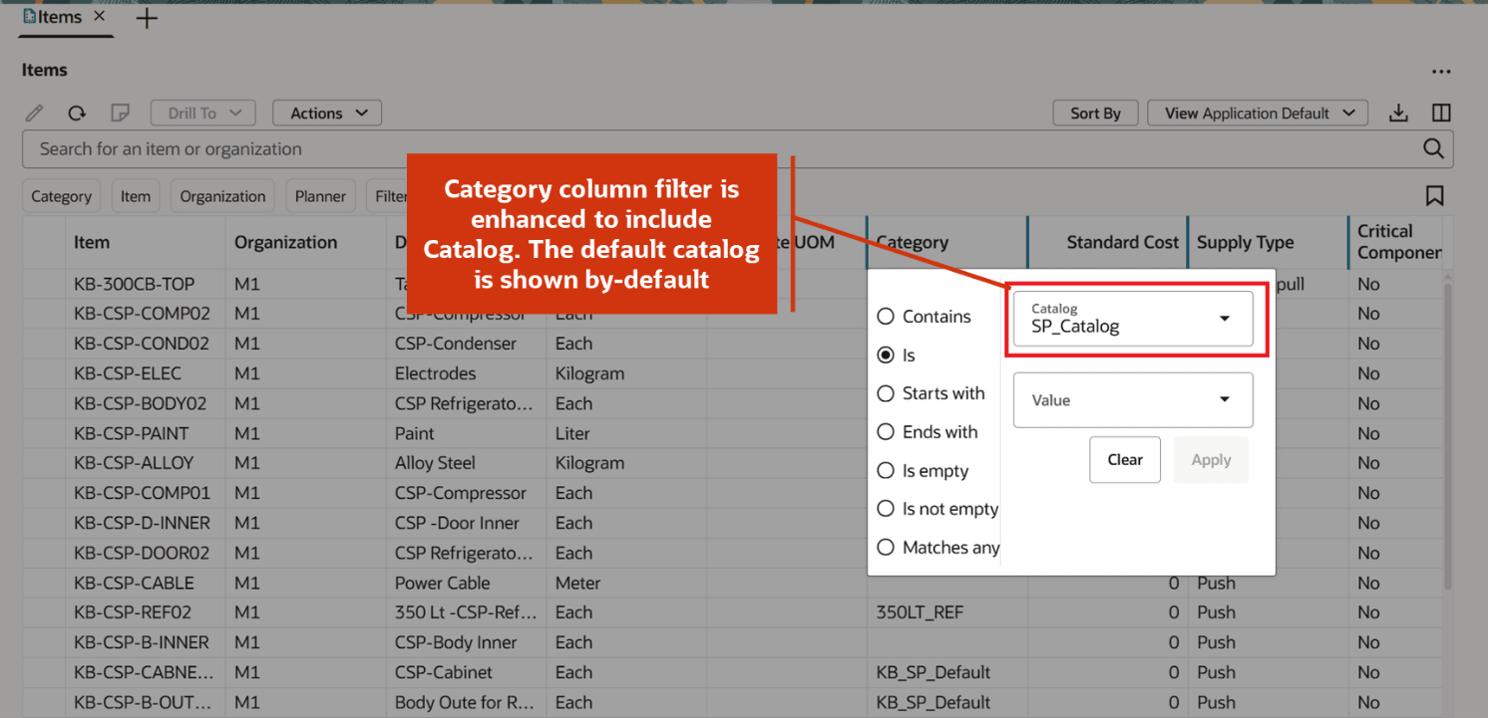
Enhanced Category column filter
You can change the catalog and select categories from it to filter the records.
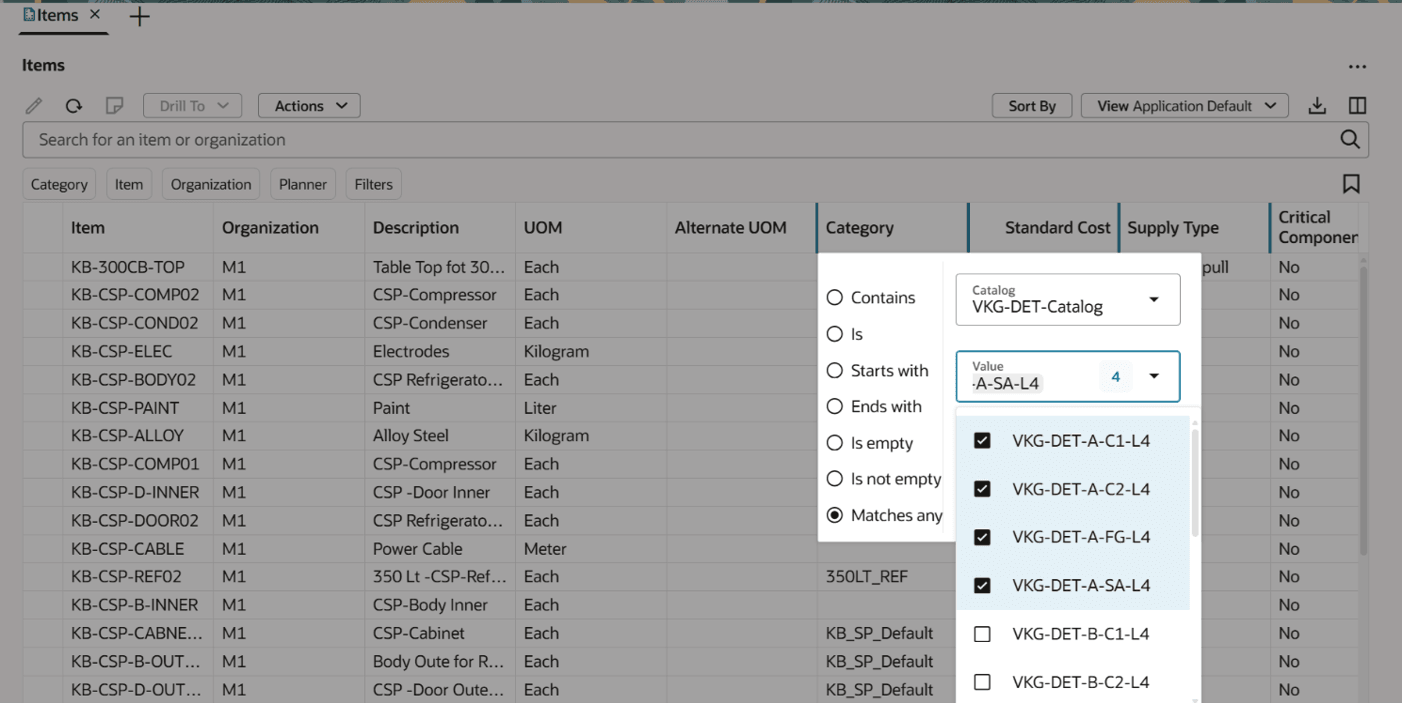
Select a different catalog to filter
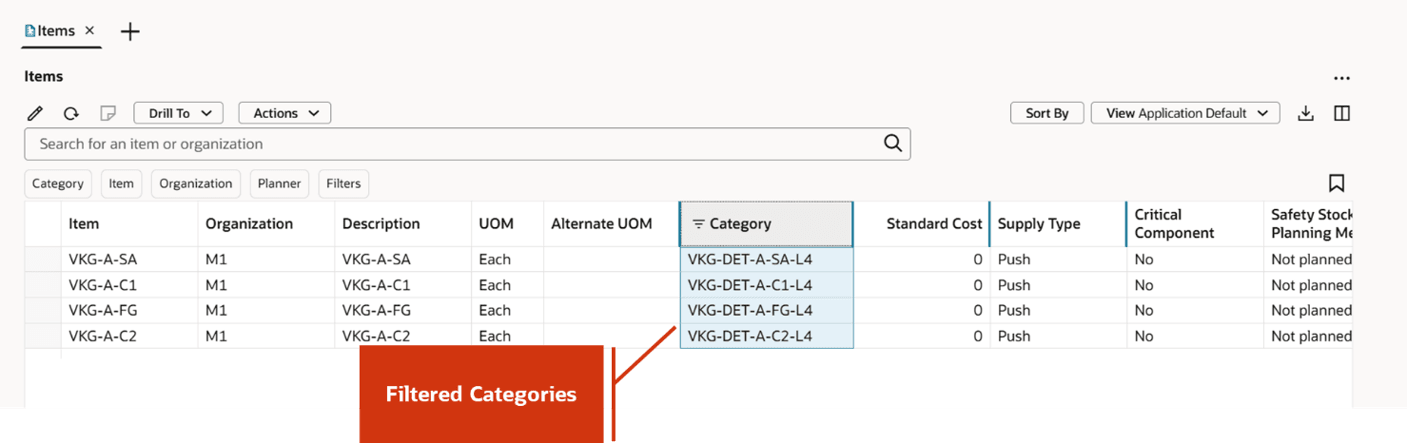
Filtered categories
Steps to enable and configure
You don't need to do anything to enable this feature.
Access requirements
Users who are assigned a configured job role that contains these privileges can access this feature:
Privileges
|
Privilege status |
Privilege name and code |
|---|---|
| Previously delivered | Monitor Supply Planning Work Area (MSC_MONITOR_SUPPLY_PLANNING_WORK_AREA_PRIV) |
| Previously delivered | Edit Demands and Supplies (MSC_EDIT_DEMANDS_AND_SUPPLIES_PRIV) |
| Previously delivered | View Planning Exceptions Configuration (MSC_VIEW_PLANNING_EXCEPTIONS_PRIV) |
| Previously delivered | Run Plan with Snapshot (MSC_RUN_PLAN_WITH_SNAPSHOT_PRIV) |
| Previously delivered | View Planning Items (MSC_VIEW_PLANNING_ITEMS_PRIV) |