Configure procurement business functions
Configure procurement business functions using a new user experience.
Select a procurement business unit
In the Setup and Maintenance work area, search for the Manage Procurement Business Function task to open a drawer to select a procurement business unit that you want to configure.
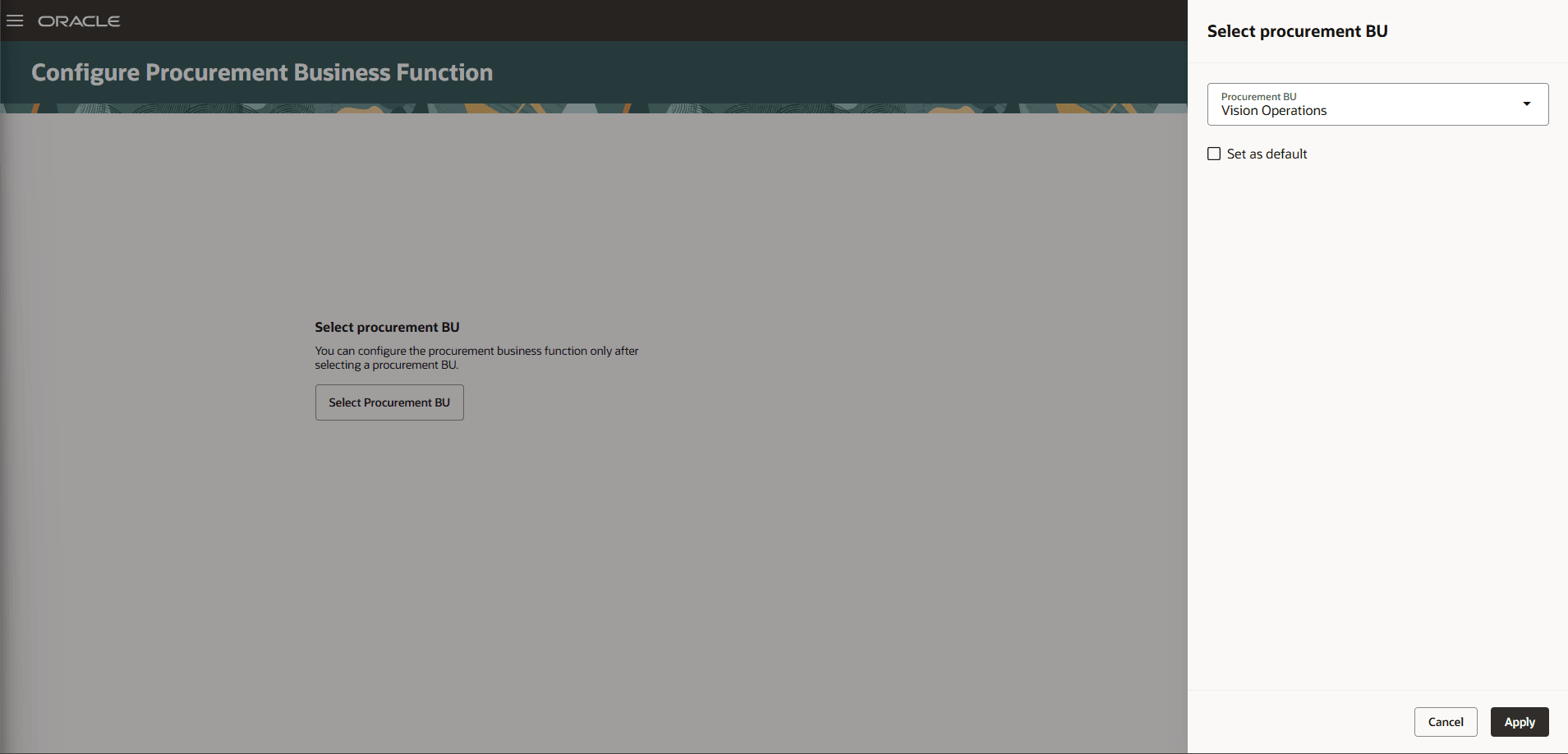
Select a procurement business unit
A new tab-based layout organizes procurement business unit settings into dedicated General, Purchasing, Sourcing, and Document Types tabs.
General
Use the General tab to add or update attributes such as Payment Terms, Shipping Method, Buyer, Currency, Freight Terms, FOB, and Inventory Organization.
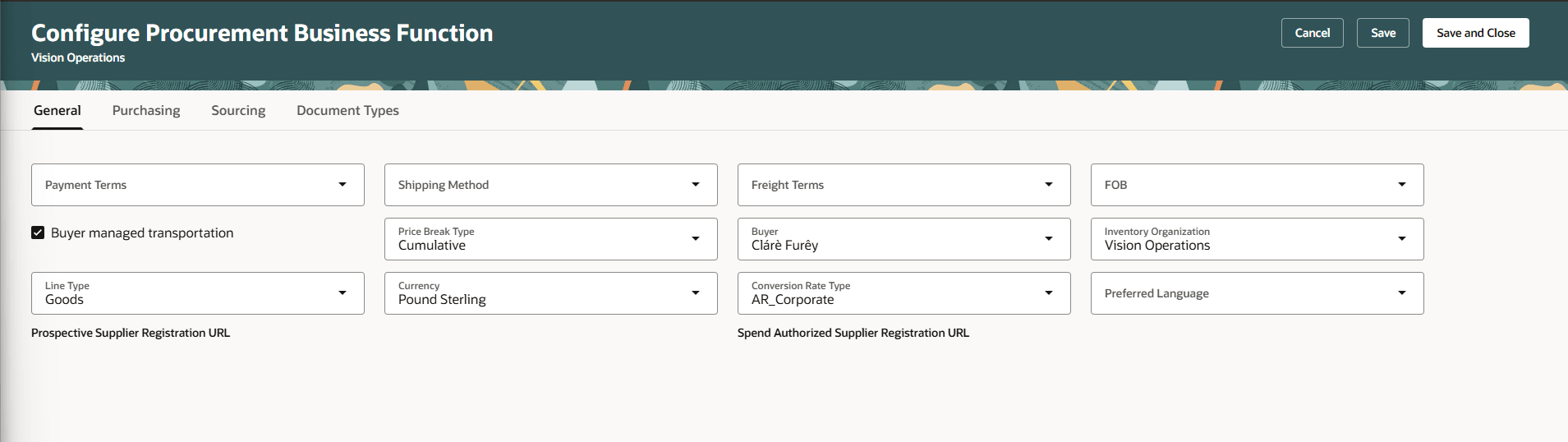
Set general procurement business function defaults
Purchasing
Use the Purchasing tab to add or update purchasing attributes such as Receipt Close Tolerance Percent, Receipt Close Point, Match Approval Level, Allow manual price update on fulfilled orders, Communicate purchase order changes, and Group requisitions.
You can also add or update consignment terms such as aging onset point, aging onset days, consumption advice frequency and consumption advice summary.
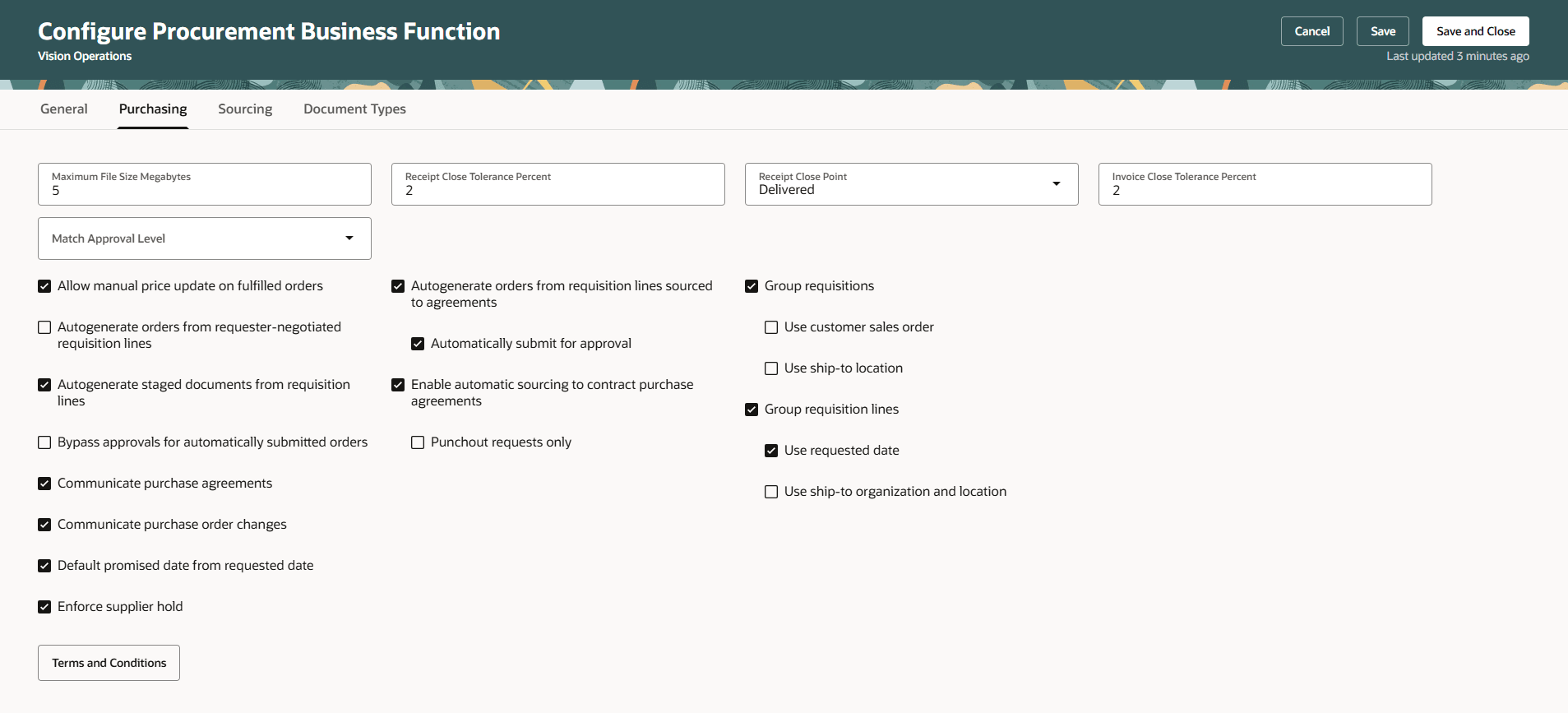
Configure Purchasing settings
You can use the Terms and conditions drawer to define purchasing terms and conditions that appear in the purchasing document PDF.
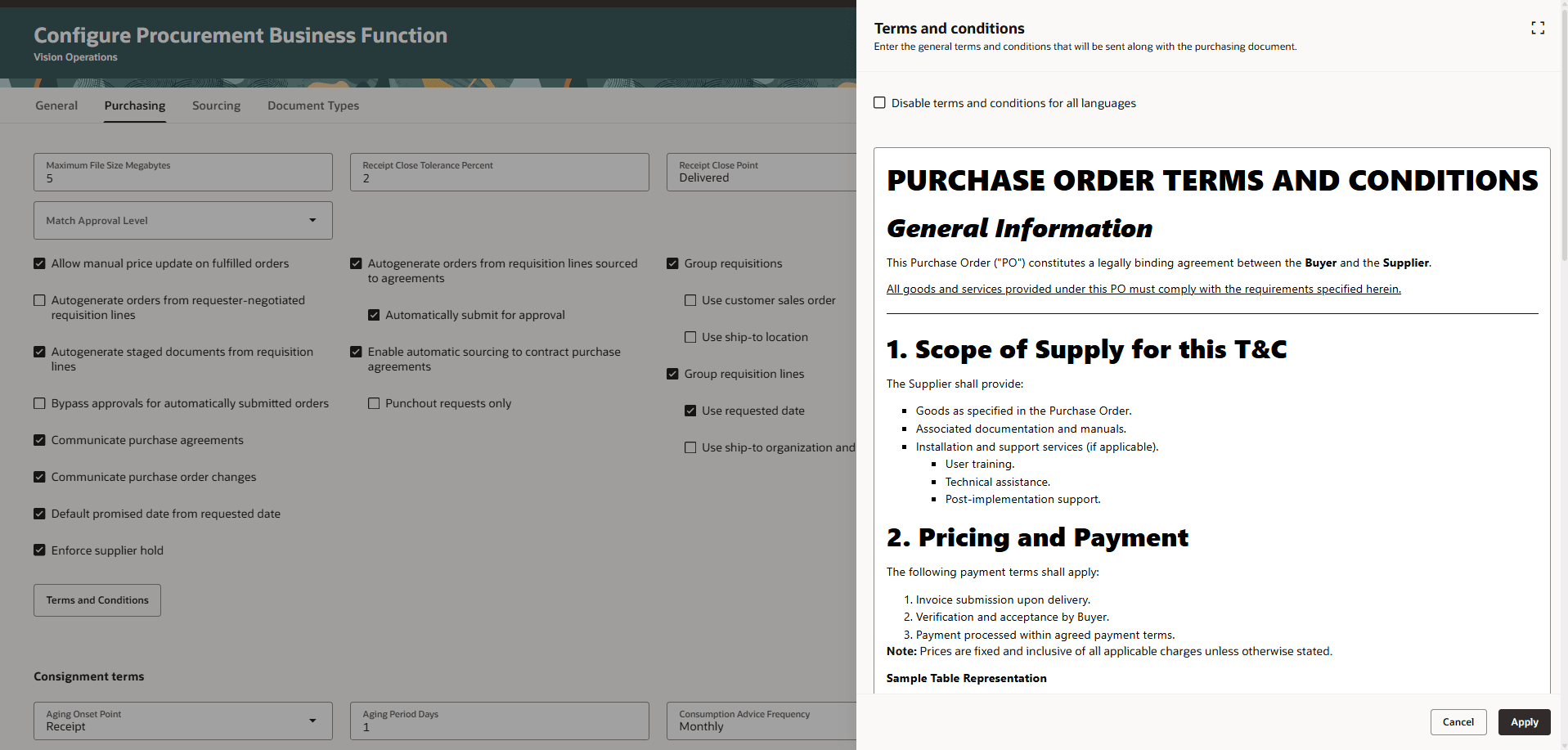
Define Purchasing terms and conditions
Sourcing
In the Sourcing tab, you can set defaults for negotiation type, style, rank indicator, and maximum requirement score, to apply during negotiation and purchasing document creation. You can also enable feature controls such as negotiation and award approvals, or enforce supplier's previous price as the start price.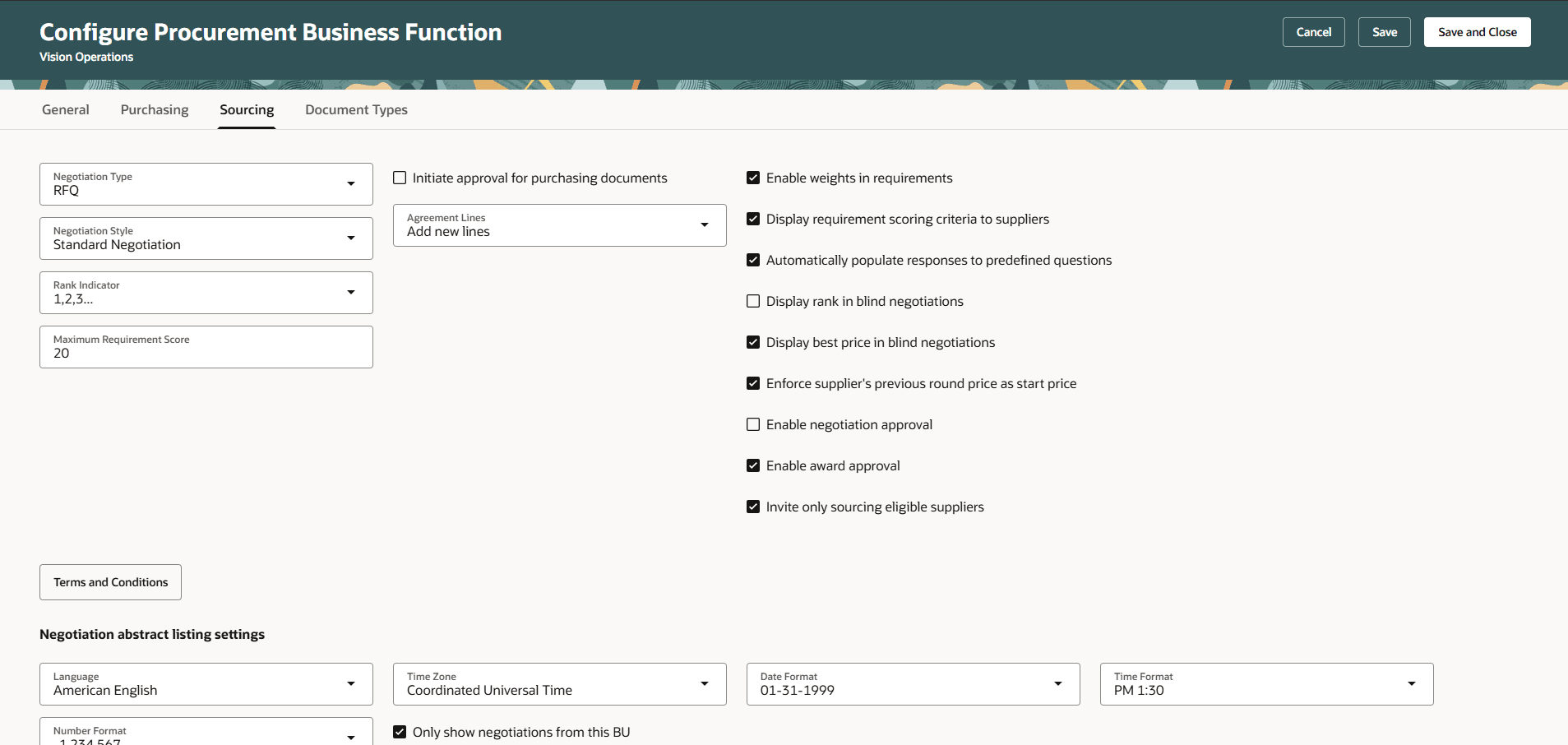
Configure Sourcing settings
You can use the Terms and conditions drawer to define sourcing terms and conditions presented to negotiation participants, set the terms display preference, and add supporting attachments.
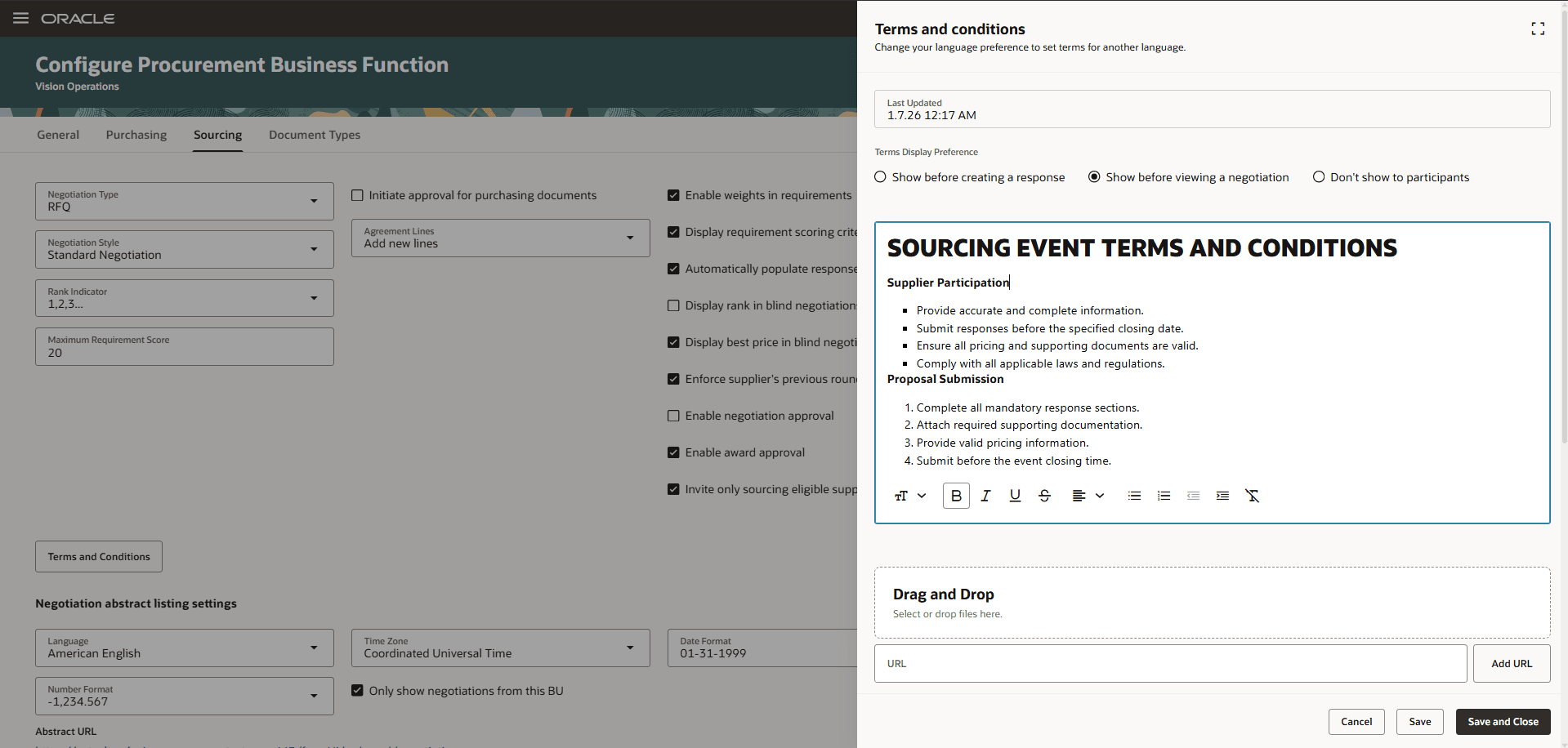
Define Sourcing terms and conditions
Use the Negotiation Abstract Listing settings to access the Configure Negotiation Abstract Listing page. You can set the language, time zone, date and time formats, number format, header content, and footer content for negotiation abstracts.
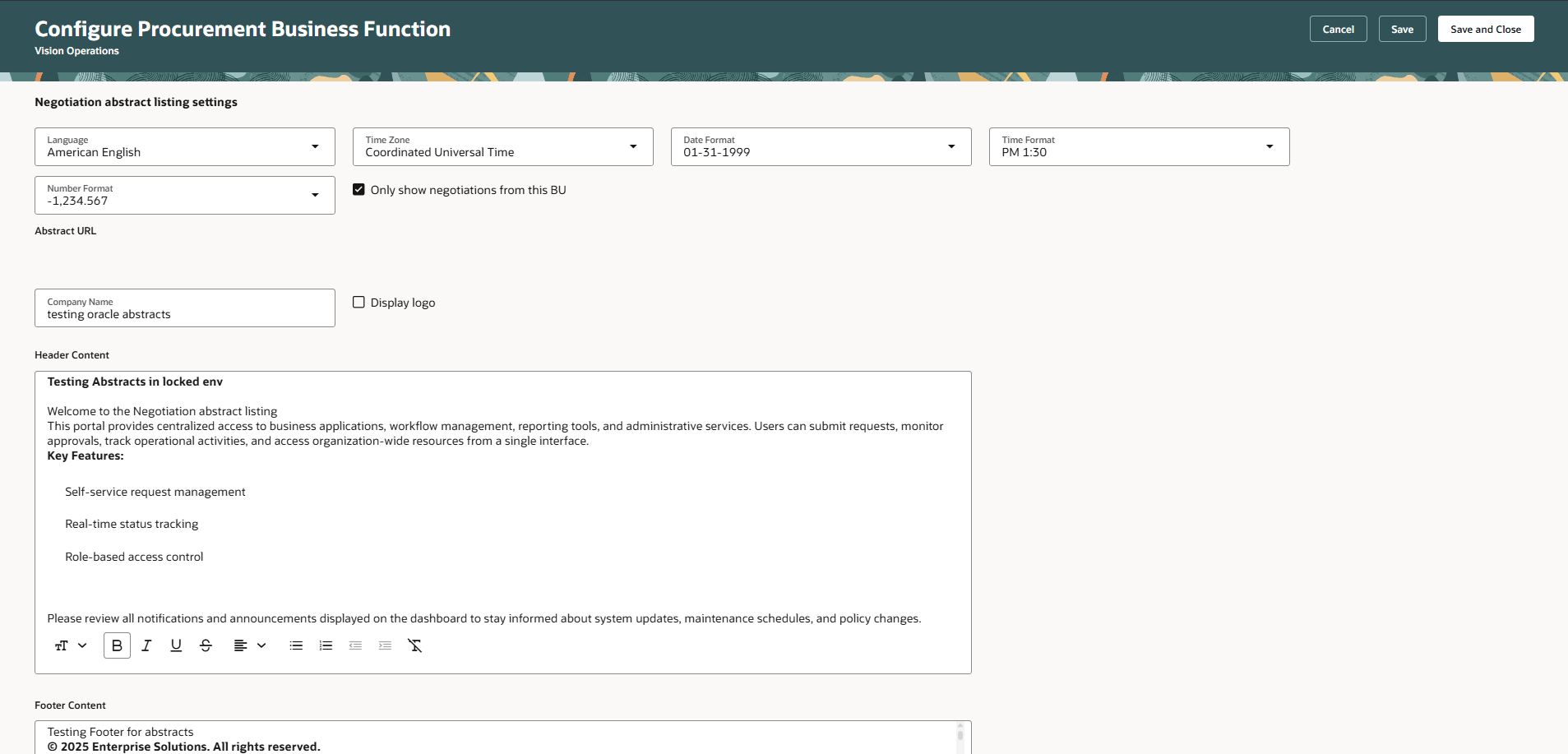
Configure Negotiation abstract listings settings
Document types
Use the Document Types tab to view and update layouts and display name for all document types in purchasing and sourcing.
- Blanket purchase agreement
- Contract purchase agreement
- Purchase order
- Auction
- RFI
- RFQ
The purchasing section includes blanket purchase agreement, contract purchase agreement, and purchase order. You can update display name and associated layouts attributes like Document Layout, Change Order Template, and Contract Terms Layout.
The sourcing section includes auction, RFI, and RFQ. You can update display name and associated layouts attributes like Negotiation Layout, Response Layout, and Contract Terms Layout.
You can also enter additional information for each document type using descriptive flexfields.
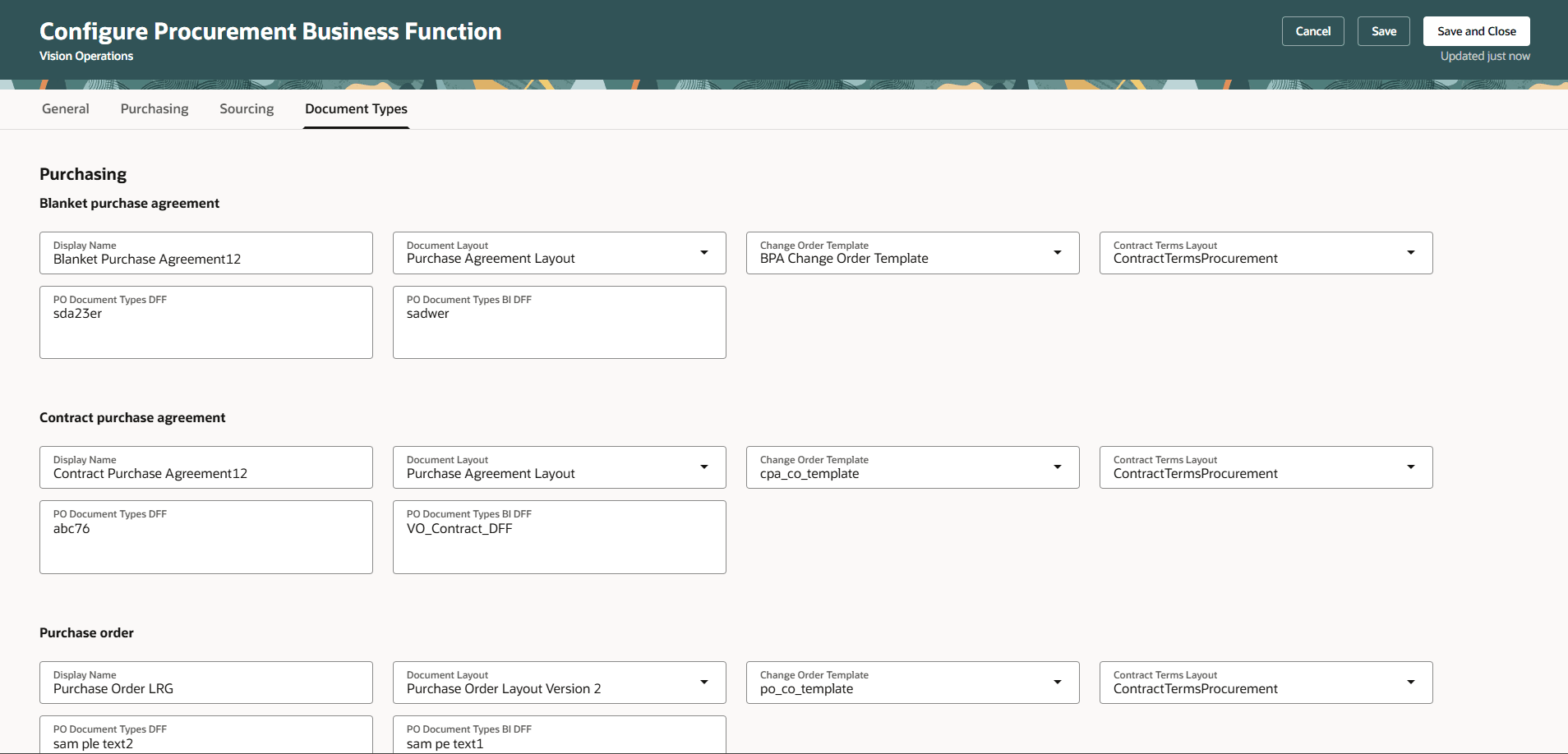
Configure Document Type settings
Configuration Procurement Business Function Actions
You can initiate these actions on this page
- Save and Close
- Save
- Cancel
Use Save to save changes without leaving the setup page. Use Save and Close to save changes and return to the page from which you entered.
Use the Cancel action to discard any unsaved changes and return to the setup task or page from which you entered.
Steps to enable and configure
Use the Opt In UI to enable this feature. For instructions, refer to the Optional Uptake of New Features section of this document.
Offering: Procurement No Longer Optional From: Update 27A
To use this feature, you must opt into the parent feature: Redwood: Set Up Purchasing. If you previously opted in to the Redwood: Set Up Purchasing feature, then this feature is automatically available to you.
To manage the setup page, follow these steps:
- In the Setup and Maintenance work area, search for the Manage Procurement Business Function task.
- Select the procurement business unit that you want to configure and select Apply.
- On the setup page, set your changes.
- Select Save or Save and Close.
Tips and considerations
Using Oracle Visual Builder Studio, you can configure business rules to show or hide fields in General, Purchasing, Sourcing, and Document Types sections.
Some fields on the page are visible only when the related feature is enabled.
- General
- The Buyer managed transportation checkbox is visible only if the Buyer Managed Transportation feature is enabled.
- Purchasing
- The Use customer sales order checkbox is visible only if the Enable Customer Sales Orders Fulfillment feature is enabled.
- The Autogenerate staged documents from requisition lines checkbox is visible only when the ORA_PO_PROCESS_REQS_REDWOOD_ENABLED profile option is enabled.
- The Punchout requests only checkbox is visible only if the Enable Automatic Sourcing to Contract Purchase Agreements feature is enabled.
- The Use ship-to location checkbox is visible only if the Generate Separate Purchase Orders by Ship-to Location feature is enabled.
- Sourcing
- The Negotiation Type field and the Negotiation template required checkbox will be hidden if the ORA_PON_SOURCING_REDWOOD_ENABLED' (Redwood Pages for Sourcing Enabled) profile option is enabled.
- The Automatically add new supplier items to item relationships checkbox is visible only if the Capture New Supplier Items in Negotiations feature is enabled.
- The Agreement Lines field is visible only if the Update Blanket Purchase Agreement from Negotiated Award feature is enabled.
- The Invite only sourcing eligible suppliers checkbox is visible only if the Assess Supplier Eligibility for Sourcing feature is enabled.
- Document Types
- The Negotiation Layout for Buyer field is visible only if the Configure Buyer Negotiation PDF with Oracle Analytics Publisher feature is enabled.
- The Negotiation Layout for Supplier field is visible only if the Configure Supplier Negotiation PDF with Oracle Analytics Publisher feature is enabled.
Key resources
- For details on configuring Purchasing setup pages, refer to the Redwood: Set Up Purchasing feature, available in Oracle Fusion Cloud Procurement What's New, update 26B.
Access requirements
If you're using custom job roles, then you need to validate that you have the previously delivered privilege listed.
| Privilege status | Privilege name and code |
|---|---|
| Previously delivered |
Manage Procurement Configuration PO_MANAGE_PROCUREMENT_CONFIGURATION_PRIV |