Create intake requests for procurement contracts
Create intake requests for procurement contracts by configuring intake request templates with the procurement contract outcome. Configure the template controls that are relevant to your contract process, including contract type, primary party, payment terms, commercial terms, and contract dates. The intake request displays the fields configured on its associated template. In this update, the intake request template user interface provides a more streamlined look and feel when configuring outcomes and field controls.
Template redesign for intake request templates
Intake request templates now include Allowed Outcomes and Default Outcome fields. When a template supports multiple outcomes, select one of the allowed outcomes as the default outcome. Alternatively, you can leave the default outcome unspecified and allow the intake manager to determine the outcome during outcome processing of the intake request. This provides flexibility to support related procurement processes from one template while directing requesters to the most commonly used outcome.
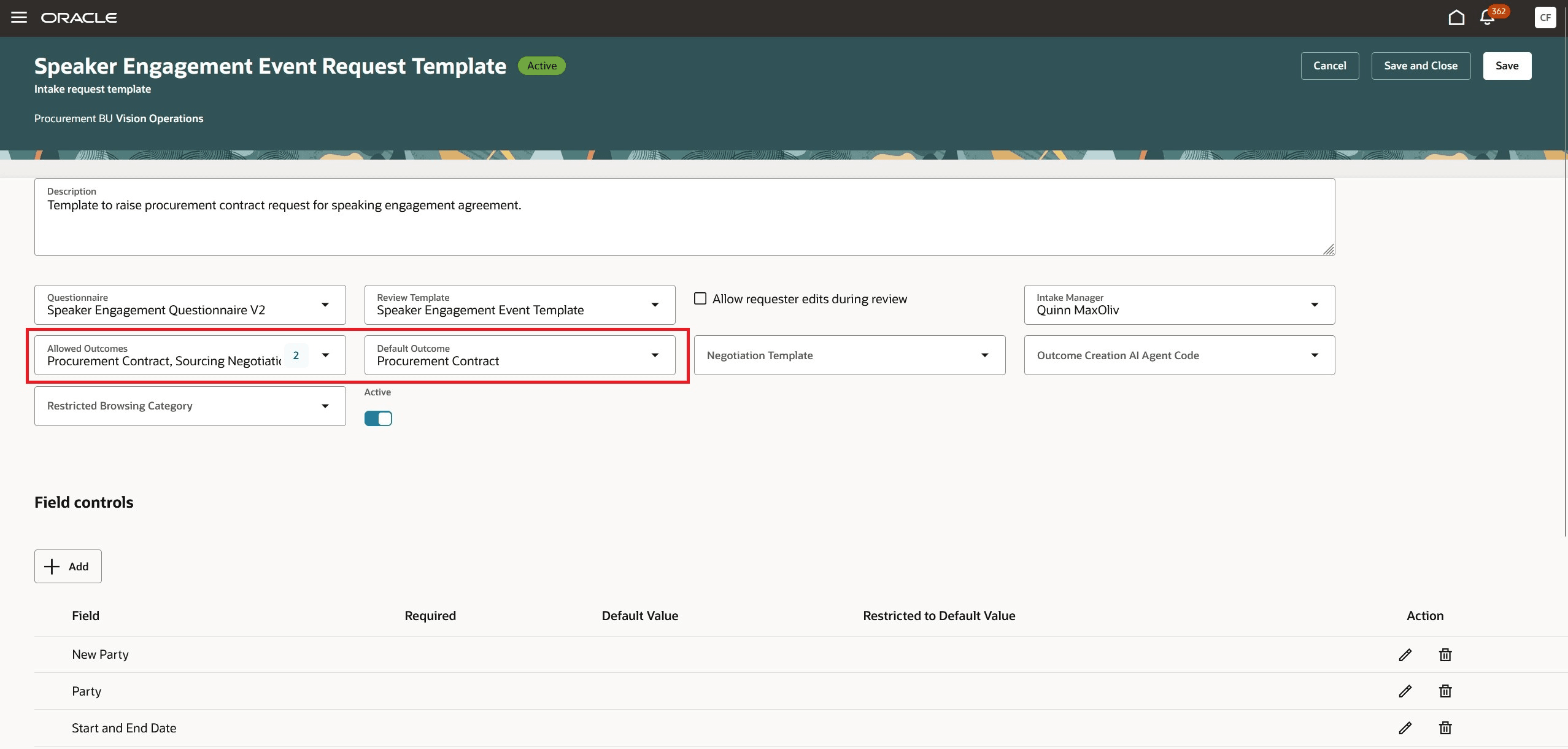
Intake request template edit page
Configure field controls by outcome
The Field Controls section is redesigned as a table, making it easier to select fields, mark them as required, specify default values, and restrict requesters to those default values.
The fields available for selection depend on the allowed outcomes configured for the template. For example, Contract Type is available when Procurement Contract is an allowed outcome, but it isn't available when the template supports only Negotiation. This helps you configure only the fields relevant to each intake request outcome and improves the quality of information captured.
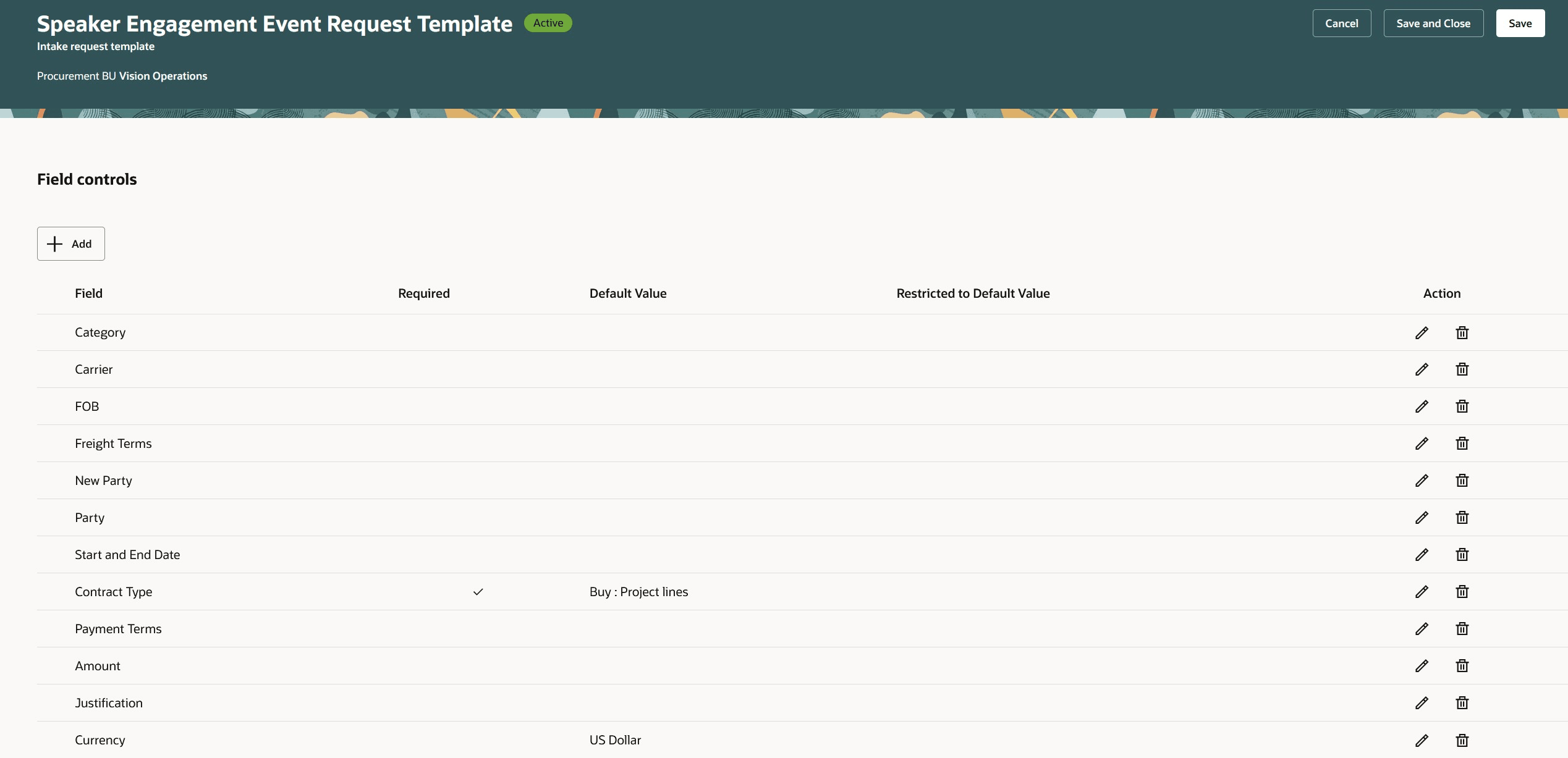
Intake request template - field controls
Configure templates for procurement contract requests
Add Procurement Contract as an allowed outcome on an intake request template. You can select Procurement Contract as the default outcome and add the controls needed to capture contract request details. The list of attributes available to be configured in the Field Controls sections depends on the Allowed Outcomes.
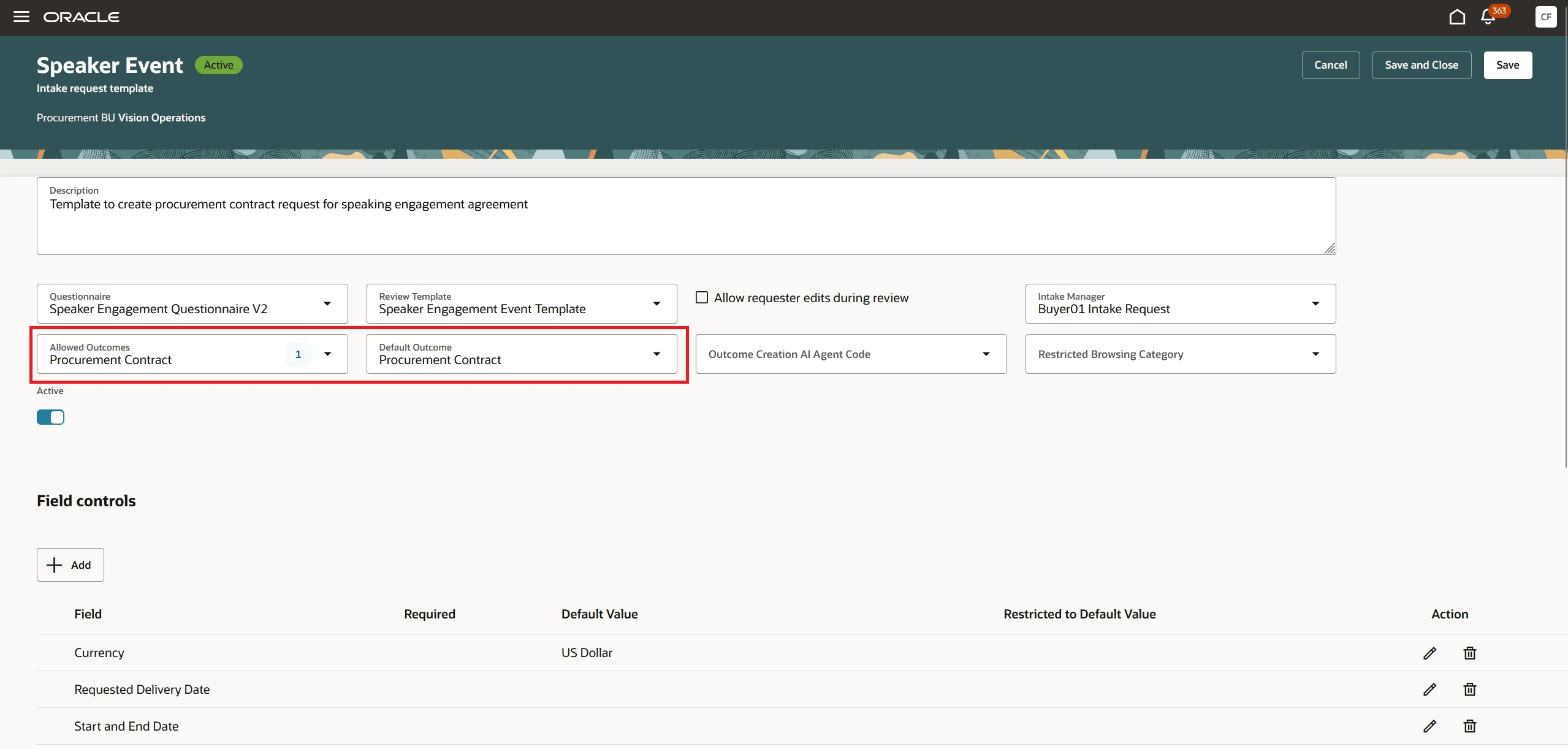
Intake request template - allowed outcomes
Create a contract request using the intake request creation assistant
Use the existing Create action on the Intake Requests page to open a chat drawer and interact with the Intake Request Creation Assistant and provide the procurement contract request details.
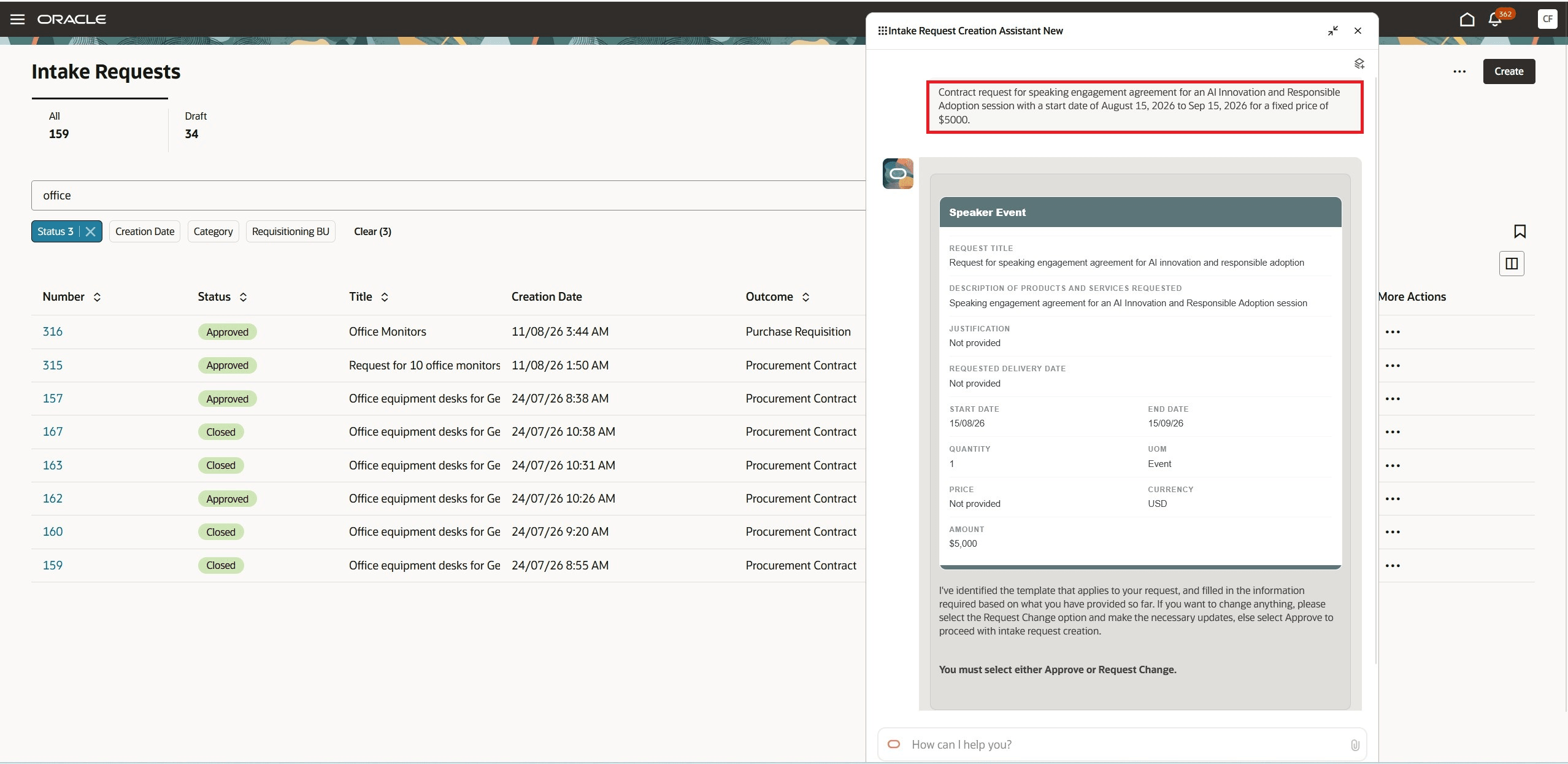
Create intake request for procurement contract
When you approve the request on the chat, the request is created in Draft status and a link to the request, with its generated intake request number is provided.
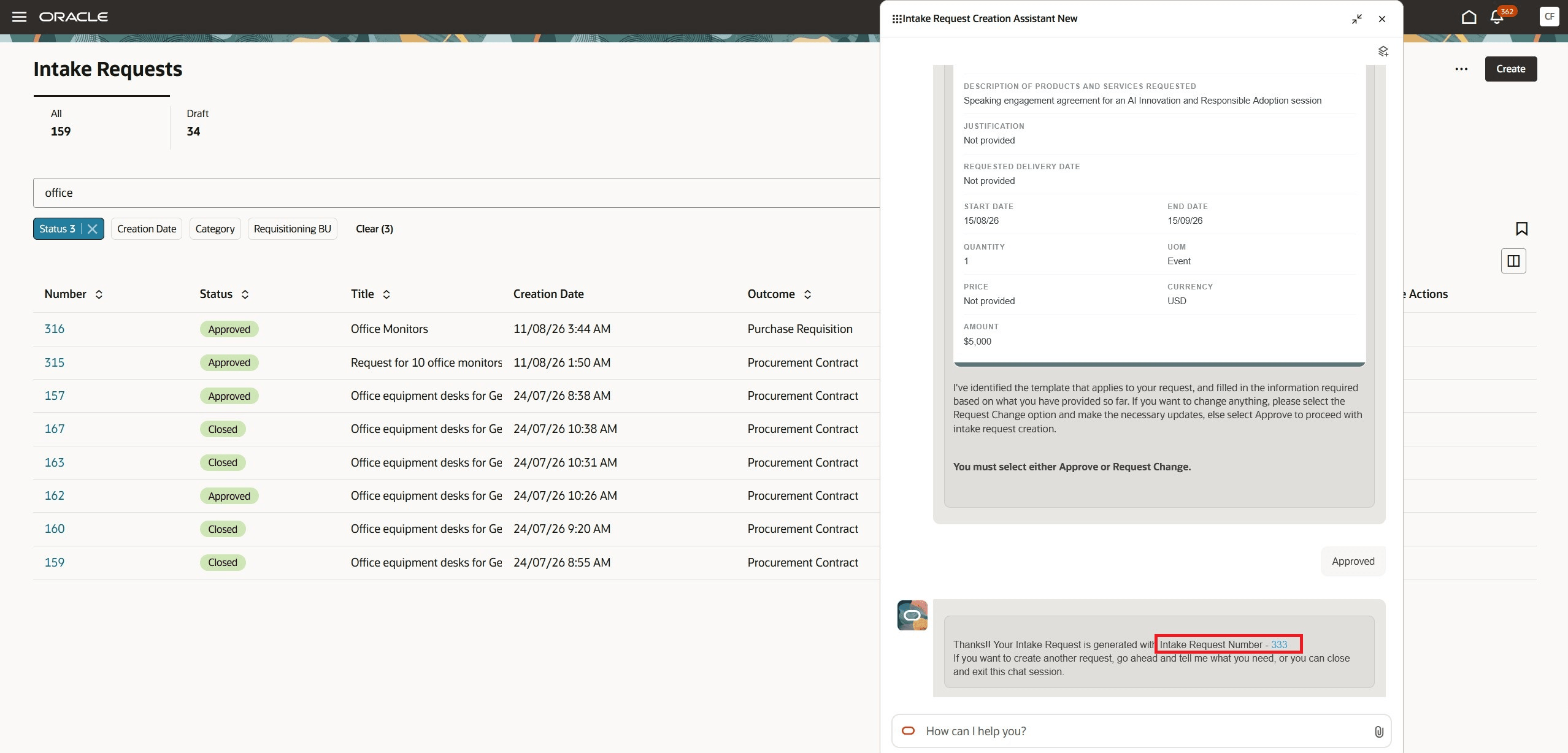
Intake request created - procurement contract
As a requester you can provide any other additional information on the edit page and submit the request for review and approval. If the request involves a new party, select the New Party toggle to capture the applicable new-party information in the intake request. This helps ensure that the contract request includes the party details needed for downstream contract processing.
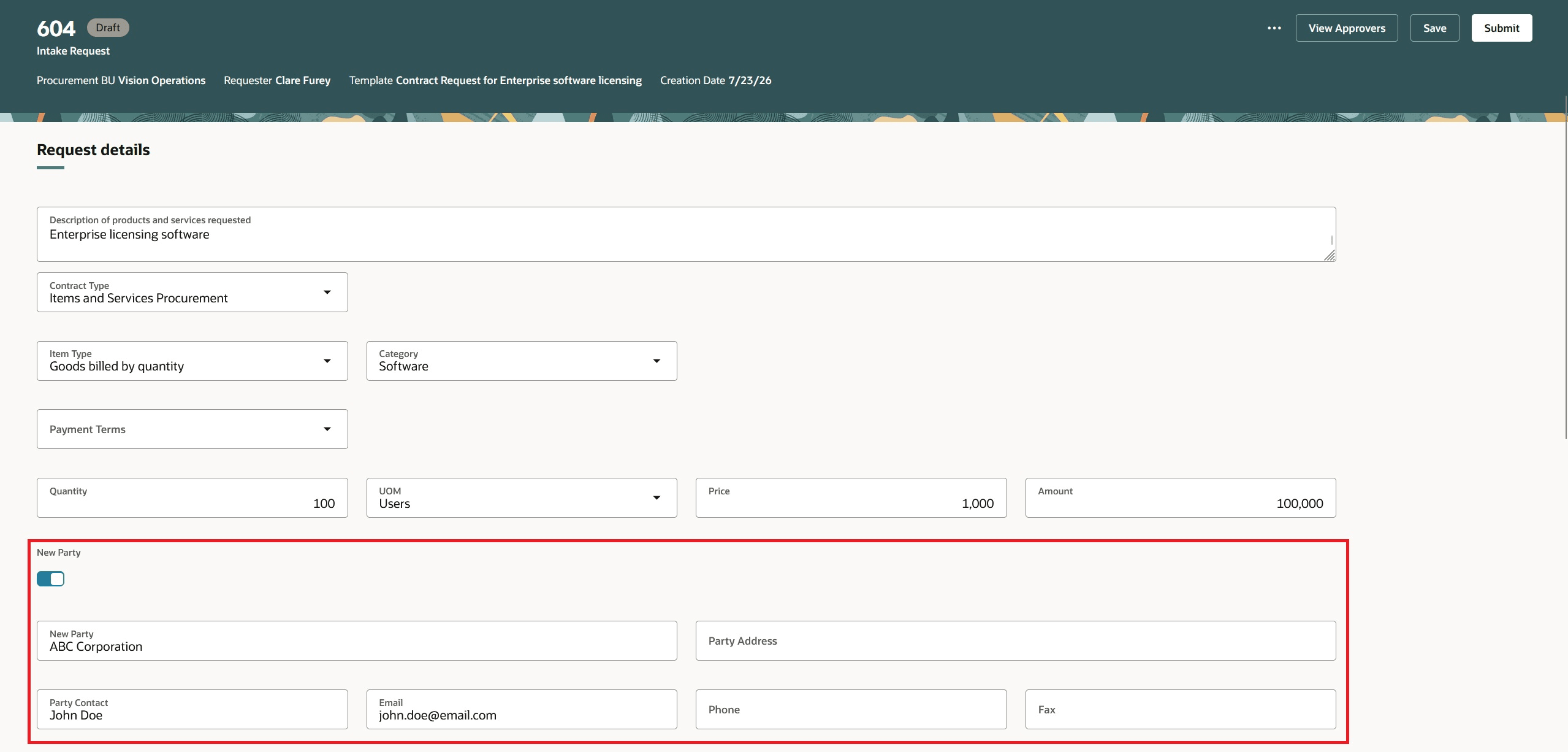
Intake request edit page - new party details
Contract display
Create the procurement contract from the intake request
When an intake request is approved and the request has a Procurement Contract outcome, the application uses the captured request details to create the procurement contract. Relevant information, including contract type, supplier or primary party, commercial terms, dates, and line details, is transferred to the contract. If there are any exceptions, the intake manager may need to intervene to provide the missing information before the Procurement Contract is created.
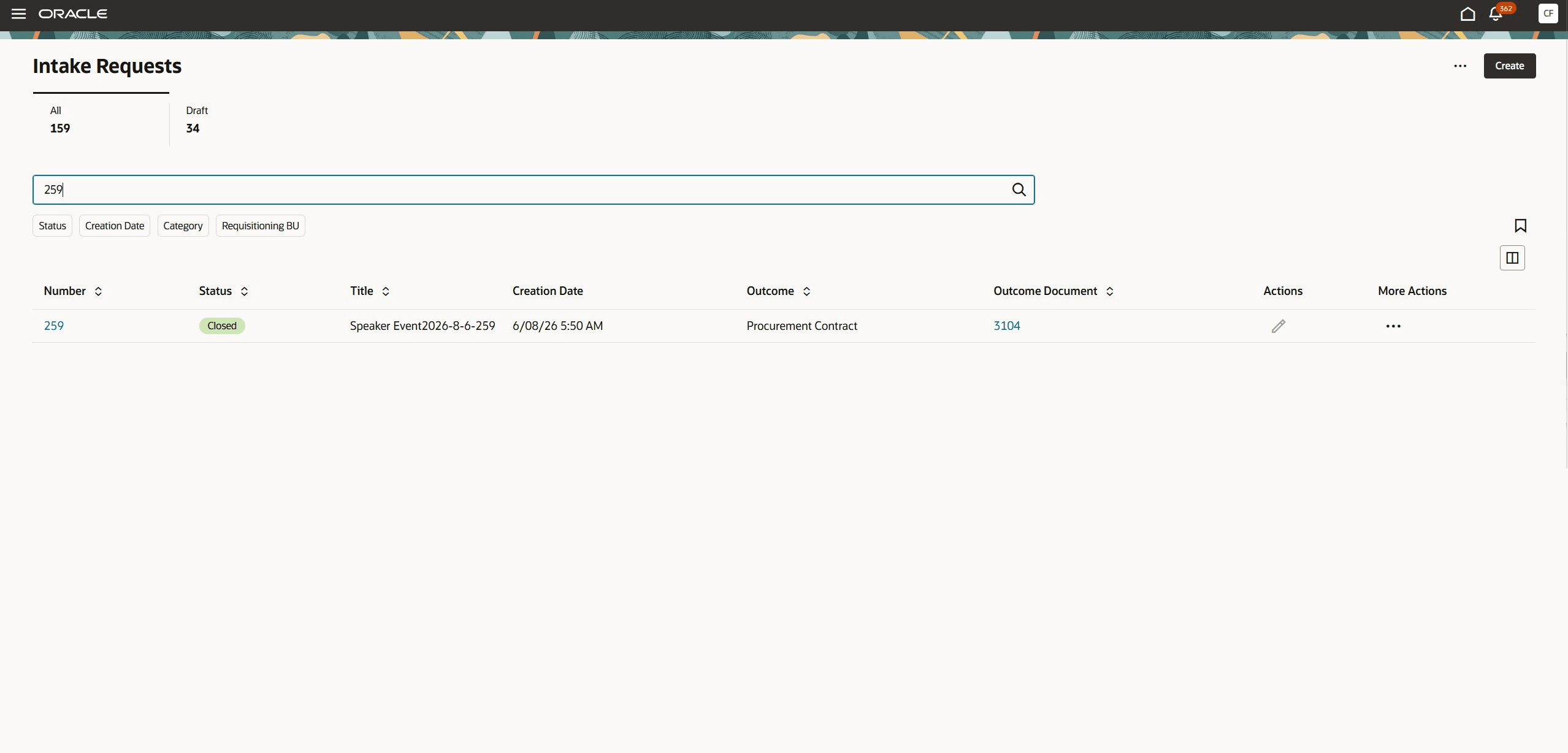
Procurement contract drill down
If you have the necessary privileges to view the contract, you can drill down on the contract number to view the contract from the Intake Request page.
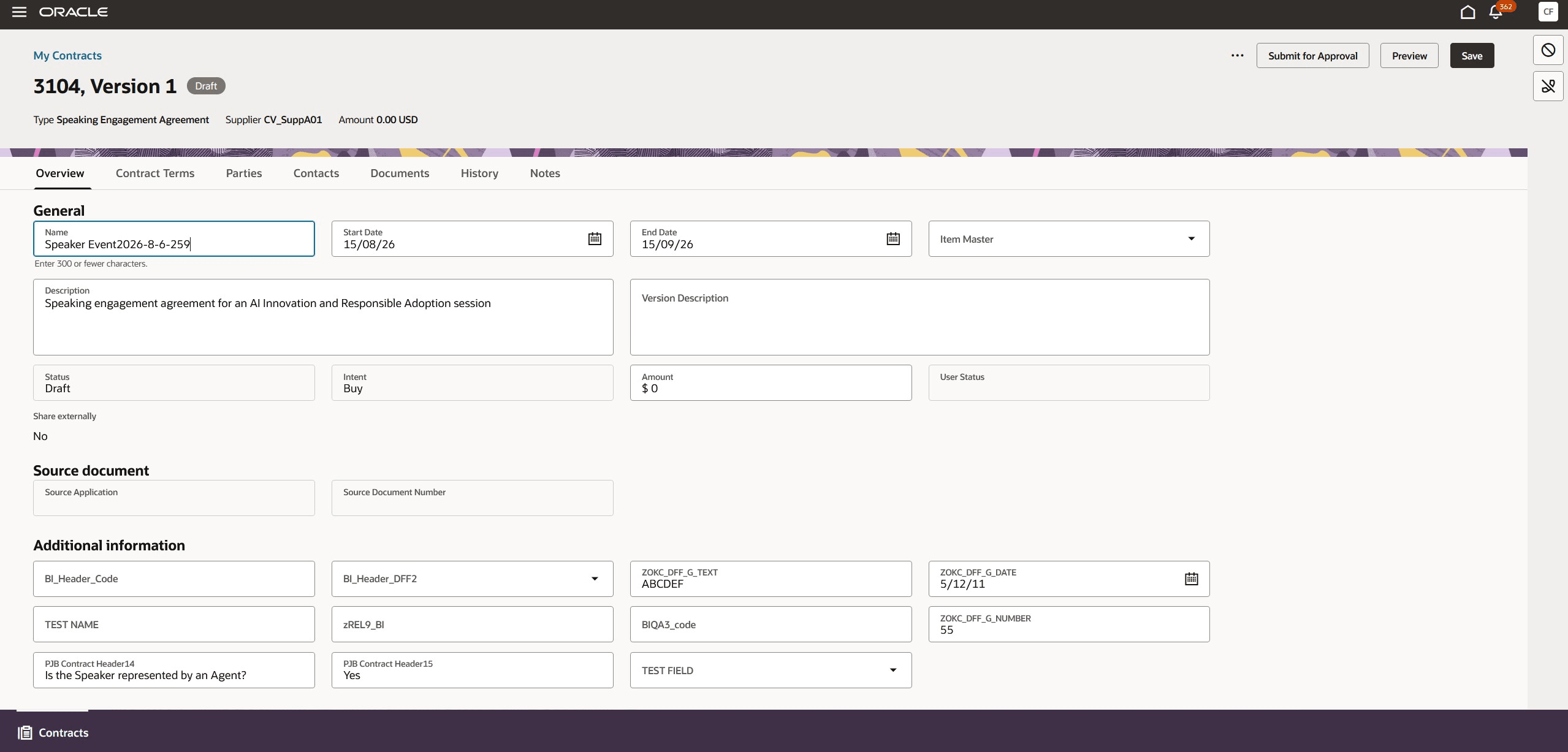
Contract display
Steps to enable and configure
- To use the Intake Request feature, you need to enable the Initiate Procurement Activities with Intake Requests opt in within the Purchasing functional area under the Procurement offering, if it is not already enabled.
- To create Procurement Contract outcome through intake request, you need to implement Procurement Contracts, if it is not already implemented.
Tips and considerations
- The fields displayed on an intake request are based on the allowed outcomes and controls configured on its associated template.
- Before creating a procurement contract, ensure that the primary party or supplier is set up. Otherwise, contract creation can fail.
- Run the Process Procurement Intake Requests scheduled process to create the procurement contract for approved intake requests with a Procurement Contract outcome. You can schedule this job based on your business requirements.
- To drill down from the contract number on the intake request page to the contract, you must have the required contract view privileges.
Key resources
- For details on initiating procurement activities with intake requests, refer to the Initiate Procurement Activities with Intake Requests feature, available in Oracle Fusion Cloud Procurement What's New, update 26C.
- For information about configuring and maintaining mappings between intake requests and downstream outcome documents, including outcome document generation, refer to the Manage outcome document mappings for intake requests feature, available in Oracle Fusion Cloud Procurement What's New, update 26D.
Access requirements
No specific privileges are required for requesters to create intake request for procurement contracts.