Support new AI homepage for Agentic AI on DCS portal
DCS Portal will support a Chat GPT-like or conversational experience to get you started quickly with Agentic AI. In 26A, the new AI-first homepage will offer a clean design with a centralized conversational interface powered by Embedded Service that will launch the AI Self-Service Agent.
You can still use the old homepage and if you want to switch to the new experience, you change the AI Homepage feature flag in the DCS app constants.
Setting AI Homepage to 'true' puts the homepage in AI Mode which results in the Search box starting an AI powered chat instead of performing a KM search. Management of ES chat by the Rules Engine uses the ai.portal.site.json file when enabled and classic.portal.site.json when disabled.
The pages, components and widgets for Agentic AI will be highly customizable in Visual Builder Designer to support your desired user experience and branding needs.
- Automate self-service and reduce costs: The portal is ready to support Agentic AI delivering end-users 24/7 answers to their questions in a human-like conversational way.
- Quick AI adoption: The DCS RI has out-of-the-box components, pages and APIs that support Fusion AI Agent Studio.
Steps to enable and configure
This feature requires:
- AI-first homepage in 26A RI: Uptake agentic AI in a fast and configurable way via the DCS and ES Reference Applications.
- New AI homepage is pre-installed ready to use.
- Enable by setting the app level constant featureFlags > AI > Homepage to true (default is false).
Step to enable the AI Homepage:
- In Visual Builder Designer, navigate to your DCS app or create a new 26A app
- Click on Variables
- Click featureFlags in the Constants section
- Click AI
- Select Homepage
- Change the default value from "false" to "true"
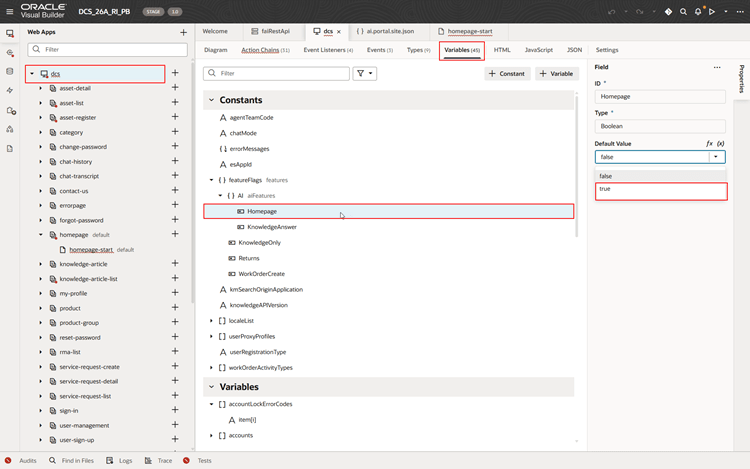
Enable featureFlag AI Homepage in DCS app
Tips and considerations
- Using our latest 26A Digital Customer Service Reference Template, this feature is automatically available.
- See component documentation in Visual Builder.
Key resources
Please refer to the following Oracle Fusion Service documentation:
Access requirements
- Sign in to the Oracle Visual Builder editor as a user with the Developer role.