Open Forms from Plugins
Release 26A enhances the Oracle Fusion Field Service Plugin API, allowing you to open and manage core Field Service forms directly within your custom plugins. The new process for applying changes for Oracle Fusion Field Service solutions reduces development effort and accelerates changes to mobile worker workflows by eliminating the need to rebuild or redeploy plugin UI pages. You can now:
- Open forms from plugins for Resource, Activity, or Inventory
- Pre-fill form data using parameters
- Work online and offline
- List and restore form drafts
- Query and open submitted forms
- User interface improvements to the Forms & Plugins page
Open Forms for Resource, Activity, or Inventory
Use the close method of Plugin API to open forms or perform actions. When using this procedure, you must specify the following parameters:
Parameter Table
| Parameters | Description | Notes |
|---|---|---|
| backScreen | Page to return to | Must always be "open_form". |
| backFormLabel | Label of the form to open | Required when targeting a specific form. |
| backActivityID | Activity ID if opening the form for a specific activity | Use when context is an activity. |
| backInventoryID | Inventory ID if opening the form for a specific inventory | Use when context is an inventory. |
| backResourceID | Resource ID if opening the form for a specific resource | Use when context is a resource. |
| backFormParams | Key-value pairs to pre-fill form fields | Used to pre-populate form inputs. |
Example: close Method
{

    "apiVersion": 1,

    "method": "close",

    "backScreen": "open_form",

    "backFormLabel": "some_form_label",

    "backActivityId": 1111,

    "backInventoryId": 1111,

    "backFormParams": {

        "activity.some_property": "predefined_value"

 }

}
Note: Leaving backActivityId, backInventoryId, or backResourceId parameter blank will mean that the form is opened for a resource.
Pre-fill Data on Forms
When opening a form using Plugin API you can use backFormParams to set default values for fields when a form opens. The syntax for backFormParams parameter is the same as for default and validation rules available for forms. You can define a field in the format {entity}.field_label and then add a value for it.
The Plugin API now includes the same functionality as the Parameters button used in Activity or Inventory details.
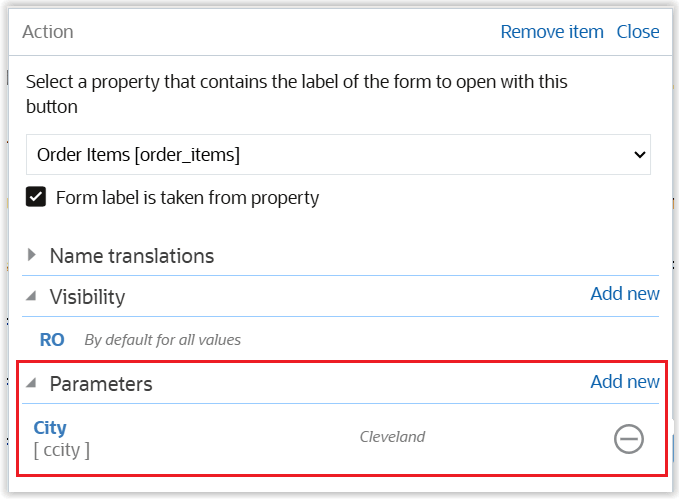
Pre-fill data on forms
Working Online and Offline
The application support opening forms from plugins in both online and offline modes.
However, additional configuration may be required to define forms for offline usage. See Define forms for offline plugins.
Working with Form Drafts
Get a list of drafts
The new getFormDrafts procedure of Plugin API allows plugins to obtain a list of form drafts saved by a mobile worker for further usage.
The procedure has no input parameters and should be used "as is".
Response
Returns a list of saved drafts. Each item has the following structure:
Response
| S.No | Name | Type | Description |
|---|---|---|---|
| 1 | draftId | String | Unique identifier of the form draft |
| 2 | submittedAt | String | Date and time when the form draft was submitted (in user's format) |
| 3 | formLabel | String | Short textual label of the form |
| 4 | formTitle | String | Full title of the form (in user's language) as displayed to the user |
| 5 | userName | String | Name of a user who submitted the form draft |
| 6 | activityId | String | Null | Specifies Activity ID if a form was submitted for activity |
| 7 | inventoryId | String | Null | Specifies Inventory ID if a form was submitted for inventory |
Restore Draft When Opening Form
The new restore_form_draft mode is introduced for the Close method to restore a draft when opening a form. It allows to open a form and automatically restore a draft of it previously saved by a user.
Restore Draft
| S. No | Name | Type | Mandatory | Description |
|---|---|---|---|---|
| 1 | draftId | String | Yes | Unique identifier of the Form draft |
| 2 | backFormLabel | String | Yes | Short textual label of the Form |
| 3 | backActivityId | String | No | Specifies the Activity for the Form page |
| 4 | backInventoryId | String | No | Specifies the Inventory for the Form page |
Get a List of Submitted Forms
The new getSubmittedForms procedure allows plugins to query forms submitted during a current business day. The procedure filters submitted forms based on any combination of the following optional fields: activityId, inventoryId, resourceInternalId, and formLabel.
Input parameters (procedureData.params):
| S.No | Name | Type | Description |
|---|---|---|---|
| 1 | resourceInternalId | String | Specifies the Resource for the Form page |
| 2 | activityId | String | Specifies the Activity for the Form page |
| 3 | inventoryId | String | Specifies the Inventory for the Form page |
| 4 | formLabel | String | Specifies the Form label |
Response
Returns a list of submitted forms, filtered according to the provided parameters. Each item has the following structure:
List of Submitted Forms
| S. No | Name | Type | Description |
|---|---|---|---|
| 1 | formSubmitId | String | Unique identifier of the Form submission |
| 2 | submittedAt | String | Date and time when the Form was submitted (in user's locale) |
| 3 | formLabel | String | Short textual label of the Form |
| 4 | formTitle | String | Full title of the Form (in user's language) as displayed to the user |
| 5 | userName | String | Name of the user who submitted the Form |
| 6 | resourceInternalId | String | Specifies the Resource for the Form page |
| 7 | activityId | String | Null | Specifies the Activity for the Form page |
| 8 | inventoryId | String | Null | Specifies the Inventory for the Form page |
Open Specific Form Submit
The open_form_submit mode is introduced for the Close method to open a specific form submit from the plugin.
Specific Form Submit
| Name | Type | Description |
|---|---|---|
| backFormSubmitId | String | Unique identifier of the Form submission |
Define Forms for Offline Plugins
In addition to already existing methods to cache forms for offline use the feature adds the yet another mechanism to make forms available offline. Current methods imply that the application caches all forms configured as buttons or workflow steps. Hovever, when using forms within plugins, system integrators won't configure such forms as buttons/steps that's why the new approach is definitely required to enable the feature for offline plugins. When adding or modifying a form it will be possible to choose organizations and user types to cache the form for offline use. Following this configuration the application will cache the form for all technicians belonging to selected organizations/user types and make it available offline. When none of organization/user types is chosen then the new approach to cache the form for offline use won't be applied.
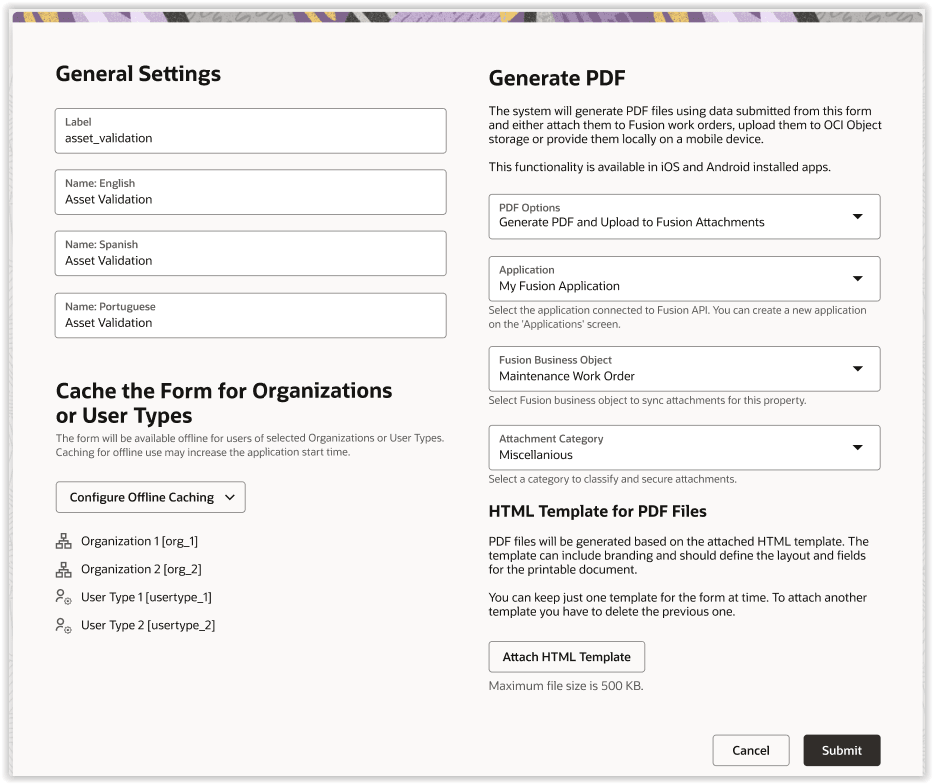
Forms for Offline Plugins
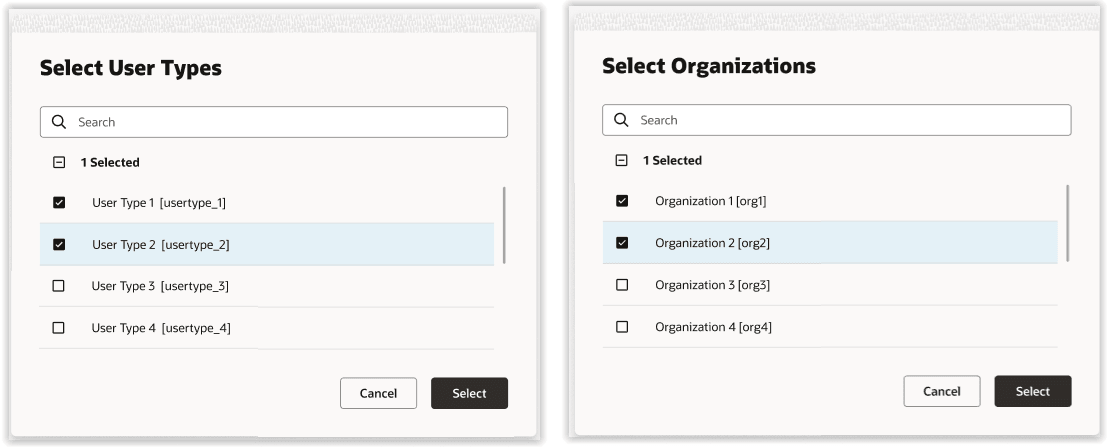
Select User and Organization
Improvements for Forms & Plugins page
The page is improved to consistently show all the important parameters for both forms and plugins.
- Three-column layout for clearer visibility
- Offline Caching: Enabled indicator for forms with offline caching configured
- Configured button count moved to the second column
- New icon to view specific pages where buttons are configured: Buttons Configured

Buttons Configured Icon
- Updated and User metadata added for plugins to track recent configuration changes
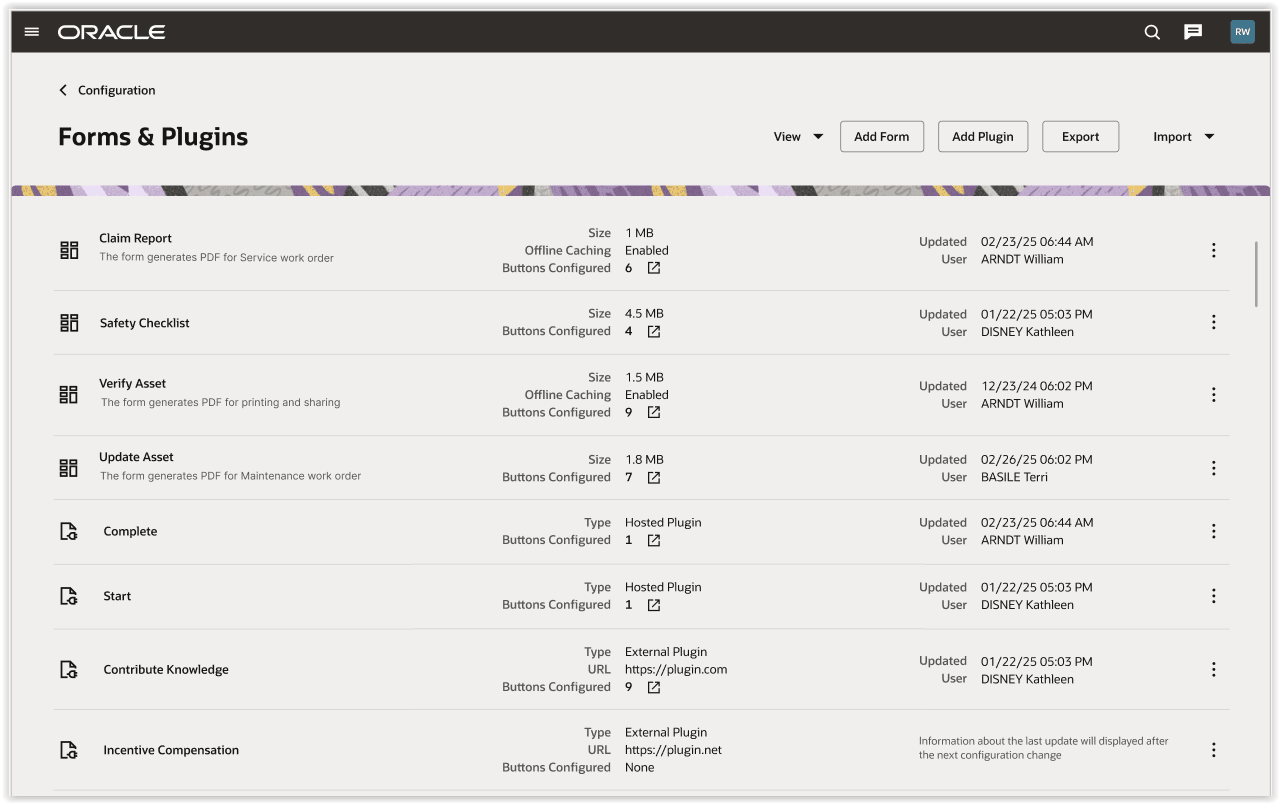
Forms & Plugin Page
Note: Some plugins may not display data about a user and a date of update immediately after the 26A update. These plugins displays the message: Information about the last update will displayed after the next configuration change.
Business Benefit
- Lower cost of service for users using plugins and requiring frequent updates to plugin pages
- Ability to change pages on demand at any time and by business stuff
- Instant delivery of changes to workforce using embedded capabilities of forms
Steps to enable and configure
You don't need to do anything to enable this feature.
Tips and considerations
Let’s take a look at the following use case which explains how to optimally use Plugin API calls.
Use case
- A mobile worker starts an activity from MyRoute page using the plugin.
- The plugin opens 'Activity details' of the started activity
- The mobile worker opens the plugin from 'Activity details' to proceed with the following work
- The mobile worker installs assets - 'Cisco video conferencing', 'Copy machine' and 'Monitor'
- The mobile worker opens 'Asset validation' form for 'Copy machine', fills and submits the form
- The mobile worker opens 'Asset inspection' form for 'Cisco video conferencing', fills some data but navigates out of the form creating 'Draft'
- The mobile worker opens 'Asset inspection' form again and the form is automatically restored from draft
- The mobile worker submits 'Asset inspection' form
- The plugin shows references to submitted 'Asset validation' and 'Asset inspection' form
- The mobile worker opens 'Asset validation' form to make sure that their correctly filled the form
Discovering Activities and Inventories
Before interacting with forms, the plugin needs to know which activities and inventories it will operate on. This information is provided by the host application through the "open" message, sent using postMessage when the plugin is launched.
The payload of this message contains two key arrays:
- activityList – a list of activities with their unique IDs and properties
- inventoryList – a list of inventories with their IDs and properties
These data allow the plugin to identify the resources for subsequent operations.
Example: postMessage
{
    "apiVersion": 1,
    "method": "open",
    "entity": "activityList",
    "environment": {
        ...
    },
    "user": {
        ...
    },
    "resource": {
        "pactive": 1,
        "pid": 18370,
        "currentTime": "2025-09-04 08:23:47",
        "deviceUTCDiffSeconds": 1,
        "timeZoneDiffSeconds": -14400
    },
    "team": {
        "teamMembers": {},
        "assistingTo": {},
        "assistingMe": []
    },
    "queue": {
        "date": "2025-09-04",
        "status": "activated",
        "isActual": true,
        "activationTime": "2025-09-04 08:07:00"
    },
    "activityList": {
        "8769614": {
            "position_in_route": 1,
            "astatus": "pending",
            "aid": "8769614",
            "temporary_aid": "17569852170-3393"
        },
        "8769615": {
            "position_in_route": 2,
            "astatus": "pending",
            "aid": "8769615",
            "temporary_aid": "17569870070-7294"
        },
        "8769616": {
            "position_in_route": 3,
            "astatus": "pending",
            "aid": "8769616",
            "temporary_aid": "17569870300-7209"
        }
    },
    "inventoryList": {
        "26030118": {
            "inv_aid": null,
            "invtype": "Cisco video conferensing",
            "quantity": 1,
            "invsn": "123",
            "invpool": "provider",
            "invid": "26030118",
            "string_text_inventory_property": null,
            "inv_pid": 18370
        },
        "26030119": {
            "inv_aid": null,
            "invtype": "Copy machine",
            "quantity": 1,
            "invsn": "222",
            "invpool": "provider",
            "invid": "26030119",
            "string_text_inventory_property": null,
            "inv_pid": 18370
        },
        "26030120": {
            "inv_aid": null,
            "invtype": "Monitor",
            "quantity": 1,
            "invsn": "333",
            "invpool": "provider",
            "invid": "26030120",
            "string_text_inventory_property": null,
            "inv_pid": 18370
        }
    },
    "buttonId": "1215575",
    "openParams": {},
    "allowedProcedures": {
        "openLink": true,
        "searchParts": true,
        "searchPartsContinue": true,
        "getParts": true,
        "getPartsCatalogsStructure": true,
        "print": true,
        "share": true,
        "updateIconData": true,
        "updateButtonsIconData": true,
        "getAccessToken": true,
        "getAuthorizationCode": true,
        "getSubmittedForms": true,
        "getFormDrafts": true
    }
}
Configuring Additional Properties
To ensure the plugin receives the required fields (position_in_route, astatus, or others), they must be configured in:
Forms & Plugins ->Edit Plugin-> Additional Properties.
Selecting an activity to start
When a mobile worker navigates to the MyRoute page and opens the plugin, the host application includes all activities in the payload. The plugin can then determine which activity should be started:
- Inspect the activityList
- Filter activities with astatus: "pending"
- Select the activity with the smallest "position_in_route value"
- Trigger the start of this activity using the Plugin API ("close" method)
Example: close method
{
    "apiVersion": 1,
    "method": "close",
    "backScreen": "start_activity",
    "backActivityId": "8769614"
}
Install Assets
When the mobile worker opens the plugin from the Activity details page, the workflow continues with installing the required assets, for example:
- Cisco video conferencing
- Copy machine
- Monitor
To proceed, the plugin relies on the data from postMessage. The inventoryList payload contains all available inventories, each with a unique invid.
The plugin should:
- Inspect the inventoryList
- Locate the required assets by their properties (such as, name or type)
- Retrieve the corresponding invid values
- Trigger the plugin API to register the installation of each asset
Since multiple assets need to be installed, the Plugin API ("close" method) will be invoked separately for every invid.
Example: close method {
"apiVersion": 1,
"method": "close",
"backScreen": "install_inventory",
"backActivityId": "8769614",
"backInventoryId": "26030118"
}
Asset validation - Submit
The mobile worker opens the Asset validation form for 'Copy machine' using the Plugin API ("close" method).
Example: close method
{
    "apiVersion": 1,
    "method": "close",
    "backScreen": "open_form",
    "backFormLabel": "Asset_validation",
    "backActivityId": "8769614",
    "backInventoryId": "26030119"
}
The mobile worker fills in the required data and submits the form.
The host application saves the form as completed.
Asset inspection – Creating a draft
The mobile worker opens the Asset inspection form for Cisco video conferencing using the Plugin API ("close" method).
Example: close method
{
    "apiVersion": 1,
    "method": "close",
    "backScreen": "open_form",
    "backFormLabel": "Asset_inspection",
    "backActivityId": "8769614",
    "backInventoryId": "26030118"
}
The mobile worker fills in some data and navigates away. The host application saves the form as a Draft.
Asset Inspection - Restore and Submit
The mobile worker opens the Asset inspection form again.
The form is automatically restored from an existing Draft.
To handle this, the plugin first calls the getFormDrafts procedure to retrieve the list of drafts.
Example: callProcedure message
{
"apiVersion": 1,
"method": "callProcedure",
"callId": "83yhtExpHwfo3eOwpOdinQ",
"procedure": "getFormDrafts",
"params": {}
}
Example: callProcedureResult message
{
    "apiVersion": 1,
    "method": "callProcedureResult",
    "callId": "83yhtExpHwfo3eOwpOdinQ",
    "procedure": "getFormDrafts",
    "resultData": [
        {
            "draftId": "%7B%22p%22%3A%7B%22m%22%3A%22form%22%2C%22label%22%3A%22Asset_inspection%22%2C%22invid%22%3A%2226030118%22%2C%22a%22%3A%22form%22%7D%2C%22uid%22%3A1761%7D",
            "activityId": "8769614",
            "inventoryId": "26030118",
            "formLabel": "Asset_inspection",
            "formTitle": "Asset inspection",
            "submittedAt": "09/04/25 10:23",
            "userName": "BRC.ROOT"
        }
    ]
}
After retrieving the draft details, the plugin invokes the Plugin API ("close" method), passing the draftId, activityId, inventoryId, and formLabel.
This restores the form from the draft and allows the mobile worker to submit it.
Example: close method
{
    "apiVersion": 1,
    "method": "close",
    "backScreen": "restore_form_draft",
    "backFormLabel": "Asset_inspection",
    "backActivityId": "8769614",
    "backInventoryId": "26030118",
    "backDraftId": "%7B%22p%22%3A%7B%22m%22%3A%22form%22%2C%22label%22%3A%22Asset_inspection%22%2C%22invid%22%3A%2226030118%22%2C%22a%22%3A%22form%22%7D%2C%22uid%22%3A1761%7D"
}
Submitted Forms - References
The plugin displays references to submitted Asset validation and Asset inspection forms.
To retrieve this information, the plugin calls the getSubmittedForms procedure.
Example: callProcedure message
{
    "apiVersion": 1,
    "method": "callProcedure",
    "callId": "%%uniqueId%%",
    "procedure": "getSubmittedForms",
    "params": {
        "formLabel": "",
        "resourceInternalId": "",
        "activityId": "",
        "inventoryId": ""
    }
}
Example: callProcedureResult message
{
    "apiVersion": 1,
    "method": "callProcedureResult",
    "callId": "HRW9sTJ1dmHkBvmaRWP8Eg",
    "procedure": "getSubmittedForms",
    "resultData": [
        {
            "formSubmitId": "135",
            "submittedAt": "09/04/25 11:03",
            "formLabel": "Asset_validation",
            "formTitle": "Asset validation",
            "userName": "BRC.ROOT",
            "resourceInternalId": "18370",
            "activityId": "8769614",
            "inventoryId": "26030119"
        },
        {
            "formSubmitId": "136",
            "submittedAt": "09/04/25 11:03",
            "formLabel": "Asset_inspection",
            "formTitle": "Asset inspection",
            "userName": "BRC.ROOT",
            "resourceInternalId": "18370",
            "activityId": "8769614",
            "inventoryId": "26030118"
        }
    ]
}
Asset Validation - Review Submitted Form
The mobile worker opens the Asset validation form to verify that it was correctly filled.
Using the formSubmitId retrieved from the Submitted forms procedure, the plugin opens the desired submission using the Plugin API (close method).
Example: close method
{
    "apiVersion": 1,
    "method": "close",
    "backScreen": "open_form_submit",
    "backFormSubmitId": "135"
}