Take Action on Your Cases with the Case Analyzer AI Agent
The Case Analyzer Agent is a case-specific AI agent that Case Workers can access anytime to simplify the management of complex, long-running cases at every stage—from intake through resolution. Case Workers can invoke the Case Analyzer agent, which includes a wide range of reporting and analytic behaviors such as a complete timeline of all Case events and actions, suggestions for next-best actions, and assessments of a Case's escalation likelihood and resolution readiness.
The Case Analyzer Agent includes three new helpful prompts for the user to begin their interaction but the Case Analyzer is prepared to answer most prompts. Examples of new adhoc prompts include:
- Show me similar cases
- Recommend action plans for this case
- Add action plan <template name> to this case
NOTE: In order for the Case Analyzer agent to provide the information for questions 1 and 2, the RAG documents will need to be created, uploaded and published by launching a job. See the optional steps below under the Steps to Enable section.
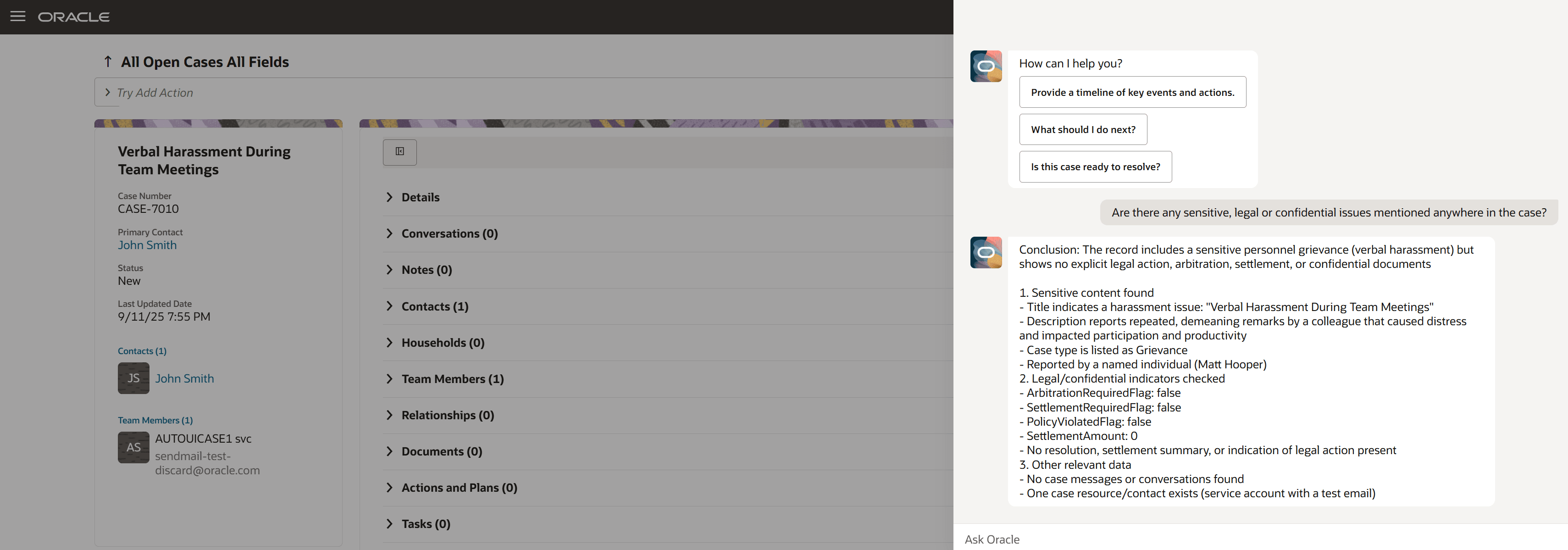
Screenshot of Case Analyzer interaction panel
Providing AI guidance simplifies the management of complex Cases and ensures Case Workers are using the most accurate view of a Case and applying the best practices for that Case.
Steps to enable and configure
The Case Analyzer is seeded in AI Agent Studio. To enable the Case Analyzer, you must:
- In AI Agent Studio: Clone the seeded Case Analysis Advisor Agent, and remember to copy the 'Team Code' of the clone.
- From Navigator > Tools > AI Agent Studio, search for Case Analysis Advisor
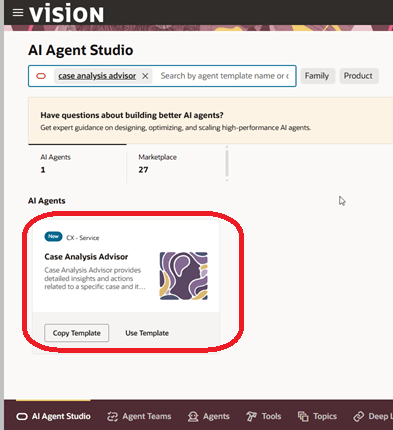
Case Analysis Advisor
- Click on the Copy Template button and give it a name that will be appended to this agent. In the next screen, you will click the Publish button.
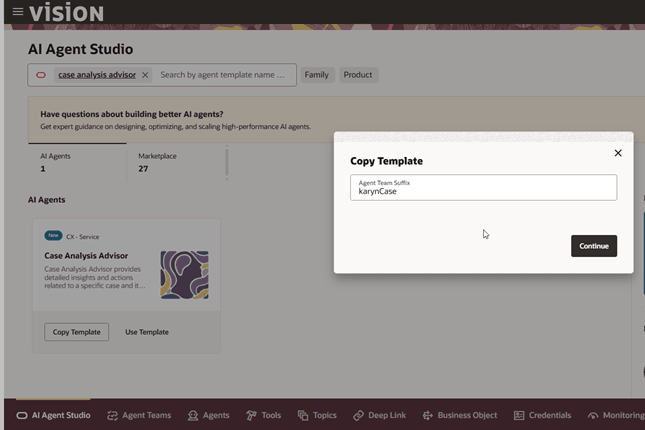
Copied Agent Template
- Next go to the Agent Teams tab, search for your copied template and get the value of the Agent Team Code.
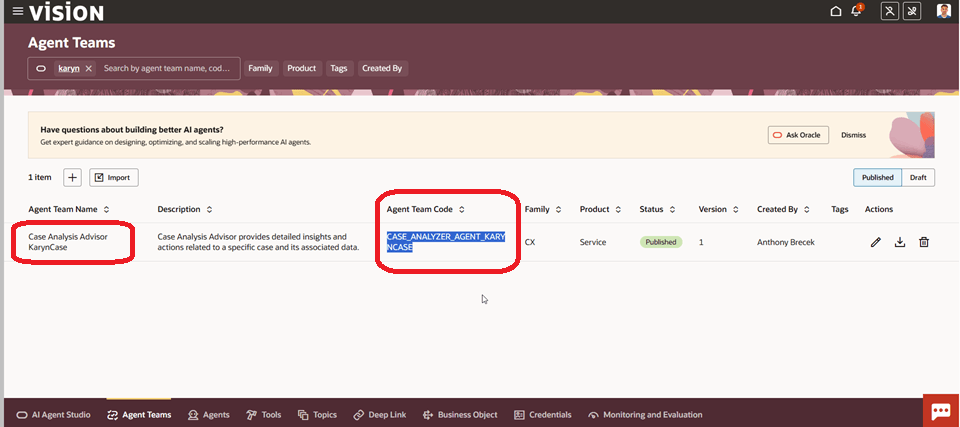
Agent Team Code
- In Setup & Maintenance (under 'Manage Case Profile Values'): Assign the value of the Agent Team Code of the cloned Agent to the Profile Option 'ORA_SVC_CASE_DEFAULT_AGENT'.
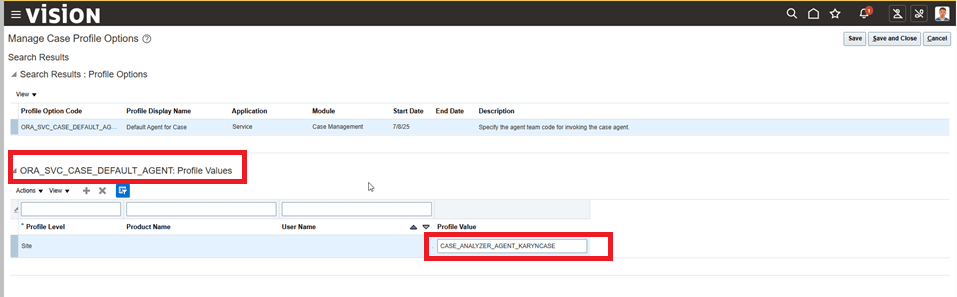
Set ORA_SVC_CASE_DEFAULT_AGENT Profile Option
- In Application Composer: Go to Smart Actions, search for and enable the 'Start Case Analyzer' Smart Action (this will require creating and publishing a Sandbox).
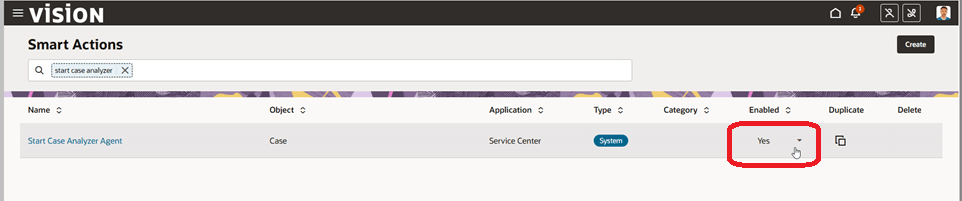
Enable Start Case Analyzer Smart Action
- Optional Steps - If the case worker wants to see similar cases or similar action plans, the Administrator will need to create a JSON file of cases and action plans to upload and publish.
-
Using a tool like Postman, connect to an environment that contains the similar cases so you can query for the cases and save them to a JSON file. Once connected, enter this string and use the Get command.
-
<<hostname>>/crmRestApi/resources/11.13.18.05/cases?fields=CaseNumber,Title,Description,StripeCd&limit=15&onlyData=true
- This will return an output similar to below.

Postman Output of Similar Cases
- Copy the contents in the Body tab and paste it into a file, replace the word "items" with "data" and save it as a JSON file.
- To get similar Action Plans, perform the same steps above using this text.
<<hostname>>:443/crmRestApi/resources/11.13.18.05/actiontemplates?q=ObjectEntityName='Case'&fields=TemplateNumber,Name,Description,StripeCd&limit=15
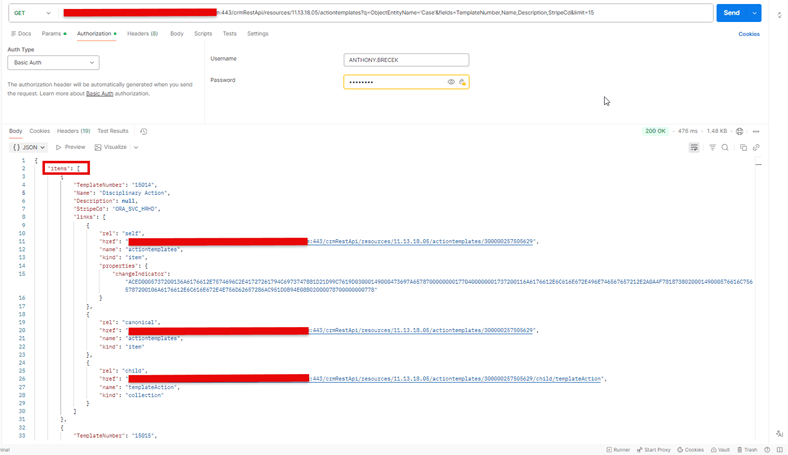
Postman output of Similar Action Plans
- Copy the contents in the Body tab and paste it into a file, replace the word "items" with "data" and save it as a JSON file.
- Now that you have 2 JSON files, you will need to add them to the appropriate Rag Templates and then publish the documents.
- Go back to AI Agent Studio and click on the Tools tab. Search for the Similar Cases RAG and click the Pencil icon
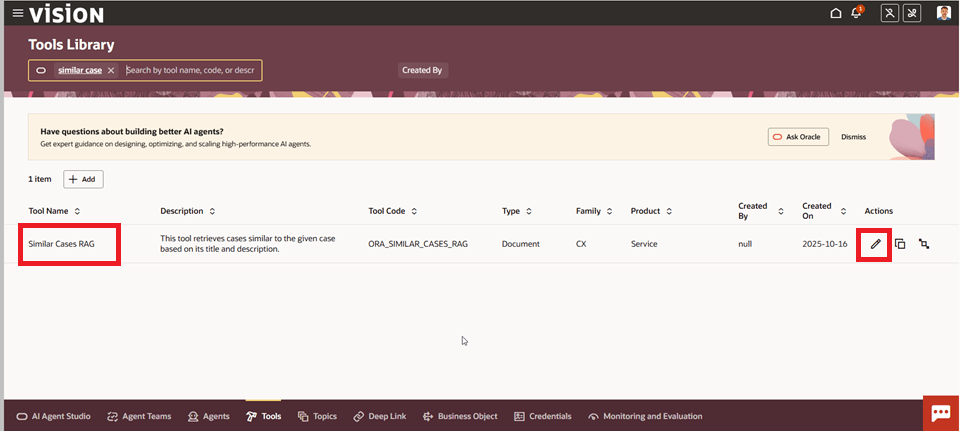
Similar Cases Rag
- Under Documents, click on the Add button and fill out the fields. Upload the JSON file and set the Status to Ready to publish. Click Save.
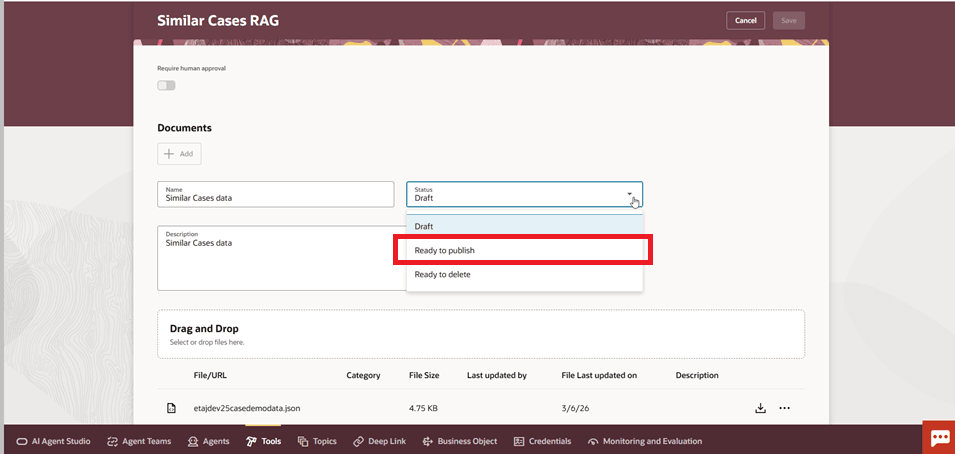
Upload JSON Document
- Search for the Case Action Plan Template RAG and click the Pencil icon.
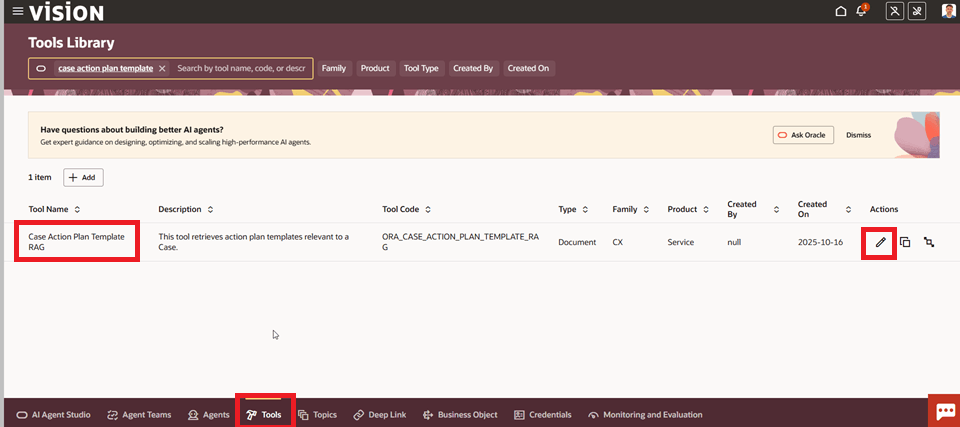
Case Action Plan Template Rag
- Under Documents, click on the Add button and fill out the fields. Upload the JSON file and set the Status to Ready to publish. Click Save.
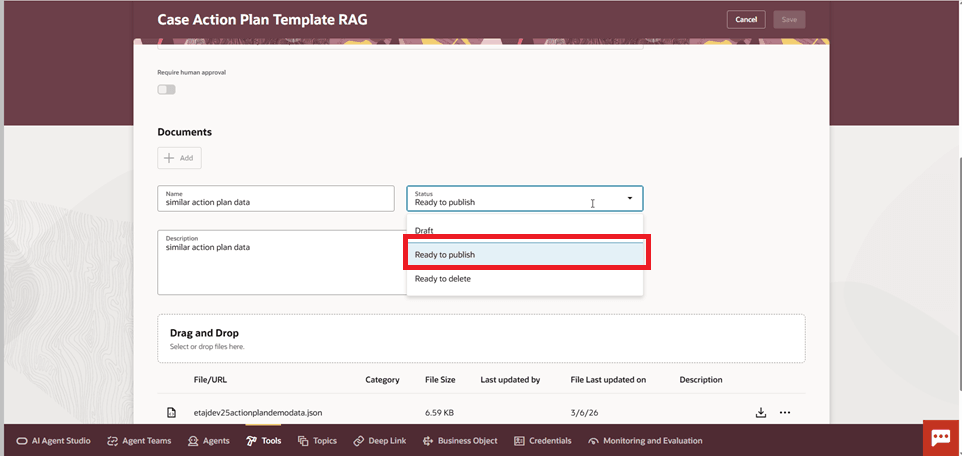
Upload JSON Document
- Next step is to run a process to publish these document. Go to Navigator > Tools > Scheduled Processes and search for the Process Agent Documents
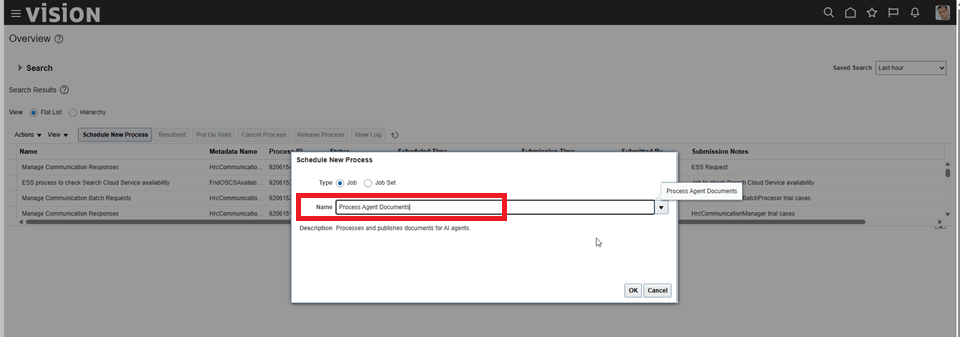
Process Agent Documents
-
After this process has completed, go back to the AI Agent Studio to confirm the documents that were loaded and set to Ready to publish, now has a status of Published.
-
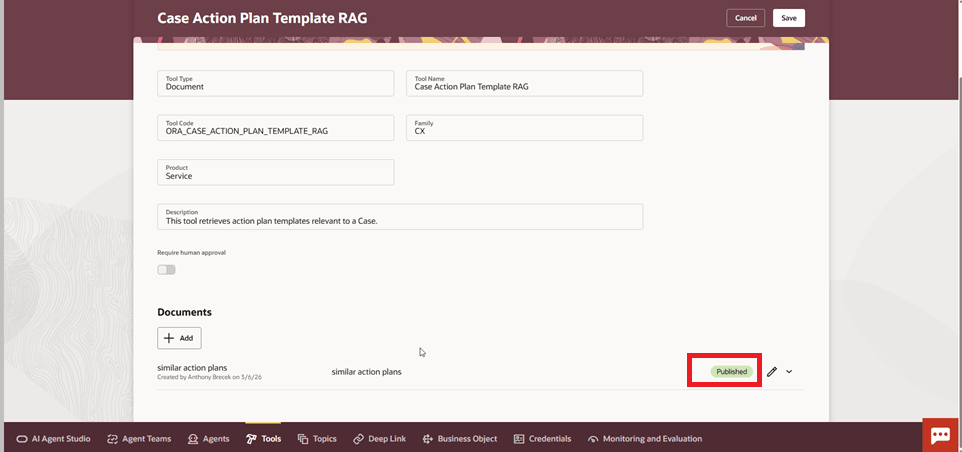
Published Status
Tips and considerations
In all analysis and responses, the Case Analyzer Agent includes these parts of a Case:
- All core Case fields (Title, Description, Category, Type, etc.)
- Notes
- Conversations
- Actions & Plans
- Documents (metadata only)
- Tasks
- Appointments
- Relationships
- Contacts
- Team Members
Key resources
To learn more about AI Agent Studio, consider these resources:
- 'Oracle AI for Fusion Applications' (documentation)
- 'Introduction to AI Agents in Oracle Cloud HCM and SCM' (recorded presentation, account required)
- 'Oracle AI Agent Studio for Fusion Applications Foundations Associate' (training and certification, account required)
Access requirements
The Case Analyzer Agent uses the roles, privileges and access grants of the user it is interacting with. The Case Analyzer is only as privileged as the Case Worker!