Use lists when authoring articles
When creating custom content types/sources you will now be able to take advantage of lists as a data entry option. By default, list attributes are enabled to be used for filtering. All attributes enabled for filtering will show up in Redwood Knowledge authoring as filters on the list page, allowing your authors to quickly locate related articles. Additionally, for content sources used in AI Agents via a Connector, all filterable attributes will be considered when locating content matches.
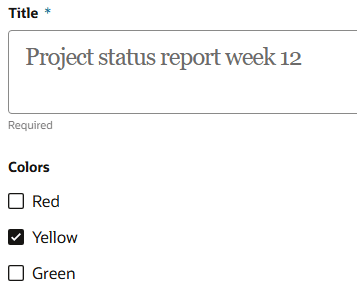
Authoring an article that contains a list
- Consistency: Ensure standardized terminology and formats across all articles, reducing ambiguity and improving information uniformity.
- Efficiency: Speed up the content creation process for authors by providing predefined options.
- Accuracy: Minimize data-entry mistakes by limiting inputs to valid, pre-approved values, ensuring trustworthy and reliable article content.
Steps to enable and configure
- Create a standard lookup, making note of the "Lookup Type" - see more about standard lookups below
- Create or edit a content type via Setup and Maintenance or a content source in AI Agent Studio
- Under Content Schema, click the + to add a new attribute
- Enter a name for your attribute (as with all attribute types)
- Select "List" as your Field Type
- Enter your Lookup's Type in the Data List Type field
- Select the Data List Display Type that you think is appropriate - see Tips section below to understand more about the options available
- Once you have created your content type/source then go to Authoring and try creating an article in your new content type and observe the behavior of the list you configured
If your user does not have the correct Content Type Data Security Policy (and matching Department Data Security Policy) that will have to be updated prior to the final testing step.
Tips and considerations
Data List Display Types
All lists are displayed in the same way to consumers of your articles therefore this is only a decision about the experience that your authors will have in the Authoring UI. These are your options:
| Option | Allows multi-select | Notes |
|---|---|---|
| Radio buttons | No | Whether or not the attribute is marked as required, once a selection has been made there is no way to cause attributes using these types to have no value. |
| Single-select list | No | |
| Checkboxes | Yes | If your list is more than ~10 items you may find the display becomes longer than you wish, consider using multi-select instead.* |
| Multi-select list | Yes |
*Radio buttons and checkboxes are best suited to lists with less than ten values because each value is presented to authors on a new line.
Standard Lookups
In Setup and Maintenance search for "Manage Standard Lookups". Once there you should be able to create a standard lookup that is compatible with this feature. If you are creating a new lookup type, you can select "Knowledge Authoring" as the Module. One important thing is that you will want to make the "REST Access Secured" value be "Anonymous" or "Authenticated" in order for this feature to work correctly.
Display Order
- Authors - will see values in ascending alphabetical order unless your lookup type has display order defined for its values
- End users - if the attribute allows for selection of multiple values, the values will be displayed in the order they are selected