Mark content attributes as searchable or for filtering
In Knowledge Management, Content Types are a tool for structuring the various types of content that you maintain. Content types have a schema comprised of attributes that you configure. For example, a "How-to" content type might have a schema that contains a Title, Overview, and Steps. It can happen that you have attributes in your schema that are there to store data you have no intent for users to match against when searching, e.g. what would an end user type to search for articles that contain a toggle that is enabled? Similarly, you may have attributes that need to be made available as filters, e.g. return articles that have a "release date" value between dateX and dateY. This feature adds checkboxes in the Redwood Content Type admin UI that allows you to determine how you want each attribute should behave, see the steps below for more details. Making an attribute available to search determines whether or not searches performed via search boxes in Service Center, My Help, DCS, etc. will match the contents of the attribute. Making an attribute available for filtering only has an effect when the content type is used via a connector in AI Agent Studio in 26B or via api.
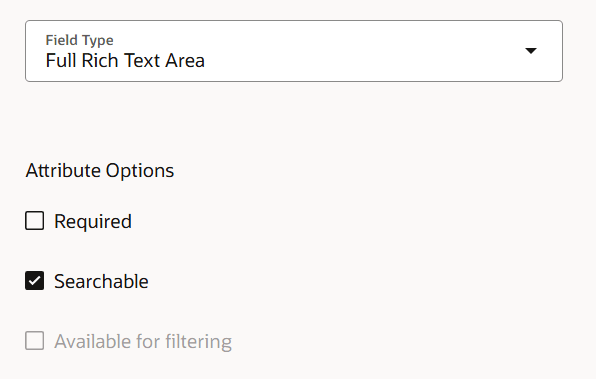
Attribute options screenshot
Filtering is now more flexible than ever, paired with new attribute types like lists, making sure the content being considered by search are exactly the ones you want in the context where your users are searching. Additionally, being able to control the availability of an attribute to search creates new opportunities for data storage.
Steps to enable and configure
Whether creating a new content type via "Manage Knowledge Content Types Redwood" in setup and maintenance or a new Custom Content Source via AI Agent Studio (or editing via either UI) the following rules and instructions apply. When adding or editing an attribute in your content schema you will see that a drawer opens containing a few tabs, with Overview selected by default. At the bottom of the Overview tab are checkboxes that control whether a knowledge attribute is available for search or filtering. Rich Text Area, Text Area, and Text Field all default to being searchable, all other attribute types default to being available for filtering.
Tips and considerations
- Attributes marked as available for filtering cannot have visibility restricted beyond the article itself
- Attributes marked as available for filtering cannot also be available for search other than the title of the article
- Attributes that can contain a great deal of free text/code cannot be used as filters, such as Rich Text Area and Text Area