Add or Remove Fields from Primary Contact and Employee Pickers for Case Pages
When searching for a Primary Contact or Employee on a Case Page, there are default fields that are displayed for each person picker. Administrators now have the ability to add or remove fields from these person pickers.
Extensibility options are available for the Primary Contact and Employee field pickers in the Case pages. Administrators can add or remove fields from these pickers, using Visual Builder Studio. The information provided below will guide you on how and where to make these changes. These changes will appear in the following picker locations.
- Details section in the Case Details page
- Details section in Copy Case page
- Details in Create Case
NOTE: Smart Actions like Add Employee or Add Contact will not be affected by these constant extensibility settings. If needed, Administrators can hide these smart actions.
Enforce your desired data visibility by adding or removing fields from Primary Contact and Employee pickers for Case Pages.
Steps to enable and configure
Here are the high level steps to perform to enhance these person pickers.
- Log into Visual Builder and create a project and workspace
- Navigate to Case (on left side)
- Under Variables, look for the following Constants
- contactsPickerColumns
- employeePickerColumns
- In the Default Values box on the right side, you can add or remove the fields you want to display in the person picker.
-
For contacts, the default format is
[ "PartyName", "PrimaryEmail.EmailAddress", "PrimaryAddress.FormattedAddress" ]
- For employees, the default format is
-
[ { "headerText": "Name", "field": "DisplayName" } ]
- After making the changes, then click the play icon to preview the changes
- Lastly publish the changes
Here is an example of showing just Name and Email Address in the Default Value box for the contactsPickerColumns constant:
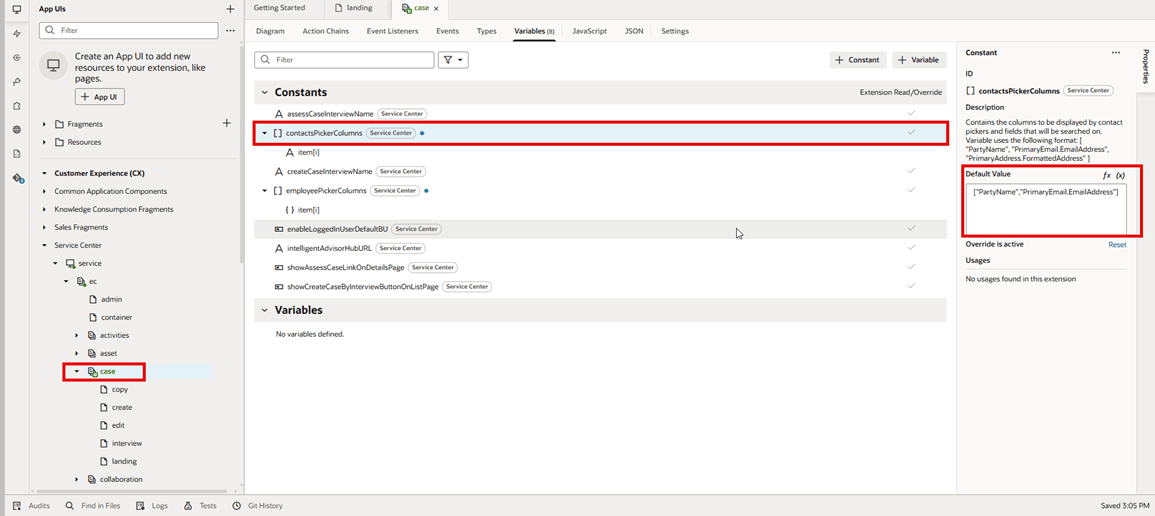
Changes to the ContactsPickerColumns
Here is what it looks like in the Create Case page when the ORA_SVC_CASE_DEFAULT_STRIPE_CD is set to CRM.
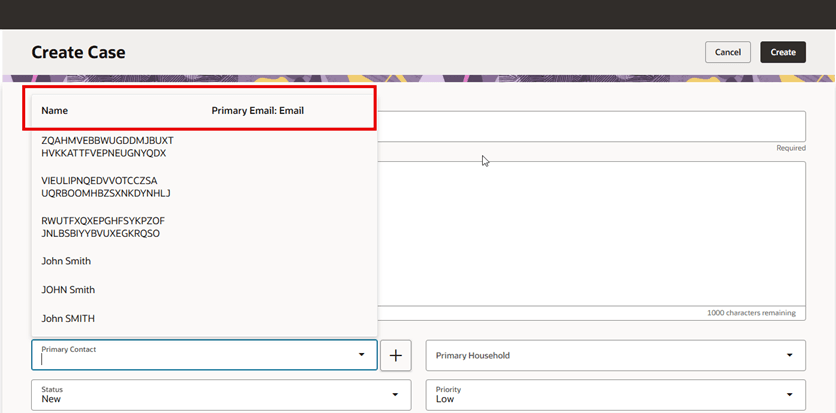
Primary Contact display of Name and Primary Email Address
Here is an example of showing just Name and Email Address in the Default Value box for the employeePickerColumns constant:
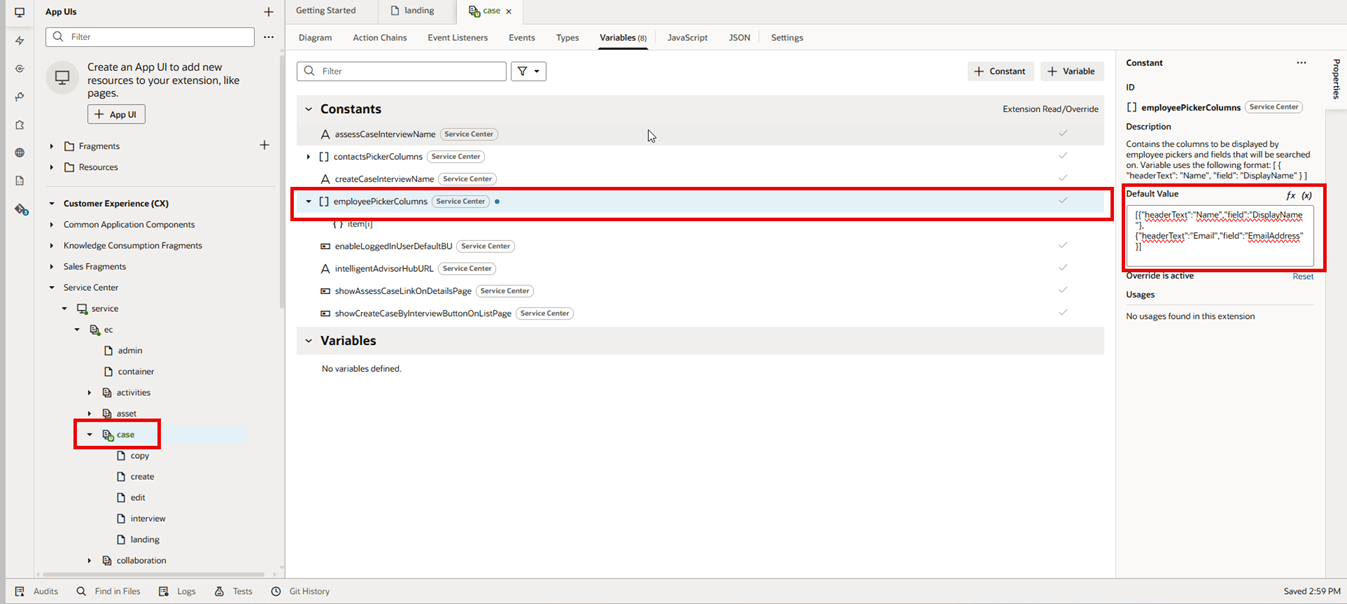
Changes to the EmployeePickerColumns
Here is what it looks like in the Create Case page when the ORA_SVC_CASE_DEFAULT_STRIPE_CD is set to a Help Desk stripe.
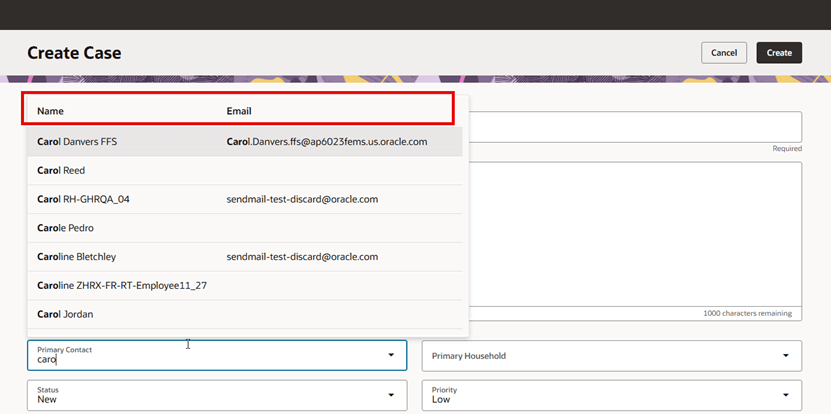
Employee display of Name and Email Address
Tips and considerations
When the profile value of ORA_SVC_CASE_DEFAULT_STRIPE_CD is set to CRM, and you search for a Primary Contact on a Case page, the default fields are shown below.
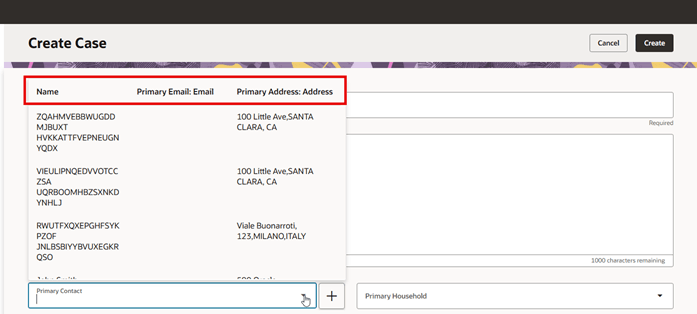
Default fields for Primary Contact when ORA_SVC_CASE_DEFAULT_STRIPE_CD = CRM
When the profile value of ORA_SVC_CASE_DEFAULT_STRIPE_CD is set to a Help Desk stripe, and you search for a Primary Contact on a Case page, the default fields are shown below.
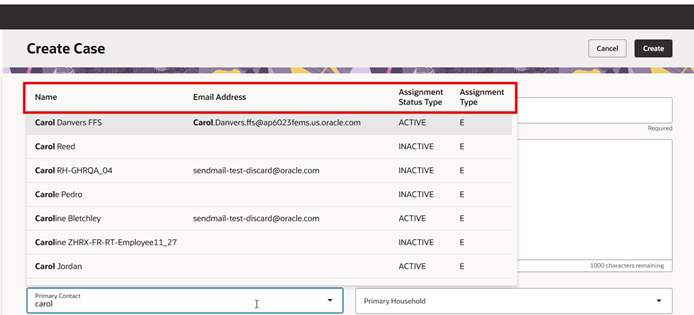
Default fields for Primary Contact when ORA_SVC_CASE_DEFAULT_STRIPE_CD = Help Desk Stripe
Here are the values for the ORA_SVC_CASE_DEFAULT_STRIPE profile option. Default value is CRM. When the stripe value is set to CRM, modify the contactsPickerColumns constant in Visual Builder Studio.
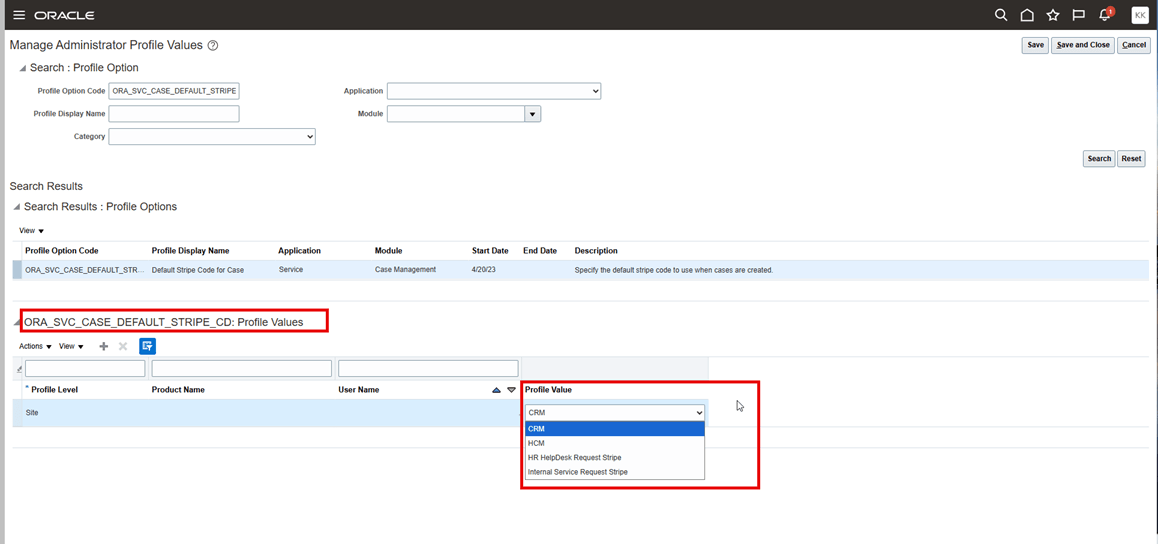
Profile option values for ORA_SVC_CASE_DEFAULT_STRIPE_CD
When the stripe value is set to a Help Desk stripe like HR HelpDesk Request Stripe or Internal Service Request Stripe, then modify the employeePickerColumns constant in Visual Builder Studio.
Note: Smart Actions like Add Employee or Add Contact will not be affected by these constant extensibility settings. If needed, Administrators can hide these smart actions.
Access requirements
Administrators will need access to Visual Builder Studio