Differentiate Contacts vs Partner Contacts in the Service Request Contacts Table
In the Service Request (SR) Details page, the Contacts table (which appears from the "Show Contacts" smart action) includes a new Contact Type column, allowing users to more easily identify the type of contact directly within the list view.
By adding the ContactTypeCd field to the table layout using Visual Builder Studio, users can easily see whether a record represents a Contact or a Partner Contact without relying on navigation links.
This improvement increases clarity and reduces user confusion when managing multiple contact types within a service request. It helps agents quickly identify the right contact, improves efficiency in customer interactions, and minimizes errors when selecting or referencing contacts
Steps to enable and configure
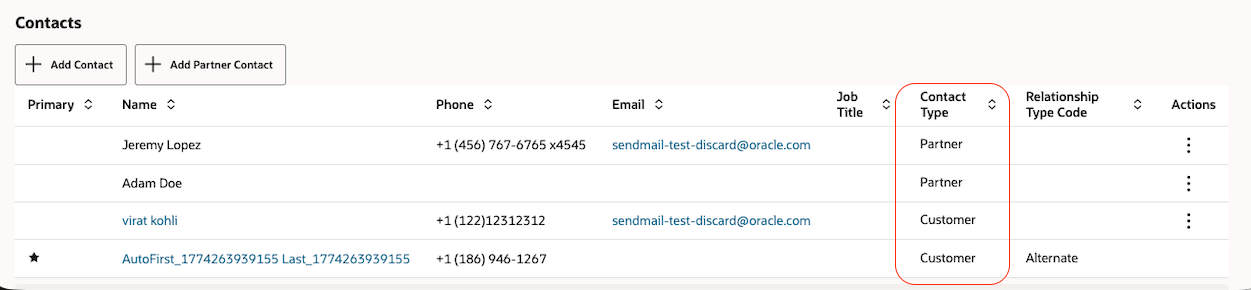
Contact Type Column
Steps to Enable
- Navigate to VB Studio.
- Go to Layouts > Customer Experience (CX) > Service Center > Service Requests > Contacts.
- Locate the Contacts layout and select the dynamic table: Service Request Details Contact Layout.
- Duplicate the layout to create a custom version.
- In the duplicated layout, add the field ContactTypeCd as a new column.
- Save and Preview the changes.
Once completed, the Contacts table will display a new column indicating the contact type, making it easier to differentiate between Contact and Partner Contact records.
Tips and considerations
n/a
Key resources
n/a
Access requirements
- Oracle Visual Builder Studio for Fusion Application Extension