Field Assist AI Agent Support in Oracle Fusion Field Service
Starting from 26C, Oracle Fusion Field Service customers can use AI agents created in Agent Studio within Field Assist in Fusion Field Service. Field Assist is the new name for the Helpdesk capability within Collaboration in Field Service. This integration replaces the earlier Oracle Digital Assistant integration for Collaboration in Fusion Field Service. Existing Oracle Digital Assistant integrations continue to be supported in Oracle Field Service.
The Field Assist AI Agent Support feature is available only for Fusion Field Service customers. Oracle Digital Assistant configuration and support are no longer available for Fusion Field Service customers. There are no changes for Oracle Field Service customers, and Oracle Digital Assistant continues to be supported.
Administrators can configure Field Assist to be powered by AI by providing an Agent Team Code and Agent Team Version. Once configured, chats sent to that Field Assist are routed to the selected agent, giving field users timely, automated guidance directly within Field Assist.
Configuration details
In the Field Assist setup, administrators can select the Powered by AI option.
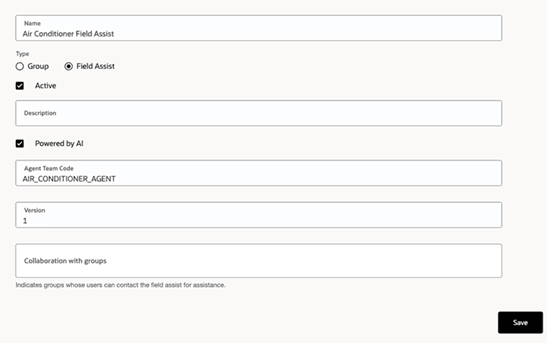
When this option is selected, the following fields must be provided:
- Agent Team Code (required)
- Agent Team Version
These values are obtained from the corresponding AI agent configured in Agent Studio.
If Field Assist is configured as Powered by AI, all incoming requests are routed to the AI agent. Users interact only with the AI agent unless the conversation is transferred to a live operator.
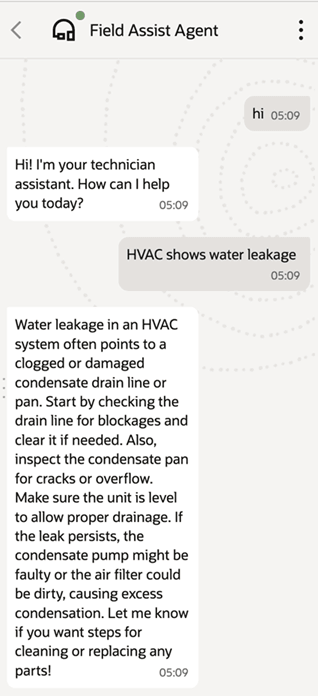
Live operator transfer
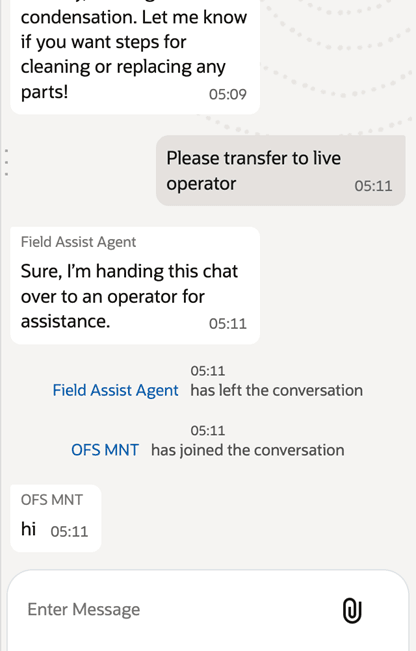
If the agent is unable to answer the question, or if users want to chat with a live operator, the agent (set up in AI Agent Studio) can be configured to return a message in the following format. If a response in this format is received, Field Service understands that the chat should be transferred to a live operator.
{
  "action": "ESCALATE_TO_LIVE_OPERATOR",
  "message": "<message to display to the user>"
}

Example:
{
  "action": "ESCALATE_TO_LIVE_OPERATOR",
  "message": "I’m unable to process your request at the moment. I’m transferring this chat to a live operator who can assist you further."
}
The action ESCALATE_TO_LIVE_OPERATOR tells the application that the chat must be transferred to a human operator. The text under message is sent to the user while the chat is transferred.
Once transferred, the chat goes to the pending queue of the live operators included in Field Assist. The AI agent leaves the chat.
At any point, if the agent is unable to process the request, for example if the service is interrupted or the agent is overloaded, the following message is displayed to the user, and the chat is transferred to the live Field Assist operators:
"I’m unable to process your request at the moment. I’m transferring this chat to a live operator who can help you further."
User experience constraints
- Only text responses are supported.
- While waiting for the agent's response, the Send icon is disabled. Users cannot send another message until the response arrives.
- Edit, Delete, and Reply actions on message bubbles are not supported.
- Attachments are disabled.
- Sharing options such as location, inventory, resource, and activity are disabled.
Business benefits
- Provides guided assistance directly within Collaboration.
- Reuses existing AI agents from Agent Studio.
- Improves troubleshooting and decision-making speed.
- Ensures consistent and centrally managed responses.
- Reduces support workload while preserving seamless escalation to live operators when needed.
Steps to enable and configure
- Ensure users have access to AI Agent Studio. For more information, see Provide Access to Configure AI Agents in all Products.
- On the Role Hierarchy page, open the Roles and Permission Groups tab and add:
- FAI GenAI Agent CX Administrator Duty
- Open the Roles and Privileges tab and add:
- Manage All Intelligent Agents role
- Assign the role to relevant users.
- Ensure an AI agent is available and note:
- Agent Team Code
- Agent Team Version
- Open Collaboration Configuration.
- Create or edit a Field Assist.
- Select Powered by AI.
- Enter the Agent Team Code and Agent Team Version.
- Save the configuration.
Validation:
- Open Collaboration.
- Start a chat with the configured Field Assist.
- Confirm that responses are generated by the AI agent.
Tips and considerations
- Helpdesk rename: Helpdesk is now Field Assist. Update any internal documentation and training materials accordingly.
- Transfer to live behavior: If escalation is required, configure the AI agent to return the exact predefined transfer trigger text expected by Collaboration. This text is suppressed from the user’s chat view and used only for routing.
- Text only limitation: Plan agent outputs accordingly. Attachments, rich responses, and non text payloads are not supported.
- Language support: Collaboration supports languages that are supported in AI Agent Studio.
- No message actions: Since Edit, Delete, and Reply are not supported in AI chats, ensure that agent prompts are clear and reduce the need to correct previous messages.
- No attachments or sharing: If troubleshooting requires images, files, or location, consider including alternative instructions in the agent, for example asking users to describe label text or read error codes, or use a non AI Field Assist workflow.
- Security and privacy: Treat AI agent configurations and chat content according to enterprise security and privacy requirements. Restrict who can configure AI powered Field Assists and ensure prompts do not encourage sharing sensitive data unnecessarily.
- Response time: Since users cannot send new messages while the agent is processing a request, design the agent to respond within 30 seconds.