Initiating Microsoft Teams Meetings in Collaboration
Starting from 26C, both the Oracle Fusion Field Service and Oracle Field Service customers with Microsoft Teams licenses can initiate Microsoft Teams meetings directly from Collaboration in the application.
This feature enables back-office employees, dispatchers, operators, and field resources to start video calls without leaving Collaboration, supporting faster issue resolution and improved communication.
Users with the required permissions can initiate Microsoft Teams meetings directly from Collaboration.
This feature enables users to:
- Start video calls from within Collaboration
- Invite field resources and back-office employees to meetings
- Share meeting details through chat using a generated meeting card
It supports collaboration scenarios such as:
- Providing remote guidance to field resources
- Escalating issues to experts or supervisors
- Coordinating field operations in real time
- Supporting installations and troubleshooting
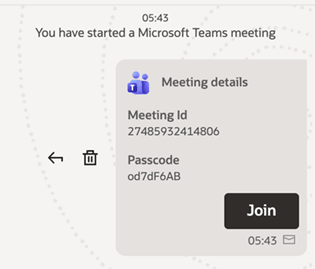
When a meeting is initiated, a meeting card is sent to chat participants. The card includes meeting details and a Join option.
Initiating a meeting
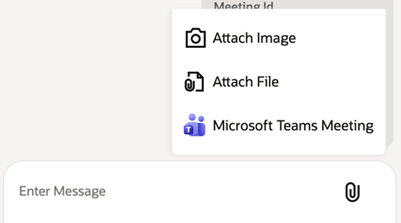
Users can initiate a Microsoft Teams meeting from Collaboration by selecting the Microsoft Teams Meeting option under attachments.
A meeting card is generated and shared in the chat.
Note: Before initiating a Microsoft Teams meeting, ensure that the Allow initiation of Microsoft Teams Meeting option is enabled for the user and that a valid Microsoft Teams license is available.
Joining a meeting
Participants can join the meeting by selecting Join on the meeting card.
- If Microsoft Teams is installed, the meeting opens in the desktop application
- If not installed, the meeting opens in a web browser
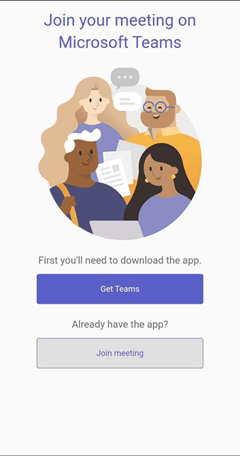
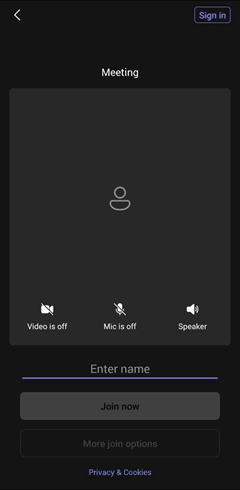
Participants can then communicate using video and audio.
Authorization
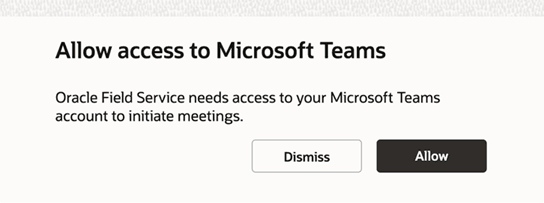
When initiating a Microsoft Teams meeting for the first time, users must authorize access to their Microsoft account.
- This is a one-time action
- A pop-up window prompts the user to grant access
Business Benefit
- Enhances collaboration between field resources and back-office teams
- Improves first-time issue resolution through real-time expert support
- Reduces activity completion time
- Enables faster decision-making during field operations
- Reduces repeat visits and operational costs
Steps to enable and configure
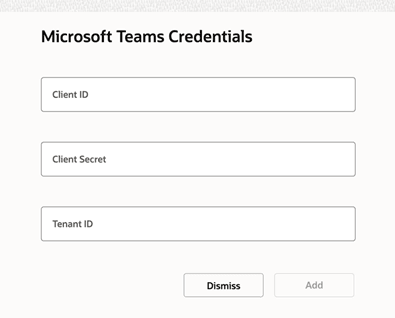
Configure Microsoft Teams credentials
- Open Collaboration configuration.
- Select Microsoft Teams Credentials.
- Enter valid Microsoft Teams credentials and click Add.
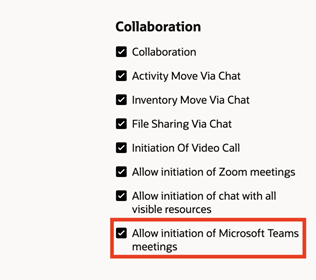
Enable user permission
- Navigate to Configuration > User Types.
- Enable Allow initiation of Microsoft Teams meetings.
- Assign the configuration to applicable users.
Tips and considerations
- A valid Microsoft Teams license is required to initiate meetings.
- The feature is available only in one-to-one chats and conferences.
- The feature is not supported in broadcasts.
- Microsoft Teams licenses must be procured by the customer.
- The Events API records only that a meeting was initiated and does not include meeting details such as ID or URL.