Multi-Image Watermark
The Multi-Image Watermark feature helps organizations improve photo authenticity, compliance, and audit readiness by adding location and date/time information directly to captured images.
This feature is available in both Oracle Fusion Field Service and Oracle Field Service.
When enabled, each photo captured in Field Service can include a visible, non-removable watermark with the mobile worker’s geolocation and timestamp. This helps managers, dispatchers, and auditors confirm where and when the photo was taken, supporting use cases where proof of location is required.
The Multi-Image Watermark feature helps organizations strengthen photo authenticity, compliance, and audit readiness by embedding location and date/time details directly into photos captured in Field Service.
The feature introduces two main capabilities:
- Enhanced geolocation capture for multiple images
- Captures geolocation in the background without blocking the image capture flow.
- Validates location accuracy and uses fallback options when a precise location is not immediately available.
- Processes each image independently and assigns an appropriate location status.
- Configurable watermarking using location and timestamp
- Adds a visible watermark to each image.
- Displays notifications when location issues or discrepancies occur.
When the feature is enabled, each photo captured in Field Service can include a visible, non-removable watermark containing the mobile worker’s geolocation and timestamp. This allows managers, dispatchers, and auditors to verify where and when the photo was taken. This is useful for scenarios that require proof of location or service completion.
The process runs automatically during image capture. Field Service attempts to determine the best available location for each photo and then applies the watermark to that image. For multi-image capture, location details are captured and evaluated separately for each photo, so every image has its own location context, status, and watermark information.
The watermark remains visible across preview, crop, and edit actions. During edits, the watermark stays intact while user changes are applied beneath it, helping ensure that the watermark cannot be removed or overwritten by the user.
If location information cannot be captured, has low accuracy, is outside the expected activity area, or location permission is missing, the mobile worker is notified, and the image is assigned the appropriate location status. This gives users immediate feedback while preserving the details needed for review, audit, and compliance purposes.
Feature Flow
The following sequence describes how geolocation and watermarking are applied during image capture:
- The mobile worker captures an image.
- The application retrieves geolocation data from available sources.
- A geolocation status is assigned (for example SUCCESS, LOW ACCURACY, NO GEOLOCATION, WRONG LOCATION).
- The watermark content is generated based on the location data and status.
- The watermark is applied to the image and remains visible during preview and edits.
For multiple images, each image follows this process independently. This helps ensure that every image has its own location status and watermark information, rather than relying on a single location for the entire set of photos.
Geolocation Capture Process
To improve the chances of capturing a valid location quickly, the application checks for geolocation in a defined order. It uses the most reliable and recent source available and falls back to other options when needed.
The geolocation capture process works as follows:
- Use recent location from the mobile device
- When a photo is captured, the application first checks whether the mobile operating system has a recent location available.
- A location is considered valid when it is no more than 5 seconds old and has an accuracy of 100 meters or better.
- When a valid location is found, it is saved with the image and the image is assigned a SUCCESS status.
- Capture a fresh location
- If a valid recent location is not available, the application starts a new location capture session.
- The session runs for up to 5 seconds and stops earlier if a valid location is found.
- If a valid location is captured, it is saved with the image and the image is assigned a SUCCESS status.
- Use a previously stored valid location
- If the application cannot capture a valid location during the session, it checks for a previously stored valid location.
- This helps improve availability when a new valid location cannot be immediately retrieved.
- Use the best available low accuracy location
- If no valid location is available, the application evaluates lower accuracy locations captured during the session.
- The best available location is selected and saved with the image.
- The image is assigned a LOW ACCURACY status.
- Mark the image when no location is available
- If no location can be captured or retrieved, no location is saved.
- The image is assigned a NO GEOLOCATION status.
- Check whether the mobile worker is within the activity area
- When a location is captured, the application checks whether it falls within the configured activity radius.
- If the location is outside the allowed area, it is still saved.
- The image is assigned a WRONG LOCATION status.
- Handle missing location permission
- If location permission is not granted, the application cannot capture geolocation.
- The image is assigned a NO PERMISSION status.
- When watermarking is enabled, location permission is required before the mobile worker can capture images.
Geolocation permission during image capture is mandatory only when watermarking is enabled. If permission is not granted, the user is prevented from capturing images until permission is granted.
Geolocation Permission
When watermarking is enabled, location permission is required to capture images.
If permission is not granted, the mobile worker cannot capture images until permission is enabled.
Watermark Behavior
- The watermark is displayed during capture and remains visible in preview and edit screens.
- The watermark is always rendered as a top layer.
- User edits are applied beneath the watermark.
- The watermark cannot be removed or overwritten.
- During crop actions, the watermark automatically repositions to remain visible.
Watermark Content
- Includes latitude and longitude up to 6 decimal places.
- Includes timestamp based on configured format.
- Displays accuracy value when the status is LOW ACCURACY.
Business Benefit
- Strengthen proof of service by adding location and date/time details directly to field photos, making it easier to confirm where and when work was completed.
- Review completed work with greater confidence because the watermark remains visible on the image even after preview, crop, or edit actions.
- Improve compliance and audit readiness by preserving geolocation details, timestamp, and location status for future review and post-activity analysis.
- Provide immediate visibility into location issues such as missing location, low accuracy, or being outside the expected activity area, helping reduce follow-up questions after the visit.
- Ensure each photo carries its own location context, which is especially valuable when multiple images are captured for the same activity.
Steps to enable and configure
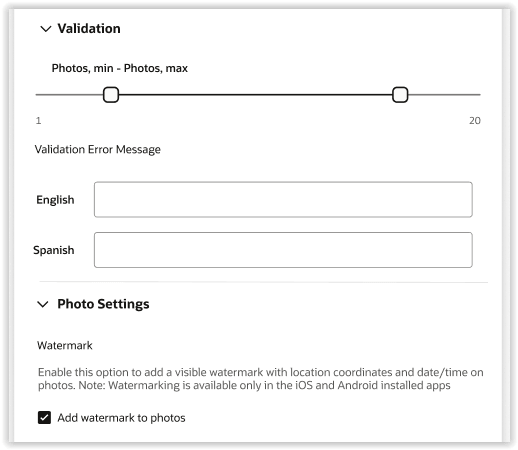
- Open a screen that supports the Attachments element in the Visual Form Editor.
- Add the Attachments element to the screen.
- Expand the Photo Settings section.
- Enable Add watermark to photos.
Tips and considerations
- Geolocation capture enhancements are delivered through mobile application updates. These enhancements do not change the end-user experience unless watermarking is enabled.
- Watermark functionality is available when the platform is upgraded to 26C or later and the mobile application supports geolocation enhancements.
- Geolocation warnings are shown only when watermarking is enabled.