Configuration UX for Activity and Resource Management
Core scheduling and dispatch configuration pages are being modernized using Redwood design patterns implemented with Oracle Visual Builder to provide a more consistent, intuitive, and modern administrator experience. These new Redwood-based configuration pages are currently available only to Fusion Field Service customers.
The following configuration pages are included in this release:
- Activity Types: Define and group categories of activities.
- Time Slots: Define scheduling windows for appointment-based activities.
- Resource Types: Define categories of people or equipment.
- Work Skills: Define and group skills used for assignment.
- Work Zones: Group resources and geographic areas for optimized routing.
- Shifts and Schedules: Define resource availability and working schedules.
These configuration areas can be accessed through the Field Service Configuration menu or the Fusion Setup and Maintenance (FSM) experience, depending on feature configuration. When accessed through the Field Service Configuration menu, administrators use the existing legacy configuration pages. When accessed through FSM, administrators use the new Redwood-based configuration experience.
As part of this enhancement, a new Functional Area, Scheduling and Dispatch, has been introduced to organize scheduling and dispatch-related configuration tasks within Fusion. Two features control the availability of these configuration pages:
- Oracle Fusion Setup and Maintenance for Field Service Configuration
- This feature controls whether the legacy configuration areas are available through the Field Service Configuration menu.
- When enabled (default), the legacy configuration areas are not displayed.
- When disabled, the legacy configuration pages are displayed.
- Scheduling and Dispatch
- This feature controls whether the redesigned configuration pages are available through FSM.
- When disabled (default), the Scheduling and Dispatch Functional Area and the corresponding configuration is not displayed.
- When enabled, a new Functional Area, Scheduling and Dispatch, becomes available within FSM and provides access to the redesigned configuration pages.
- In the Fusion Setup and Maintenance experience, navigate to: My Enterprise > Setup and Maintenance
- Administrators can then select the Scheduling and Dispatch Functional Area from the left-side navigation and open the required configuration area from the task list on the right.
List Views
All new configuration pages use a consistent list view pattern. While this example shows Activity Types, the same structure and behavior apply across all new configuration areas.
- Functional Area Tabs: Tabs across the top separate related configuration areas, allowing administrators to switch between functional categories without leaving the page. For example, Activity Types and Activity Type Groups on the Activity Types screenshot.
- Search and Filter Chips: Each page includes a search bar with suggested filter chips for quickly narrowing results by common attributes such as status or group.
- Item Count: A count indicator displays the total number of items currently shown in the list.
- Add (+) Button: The “+” action opens a side drawer for creating new items without navigating away from the list view.
- Manage Columns: A control on the right side allows administrators to choose which columns appear and define their display order.
- Sortable Columns: Column headers support sorting to help organize and locate items more efficiently.
- Row Actions: Each row includes at least one primary action (such as Edit) and may also include an overflow menu providing access to additional actions such as Delete or other context-specific operations.
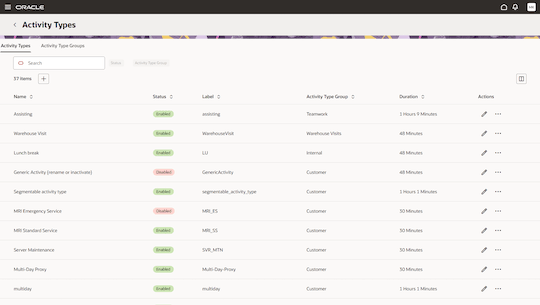
Activity Types
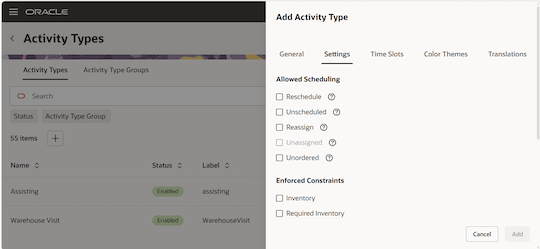
Selecting the Add or Edit action opens a side drawer that allows administrators to configure Activity Types. The drawer organizes settings into four functional tabs:
- General: Contains the core configuration properties for the activity type, including:
- enabled status
- name and label
- activity type group
- mode
- default duration
- Settings: Contains operational and scheduling-related configuration, including:
- allowed scheduling options
- routing and reassignment behavior
- inventory, work skill, and work zone constraints
- geolocation and travel settings
- predictive duration/statistics options
- Time Slots: Allows administrators to search, review, and associate time slots with the activity type using a selectable list view with sortable columns and status indicators.
- Color Themes: Provides configuration for activity status themes and visual color mappings used throughout the scheduling and dispatch experience.
- Translations: Allows administrators to define translations for each language configured in the environment.
Many field labels have been refactored to be more clear and concise. Contextual info tooltips have also been added in select areas to provide additional guidance. Mappings between earlier and updated labels are documented in the Key Resources section.
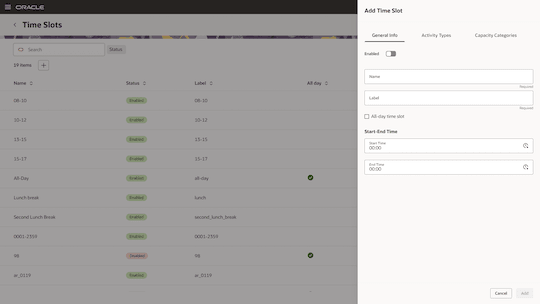
Time Slots
Selecting the Add or Edit action opens a side drawer used to configure Time Slots. The drawer organizes configuration into three tabs:
- General Info: Contains the core time slot configuration, including:
- enabled status
- name and label
- all-day designation
- start and end times
- Activity Types: Allows administrators to search, review, and associate Activity Types with the time slot using a selectable list view with sortable columns and status indicators.
- Capacity Categories: Provides the ability to associate Capacity Categories with the time slot through a searchable, selectable list interface.
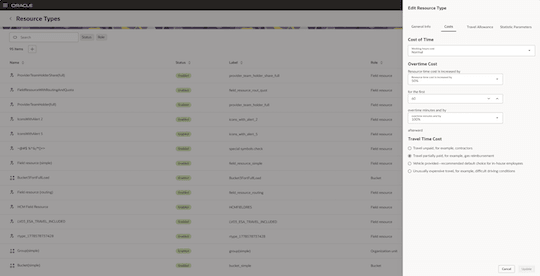
Resource Types
Selecting the Add or Edit action opens a side drawer to configure Resource Types. The drawer organizes into four tabs: configuration tabs:
- General Info: Users can configure resource settings including name, label, role, associated resource role, and enable options such as contingent worker, team member, routing, and capacity planning.
- Costs: When the Routing setting is enabled for a resource type, the Costs tab becomes available, allowing users to configure working hour costs, overtime rate increases, overtime duration thresholds, and travel time compensation options.
- Travel Allowance: The Travel Allowance tab allows users to define whether travel time at the start and end of a workday is included, excluded, or partially allocated as paid working time for scheduling and shift calculations.
- Statistics Parameters: The Statistic Parameters tab allows users to enable learned duration tracking at the resource level, use collected data to improve company-wide estimates and define the number of initial working days excluded from statistical calculations.
Work Skills
The page now organizes functionality into three dedicated tabs Work Skills, Work Skill Groups, and Work Skill Conditions, arranged to reflect the natural progression of creating and configuring a Work Skill. Whether adding or editing a Work Skill, Work Skill Group, or Work Skill Condition, the same side drawer interaction pattern is used, with configuration contained within a single tab to provide a consistent, intuitive, and streamlined experience across all sections.
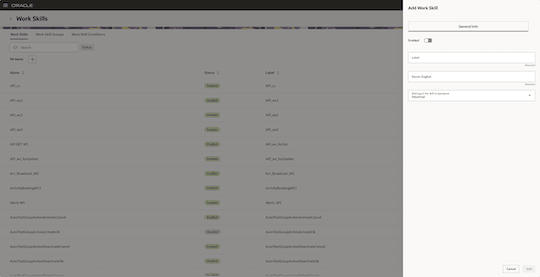
Work Zones
Selecting the Add or Edit action opens a side drawer used to configure work zones. The drawer organizes configuration into one tab containing editable fields for general information, status, organization, delimiters, assignment keys, and work zone shapes, while the main page displays a searchable table of existing work zones with status and label details.
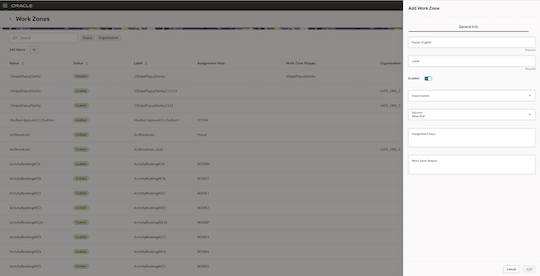
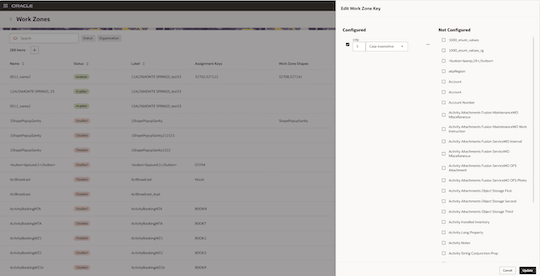
Selecting the Edit action for a Work Zone Key opens a side drawer where users can configure how Work Zones are identified and grouped. Within the drawer, users can define the matching rules and format for the selected Work Zone Key (for example, czip) and choose from a list of available Work Zone mapping fields to map relevant business attributes. These mappings are then used to determine how Work Zones are matched, assigned, and organized within the application.
Note
Bulk import and export of work zones is not available in the user interface in 26C. This is subject to improvement in future versions.
Shifts and Schedules
The page now organizes functionality into three dedicated tabs Shifts, Nonworking Reasons, and Work Schedules, designed to follow the natural progression of creating a Work Schedule. The tab sequence guides users through the recommended setup order for a more intuitive experience. Whether adding or editing a Shift, Nonworking Reason, or Work Schedule, the same interaction pattern is used throughout to provide a consistent and streamlined user experience across all sections.
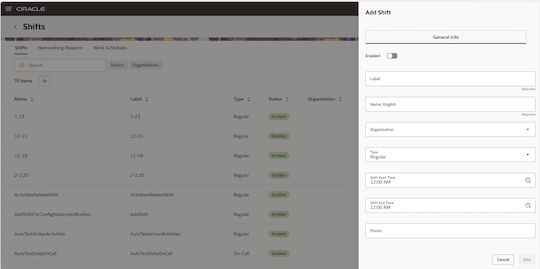
Business Benefits
- Improved clarity and maintainability through updated labeling and separation of general, activity-specific, and resource-specific settings into dedicated pages
- Modernized Redwood-based page layouts, list views, and drawer-based editing experiences across configuration pages
- A single, Fusion-consistent entry point for Field Service configuration through the Functional Areas and Tasks navigation model
- Faster onboarding for administrators working across multiple Fusion offerings due to consistent Fusion UX patterns and a consolidated setup experience
Steps to enable and configure
Use the Opt In UI to enable this feature. For instructions, refer to the Optional Uptake of New Features section of this document.
Offering: Field Service No Longer Optional From: Update 26C
Action is required to access these configuration areas after upgrading to 26C:
- Enable the Scheduling and Dispatch feature to access the redesigned configuration screens through FSM.
- Disable the Oracle Fusion Setup and Administration for Field Service Configuration to access the legacy pages through the Field Service Configuration menu.
If no action is taken, the configuration pages will not be accessible from either location. These configuration areas may be available from both locations if both actions above are taken.
Once enabled, the related configuration pages become available through the standard Fusion user interface.
- Access to the new FSM configuration pages requires either:
- the ORA_FFS_FIELD_SERVICE_APPLICATION_ADMINISTRATOR_JOB role
- or a custom role containing duties from ORA_FFS_FIELD_SERVICE_APPLICATION_ADMINISTRATOR_DUTY
- The Scheduling and Dispatch Functional Area must be enabled from My Enterprise > Offerings by a user with the appropriate administrator privileges.
- After upgrade, configuration tasks can be accessed from My Enterprise > Setup and Maintenance > Field Service, where administrators can select the required Functional Area and task from the list.
Permission Group Job Roles must be enabled through the Security Console to allow access to the new configuration screens. This applies to users assigned to the Field Service Manager or Field Service Application Administrator roles.
Due to a known issue, Permission Groups must still be manually enabled for the Job Role through the Fusion Applications Security Console.
Ensure that the user account being used has the required Job Role assigned.
In some cases, existing users with the required Job Role may still not receive the appropriate permissions until the role is manually removed and re-assigned.
After completing the steps above, it may take approximately 10 minutes for the changes to become effective.
Tips and considerations
- Work Skill Groups and Activity Type Groups are now available as separate tabs in the Work Skills and Activity Types pages respectively.
- Work Schedules page has been renamed as Shifts and Schedules.
- Resource Type Load Threshold settings are being deprecated. By default, load for new resource types is now calculated based on the shift load.
The following parameters have been deprecated:
|
Page |
Parameter |
Notes |
|
Activity Type |
Allow to create from incoming interface |
Creation via integration will always be allowed. |
|
Allow to search |
Search will always be allowed. |
|
|
Allow repeating activities |
Repeating activities will always be allowed. Restrictions may be set using visibility conditions as needed. |
|
|
Support of time slots |
Time slots support is automatically enabled as soon as one or more time slots are associated with the given activity type. |
|
|
Support of links |
Linked activities will always be allowed. Restrictions may be set using visibility conditions as needed. |
|
|
Support of preferred resources |
Resource preferences will always be allowed. Restrictions may be set using visibility conditions as needed. |
|
|
Calculate delivery window |
Delivery window will always be calculated but does not need to be used. |
|
|
Enable 'day before' trigger |
Triggers will always be allowed. Utilize message scenario rules to invoke as desired. |
|
|
Enable 'reminder' and 'change' triggers |
Triggers will always be allowed. Utilize message scenario rules to invoke as desired. |
|
|
Enable 'SW warning' trigger |
Triggers will always be allowed. Utilize message scenario rules to invoke as desired. |
|
|
Enable 'not started' trigger |
Triggers will always be allowed. Utilize message scenario rules to invoke as desired. |
|
|
Resource Type |
Load threshold - Units of measurement Full load - Quantity of activities in the route equals to or greater than value Empty - Quantity of activities in the route equals to or less than value |
The Load Threshold settings will be defaulted to "number of activities" and “0”.
No user action is required, and this change is intended to simplify the configuration experience. |
Key resources
The following global label changes have been consistently applied across the affected list views and add/edit drawers.
|
Original Label |
New Label |
|
Add new |
+ |
|
Status - Active |
Enabled |
|
Status - Inactive |
Disabled |
The following labels have been updated to improve clarity and provide a more intuitive user experience.
Time Slots
|
Original Label |
Tab |
New Label |
|
Value |
Activity Types |
Name |
|
Value |
Capacity Categories |
Name |
Activity Types
|
Original Label |
Tab |
New Label |
Info Tip |
|---|---|---|---|
|
Allow mass activities Teamwork Enable segmenting and extended duration |
General |
Mode |
These parameters are mutually exclusive. They have been transformed from checkbox selections to a single-select choice. |
|
Default duration, minutes |
General |
Default Duration |
Durations may now be entered in Hours and Minutes. |
|
Allow reschedule |
Settings |
Reschedule |
Allow activities to be moved to a different day. |
|
Allow non-scheduled |
Settings |
Unscheduled |
Allow activities to be planned without a scheduled date. |
|
Allow move between resources |
Settings |
Reassign |
Allow activities to be moved between resources. |
|
Allow creation in buckets |
Settings |
Unassigned |
Allow activities to be in buckets until assigned to a resource. |
|
Support of not-ordered activities |
Settings |
Unordered |
Allow activities to be assigned to a resource’s route without a planned sequence. |
|
Support of inventory |
Settings |
Inventory |
|
|
Support of required inventory |
Settings |
Required Inventory |
|
|
Support of work skills |
Settings |
Work Skills |
|
|
Support of work zones |
Settings |
Work Zones |
|
|
Calculate activity duration using statistics |
Settings |
Predict Durations |
Link to Calculate Activity Duration |
|
Disable resource tracking for this activity type |
Settings |
Track Resource Location |
Enable to monitor and record the mobile worker's GPS location while performing this type of activity. |
|
Calculate travel |
Settings |
Requires Travel |
Link to Pre-Calculated Travel Statistics |
|
SLA and Service window use customer time zone (required for routing) |
Settings |
Use Customer Time Zone |
Schedule work based on the customer’s time zone to ensure SLA and service windows are met, regardless of the resource’s time zone. |
|
Copy from |
Color Themes |
Select Theme |
Resources Types
| Original Label | New Label | Info Tip |
|---|---|---|
| Resource type Name | Name | |
|
Resource is a Contingent Worker |
Contingent worker |
'Contingent worker' identifies the assigned individual as a contractor or temporary staff, not a regular employee. Use this option to properly classify and manage external resources during field service assignments. |
|
Resource can participate in team |
Team member |
“Team member” option allows the resource to be assigned as part of a field service team, so they can work together with other team members on shared assignments. |
|
Resource can be a teamholder |
Team leader |
"Team leader" means the resource can be assigned as a leader of a field service team, allowing them to coordinate and manage team activities and assignments. |
|
Share inventory in teamwork |
Inventory sharing |
"Inventory sharing" allows multiple team members to access and use the same inventory stock during a job, enabling efficient sharing of parts and materials among the team. |
|
Share geolocation in teamwork |
Geolocation sharing |
"Geolocation sharing" allows team members to share their real-time location with each other, making it easier to coordinate tasks and improve efficiency on field assignments. |
|
Share work skills in teamwork (team-member only) |
Skill sharing |
"Skill sharing” allows team members to make their individual skills visible to others in the team, helping with skill-based task assignments and effective resource planning. |
|
Used for Quota management |
Capacity planning eligible |
Allows the resource to be included in "Capacity planning" to help to prevent overbooking or exceeding their capacity. |
|
Routing can assign activities |
Routing |
"Auto routing eligible" allows the scheduling system to automatically assign jobs or tasks to the resource during routing and dispatch processes. |
|
Enable 'Not activated in time' alert and trigger |
Late start warning |
'Late start warning' notifies if a resource hasn’t activated their assignment by the expected start time. Use it to monitor and respond when resources are late to begin scheduled work. |
|
Overtime Cost Resource time cost is increased by 50% for the first 60 |
Resource time cost is increased by 50% for the first 60 overtime minutes and by 100% afterward |
|
|
Company does not pay for travel (Contractors, for example) |
Travel unpaid, for example, contractors |
|
|
Company partially pays for travel (gas reimbursement, for example) |
Travel partially paid, for example, gas reimbursement |
|
|
Company provides vehicle (recommended default choice for in-house employees) |
Vehicle provided--recommended default choice for in-house employees |
|
|
Travel time to the first activity is not included from the Working Time Start |
Travel time to first activity isn't included |
|
|
Travel is unusually expensive (difficult driving conditions, for example) |
Unusually expensive travel, for example, difficult driving conditions |
|
|
Travel time to the first activity is included from the Working Time Start |
Travel time to first activity is included |
|
|
Resource is allotted up to _____minutes of travel prior to the Working Time Start |
Partially allocate travel time____ |
|
|
Travel time from the last activity to the Resources End Location is not included from the Working Time End |
Travel time from last activity isn't included |
|
|
Travel time from the last activity to the Resources End Location is included from the Working Time End |
Travel time from last activity is included |
|
|
Resource is allotted up to _____minutes of travel after the Working Time End |
Partially allocate travel time____ |
|
|
Personalize the estimation of activity duration |
Use learned duration at the resource level |
|
|
Use data reported to enhance company-wide estimations |
Use this data to enhance company-wide estimates |
|
|
Days out of statistic estimation |
Specify the number of initial working days to exclude from statistical estimations |
Work Skills Conditions
|
Original Label |
New Label |
|
Work Skills Conditions |
Conditions |
Work Skills Groups
|
Original Label |
New Label |
|
Can be assigned to a resource |
Allow Assignment to Resources |
|
Can be added to a capacity category |
Add to Capacity Category |
Work Shifts
|
Original Label |
New Label |
|
Start Time |
Shift Start Time |
|
End Time |
Shift End Time |
Work Zones
|
Original Label |
New Label |
|
Work Zone Name |
Name |
|
Work Zone Keys |
Assignment Keys |
|
Work Zone Label |
Label |