Collaborative Service Request
Customer service representatives (CSR) can use the Raise a Related Request smart action from an existing service request to request assistance from another service team. The request can be intended for either a customer-facing team (CRM stripe) or an internal Help Desk team (ISR or HRSR stripe).
The Collaborative Service Request Companion uses the description entered by the representative and configured routing guidance to identify the appropriate target: Service Request, Help Desk, Internal Help Desk, or Case.
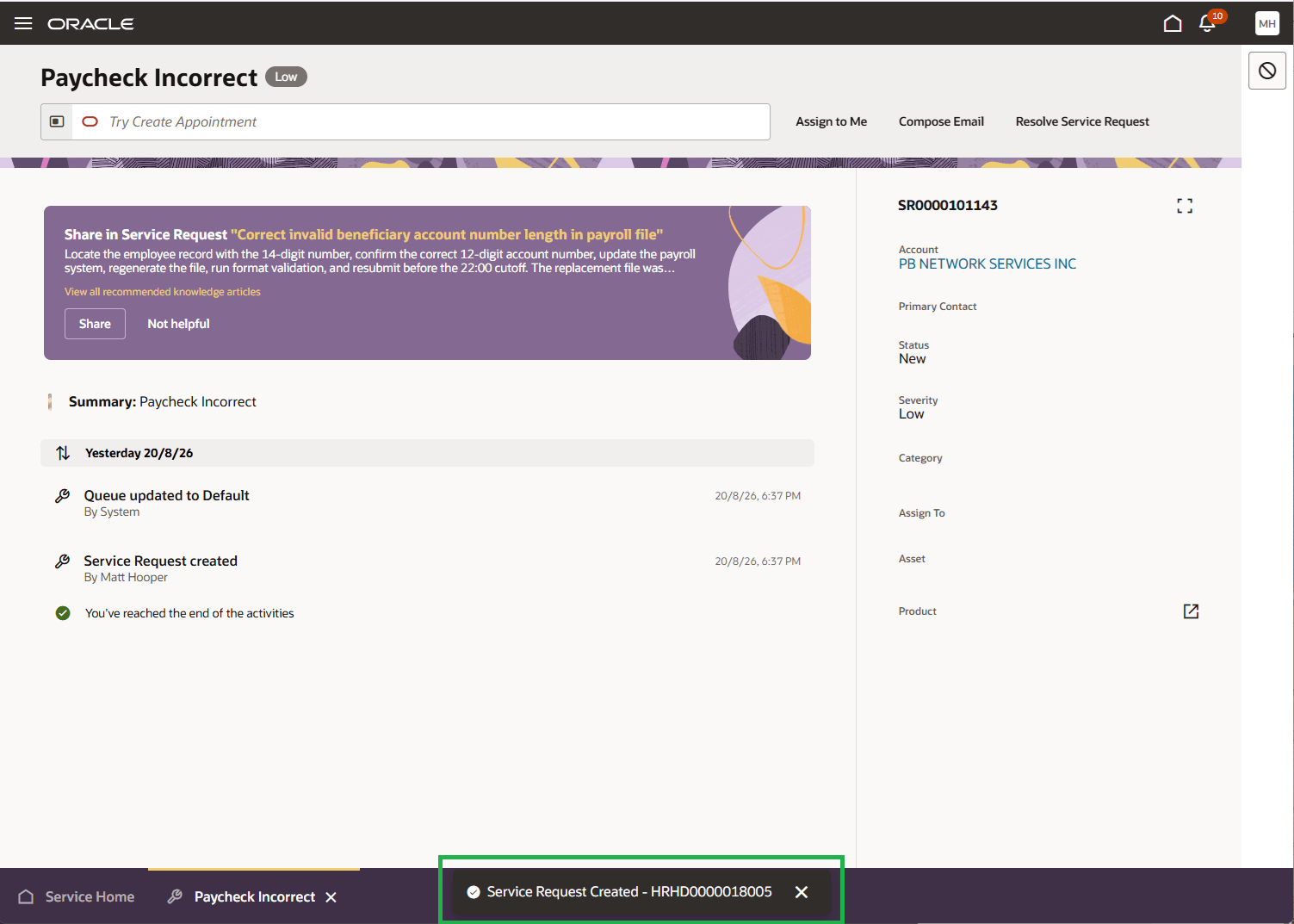
Representatives can review and update the generated request details before creating the related request. Fusion then confirms creation and automatically creates a relationship between the original and related requests.
Raise a Related Request
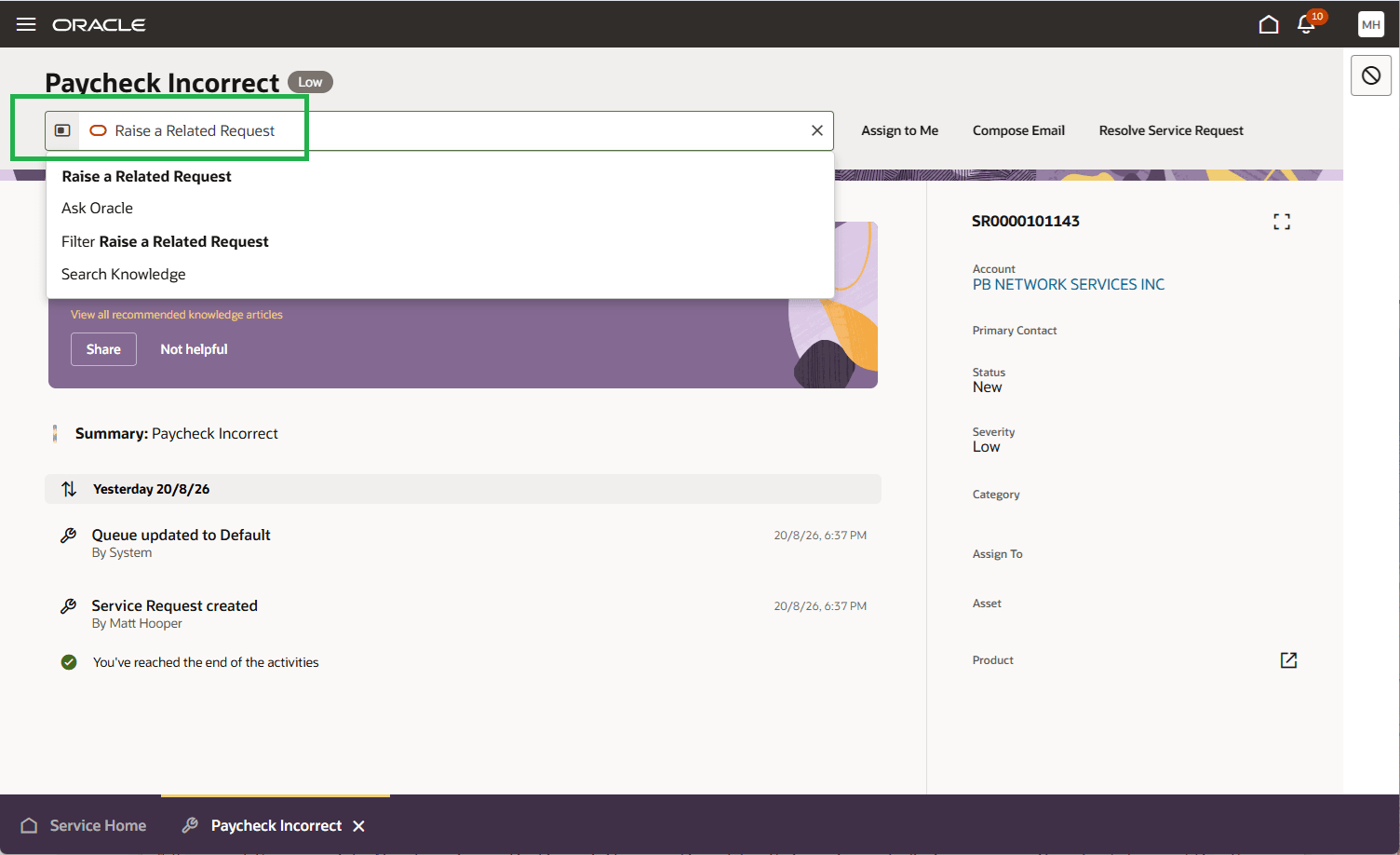
Add a Concise Description and Select Next
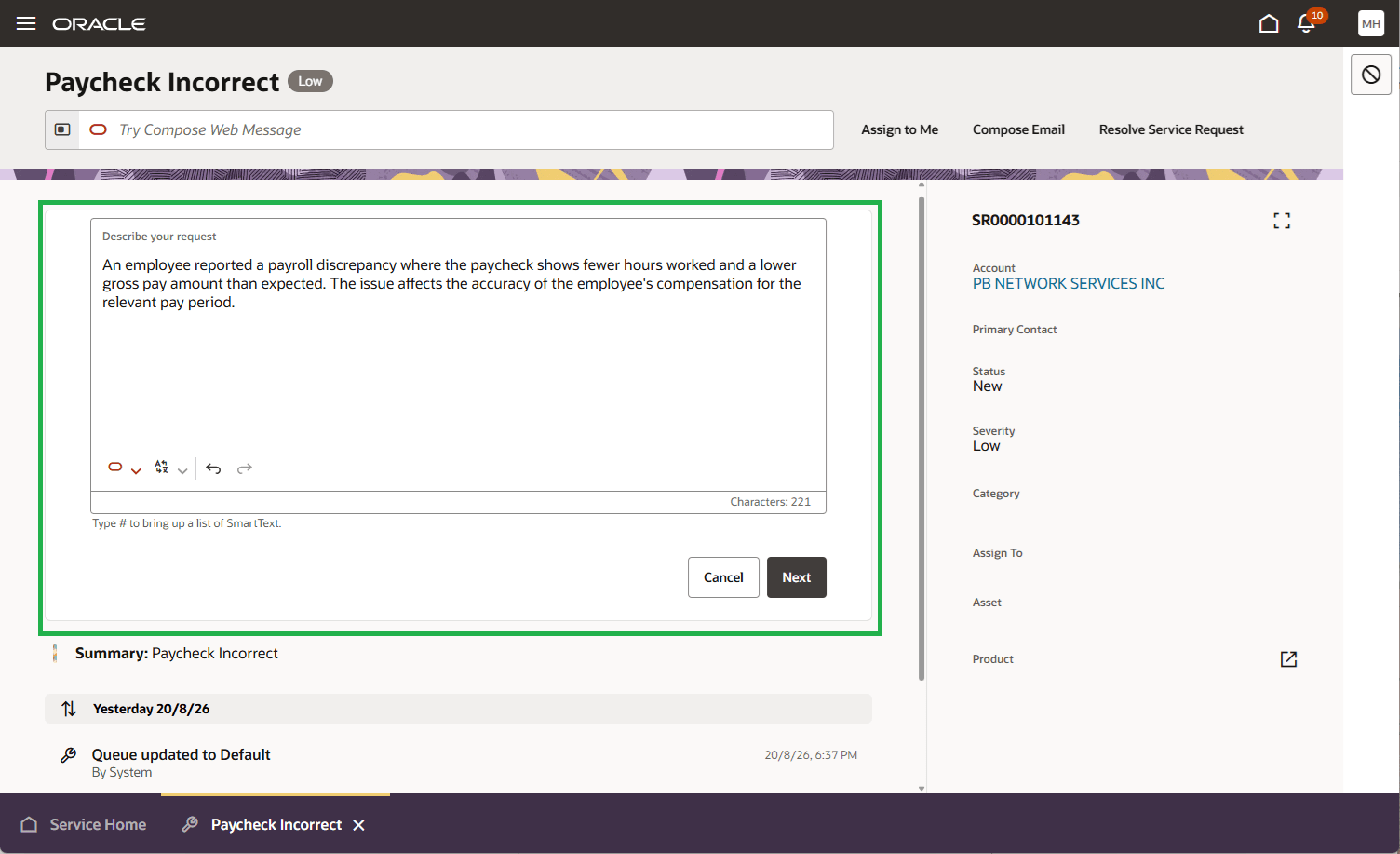
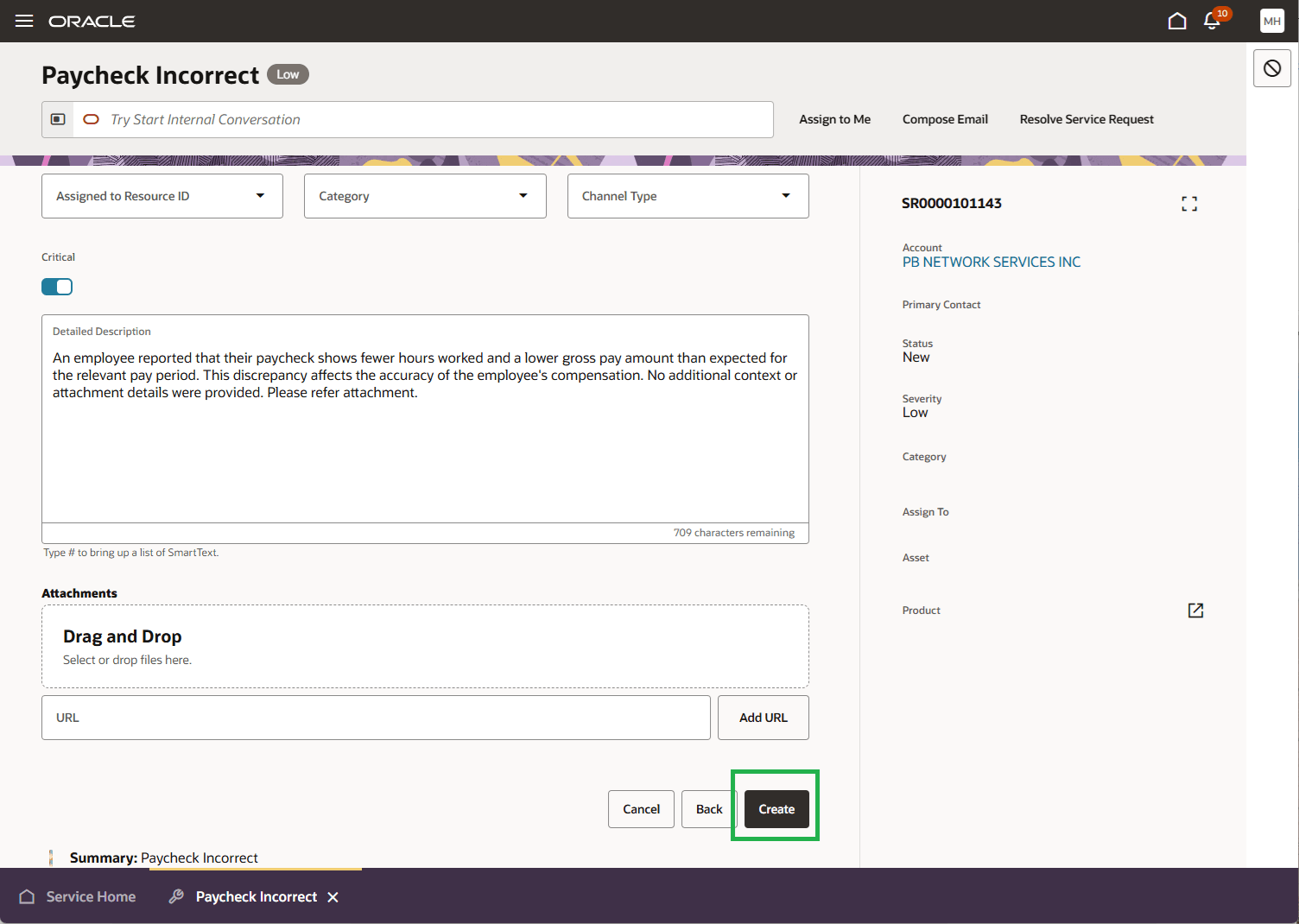
A draft Collaborative Service Request (SR) is Created by the AI Agent. Once reviewed the Customer Service Representative selects Create.
Confirmation the New Collaborative SR is Created
Relationship and Conversation Created
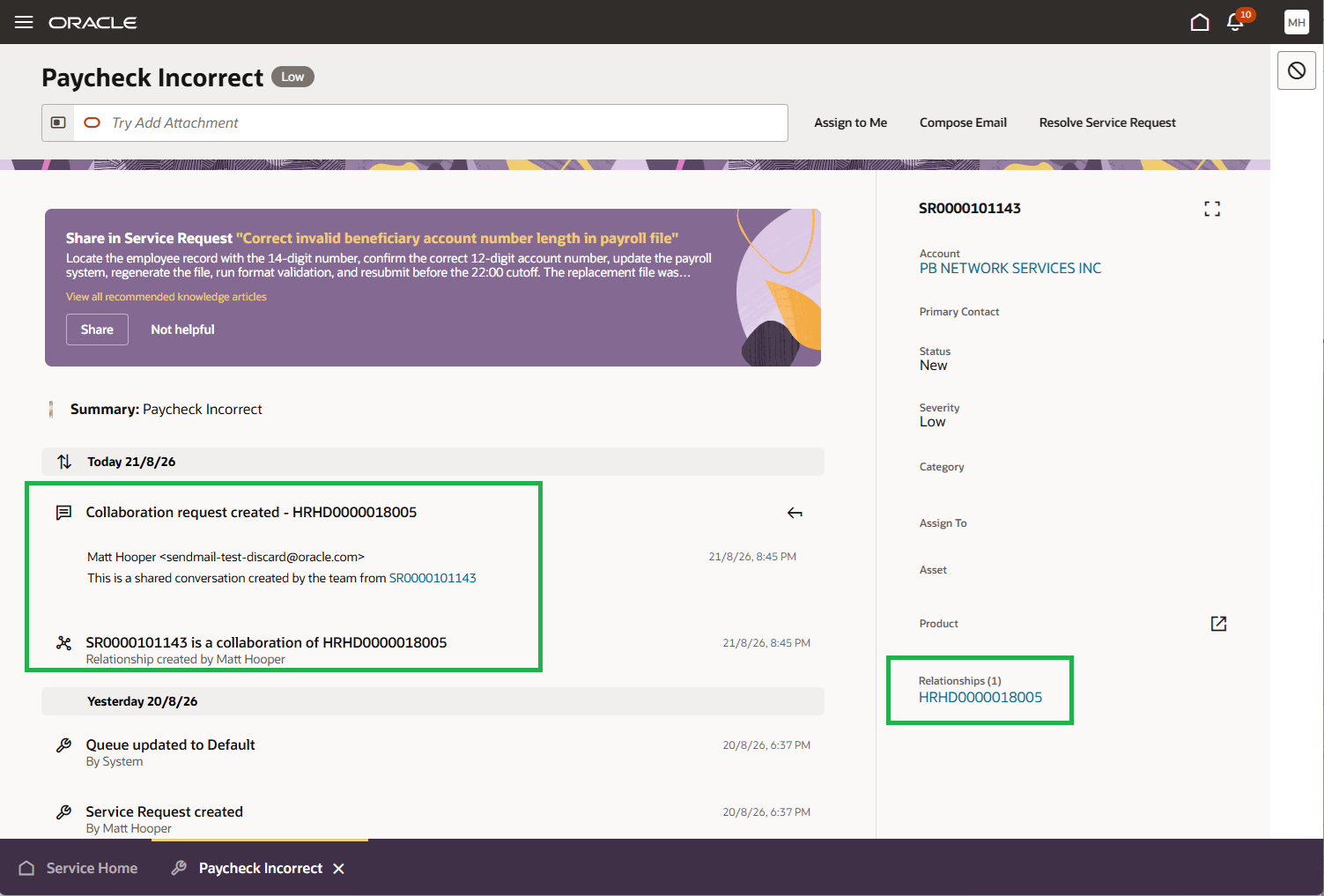
The Conversation is only created on the Service Request and not the Collaborative SR. The Conversation will be updated to display on both the SR and Collaborative SR in a near future release.
The Relationship item is created on both the original SR and the Collaborative SR.
- Facilitate teamwork by allowing representatives to request assistance without leaving the original service request.
- Help users transmit their request to the right team based on the nature of their request, particularly when the user may not be confident of the correct team to handle the request.
- Improve request quality by providing generated details that representatives can review and refine.
- Maintain visibility across service teams through the relationship between the original and related requests.
Steps to enable and configure
The Collaborative Service Request Companion AI agent is available out of the box. You don’t need to create or configure the agent.
However, you must add the RAG document
1. In AI Agent Studio, navigate to Tools and open the seeded RAG document tool named Stripe Determination RAG Tool.
2. In the Documents section, select Add Document.
3. Enter a document name and description, and attach the file containing your stripe-determination and team-routing guidance.
4. Set the document status to Ready to Publish and select Create.
5. Wait for the Process Agent Documents scheduled process to complete. The document status changes to Published when processing is complete.
6. Test the feature from a service request. In the Smart Action bar, enter Raise a Related Request, describe the assistance needed, select Next, review the generated request, and select Create.
Access requirements
- Service representatives need access to the original service request
- Administrators who maintain routing guidance need access to add documents to and publish the Stripe Determination RAG Tool
- Users need the appropriate AI and service application privileges configured for their environment