Set Escalation Status Label for Service Requests
The Escalation Status Label makes an escalated service request easy to recognize at a glance. When an escalation is set, a pill-shaped label appears next to the service request subject and shows the selected escalation level. The expanded Service Request Details panel also displays the escalation level and reason as read-only information.
Users manage escalations from the Smart Actions bar. They can create, update, or clear an escalation without leaving the service request.
Escalate or update a service request
Open the service request that requires escalation.
In the Smart Actions bar, enter and select Escalate.
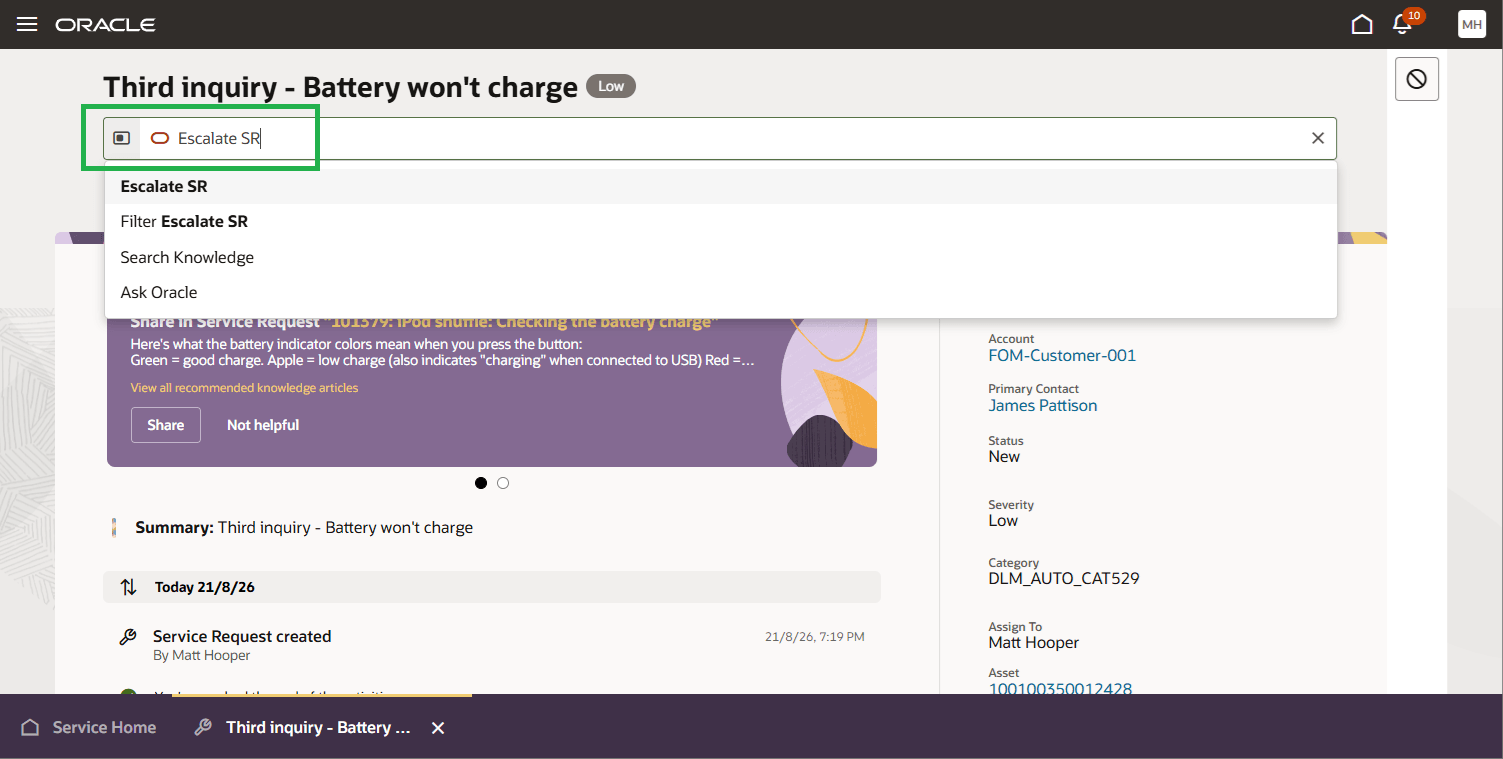
Escalate SR Smart Action
In the Escalate panel, select an Escalation Level.
Optionally enter an Escalation Reason. Keep the reason concise.
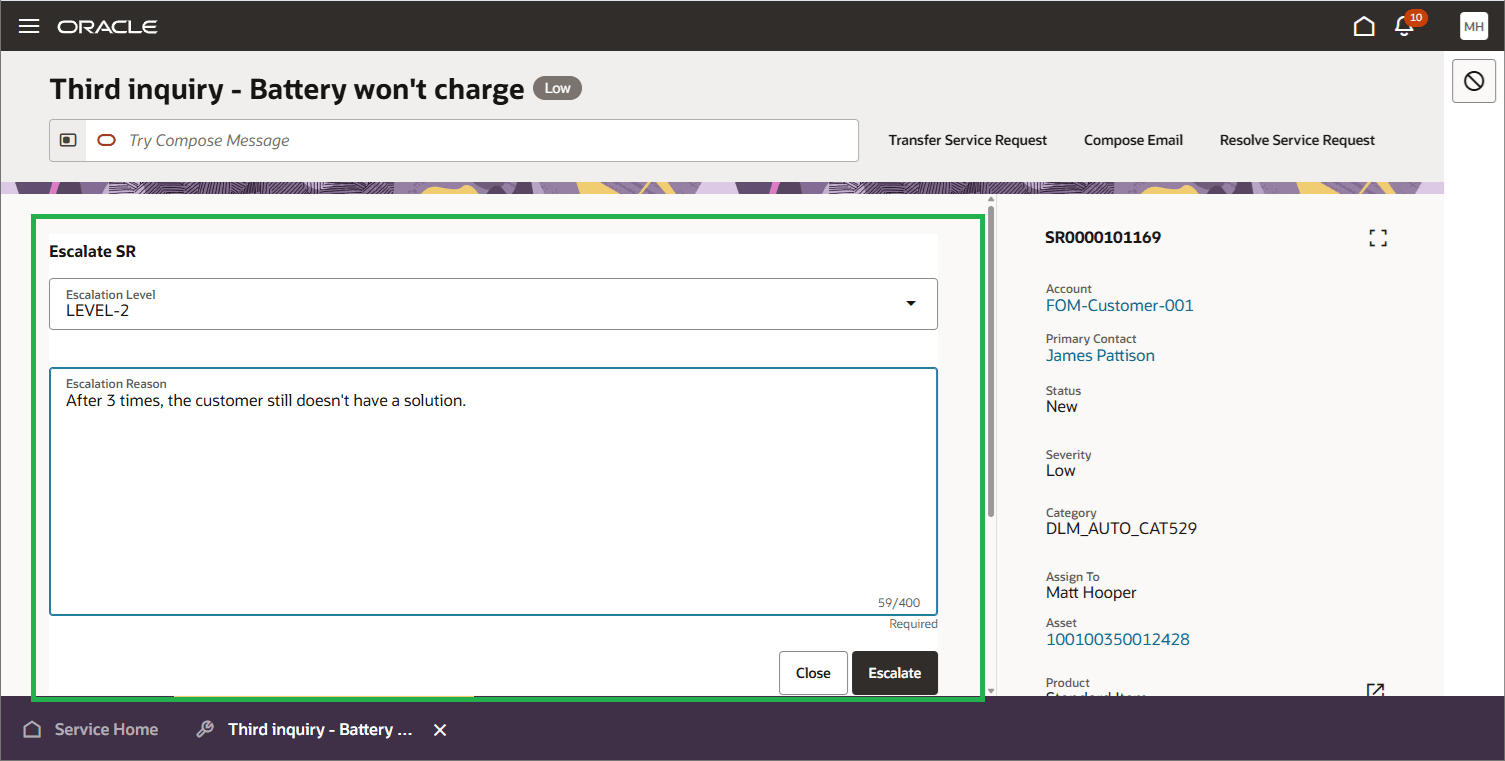
Escalation SR Details Form
The escalation label appears beside the service request subject.
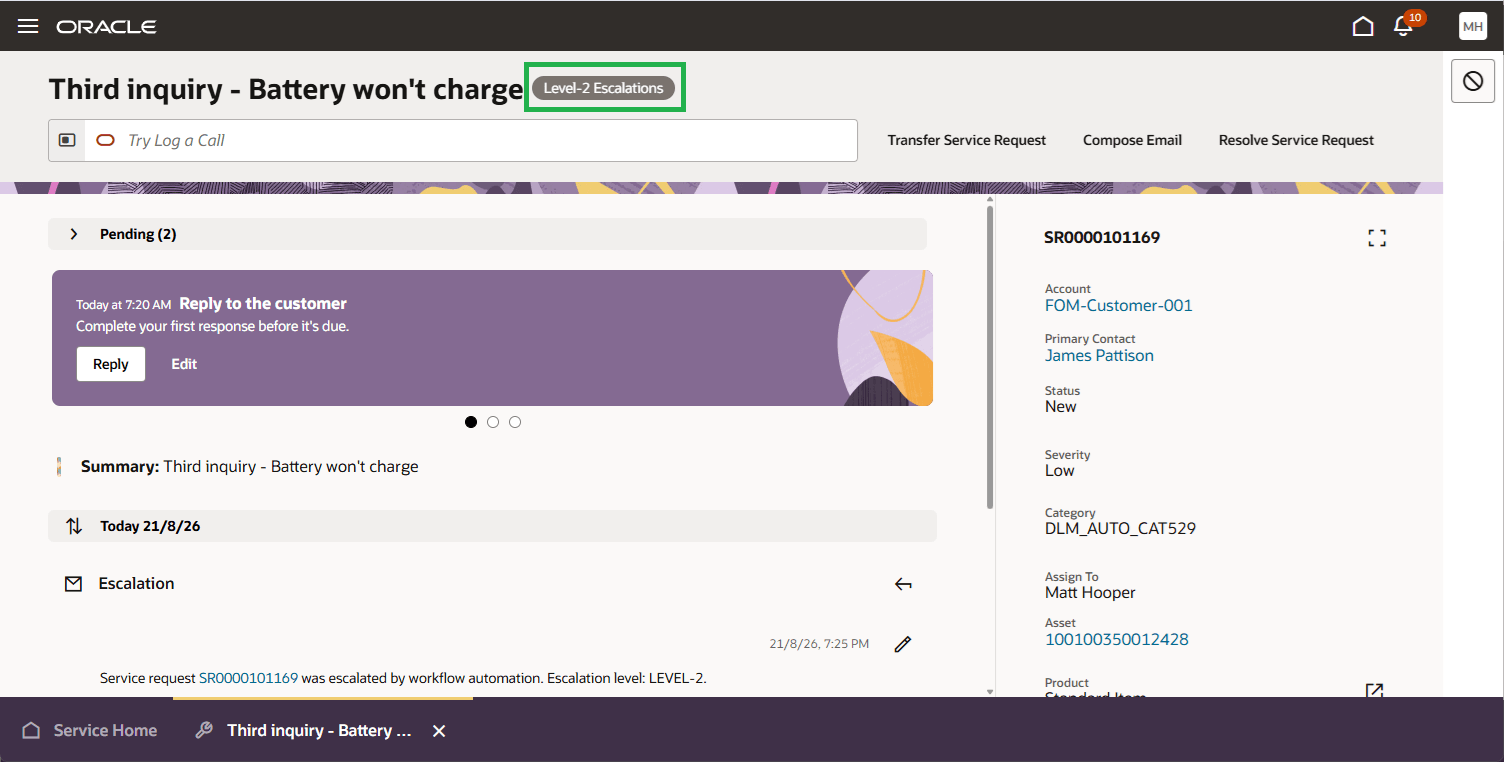
Escalation Status Label
Clear an escalation
To de-escalate a service request, open the escalated service request.
In the Smart Actions bar, enter and select Clear Escalation.
Confirm the action when prompted. The escalation label, escalation level, and escalation reason are removed.
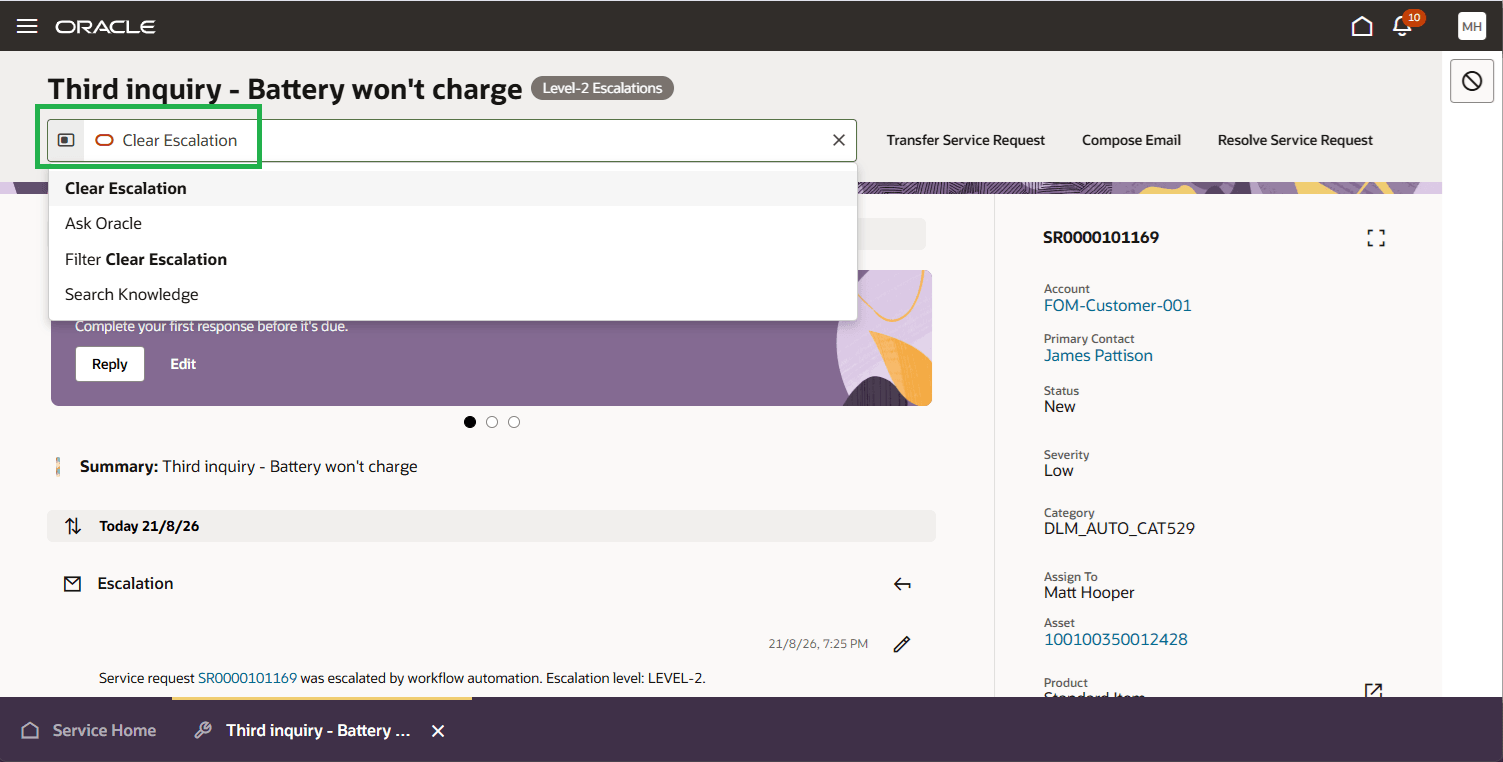
Clear Escalation Smart Action
View escalation details
At the right of the service request subject the current escalation-level label displays.
Expand the Service Request Details panel to review the read-only Escalation Level and Escalation Reason fields.
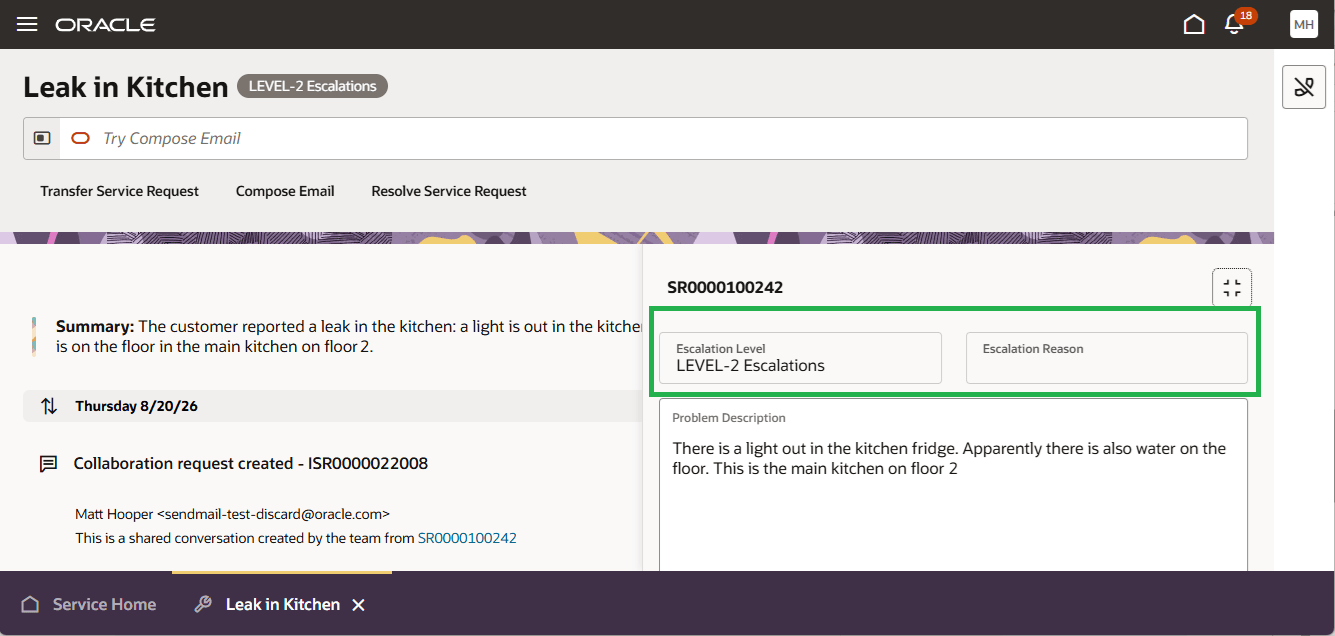
Escalation Details
Improves visibility of critical customer situations by placing the escalation level beside the service request title.
Steps to enable and configure
This feature is enabled out of the box for Fusion Service Center 26D+