SR Details Tab View Layout
The SR Details page now supports a tab view layout that helps organize standard and custom content into separate tabs. This layout provides an alternative way to present information on the Service Request details page, making it easier to group related information while supporting extensibility use cases.
Organizations can use this layout to design Service Request pages that best fit their business processes and user experience requirements.
Note that the out-of-the-box UI experience only presents a single layout with no visible tabs, but the extensibility framework allows you to add tabs across the top.
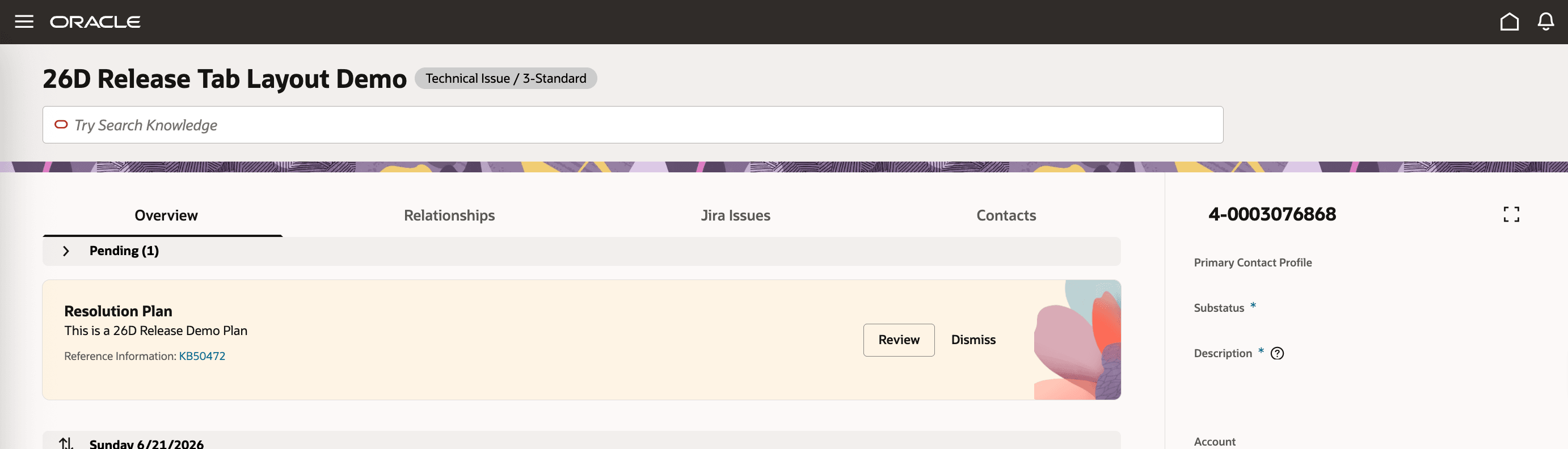
- Configure the Service Request details page to match your organization’s preferred user experience.
- If you capture extensive details on service requests, create topical views that allow users to easily access the subset of information they need.
- If needed, display custom UIs and mashups to other applications within tabs to make them easily accessible in an SR context.
Steps to enable and configure
Leverage the Visual Builder Studio to expose your applications. To learn more about extending your application using Visual Builder, visit Oracle Help Center > your apps service area of interest > Books > Configuration and Extension.
Steps to enable SR Details tab view
- Turn on the enableTabbedLayout feature flag for the SR Details page.
- In the SR details fragment, use the cx-svc-tabview component.
- Populate the tab configuration variable, such as tabMetadata or tabsMetaData, with the tabs you want to show.
- Add standard OOTB sections or custom sections as separate tab entries.
- Localize all tab labels through the translator framework. Do not hardcode labels in the UI.
- Set tabOverflowMode if you want tabs that do not fit in the header to open in a popup menu.
- Save, deploy, and verify the page.
Example: basic tab metadata
$fragment.base.variables.tabsMetaData = [ { id: "overview", label: "Overview", type: "default", icon: "oj-ux-ico-home" }, { id: "contacts", label: "Contacts", type: "default", icon: "oj-ux-ico-contact" }, { id: "customNotes", label: "Customer Notes", type: "custom", icon: "oj-ux-ico-note" } ];
Example: enable popup overflow
$fragment.variables.tabOverflowMode = "popup";
If an invalid overflow mode is provided, the page falls back to the default carousel behavior.
Example: update the tabs dynamically
Use uefContext when you want to update the tab list based on user action or field changes.
const testTabId = "tabRerenderTest"; const tabsMetaData = $fragment.base.variables.tabsMetaData.filter( (tab) => tab?.id !== testTabId );
$fragment.base.variables.tabsMetaData = [ ...tabsMetaData, { id: testTabId, label: "Rerender Test", type: "default", icon: "oj-ux-ico-refresh" } ];
Example: customer-specific tab
$fragment.variables.tabsMetaData = [ { id: "attachments", label: "Attachments", type: "default", icon: "oj-ux-ico-attachment" }, { id: "customerTab1", label: "Customer Info", type: "custom", icon: "oj-ux-ico-user" } ];
What to verify after setup
- The tab view appears after enableTabbedLayout is enabled.
- Tabs show in the order defined in tabsMetaData.
- New entries appear correctly when added to the metadata.
- Popup overflow works when tabOverflowMode is set to popup.
- Smart actions select the expected tab.
- If a non-OOTB smart action is triggered outside the tab bar, the page returns to Overview.
This wording keeps the content customer-friendly and frames the tabbed layout as a configuration option for teams that prefer a tab-based SR Details experience.
Tips and considerations
- The SR Details tab view layout is optional. Enable it when you want to organize the Service Request details page into tabs that best support your business processes.
- Configure the tab layout using the tabMetadata (or tabsMetaData) variable. This metadata defines the tabs, their order, labels, visibility, and associated content.
- You can include both Oracle-provided sections and customer-defined tabs in the same layout to create a tailored Service Request experience.
- Use the translator framework to localize tab labels. Avoid hardcoding labels so that the tab names can be translated for users in different languages.
- If your page contains many tabs, configure tabOverflowMode to control how additional tabs are displayed.
- Review your security configuration to verify that users see only the tabs and content they are authorized to access.
- If your extension updates the tab metadata dynamically, verify that the tab order and selected tab behave as expected after the update.
Access requirements
- Oracle Visual Builder Studio for Application Extension