Debrief for Maintenance Work Orders in Oracle Fusion Field Service
Starting Oracle Fusion Field Service 26D, mobile workers can use this feature to complete Maintenance Work Order Debrief directly in Oracle Fusion Field Service without using the Oracle Integration Maintenance Cloud Accelerator.
When a mobile worker submits Debrief and completes the activity, applicable details are posted directly to Oracle Fusion Cloud Maintenance as resource and material transactions through standard APIs. The standard Maintenance Debrief processing flow no longer requires the Oracle Integration Maintenance Cloud Accelerator.
When a mobile worker opens a Maintenance Work Order activity, the Debrief page displays the Labor, Expenses, Added Parts, and Returned Parts sections. The default regular labor or travel line is populated from the configured laborItemNumberForRegLabor or laborItemNumberForTravel plugin parameters. Mobile workers can use the Add Charges option to enter more labor, expense, added-part, or returned-part entries.
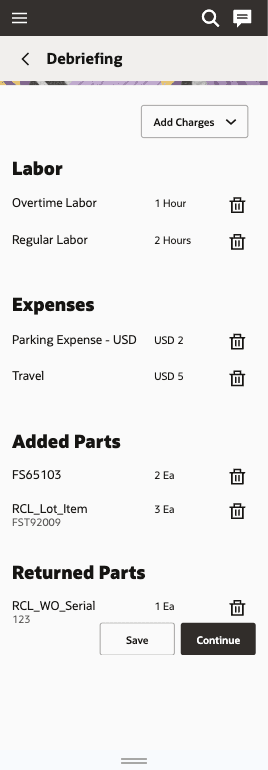
Debrief Home Page
Capture Debrief Transactions
The Add Labor page includes the following fields:
- Billing Item
- Description
- Start Time
- End Time
- Duration
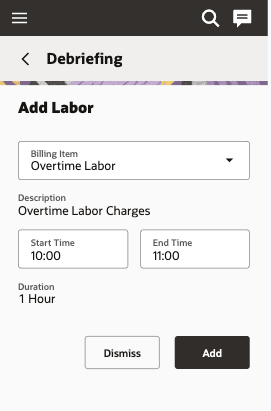
Add Labor
The Add Expense page includes the following fields:
- Billing Item
- Amount
- Description
- Currency, when more than one currency is available
The Add Part and the Return Part page use the standard Debrief experience. Maintenance-specific transaction processing occurs after submission.
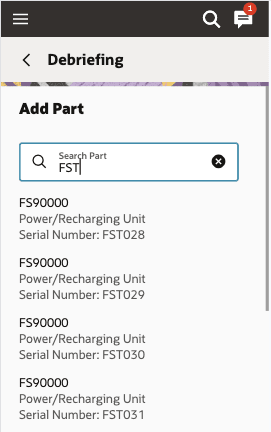
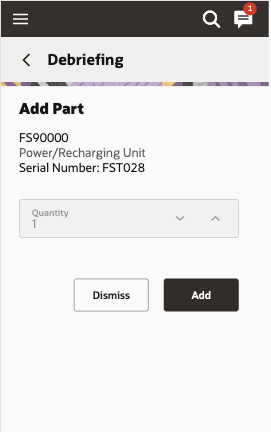
Add Part
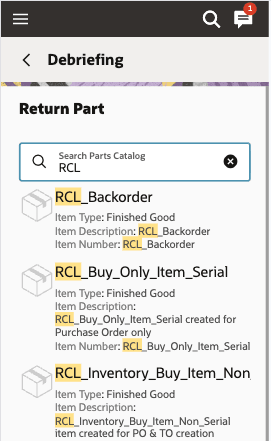
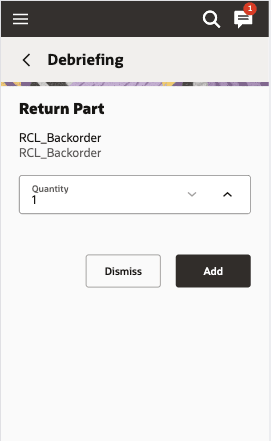
Return Part
After the mobile worker submits Debrief and completes the activity in Oracle Fusion Field Service, the labor, expense, added part, and returned part details are recorded against the Maintenance Work Order as follows:
Maintenance Work Order Transaction Types
| Debrief Entry | Maintenance Transaction |
|---|---|
| Labor | Resource transaction |
| Expense | Resource transaction, according to the configured resource mapping |
| Added part | Material issue transaction |
| Returned part | Material return transaction |
Capture Debrief for Team or Crew Activities
For maintenance activities performed by multiple mobile workers, the team lead or team members can update labor hours and expenses on behalf of individual team members.
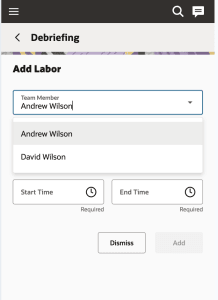
Add Labor Team
The Debrief home page groups labor, expenses, and parts by mobile worker.
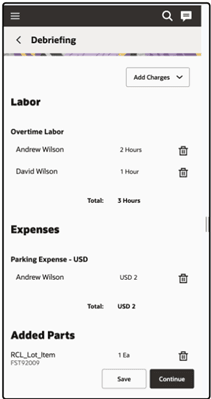
Add Expense Team
Business Benefits
- Faster Debrief: Mobile workers can capture labor, expenses, added parts, and returned parts immediately after completing the work.
- More accurate work-order data: Debrief information is posted directly to the linked Maintenance Work Order.
- Reduced integration complexity: The standard Maintenance Debrief processing flow no longer requires the Maintenance Cloud Accelerator.
- Improved work-order visibility: Actual labor, expenses, added parts, and returned parts are recorded against the applicable Maintenance Work Order.
- Maintenance costing and accounting support: The flow creates the applicable resource and material transactions.
Steps to enable and configure
Use these setup tasks to enable labor, expense, and inventory-related debrief processing in Oracle Fusion Field Service. Complete only the tasks that apply to the capabilities that you use.
Configure Default Labor Items
Configure default labor items when regular labor or travel labor must be added automatically during Debrief.
1. In the Debrief plug-in configuration, set `laborItemNumberForRegLabor` to the billing item for regular labor.
2. Set `laborItemNumberForTravel` to the billing item for travel labor.
3. Save the plug-in parameter values.
The value for each parameter must identify the applicable labor billing item. When a mobile worker records debrief information, the parameter supplies the default labor item displayed in Debrief.
These parameters don't determine which Maintenance resource receives the resulting transaction. The Resource to Item Mapping configuration identifies the Maintenance resource for the selected labor item.
Configure Labor and Expense Items
Create and maintain the labor and expense billing items that mobile workers can use in the Labor and Expense pages.
1. In Product Information Management, create or update each required labor and expense item in Item Management.
2. Provide the item definition, description, and other required attributes so that the item can be displayed and selected in the Labor and Expense pages.
3. For items used in debrief item installation flows, maintain the required item and subinventory details so that Debrief can retrieve them.
For more information, see Using Product Master Data Management.
Map Items to Maintenance Resources
Use Resource to Item Mapping in Service Logistics Setup to associate the labor and expense items used in Debrief with Maintenance resources.
1. Open Resource to Item Mapping from the Service Logistics setup options available through Field Service Set Up > Scheduling and Dispatch.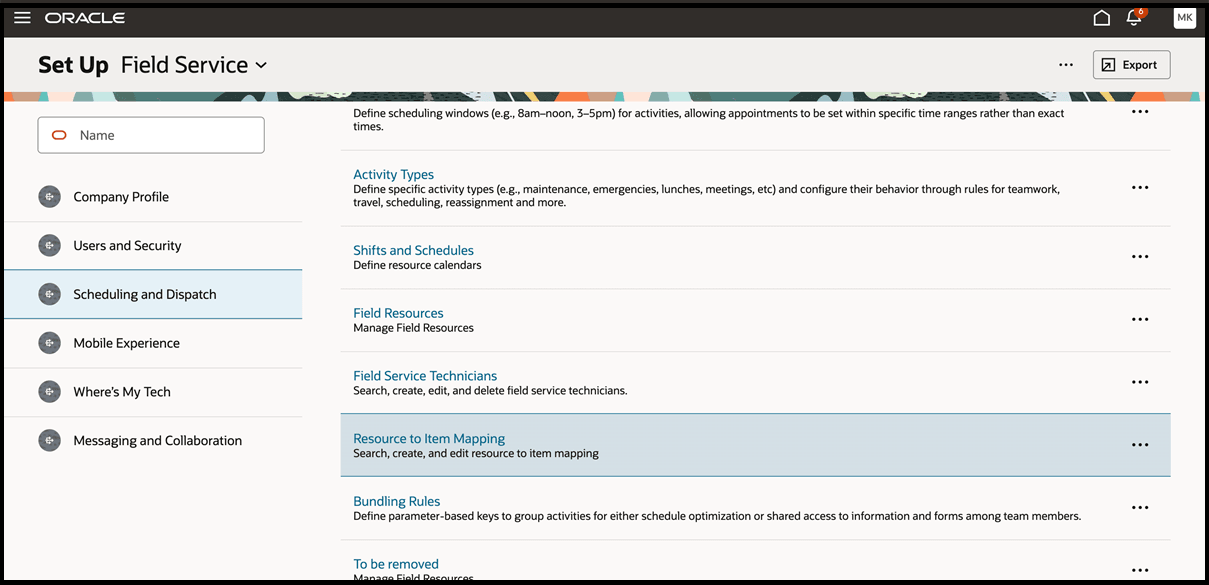
Set Up Field Service
2. Create the required Resource to Item Mappings for each Oracle Fusion Field Service inventory organization used by mobile workers. Typically, this is the inventory organization that contains mobile worker trunk stock.
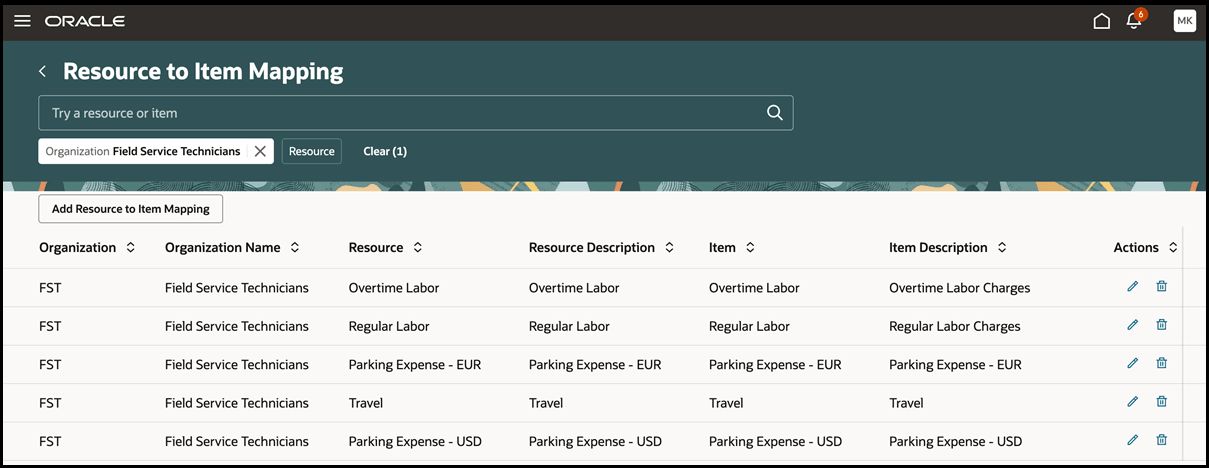
Resource To Item Mapping
3. Map each labor or expense billing item to its corresponding Maintenance resource.
4. Save the mappings.
When Debrief posts a resource transaction, it uses the mapping for the selected item to identify the Maintenance resource. Resources are the Maintenance labor or expense resources created under the Maintenance organization, where Supply Chain Management tracks labor and expense costs. Items are the labor or expense billing items maintained in Item Management within Product Information Management. For more information, see the Set Up > Resource to Item Mapping section in Use Parts Search and Ordering for Field Service.
To review the items, navigate to:
Product Management > Product Information Management > Item Management > Browse Items
. 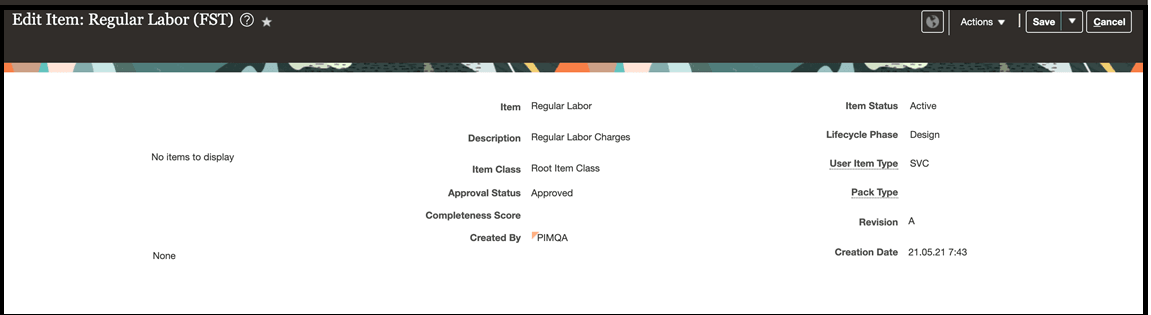

Browse Items
Configure Stocking Locations
To search for and record Fusion on-hand inventory from Debrief, configure stocking locations and assign them to the appropriate Field Service mobile workers.
To review or assign a mobile worker's stocking location,
- Use the Field Service Technicians setup page in Service Logistics.
-
In Set Up Field Service, select Scheduling and Dispatch, and then select Field Service Technicians.
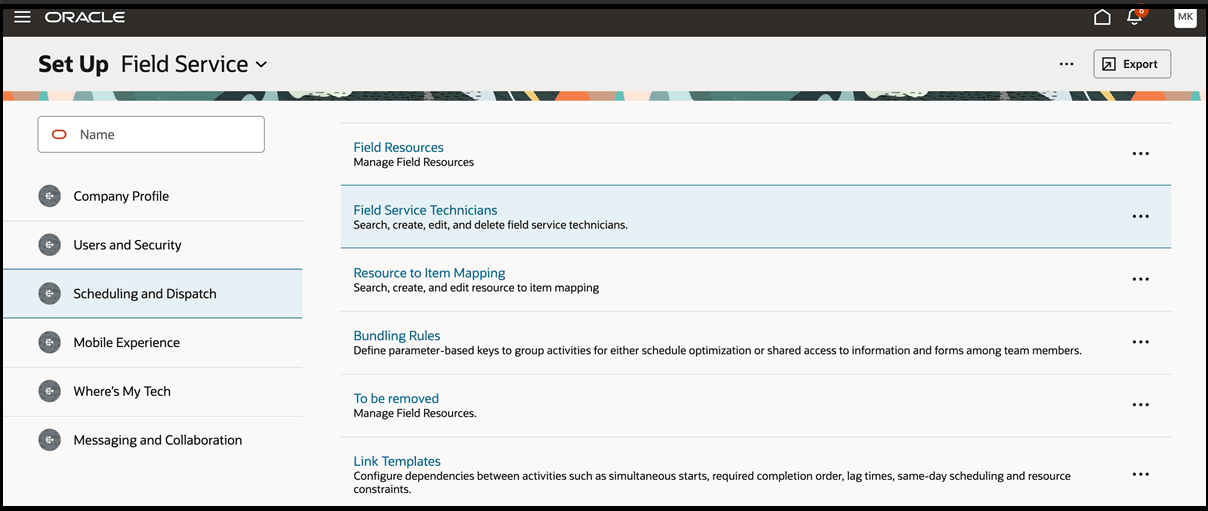
Field Service Technicians setup page - Select the mobile worker to review the assignment.
In Service Logistics Setup:
- Create a stocking location that links the applicable inventory organization and subinventory.
- Set the material condition for the stocking location, such as Usable or Defective.
- Assign the stocking location to the Field Service technician who uses that inventory.
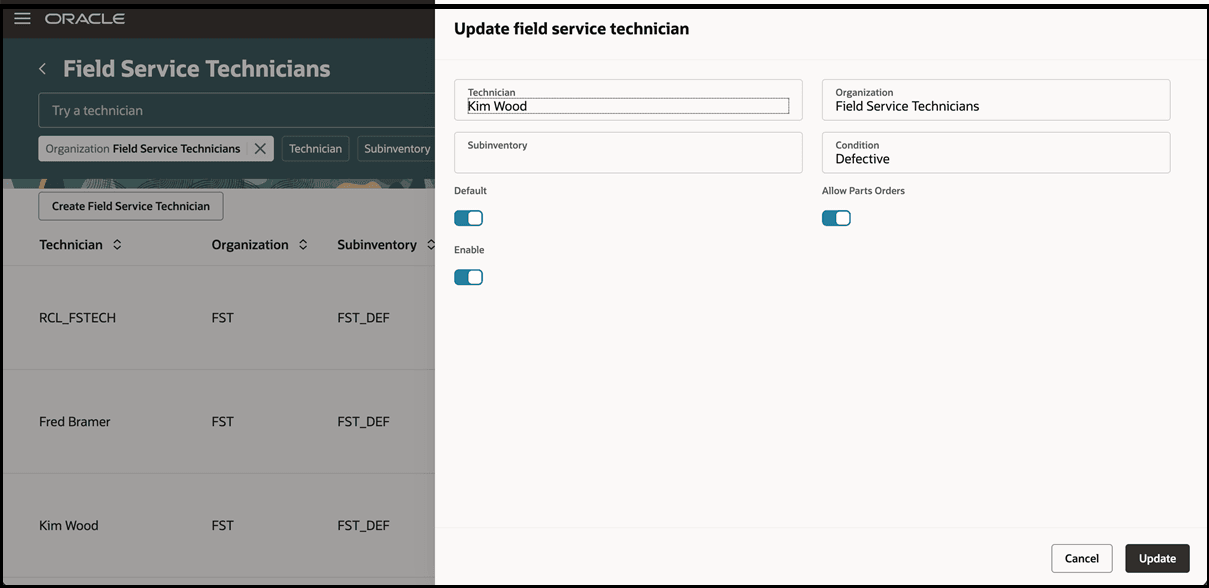
Field Service Technicians
You can also use REST APIs to create or update stocking locations programmatically.
For more information, see:
Tips and considerations
Resource Association for Labor Transactions
For a labor transaction to post successfully, the applicable Maintenance resource must be associated with the operation work center on the Maintenance Work Order.
Labor Unit of Measure
Labor hours are captured in Oracle Fusion Field Service using hours. Configure the Maintenance resource unit of measure as Hours to support successful resource-transaction posting.
Expense Currency and Resource Unit of Measure
The Expense page displays the primary currency or unit of measure defined for the expense item in Product Information Management.
The downstream calculation uses the resource unit of measure configured in Maintenance. Confirm that the item and resource configurations are aligned.
Resource Selection
Maintenance Work Order resource transactions are created only for resources included in the resource-to-item mapping.
A resource defined on the Maintenance Work Order but not mapped to the selected item isn't considered for resource-transaction posting.
Existing Maintenance Cloud Accelerator
The standard Maintenance Debrief flow no longer requires the Oracle Integration Maintenance Cloud Accelerator.
Users already using the accelerator should review their existing integration before enabling the direct processing flow. Confirm the transition approach in a test environment and verify that the previous and updated processing mechanisms don't create duplicate or competing transactions.
Key resources
N/A
Access requirements
The following roles, privileges, and data access are required for successful Maintenance Debrief submission.
Field Service Technician Job Role
Assign the Field Service Technician job role to the user:
ORA_SVC_FIELD_SERVICE_TECHNICIAN_JOB
Custom Job Role
Create a custom job role with the required role name, role code, and category.
Use Common - Job Roles as the category.
Functional Privileges
Functional Privileges
| Privilege Name | Privilege Code | Description |
|---|---|---|
| Report Maintenance Resource Transactions by Service |
|
Allows the reporting of a work order resource transaction using a service. |
| Report Maintenance Material Transactions by Service |
|
Allows the reporting of a work order material transaction using a service. |
| Get Item Rest |
|
Allows query access to items through the REST API. |
| Manage Resource to Item Mapping |
|
Allow the user to manage resource-to-item mapping. |
| Manage Technician Subinventories Using Web Service |
|
Allows the user to manage technician subinventories. |
| View Maintenance Work Orders |
|
Allows query and view of work order details. |
| View Work Centers |
|
Allows querying and viewing of work centre details. |
Data Privileges
Configure the following Inventory Organization data access:
Data Privileges
| Property | Value |
|---|---|
| Business Object | Inventory Organization |
| Policy Description | A Field Service Mobile Worker can access the inventory organization parameter for table
INV_ORG_PARAMETERS for the inventory organizations for which they are authorized. This is required to report material/resource transactions through the REST API. |
| Privilege | Manage Maintenance Organization |
| Resource | Inventory Organization |
| Data Set | Select by instance set |
| Condition Name | Access the inventory organization parameter for table
INV_ORG_PARAMETERS for the inventory organizations for which the user is authorized. |
After creating the custom role, assign it to the user and configure the required data access.
Grant Access to the Inventory Organization
- In Setup and Maintenance, search for the Manage Data Access for Users task.
- In Search Results, click Add.
- Select the user and role.
- Select Inventory Organization as the security context.
- Select the Inventory Organization Code as the security context value.
- Click Save and Close.
- Click Done.
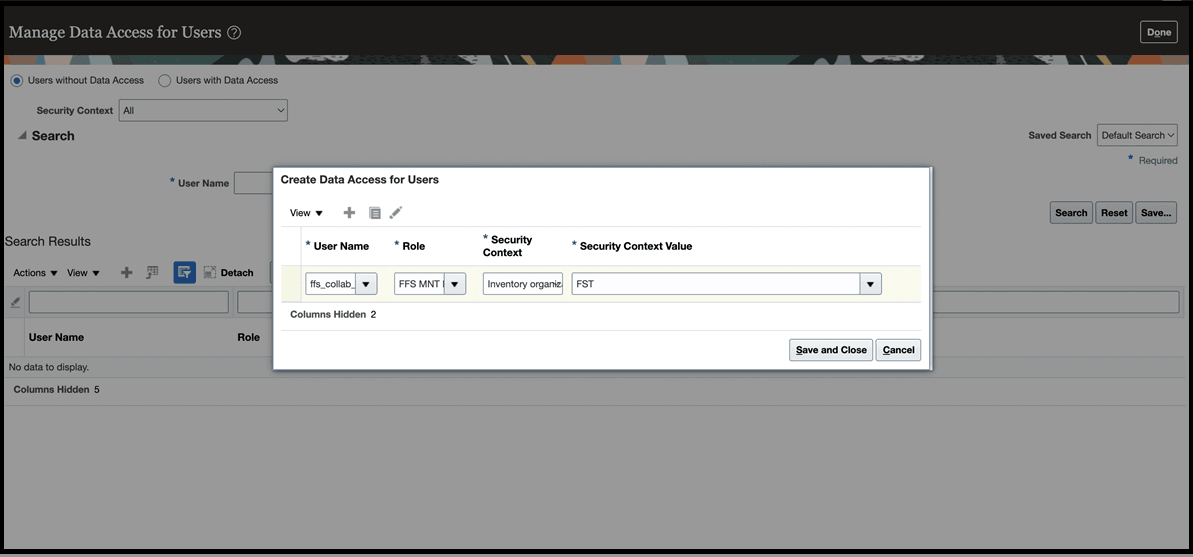
Manage Data Access for Users
Grant Access to the Item Class
- In Setup and Maintenance, search for Manage Item Classes.
- Open the item class and select the Security tab.
- Click Add.
- Select Person or Group as the principal.
- Select the user or role, organization, and start date.
- Under Actions, click Add.
- Search for and add View Item Basic.
- Click Save and Close.
- Click Done.
For access assigned to a group or role:
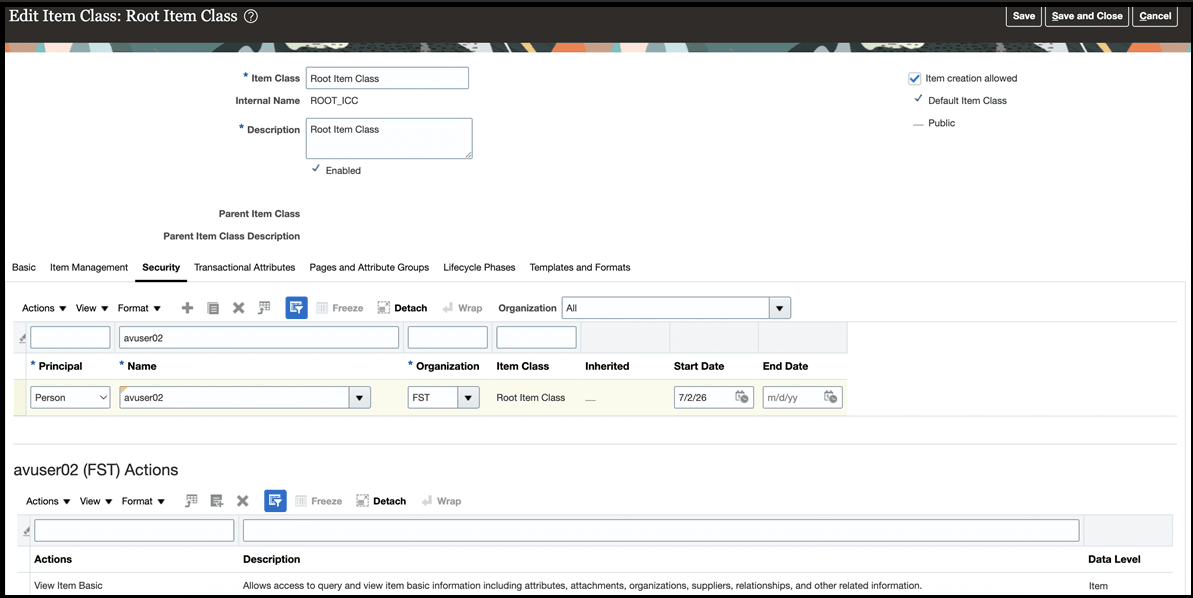
Manage Item Class Access to Groups
For access assigned directly to a user:
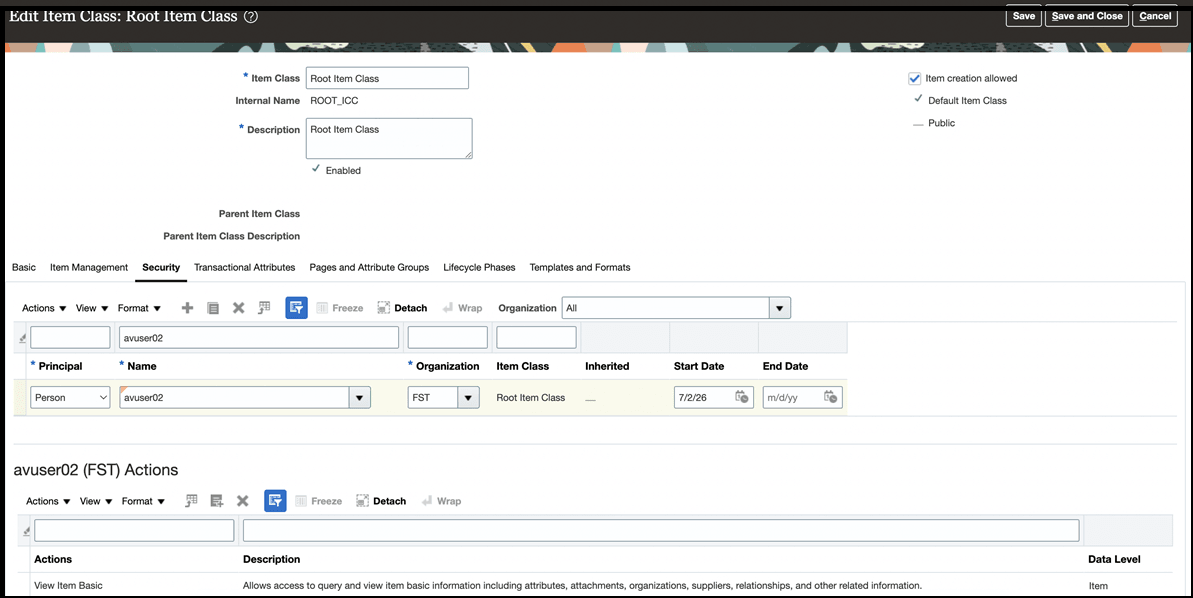
Manage Item Class Access to User
Run the Scheduled Process
After assigning the role and data access:
- Open Tools > Scheduled Processes.
- Select Schedule New Process.
- Search for and select Retrieve Latest LDAP Changes.
- Submit the process.