Upload Multiple File Attachments
Starting with 26D, multiple file attachment support in Oracle Fusion Field Service enables mobile workers to upload and associate files generated in other apps directly with activities, work orders, and assets. In conjunction with photo capture, this capability addresses critical industry workflows where mobile workers are frequently required to attach files updated or generated in the field. Mobile workers can attach and share annotated PDF schemas and construction plans, redlined drawings, technical documentation, XML configuration files generated by other apps, and other asset-related files required during installation, maintenance, and troubleshooting activities.
Definitions
Take Photos is the ability to capture photos using the camera embedded in iOS and Android installed apps.
All other files are considered attachments regardless of their source. Sources include the file system and device gallery.
How to Attach Files
- Configure file attachments
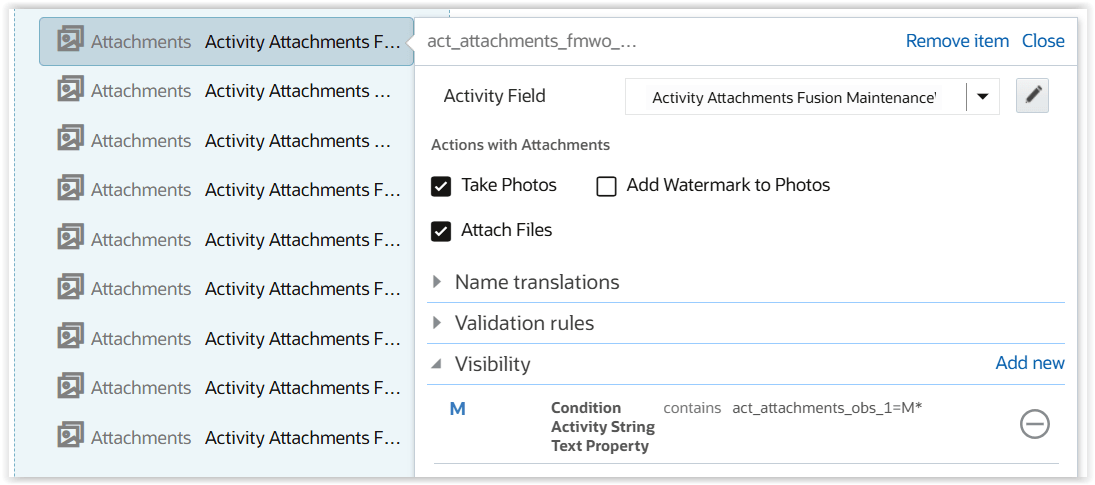
Configure file attachments by changing the settings available for Attachments properties on forms and standard screens.
- Take Photos: Allows users to take photos in installed apps. The application enables this setting by default for new properties.
The application also enables this setting for properties already configured on forms or standard screens when the application is updated to 26D. - Attach Files: Allows users to attach files from the file system or a device gallery.
Note: The application now displays Add Watermark to Photos with the Take Photos setting. You can enable watermarks when Take Photos is enabled.
- Attaching files in iOS and Android installed apps
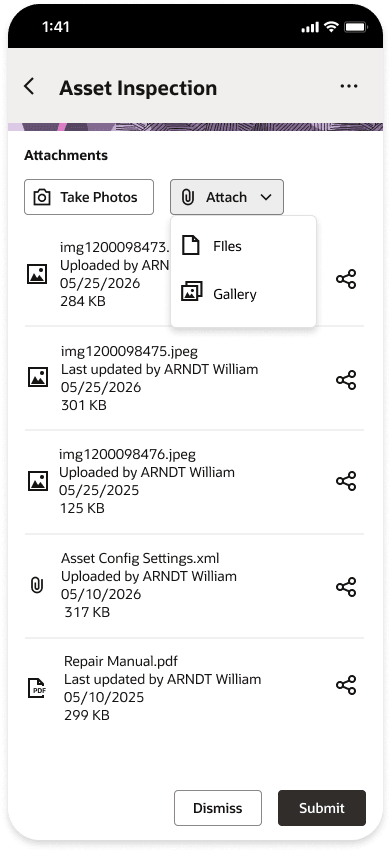
Depending on the configured options, the application allows users to take photos, attach files, or do both.
The application displays the corresponding buttons and applies the configured attachment rules. The example shows both attachment options enabled.
Take Photos works as before. It opens the camera and allows users to take multiple photos in one run.
The Attach button provides two options:
- Files: Allows users to select files from the file system and attach them to the screen.
- Gallery - Allows users to select images from the device gallery and attach them to the screen.
- Attaching files on laptops and desktops
On laptops and desktops, users click Attach and select files from the file system. The application adds the selected files to the Oracle Fusion Field Service file list.
The application synchronizes the files to storage when the user submits the changes.
- Attaching files in the browser application on mobile devices
In mobile browsers, the application displays the Attach button. Users can select a source for attachments after clicking the button.
Available sources depend on the browser and operating system. Common sources include:
- Camera: Uses the device camera to take one photo at a time.
- Files: Provides access to the file system.
- Video: Initiates video recording.
- Allowed file types
The following file types can be attached:
- .png
- .jpg
- .jpeg
- .csv
- .txt
- .mp4
- .heic
- .mov
- .xml
- Maximum file size limit
The application allows files up to 20 MB to be attached.
Identify and remove files before submitting a form
Users can easily identify and remove files before submitting a form. This is useful when incorrect files are mistakenly selected from a device gallery or file system.
This behavior applies when:
- A user opens a form and attaches files.
- The form has not yet been submitted.
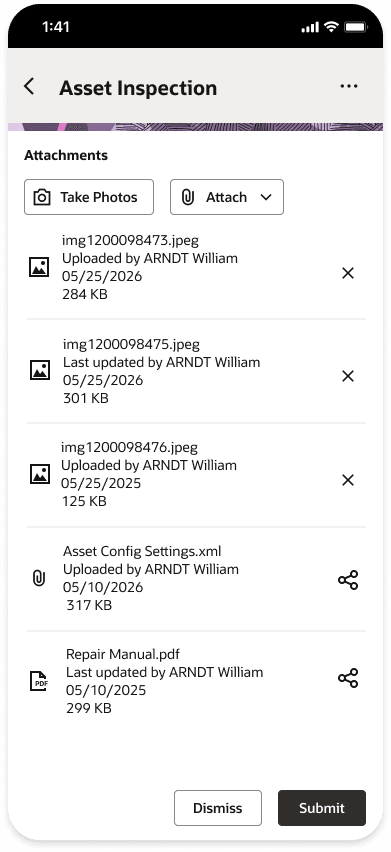
Newly added files appear at the top of the file list. Their descriptions include the file name, file size, and the "Just added by me" text.
An x icon appears for each newly added file. Users can select it to remove an incorrect file from the list.
Users can still preview newly attached files. They can click the file row to open the preview.
Validation
- Too many files selected
Configuration settings control the maximum number of files that can be added to an Attachments property.
When users take photos in installed apps, the configured maximum is applied automatically. Photos are taken using the embedded app camera.
File system selection cannot limit the number of files selected because the operating system controls that selection.
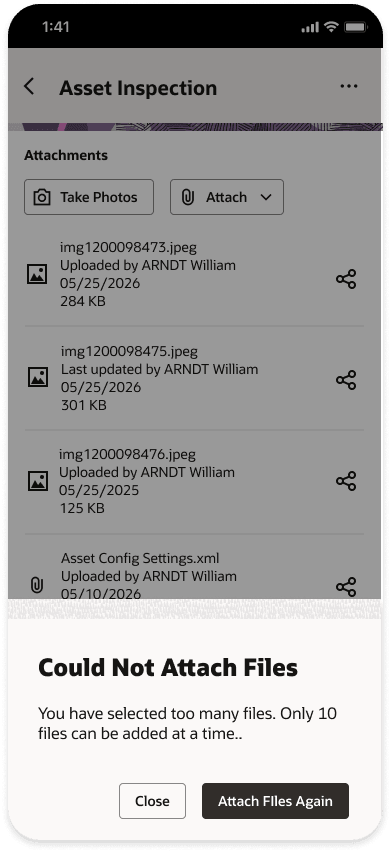
To enforce business processes, the application rejects the attachment action when too many files are selected.
A dialog explains the error and shows the remaining number of files that can be attached to the property.
- Unsupported file type
The application rejects files with unsupported file types and displays a corresponding message.
When users select valid and unsupported files together, the application adds the valid files and rejects the unsupported files.
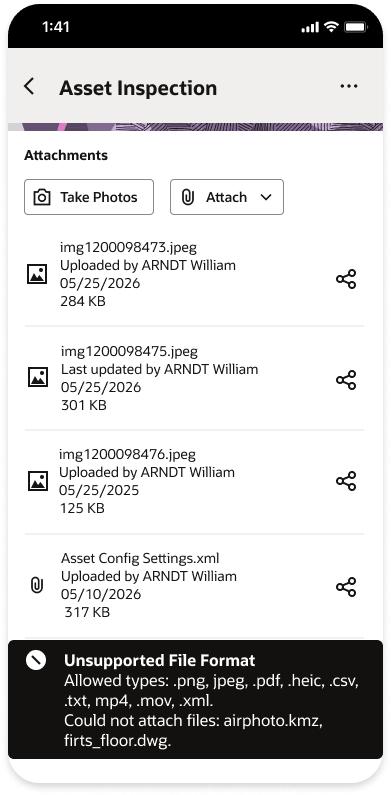
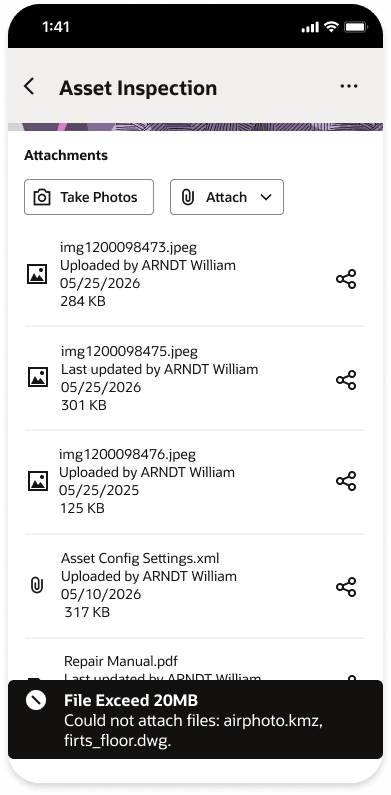
- File is too large
The application rejects files larger than 20 MB and displays a corresponding message.
When users select valid and oversized files together, the application adds the valid files and rejects files larger than 20 MB.
- Possibly irrelevant photos
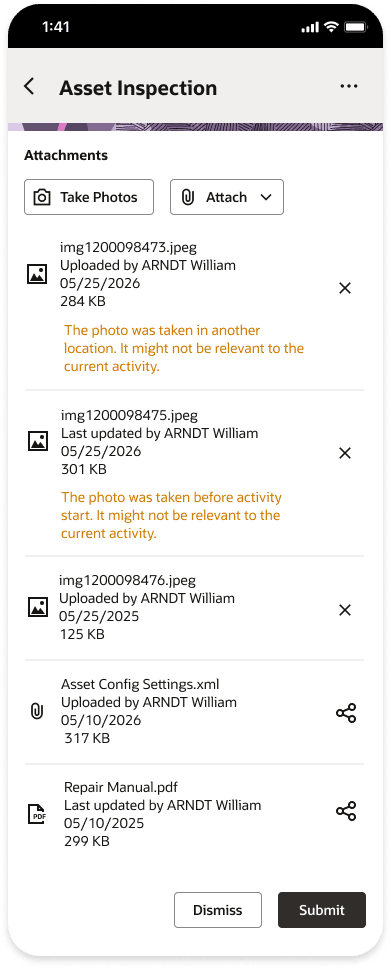
The installed iOS and Android apps provide additional validation for photos taken with the embedded camera.
The apps detect potentially irrelevant photos and display warnings for them. Two types of warnings can occur:
- The photo was taken in another location, not at the activity location.
- The photo was taken before the activity start time.
Warnings appear before a mobile worker submits the form. This gives the mobile worker a chance to remove irrelevant photos.
Warnings are not displayed for submitted forms.
Share files to other apps
In installed apps, users can share files with other apps on the device for further viewing or editing.
The share icon is available in the file list and in the app gallery, which is the file viewer.
When users select the icon, the operating system presents appropriate apps for sharing the file.
Download files locally
Local file downloading remains available, but behavior depends on the Oracle Fusion Field Service application being used.
- iOS app: You can download files using the Share function.
- Android app: You can download files from the app gallery, which is the file viewer.
- Browser application: You can download files from the file list and the app gallery, which is the file viewer.
Business Benefits
- Native Support for Critical Workflows: Supports complex service scenarios by enabling the field to manage engineering documentation, annotated plans, drawings, and asset files directly.
- Simplified User Experience for Mobile Workers: Enables mobile workers to access, share, edit, and reattach files while working seamlessly with specialized applications.
- Improved Operational Efficiency: Reduces installation, maintenance, and troubleshooting delays by providing faster access to technical artifacts and improving the collaboration between field and back-office teams.
- Reduced Implementation Cost and Complexity: Reduces the need for custom integrations, plugins, and workarounds, lowering implementation effort, project costs, and long-term maintenance.
- Better Service Documentation and Traceability: Keeps technical files associated with related work orders, activities, and assets, providing a complete and auditable service history.
Steps to enable and configure
To enable the feature, open the configuration for the relevant product screen or form. Then select Attach Files for the required Attachments property.
Tips and considerations
- Application behavior when none of the attachment settings is enabled:
- You can leave both attachment options blank. In that case, the property switches to ReadOnly mode.
- Only files attached to the Service or Maintenance work orders are then displayed on the page.
- The application also displays files from OCI Object Storage when users add them through the External Files API.
- Oracle Fusion Field Service consistently supports two storages for attachments:
- Fusion Attachments: Attaches files to Service or Maintenance work orders.
- OCI Object Storage: Saves files in OCI Object Storage, available to all customers.
- The warning "Photos taken in the wrong location" applies to photos that require watermarks:
- In 26C, the feature introduced a warning about the wrong location when a mobile worker opened the camera.
- The application now propagates the warning to the file list and identifies each photo taken in the wrong location.