New User Experience
The product offers a new Redwood user experience. Highlights include the following:
- A lilac theme for the toolbar and the sidebar was applied.
- Fonts and spacing were adjusted.
- The page action button area now includes one primary action button, with the other buttons included in an overflow menu.
- Several system icons were adjusted to newer modern icons.
- For portal based user interfaces, fields now show the label above the field.
- Add/edit dialogs for portal based pages now use the drawer metaphor for displaying the window.
This is an opt-in experience. It may be set at the application level using a feature configuration option. In addition, individual users with appropriate security access can use a Switch UI View option in the user menu dropdown.
Redwood provides a more modern user experience and these updates make the product more consistent with other Oracle applications.
Steps to enable and configure
To enable and configure this feature, complete these steps:
- Navigate to Feature Configuration (via Admin Menu > General > Feature Configuration).
- Look for an existing feature with the Feature Type "Custom Look and Feel". If one does not exist, create a new entry for this feature type.
- Edit the 'custom look and feel' feature configuration, add the option type 'User Interface Style', and choose the value 'Oracle Redwood'.
Additionally, a user may can select the 'Switch UI Style' option visible from the user badge dropdown to switch between the Oracle Redwood and classic user experience.
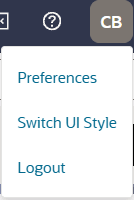
Menu to Switch UI Style