Change the Asset and Opportunity Subview and Panel Templates
Change the Asset and Opportunity subview and panel templates using Oracle Visual Builder Studio (VBS).
Here's how:
- Sign in as a user with access to VBS. For example, sign in as a sales administrator or setup user.
- Go to the Assets list page and edit an asset.
- In the Asset detail page, from your user menu in the global header, click Edit Page in Visual Builder Studio.
- Select or create a project.
- After you select or create a project, the VBS workspace shows the
assets-detailpage. - Duplicate the section templates for the Asset Opportunities panel and subview:
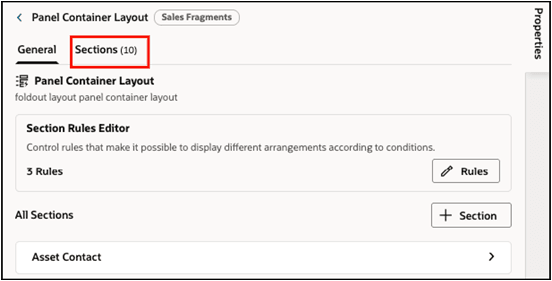
- Click the Sections tab on the Panel Container
Layout.
- Click the Asset Opportunities Panel Template.
- Click Duplicate Section.
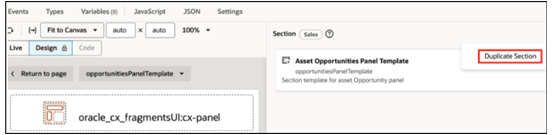
- Repeat similar steps to duplicate the Opportunities subview template.
- Click the Sections tab on the Panel Container
Layout.
- In the
assets-detailpage designer, click the Code tab and select Templates.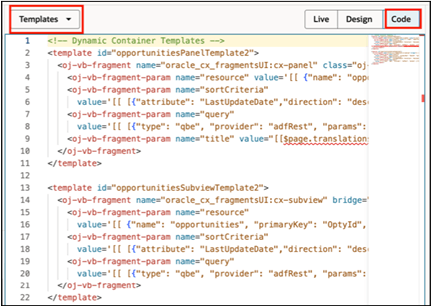
- Replace the
paramsproperty in both templates:From:
<oj-vb-fragment-param name="query" value='[[ [{"type": "qbe", "provider": "adfRest", "params": [{"key": "ChildRevenue.AssetId", "value": $base.page.variables.id}]}] ]]'></oj-vb-fragment-param>To:
<oj-vb-fragment-param name="query" value='[[ [{"type": "qbe", "provider": "adfRest", "params": [{"key": "AssetNumber", "value": $base.page.variables.puid}]}] ]]'></oj-vb-fragment-param> - Duplicate the rules for the panel container layout. Replace the original
Opportunities panel template with the new one.
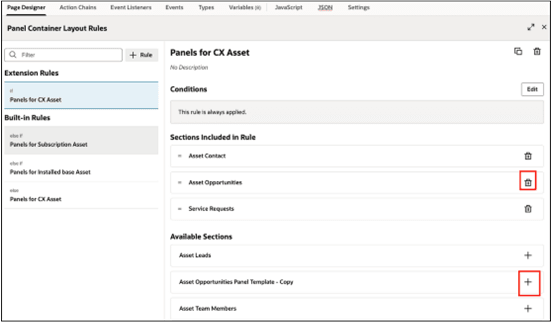
- Repeat for the subview container layout.