Generate Contract Summarization
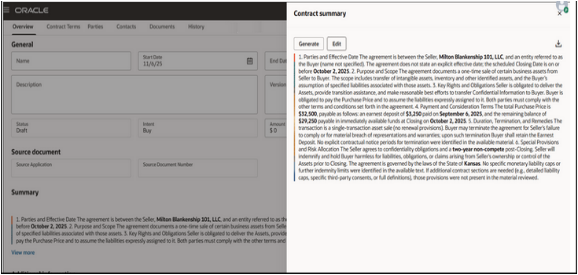
When a PDF terms document is added in the Contract Terms tab, the Contract Summarization Using AI scheduled process is automatically submitted and the details of the process can be viewed in the Summary region. You can also run the job manually by selecting the Generate button.
Select the documents for generating a summary and select Generate. Refresh the browser to get the latest status of the process. The Generated summary can be viewed by clicking the View More link. You can also download the summary by selecting the Download icon.
You can add lines to a contract, provided the contract type permits lines according to the Manage Contract Type setup. The available actions for the Lines tab appear at the top of the table. Additional columns for the line can be added to the layout using column layout management. To edit a line, click the pencil icon at the line level. To access line descriptive flexfields, use the action on the More Details column.
Use the Parties tab to manage the parties associated with your contract. You can add or remove parties using the actions above the table, and edit existing parties by selecting the pencil icon in the Actionscolumn. If descriptive flexfields for parties are configured, access them from the More Details column. In the Default Locations section, you can maintain default values for Supplier, Supplier Address, Ship-to Organization, Ship-to Location, and Bill-to Location.
Generate Contract Summary Using AI Agent
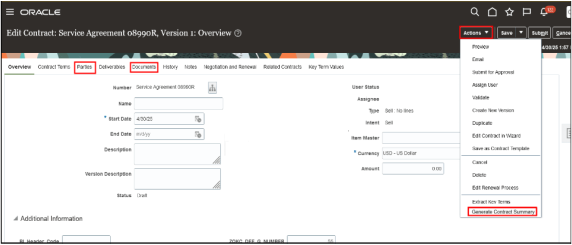
With the Contract Summarization Agent, you can generate AI-powered summaries from searchable PDF contract documents and contract terms. The output is a clear, structured natural language summary that enables quick understanding of obligations, risks, and key terms without the need to read the full legal text. You also have full flexibility to edit the underlying prompt that lets you tailor the summary’s style, depth, and focus to meet specific business needs. You can generate the summary for contracts in any status.
A summary of your contract can't be generated if there's no Primary Contract Document and if there's no document of type PDF in the category Contract in the Contract Documents region of the Documents tab.
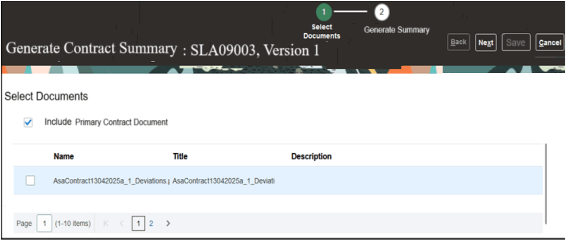
In the Generate Contract Summary UI, select the documents for which you want to generate the summary and select Next.
The contract summarization agent generates concise summaries of lengthy contract documents based on predefined prompts. It provides comprehensive overviews, enabling you to grasp key elements quickly and efficiently. Here's an example of the generated output of the contract summarization agent.
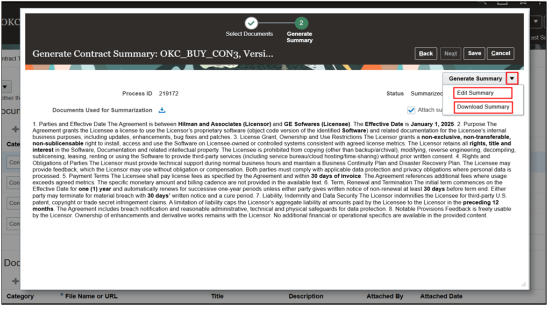
You can select Generate Summary to generate the AI summary of the document you attached. Select the Attach summary for contract approval checkbox to send the summary PDF in the contract approval workflow and email notifications. If you've the Edit Contract Summary privilege, then from the Generate Summary drop-down list, you can select Edit Summary to change the summary. Select Download Summary to download the summary in PDF format.
For information about opting in to the Contract Summarization feature and the security requirements you need to use it, see Opt-in to the Contract Summarization Feature.