Manage Sales Orders That Require Trade Compliance Screening
Your order administrator might set up Order Management so it screens sales order for trade compliance. Use this topic to learn how to create a sales order that requires trade compliance.
If your order administrator hasn't set up trade compliance, then Order Management doesn't display some of the attributes that this topic describes.
Create a sales order that undergoes trade compliance screening:
-
Go to the Order Management work area, then create a new sales order.
For details, see Create Sales Orders.
-
On the New Sales Order page, complete the order header, add an order line, then submit.
If Order Management screens sales order for trade compliance, then the order header displays a status of Trade Compliance Screening Is Pending and a lock icon.
The lock icon indicates that Order Management is screening the sales order to determine whether it meets the trade compliance policies that your order administrator set up.
-
Click Refresh.
Notice that the sales order status is Processing and the lock icon is gone, which indicates the sale order passed trade compliance screening and Order Management released it to order fulfillment.
Note
-
Order Management usually finishes screening without delay. However, some screening might require up to several minutes or more to finish.
-
If necessary, click Refresh until the status changes.
-
If the sales order doesn't move to order fulfillment, then you can cancel the submit for a locked sales order that Order Management is processing. Click Actions > Revert to Draft. Order Management will set the order status to Draft and stop screening.
-
-
Notice the value of the Trade Compliance Status attribute.
Order Management uses these colors to indicate trade compliance status:
Color
Status
Description
Green
Passed
The sales order passed trade compliance screening.
Red
Failed
The sales order failed trade compliance screening because it doesn't comply with one or more trade compliance policies.
Yellow
Under Review
A compliance manager is examining the sales order.
-
Click View Details next to Trade Compliance Status.
Use View Details to determine the type of trade compliance and the status for the type that Order Management screened, such as Restricted Party passed, or Trade Control passed.
This example indicates that AS54888 passed trade control policy, but failed screening for restricted party and sanctioned country:
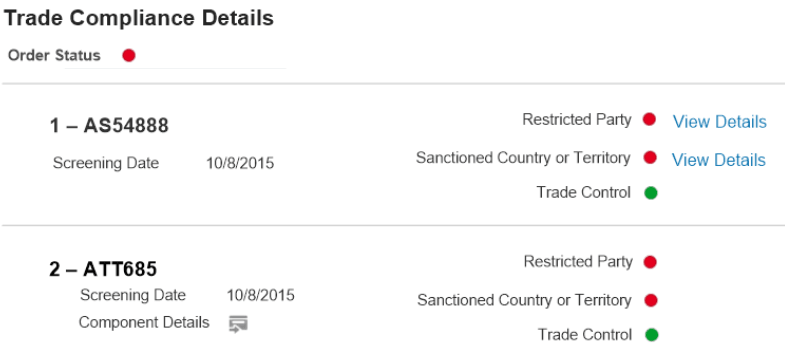
Slimline Tablet is a configured item. If your sales order includes a configured item, then click Component Details to get details about each component that the configured item contains. The status of a configured item represents the status for the entire configuration.
-
Click View Details next to Sanctioned Country or Territory.
-
Examine the details that display.
The details in this example indicate the type of trade control that caused screening to fail, such as Anti-Terrorism, and details about the type, such as Atomic Energy Act:
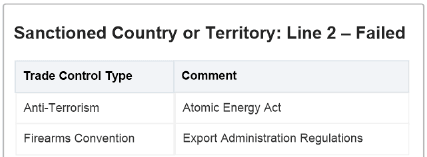
Monitor Trade Compliance
-
Go to the Order Management work area, then click Advanced.
-
On the Manage Orders page, click Add Fields, then click Trade Compliance Status.
-
Set the Trade Compliance Status to a value, such as Under Review, then click Search.
-
Display the Trade Compliance Status attribute on the order line.
-
In the search results, click the link in the Order column for the sales order you must monitor.